Counter App

Ticket and Guest Counting for Events
Key takeaways
A ticket and guest counting app compares who arrived with what was sold. In Counter App — Tally & Clicker, add one tag per ticket type with its target set to tickets sold, tap the matching tag at the door, read no-shows half an hour after opening, and reconcile sold against arrived per type before the box office leaves.
- Counting event guests by ticket type shows no-show rates per type, walk-in numbers and whether the capacity split worked, which a single headcount cannot.
- In Counter App — Tally & Clicker, each ticket type is a tag whose target is the number sold or invited, so the progress bar shows the share that arrived.
- The most useful moment to read ticket-type counts is about half an hour after doors open, when most guests who will come have arrived.
- Counter App is not a ticket validation system; a tag stores only one barcode or QR value and counts arrivals alongside the ticket scanner.
- Matching tag names on every entrance phone, copied by backup ZIP, keeps a merged ticket reconciliation spreadsheet accurate.
Selling 400 tickets doesn't put 400 people in the room. Some buyers don't come, some bring a friend who pays at the door, some comp guests appear who were never on any list. The total headcount tells you how full the room was. Counting by ticket type tells you why, and that is the number you need for catering, staffing and pricing the next event.
This guide covers counting guests by ticket type with an Android phone, reading no-shows and walk-ins during the event, and producing a reconciliation that the box office and the finance team can both use.
Why count event guests by ticket type?
A single headcount answers "how many?". A breakdown answers four more useful questions.
What was the no-show rate for each type? Free tickets almost always have more no-shows than paid ones. Early-bird buyers may behave differently from last-minute buyers. If you overbook free events, you need your own no-show figure, not a rule of thumb.
How many walk-ins came? Walk-ins are revenue you didn't forecast and people the kitchen didn't plan for. Knowing the number helps set door-sale allocations next time.
Did guests on the list actually arrive? Speakers, sponsors, press and VIPs each have someone waiting for them. Counting them separately tells the relevant host when to stop waiting.
Did the capacity plan work? If general admission was full while VIP was half empty, the split was wrong.
A breakdown doesn't need to be fine-grained. Four to six types are enough for most events.
Setting up ticket-type counting
In Counter App, create a counter for the event, for example "Autumn concert", and add a tag for each ticket type: "General", "Early bird", "VIP", "Comp", "Walk-in".
Open each tag and set its target to the number sold or invited. General might have 280, early bird 60, VIP 30, comp 20. Walk-ins get a target equal to the spare capacity, or no target at all. Targets count up to a goal, and the tag's progress bar shows the share that has arrived.
Use colours that match your wristbands or ticket colours if you have them. The person counting will then tap the tag that looks like what they see on the guest's wrist.
A tag can also store a barcode or QR value, but only one per tag, so it is not a substitute for scanning individual tickets. If you scan tickets with another system, use the tag code for something like a staff reference code, or leave it empty.
Set the counter's overall target to the room capacity. When the total reaches it, an optional sound or vibration alert tells the door team to stop.
At the entrance
At the door, the counter-holder taps the matching tag as each guest passes.
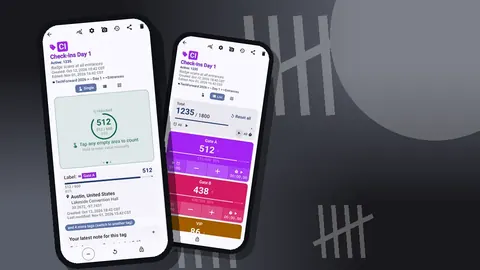
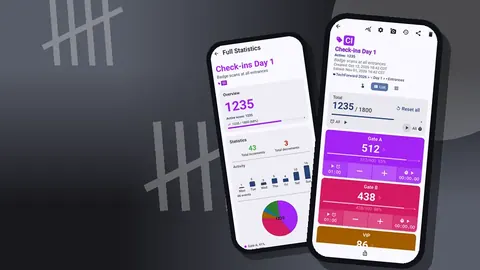
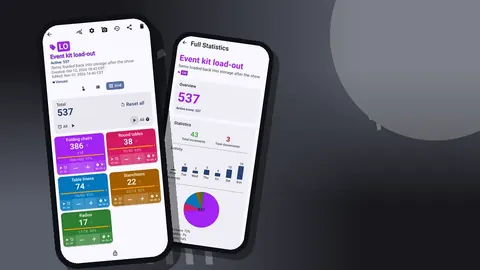
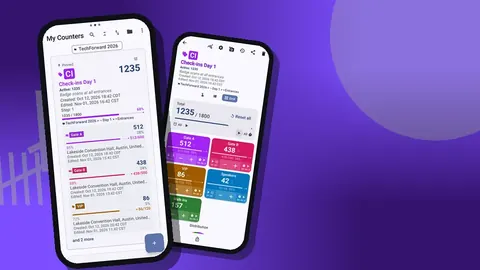
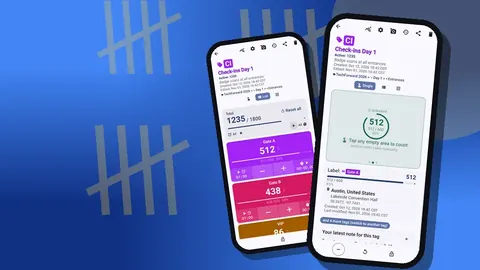
Grid view shows each ticket type as a coloured tile with its value, target percentage and − and + buttons. Five tiles fit comfortably on a phone screen and are big enough to hit while greeting people.
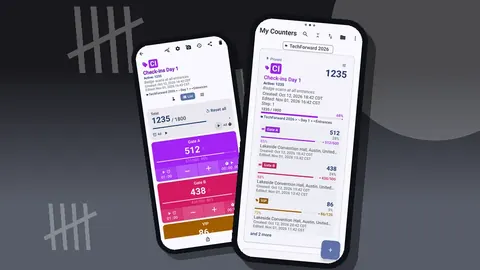
List view is the alternative when you have more types: each one is a row with − and +, value and progress, and the counter's total against target at the top.
If the door has a scanner operator and a separate counter, the counter-holder only needs to see the wristband or hear the scanner beep. Agree in advance who taps for what.
Volume-button counting is less useful here than for a single-number door count, because there are several tags. It can still help: keys can be remapped, so volume-up could be set for the most common type, usually General, while the screen handles the rest. It's off by default and set up in settings.
For a venue with two entrances, give each entrance its own phone with the same tags. The phones don't sync live, so the door manager either radios each entrance for its figures at set times or simply adds the two exports together at the end. Building the counter once and copying it to the second phone with a backup ZIP keeps tag names identical, which makes the merge trivial. Mismatched names such as "VIP" on one phone and "V.I.P." on the other are the most common reason a combined spreadsheet looks wrong.
Corrections use the minus button on the same tag. A reset would clear the tag's value and lose the arrival record.
How do you spot no-shows and walk-ins during an event?
The useful moment to read the counts is not at the end of the night but half an hour after doors open, when most guests who are going to come have arrived.
At that point, the progress bar on each tag tells you how much of the type is in. If General is at 85 percent and Comp is at 40 percent, the comp list was optimistic, and the door team can release those seats to walk-ins. If VIP is at 30 percent, the VIP host knows to check whether there is a transport issue.
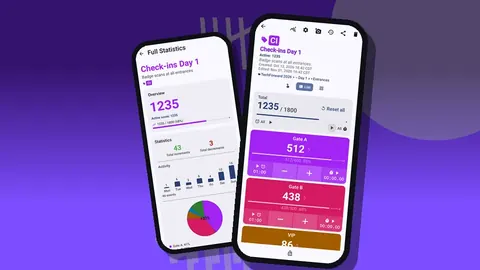
The dashboard gives the same picture at a glance: total and target progress, increments against decrements, an activity chart and a pie chart by tag. The pie chart is the quickest way to see how the crowd splits by type.
Write down any decision you make as a note on a count event: "released 20 comp seats to walk-ins at 19:45". Notes are timestamped and go into the export.
After doors close
When doors close, lock the counter. Locking prevents accidental taps until it's unlocked again.
Then do the reconciliation while the box office team is still around:
- For each ticket type: sold, arrived, no-show (sold minus arrived).
- Walk-ins: how many, and how they paid.
- Total in the room: the counter total, compared with capacity.
- Exceptions: anything noted at the door.
History supports this. Each count event is logged with an exact time, the step, the value before and after, and the tag. If a ticket type's count stalled at 19:20 and then jumped at 19:50, a group probably arrived together, and the notes may say why.
Using the numbers next time
The value of ticket-type counts grows over a season. One event's no-show rate is anecdotal; ten events' rates are a pattern.
Export each event with the same sections so files line up. Excel (XLSX) or CSV works for building a season summary; choose Summary and Events, and Notes if the door team made useful observations.
Keep event counters in a category per season, for example "Concerts" → "2026 season". Categories nest up to three levels. When planning the next event, sort the counter list or use the date-range filter to find the previous ones quickly. There are six sort orders and a search box in the counter list.
With a few events on record you can answer practical questions: how much to overbook free tickets, how many door-sale tickets to hold back, and how many staff to put on the door in the first thirty minutes.
How should a door team count awkward cases?
Every door has exceptions. Decide in advance how to count them and write the rule in the tag notes.
- Guest without a ticket who is on a list. Count under Comp, add a note with their list name.
- Ticket for the wrong date. Not counted until resolved. Note it.
- Child on an adult's ticket. Decide whether to count; most events count heads, not tickets.
- Guest leaves and returns. For a ticket-type count, count once. For occupancy you would track exits separately.
- Upgrade at the door. Count under the new type and note the upgrade.
Every note added on a count event is gathered on the All Notes screen, sorted as you like, with the linked tag and time. Read it during the reconciliation; it is where the explanations live.
A hypothetical reconciliation
Imagine a jazz concert in a 450-seat venue. The box office sold 280 General, 60 Early bird and 30 VIP, and issued 40 comp tickets. Walk-ins have a target of 40.
Doors open at 19:00. By 19:30 General shows 210, Early bird 52, VIP 18, Comp 15, Walk-in 8. The comp count is low, so the door manager decides to sell 15 more walk-in tickets and notes the decision.
At 20:15 doors close and the counter is locked. Final figures: General 251, Early bird 57, VIP 26, Comp 19, Walk-in 31. Total 384 against 450 capacity.
Reconciliation: General no-shows 29, Early bird 3, VIP 4, Comp 21. The low comp turnout is the most actionable figure. For the next concert the promoter halves the comp allocation and holds back more seats for door sales.
None of these numbers would show up in the ticketing system's totals alone, because ticketing knows what was sold, not who came through the door.
Practical details
- Counters and tags. Unlimited counters, each with tags carrying their own colour, value, step and target.
- Exports. CSV, Excel (XLSX) and an HTML report with embedded photos.
- Stored on the phone. No login is required, and there is no Counter App cloud.
- No live sync. Two doors means two phones and two counts; combine the exports or radio the figures to a control phone.
- Offline. All counting works without a connection.
- Pricing model. It is free to download with no ads; try it free for 3 days, then choose a yearly or monthly plan or a one-time lifetime purchase.
Get the app at counterapp.online.
Frequently asked questions
How can an event compare guest arrivals with tickets sold?
Create a tag for each ticket type with its target set to the number sold; the progress bar shows arrivals, and the remaining gap at close is the no-show figure.
Can Counter App scan and validate event tickets?
No. A tag stores one barcode or QR value, scanned or typed, so Counter App counts arrivals by ticket type alongside whatever system checks the tickets.
Can door staff count walk-in guests separately from ticket holders?
Yes. Give walk-ins their own tag, either without a target or with a target equal to the spare capacity.
What does a ticket reconciliation get from Counter App at the end of the night?
A dashboard with totals, a pie chart by ticket type and an activity chart, plus CSV, Excel or HTML exports with Summary, Events, Notes and Locations sections.
Do box offices pay a subscription for Counter App?
Not necessarily. Counter App — Tally & Clicker is free to download with no ads; try it free for 3 days, then choose a yearly or monthly plan or a one-time lifetime purchase, for any number of events.
How should a door team count a child on an adult's ticket?
Decide the rule before doors open and write it into the tag notes; most events count heads rather than tickets.
Why do free events need their own no-show figure?
Free tickets usually see more no-shows than paid ones, so a measured rate from your own events is a better basis for overbooking than a rule of thumb.