Counter App

Event Inventory: Counting Kit at Setup and Teardown
Key takeaways
Event inventory for setup and teardown means counting kit out at load-in against the order sheet and counting it back at load-out. With Counter App — Tally & Clicker, give each item type a tag with the ordered quantity as its target, note shortfalls, photograph damage, and reconcile any gap before the truck leaves the venue.
- Event inventory control rests on two counts, counting equipment out at load-in and counting it back at load-out.
- In Counter App — Tally & Clicker, event kit can use one counter with a tag per item type that counts down to zero at load-out, or two matching load-in and load-out counters.
- A load-in count against the order sheet protects an event team against supplier shortfalls, such as chairs missing from the truck.
- Damaged rental kit should be photographed before it goes on the truck; each Counter App tag holds up to six photos with markup.
- Counter App — Tally & Clicker works offline in basements and marquees, and each crew phone holds its own counts without live sync.
Every event ends the same way: tired people, a closing deadline from the venue, and a pile of kit that has to go back on the truck. Teardown is when losses happen. A stack of linens goes out with the caterer's laundry, two radios sit in a speaker's tote bag, eight chairs wander into the next room and stay there. Nobody steals anything; the stuff just leaks away at the moment attention is lowest.
The fix is old and dull: count equipment out at setup, count it back at teardown, and treat any gap as something to explain before the truck leaves. What follows is how to run that routine from a phone so it actually happens on a busy night.
Why count event kit out and back?
An inventory routine for events has exactly two moments that matter.
Count out happens at load-in. You confirm that what arrived matches the order: 300 chairs, 30 round tables, 34 linens (30 plus spares), 12 stanchions, 20 radios. This protects you against the supplier as much as against your crew. If only 280 chairs came off the truck, you want that on record before the event, not discovered at teardown when the supplier invoices for 20 missing chairs.
Count back happens at load-out. The same categories, counted again as they go onto the truck or into cases. The difference between the two counts is your loss, damage or misplacement list.
Everything else (mid-event checks, photos, notes) supports these two numbers. If you only manage to do two counts all night, make it these two.
Structure in Counter App
There are two sensible ways to set it up, and the choice depends on how you like to read the numbers.
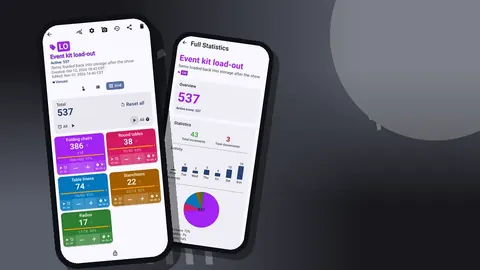
Option A: one counter, target counting. Create a counter called "Event kit load-out" with one tag per item type: chairs, round tables, linens, stanchions, radios. At load-in, count each tag up to the delivered quantity. At load-out, switch the counter to count down toward zero, with each tag's target being what went out. Anything left above zero at the end is missing.
Option B: two counters. One counter "Load-in" and one "Load-out", with identical tags. Count each up independently. The comparison happens in the export or on the dashboard. This is clearer for crews who find counting down confusing, and it leaves both raw numbers intact.
For a single event, option A is faster. For a rental company running the same kit to many venues, option B produces cleaner records for comparison.
Either way, put the counters in a category for the event, under a parent category for the venue or client. Categories nest up to three levels: "Venues" → "Lakeside Hall" → "Smith wedding" works well. Pin the current event's category while you are on site.
Load-in
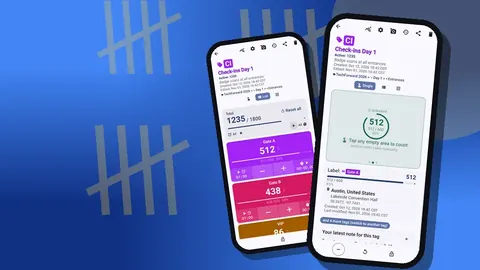
At load-in the order sheet is your target list. Open each tag, set the target to the ordered quantity, and choose the step.
Step matters more for kit than for people. Chairs often arrive stacked in tens, so a step of 10 per stack is fine, with a final step-1 correction for the partial stack. Linens come folded in bundles. Radios are counted individually because each one matters. Step can be set from 1 to 100 per tag, so each line on the order can have its own.
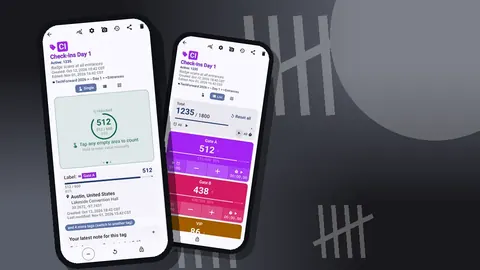
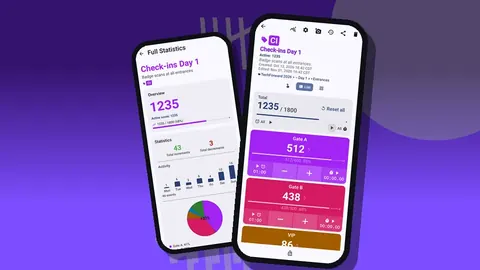
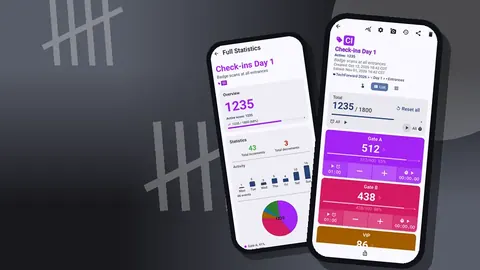
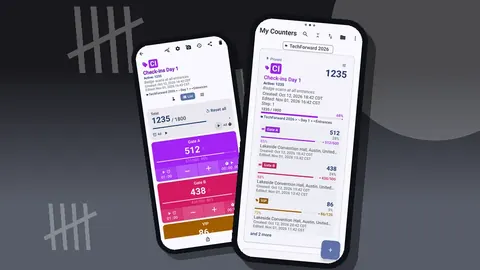
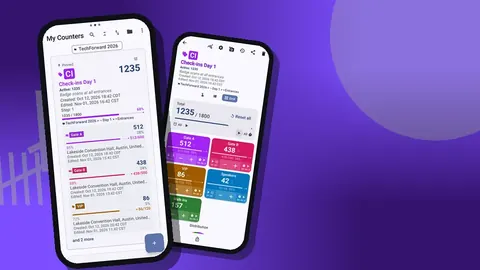
In List view, every item appears as a row with − and + buttons, its value and target progress. The counter's total against its combined target sits at the top. A lead can stand at the truck ramp and see immediately which lines are complete and which are still short.
When a line comes in short, add a note on the count event: "280 chairs, 2 stacks not on truck, driver says second van at 15:00". Notes on events appear in History and travel into every export.
During the event
Kit moves during events. Chairs get pulled into a breakout room, extra tables go to the bar, radios are handed to security. You do not need to count constantly, but two small habits pay off.
First, use each tag's notes and location fields to record where kit has been moved. A tag can store a GPS point, a pin dropped on a map or a typed address. In a large venue a typed location such as "Hall C storage" is usually more useful than GPS. When teardown starts, whoever reads the tag knows where to look.
Second, if items are labelled, store the label code on the tag. Each tag can hold a barcode or QR value, scanned with the camera or typed. For a case of radios marked "RAD-CASE-02", that one code ties the physical case to the count.
If the crew lead changes during the event, the incoming lead should open the counter and read the notes before doing anything else. That two-minute handover prevents most of the "I thought you had the radios" conversations.
Load-out
Load-out is the count that matters. Start it before people are exhausted, not after the last car has left.
Assign one counter-holder per kit type, or one per zone if the venue is large. Each person counts what passes them on the way to the truck. With volume-button counting enabled in settings, they can tap the physical volume keys and keep both hands mostly free. Counting this way works in the background and on the lock screen through a foreground service. It is off by default, so turn it on during the crew briefing.
When something comes back damaged, photograph it before it goes on the truck. Up to six photos can be attached to each tag. The built-in photo editor has a brush, text, six colours and rotation, so you can circle a wine stain on a linen or write "leg cracked" on a table photo. That marked-up photo is far more persuasive to a supplier than a line in a spreadsheet.
If a count looks wrong, use the minus button rather than resetting. A reset wipes the tag's value; a minus is just another logged event.
How do you reconcile event kit after load-out?
Once the truck is loaded, reconcile before anyone leaves. This takes five minutes if the counts were done properly.
With option A, any tag still above zero shows how many are missing. With option B, compare load-in and load-out values side by side in List view or in the exports.
History adds a second layer. Every count is logged with an exact timestamp, the value before and after, and the tag. If the last six chairs were counted forty minutes after the rest, someone found them in a side room; if they were never counted at all, they are still in the building or gone.
For anything still missing, spend ten minutes looking before calling it a loss. The usual hiding places are the same at most venues: back corridors, the green room, behind stage drapes, the catering area and coat check.
Your own kit
Rental kit comes with someone else's order sheet. Your own kit (radios, toolboxes, signage, extension leads, the good gaffer tape) has no supplier keeping track, so it disappears quietest.
Keep a permanent counter for owned kit, separate from event counters. Give high-value items a tag each with their asset code stored as a barcode or QR value; give consumables one tag per type. Before each event, count what goes into the van. After the event, count it back.
When labels get scuffed, type the code into the tag instead of scanning it. The same value can be entered by hand.
Over several events, History builds a record of which items keep going missing. If one radio appears in three "missing at teardown" notes, it is not the radio's fault; something about where it gets handed out needs to change.
Who does what during an event teardown count?
A teardown with no roles is a teardown with no count. Before load-out starts, the lead should name:
- One counter per kit line or zone. That person counts and nothing else for the duration.
- One runner. They chase items that are short.
- One photographer. Damage gets photographed by the same person so it is all in one place.
- One sign-off. The person who compares out and back and decides when the truck can go.
On small events one person may hold all four roles. That is fine as long as they know they hold them.
A hypothetical teardown
Picture a wedding at a lakeside venue with 150 guests. The planner's order was 160 chairs, 16 round tables, 18 linens, 8 stanchions and 10 radios.
At load-in, the planner counts each line up to target. Linens come in at 17, not 18; a note goes on the event: "one linen short on delivery, driver signed".
At 23:30 teardown starts. Two crew members count chairs and tables as they go to the truck; the planner counts linens and radios. By 00:10 chairs are at 160, tables at 16, stanchions at 8. Linens stop at 16 and radios at 9.
The dashboard shows the gap immediately: total against target is a few short. History shows the last linen was counted at 23:52 and nothing afterwards. A runner finds one linen in the catering van. The radio turns up in the DJ's case twenty minutes later.
Final reconciliation: one linen short, explained by the load-in note, and everything else returned. The planner exports the counter with Summary, Events and Notes, and sends the file to the rental company with a single sentence: "delivery was 17 linens, see note".
Practical notes
A few things worth knowing:
- Stored on the phone. No account and no Counter App cloud; you decide where each export is sent.
- Works offline. Counting does not need a connection, which matters in basements and marquees.
- No live sync. Each crew member's phone holds its own counts. Combine exports afterwards or move counters with a backup ZIP, which can include photos.
- Exports. CSV, Excel (XLSX) or an HTML report with embedded photos. Choose Summary, Events, Notes and Locations sections as needed.
- Trash. Accidentally deleted counters can be restored.
- Pricing model. Free to download, no ads; try it free for 3 days, then choose a yearly or monthly plan or a one-time lifetime purchase.
Get the app at counterapp.online.
Frequently asked questions
How does an event crew count rental kit back in after counting it out?
Set each tag's target to the quantity that went out and count down to zero at load-out, or keep separate load-in and load-out counters; History logs every change with its time.
Can an event planner record damaged linens or tables?
Yes. Each Counter App tag takes up to six photos, count events take notes, and the editor lets you circle a stain or write on the picture.
Can a radio case's label code be stored in Counter App?
Yes. A tag holds a barcode or QR value from the camera, or typed by hand when a case label is scuffed.
Can an event teardown crew share one live count?
No. Phones do not sync live, so give each zone lead a counter and combine the exports, or move counters with a backup ZIP.
Do event planners need a subscription for Counter App?
Not necessarily. Event teams can install Counter App — Tally & Clicker for free; it is free to download with no ads; try it free for 3 days, then choose a yearly or monthly plan or a one-time lifetime purchase.
What step should be used when counting stacked event chairs?
A step of 10 per stack is practical when chairs arrive in tens, followed by a step-1 correction for a partial stack; radios are best counted one at a time.
Where does missing event kit usually turn up after teardown?
Common places are back corridors, the green room, behind stage drapes, the catering area and coat check, so search those before calling an item lost.