Counter App

Counting Expo Booth Visitors with Your Phone
Key takeaways
An expo booth visitor counter app records the shape of a trade show day. In Counter App — Tally & Clicker, create one counter per show day with tags for stops, demos, qualified conversations and giveaways, count in Grid view or with the volume keys, add notes on visitor questions, and review History each evening.
- An expo booth visitor count works best with three or four tightly defined tags, such as stops, demos, qualified conversations and giveaways.
- The definition of a qualified conversation at a trade show booth should come from the sales team, not from the booth staff.
- Counter App — Tally & Clicker logs every booth count with an exact time, which shows when the booth was busy and when staffing fell short.
- A giveaway tag in Counter App can start at the stock brought to the show (entered with "Set counter value") and be counted down with the minus button, so its value shows what is left.
- Booth counts from Counter App complement badge scanning and lead forms by capturing the shape of the day before the lead stage.
Exhibiting at a trade show costs a lot of money and a lot of standing up. When the team gets back, someone always asks whether it was worth it, and the honest answer is usually a shrug plus a stack of business cards. The cards measure the end of the funnel. Everything before that (how many people stopped, how many watched a demo, when the booth was busy and when it was dead) goes unrecorded.
A phone tally fixes that cheaply. It does not replace badge scanning or a lead form. It captures the shape of the day, which is exactly what you need to staff the next show better and to argue for (or against) the booth budget.
What should an expo booth team count?
Pick a few things to count and define each one so tightly that two staff members would count the same event the same way.
Stops. A visitor who pauses and engages with the booth: picks up a brochure, asks a question, looks at the screen for more than a few seconds. Passers-by who glance and keep walking are not stops.
Demos. A complete product demonstration, however short. Two people watching one demo is one demo, not two; if you care about audience size, count stops as well.
Qualified conversations. A conversation where the visitor matches your target customer and shows real interest. This is the number sales will care about most, so the definition must come from sales, not from the booth team.
Giveaways. Swag handed out. Optional, but useful for checking whether the giveaway is attracting the right people or just everyone with a tote bag.
Four tags is a comfortable maximum. Every extra tag slows the person counting and increases the chance they skip a tap.
Setting up the booth
In Counter App, create one counter per day of the show, for example "Booth – Day 1", with a tag per thing you count: Stops, Demos, Qualified, Giveaways. Each tag gets its own colour, so a quick glance tells you which one you are touching.
Put the counters in a category for the show, and that category under a parent such as "Trade shows". Categories nest up to three levels and can be pinned, so the current show stays on top of the list during the event.
Give tags realistic targets based on your goals. If the team wants 40 qualified conversations a day, set that as the target; the progress bar on the tag then shows whether the day is on track by lunchtime. Targets can optionally trigger a sound or vibration alert when reached. A quiet vibration is a nice morale boost on a slow afternoon.
Leave step at 1 for everything except perhaps giveaways, which sometimes go out in handfuls.
Counting at the booth
The person counting is also the person talking to visitors, so the count has to take almost no attention.
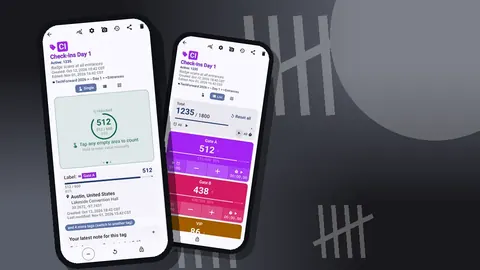
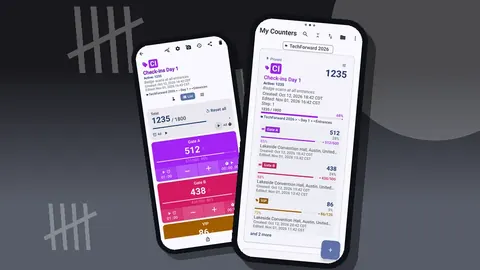
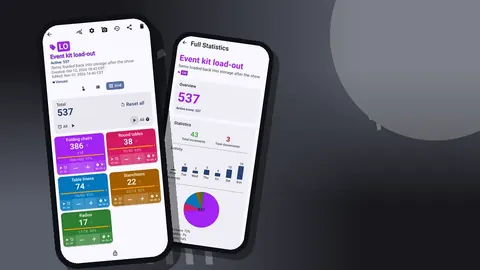
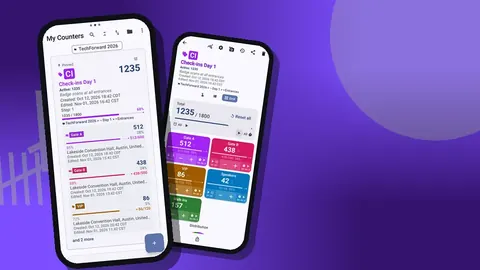
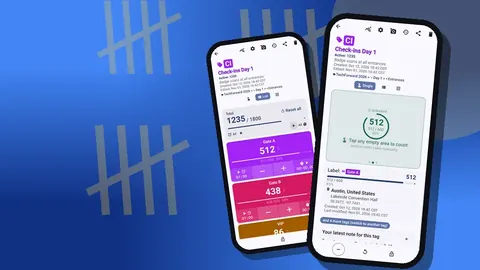
Grid view. On the counting screen, Grid view shows each tag as a large coloured tile with its value, target percentage and − and + buttons. Big tiles are easier to hit than rows when you are holding a brochure in the other hand.
Volume keys. Volume-button counting can be enabled in settings. Keys can be remapped, which lets you put one tag on volume-up for the most frequent count, usually stops. It works in the background and on the lock screen through a foreground service, so the phone can stay in a pocket during a demo. The feature is off by default. On some devices the system volume bar still appears.
Corrections. Hit the wrong tile? Tap minus on it. Avoid resetting during the day; reset wipes the tag value.
A practical rhythm many booth teams settle into: the person greeting counts stops, the person running the demo counts demos and qualified conversations at the end of each demo.
Notes and photos
Numbers tell you how busy the booth was. Notes tell you why.
Add a note on a count event whenever something worth remembering happens: "asked about integration with their ERP", "competitor's rep visited", "big group from a university". Event notes show up with an icon in History and appear in exports.
Attach photos to tags too. Up to six photos per tag is enough for the booth layout at opening, the crowd at the busiest moment, and the demo screen when it mattered. The all-photos gallery shows every picture across the counter with tag labels and dates, and the HTML export embeds the photos.
After the show, the All Notes screen lists every note with its linked tag and time, and it can be sorted. That list is often the most valuable thing the booth team brings home, because it captures the questions visitors actually asked.
How do you find a booth's busiest hours?
At the end of each day, spend ten minutes with History before you leave the hall.
History shows every count with an exact timestamp, the step, the value before and after, and the tag. Scroll through and patterns appear: the burst at opening when attendees are fresh, the dip during keynotes, the second wave after lunch, the slump in the last hour.
Patterns like that change staffing. If qualified conversations cluster between 10:00 and 12:00, that is when your best salesperson should be on the booth, not at a meeting in the café. If stops are high and demos low in a given hour, you might have been understaffed; people stopped, saw everyone busy and walked on.
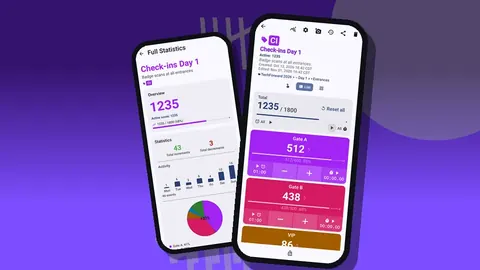
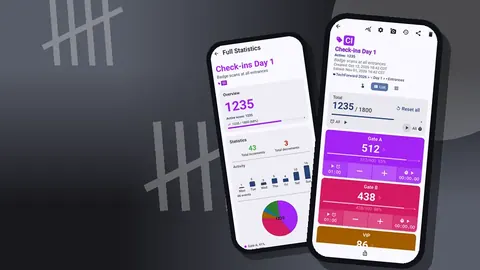
The dashboard summarises the same data: the overview total with target progress, increments versus decrements, an activity bar chart over seven days and a pie chart by tag. For a multi-day show, the bar chart lines up the days next to each other.
Reporting back
Back at the office, you need two kinds of output: something the marketing manager can read in two minutes, and something the analyst can put in a spreadsheet.
The Share & Export screen gives both. "Share as HTML page" produces a readable report, with photos embedded. "Export data" opens the export options, where you choose CSV or Excel (XLSX) and which sections to include: Summary, Events, Notes and Locations.
A useful one-page booth report has four lines per day: stops, demos, qualified conversations, and the ratio between them. Add the busiest hour and two or three notes worth acting on. That is usually enough to make the next budget conversation concrete.
Several staff, several phones
On a large booth, two or three people may count. Counter App keeps data on each phone and does not sync live, so each person counts their own tags and the exports are combined afterwards.
To keep things consistent, set up the counters once and copy them to colleagues' phones with a backup ZIP. The import preview lets each person choose what to do with duplicates: replace, copy or skip. Divide the tags so nobody double-counts: one person owns stops, another owns demos and qualified.
All counting works offline, which matters in exhibition halls where the mobile signal and the venue Wi-Fi tend to collapse at peak hours.
Briefing the booth team
Before the doors open, run a two-minute briefing at the booth.
- Read out the definitions of each tag. Write them in the tags' notes too, so anyone joining mid-day can check.
- Agree who counts what.
- Do a few practice taps, then reset those tags so the day starts at zero.
- Remind everyone to add notes for interesting conversations, not just to tap.
- Agree when to export: at the end of each day, not at the end of the show.
If the booth team rotates through the day, the outgoing person hands over the phone rather than the role. The counts continue without gaps.
How do you track giveaway stock at a trade show?
Giveaways double as a stock problem. Create a tag per giveaway item and set its target to the stock brought to the show, counting down. The tag value then shows what is left, and an alert can fire when stock reaches zero.
Comparing the giveaways tag with the qualified tag is instructive. If 600 pens went out against 25 qualified conversations, the pen is not attracting buyers. That ratio is easy to read from the dashboard's pie chart by tag.
A hypothetical booth
Imagine a software company exhibiting at a three-day industry expo with a 6-metre booth and three staff.
They set up "Booth – Day 1" to "Booth – Day 3", each with tags for stops, demos, qualified and tote bags. The qualified target is 30 per day.
Day 1 ends with 30 qualified conversations, but History shows that 22 of them happened before 13:00, while one of the three staff was on a lunch break from 13:00 to 15:00 and stops kept coming. On Day 2 they stagger breaks and qualified rises to 38.
Notes reveal that several visitors asked about a feature that isn't on the demo script. The product manager adds it to the demo for Day 3, and the notes from that day suggest it landed.
The final report: three days of numbers, a busiest-hour chart and a short list of feature requests. It took about twenty minutes to put together.
Practical details
- Unlimited counters and tags. Each tag has its own colour, value, step, target, timer and stopwatch.
- Lock. Lock a counter to stop accidental taps while the phone is in a pocket.
- Trash. Deleted counters can be restored.
- Stored on the phone. Booth counts need no sign-in, and there is no Counter App cloud.
- Pricing model. It is free to download with no ads; try it free for 3 days, then choose a yearly or monthly plan or a one-time lifetime purchase.
Get the app at counterapp.online.
Frequently asked questions
What should a trade show booth team count?
Usually three or four things: people stopping at the booth, demos given, qualified conversations and giveaways handed out, each as its own tag with a value and target.
Can two booth staff count visitors on separate phones?
Yes, but the phones do not sync live. Split the tags between staff so nobody double-counts, and combine the CSV or Excel exports afterwards.
Can an exhibitor see the booth's busiest hours?
Yes. History stores an exact time for each booth count, and the dashboard shows an activity bar chart plus a pie chart by tag.
Can photos of the expo booth go into the report?
Yes. Each tag takes up to six photos, and the HTML export embeds them, giving the marketing team a readable report.
Does Counter App charge exhibitors a monthly fee?
Not necessarily. Counter App — Tally & Clicker is free to download with no ads; try it free for 3 days, then choose a yearly or monthly plan or a one-time lifetime purchase.
What counts as a stop at an expo booth?
A visitor who pauses and engages, for example by picking up a brochure, asking a question or watching the screen for more than a few seconds; passers-by who glance and walk on are not stops.
Does booth counting still work when the exhibition hall Wi-Fi fails?
Yes. All counting in Counter App works offline, which helps in halls where signal and venue Wi-Fi drop at peak hours.