Counter App

How to Count Event Attendees with an Android App
Key takeaways
To count event attendees with an Android phone, define what counts as an entry, create a Counter App — Tally & Clicker counter for the event with a tag per door or attendee type, set a capacity target with an alert, count with taps or the volume keys, note anything unusual, then lock the counter and export it.
- Counting event attendees accurately starts with a one-sentence definition of a count, such as every guest through the main door after 18:30, excluding staff.
- An attendee count in Counter App — Tally & Clicker uses one counter per event and one tag per door, attendee type or ticket type.
- A capacity target on an attendee counter can trigger a sound or vibration alert, and auto-lock can stop further taps for a strictly limited room.
- Mistakes at the door should be fixed with the minus button, because resetting a tag in Counter App clears its value.
- A hand clicker suits a single door with one count, while a phone adds categories, timestamps, notes, target alerts and exports.
Counting people at a door is one of the oldest jobs at any event, and it is still mostly done with a metal hand clicker or a pencil tally. Both work until they don't: the clicker gets knocked, the tally sheet blows away, and at the end of the night there's a single number with no idea when anyone arrived.
This is a step-by-step walkthrough for counting attendees with an Android phone using Counter App. It works for a village hall talk with 40 people and scales to a multi-door venue, as long as you plan the doors and the rules first.
Step 1: Decide what you're counting
Write one sentence that defines a count. For example: "Every adult or child who passes through the main door after 18:30, excluding staff and performers."
Then decide three things:
- Entries only, or entries and exits? Entries give a total attendance. Entries and exits give the number inside right now, which you need if the venue has a capacity limit.
- One door or several? Each door needs its own count.
- Any breakdown? Adults and children, ticket types, members and guests. Each becomes a separate count.
Keep breakdowns to what you will actually use. Every extra category is another button for a busy volunteer to press correctly.
Step 2: Create the counter
Open Counter App and tap the add button to create a counter. Give it a name that will still make sense in a spreadsheet months later: "Spring Fair – Saturday" is better than "Door".
A counter can also store a colour, initials or a short code, a description, notes and a link. The code is handy when you run several events: "SF-SAT" shows as a badge on the counter card.
If you organise many events, put this counter in a category. Categories nest up to three levels ("Events" → "2026" → "Spring Fair") and can be pinned to the top of the list.
Step 3: Add tags for each count
Inside a counter, each thing you count is a tag. A tag has its own label, colour, value, step and target.
For a single-door event with no breakdown, one tag is enough: "Main door". For more detail:
- By door: "Front door", "Side door", "Car park gate".
- By type: "Adults", "Children", "Comps".
- By ticket: "Pre-booked", "Walk-in".
Pick clearly different colours. When a volunteer is tapping quickly in poor light, colour is what they see first.
Each tag can also hold a barcode or QR value, a location (GPS, a map pin or a typed address), a timer, a stopwatch and a link. For a basic door count you can ignore all of those.
Step 4: Set targets
A target turns the counter into a gauge. For attendance, two kinds of target are common:
- Capacity. The room holds 200; set the target to 200. When it's reached, the app can sound or vibrate.
- Expected attendance. You sold 150 tickets; set the target to 150 and watch the progress bar fill.
A target can work as a goal to count up to, or as a starting number to count down from. For a door, counting up is more natural.
Two further options apply when the target is reached. Auto-lock freezes the counter so no more taps register; useful for a strictly limited room. Auto-reset sends the value back to zero, which suits repeating batches (for example, groups of 20 admitted to a tour) but not a running attendance figure.
Step 5: Choose your view
The counting screen offers three views.
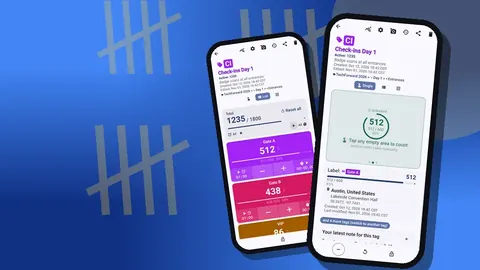
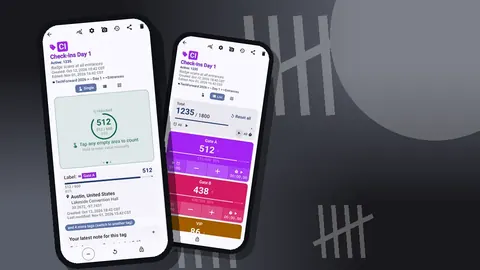
- Single shows one tag as a big circular counter with its target progress. Best for a single door with one count.
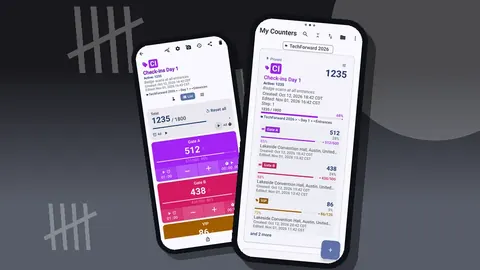
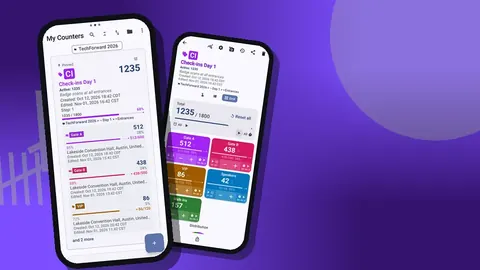
- List shows every tag as a row with − and + buttons, value and progress, plus the counter's total against target. Best for several doors or types.
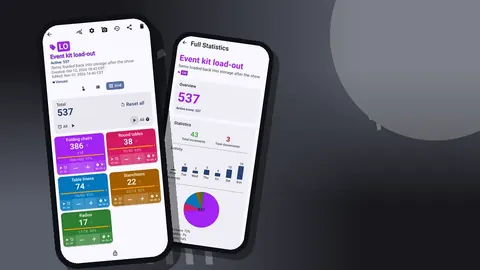
- Grid shows coloured tiles with large buttons. Good for two to six tags on a phone held in one hand.
You can also choose how tags are displayed: expanded, collapsed, or collapsed except the most recent. The last option keeps the screen tidy when there are many tags but you mostly use one.
Step 6: Set up hands-free counting
Tapping the screen means looking at the screen. Volume-button counting removes that.
In settings, enable counting with the volume keys. You can remap the keys, so volume-up adds and volume-down subtracts, and give each key its own sound and vibration. Counter App offers 13 count sounds and 8 vibration styles; picking very different ones for plus and minus helps the volunteer feel which key they pressed.
The volume keys work in the background and on the lock screen, thanks to a foreground service. There is also a lock-screen notification with −step, +step and Stop buttons. The feature is off by default, and on some devices the system volume bar may still appear when you press the keys.
Test it before doors open: lock the phone, press the keys ten times, unlock and check the value. Then reset that tag to zero.
Step 7: Count, and note the unusual
When doors open, count steadily. One person, one tap. For groups, either tap once per person or temporarily raise the step; step can be anything from 1 to 100, but changing it during a rush is a common source of error.
Whenever something unusual happens, add a note to the count event: "door closed 19:10–19:20 for fire check", "coach party of 40 arrived together", "second door opened at 19:30". Notes are timestamped and appear in History and exports. A total with three notes is far easier to defend than a total with none.
Step 8: Lock the count
When the door closes, lock the counter. Locking blocks accidental taps until you unlock it again, which protects the number while the phone goes into a bag.
Resist the urge to reset anything at this stage. Resetting a tag or the whole counter clears its value. If you need a fresh count for a second session, create a new tag or a new counter instead.
If you delete a counter by accident, it goes to the trash and can be restored.
Step 9: Review
Before you report the number, look at how it was built.
History lists every count event: +1 or −1, the exact timestamp, the value before and after, the tag, and icons for notes, photos and locations. Scroll through and check that the shape makes sense. A sudden jump of 30 in one second usually means someone held a button; a long silence in the middle of the evening might mean the volunteer forgot to count while on a break.
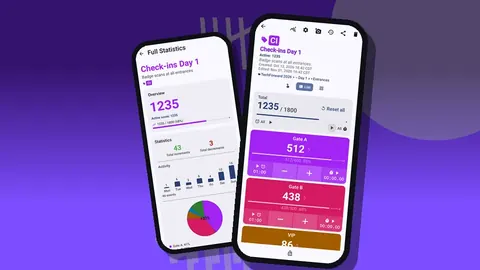
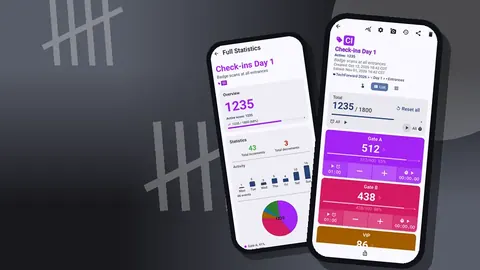
The dashboard shows the same data at a higher level: total and target progress, increments versus decrements, an activity bar chart and a pie chart by tag.
Step 10: Export and share
From the Share Counter screen you can share the counter as an HTML page or export data.
Export options let you choose sections (Summary, Events, Notes, Locations) and a format: CSV or Excel (XLSX). The HTML report embeds any photos attached to tags.
For a simple event report, Summary plus Notes is enough. If someone wants to chart arrivals over time, include Events.
What mistakes should you avoid when counting attendees?
- Counting staff. Agree in advance; staff usually aren't attendees.
- Changing the step mid-rush. Leave it at 1 unless the event is built around groups.
- Resetting to fix a mistake. Use minus. Reset wipes the value.
- Forgetting to enable the volume keys. It's off by default; do it during setup.
- Two volunteers on one door with two phones. Phones don't sync live, so both counts are partial and easily double up. One door, one counter-holder.
- Exporting a week later. Export the same night, while memory can fill gaps.
Is a hand clicker or a phone better for counting attendees?
A hand clicker is cheap, robust and needs no battery. For a single door with a single count and no reporting requirement, it's hard to beat.
A phone earns its place when you need any of: more than one category, a timestamp for each entry, notes, a target alert, or an exported file. It also has a minus button that works the same way as plus, which a lot of clickers lack.
Many events use both: clickers on the doors for speed, and a phone at control where stewards' figures are logged with time and notes.
A hypothetical small event
Suppose a community theatre is staging a show in a hall with 180 seats. They sold 140 tickets and expect some walk-ins.
The front-of-house manager creates "Spring play – Fri" with two tags, "Ticketed" and "Walk-in", and sets a counter target of 180 with a vibration alert. Volume-up counts ticketed guests; the walk-in tag is tapped on screen because walk-ins pay at a table and there is time.
By curtain-up, the count stands at 131 ticketed and 22 walk-ins. A note records "9 tickets unclaimed by 19:30". After the interval, the manager locks the counter and exports Summary and Notes for the committee.
Practical details
- Unlimited counters. One per event, per day or per door.
- 37 languages. With an in-app picker, handy for volunteers.
- Themes. Six theme skins plus light, dark or system mode; dark mode helps in dim auditoriums.
- Stored on the phone. Door counts live on the device, with no account and no Counter App cloud.
- Pricing model. It is free to download with no ads; try it free for 3 days, then choose a yearly or monthly plan or a one-time lifetime purchase.
Get the app at counterapp.online.
Frequently asked questions
Can a door volunteer count event attendees with the volume buttons?
Yes, after enabling volume-button counting in settings; it works in the background and on the lock screen, and each remapped key can have its own sound and vibration.
Can an event attendee count add a whole group with one tap?
Yes. The step can be set anywhere from 1 to 100, per counter or per tag, though changing it during a rush often causes errors.
How do I stop accidental taps on an attendance counter?
Lock the counter so it ignores taps until unlocked, or enable auto-lock so it freezes when the target is reached.
How do event organisers get attendance numbers off the phone?
Export to CSV, Excel (XLSX) or an HTML report, choosing the Summary, Events, Notes and Locations sections you need.
Does counting event attendees need an account or internet?
No. Counter App needs no account, counts offline, and stores the attendance data on the phone.
Should staff and performers be included in an attendee count?
Usually not, but agree the rule in advance and write it into the one-sentence definition of what counts as an entry.
How can I test door counting before an event opens?
Lock the phone, press the volume keys ten times, unlock and check the value, then reset that tag to zero before doors open.