Counter App

Crowd Counting for Event Planners: A Field Guide
Key takeaways
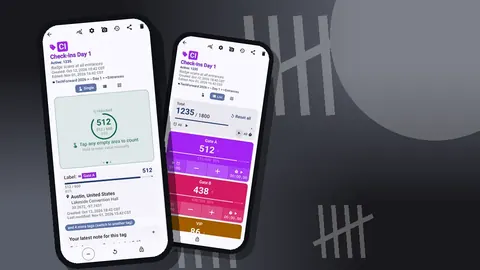
An event crowd counter should first decide which count it needs: throughput, occupancy or zone density. With Counter App — Tally & Clicker, give each gate a tag, count entries with plus and exits with minus for occupancy, set a working target below licensed capacity with an alert, and radio gate figures to a control phone.
- Event crowd counting covers three different questions, throughput through the gates, occupancy inside right now, and density in a specific zone.
- Live occupancy on one phone in Counter App — Tally & Clicker means plus for each entry and minus for each exit on the same tag.
- An occupancy target set at 85 or 90 percent of licensed capacity gives event staff time to slow entry before having to stop it.
- Auto-reset is the wrong choice for occupancy counts, because it would throw away the running figure when the target is reached.
- A tally app such as Counter App is one input to a professional crowd safety plan, not a substitute for one where density is safety-critical.
Crowd counting sounds like a single job, but it is really three separate questions, each needing its own method. Event planners who treat them as one usually end up with a number that answers none of them well. This guide separates the three, then walks through how to run each with stewards and Android phones, from the gate to the debrief.
It is written for planners running small and mid-size events: festivals in parks, markets, conferences, sports days, community fairs. For events where crowd density is a safety-critical engineering problem, you need a professional crowd safety plan, and a tally app is one input to it, not a substitute.
What are the three kinds of crowd count?
1. Throughput. How many people came through the gates over the day. This is the number sponsors, councils and next year's budget want. It only needs entries, and it is fine if the same person is counted twice after leaving and returning, as long as you say so.
2. Occupancy. How many people are inside right now. This is the number that matters for licensing and safety. It needs entries and exits, counted consistently at every opening, and it is only as good as your worst-staffed gate.
3. Density in a zone. How crowded a specific area is: the front of the stage, the food court at lunch, a narrow path between two attractions. This is a sampled count, done by a steward at fixed intervals, not a running tally.
Decide before the event which of these you need. Most planners need throughput for reporting and occupancy for at least one constrained area. Density counts are worth adding only where a known pinch point exists.
Setting up the counts
In Counter App, a counter holds tags, and each tag has its own value, step and target. A structure that covers all three kinds of count looks like this:
- Counter "Gates – Saturday", with one tag per gate: North gate, South gate, Car park entrance. Used for throughput (plus only) or occupancy (plus and minus).
- Counter "Main stage zone", with one tag for the zone's occupancy. Target set to the zone's safe capacity.
- Counter "Density samples", with a tag per sampled area, counted at intervals.
Targets do the heavy lifting for occupancy. Set the tag's target to the capacity you are licensed for (or a lower working figure, to leave a margin), and turn on the sound or vibration alert for reaching it. Targets can count up to a goal or down from one. For an occupancy count, counting up toward capacity is the more intuitive choice.
There are also auto-reset and auto-lock options for reaching a target. Auto-lock is useful for a fixed-capacity area such as a tasting tent: once it hits the limit, the counter locks so nobody adds another person by accident while they are distracted. Auto-reset suits short repeating cycles, like batches of people admitted to a ride, but is the wrong choice for occupancy, because it would throw away the running figure.
Counting at the gate
A gate steward has three jobs at once: watch the crowd, check tickets or wristbands, and count. The count is the job that slips first, so make it as cheap as possible.
Use the volume keys. In settings, enable volume-button counting. Keys can be remapped, so for occupancy volume-up can add and volume-down can subtract. Each key gets its own sound and vibration pattern; choose clearly different ones so the steward can feel which button they pressed. Volume counting works in the background and on the lock screen through a foreground service. It is off by default, so set it up before handing out phones. Some devices may still show the system volume bar on screen, which does no harm.
Keep step at 1 for people. A larger step is tempting when families arrive together, but a steward under pressure will forget which step they set.
Use the lock-screen notification. It shows −step, +step and Stop buttons. A steward can check the figure with a glance at the screen without unlocking.
Note anything unusual. "Gate closed 14:10–14:25 for ambulance access", "wristband scanner down, manual count only". Notes on count events are timestamped and appear in History.
How do you keep an event under its capacity limit?
Occupancy counts need someone watching the total, not just the gate figures.
If a single steward covers a single entrance and exit, their phone shows the occupancy directly. With several gates on different phones, the control point has to add them up. A simple radio routine works: every fifteen minutes, or whenever asked, each gate reports its current figure, and control writes the sum. The per-tag timer helps here. Each tag has its own timer and stopwatch with presets of 30 seconds, 1, 2, 3, 5 and 10 minutes, and countdown beeps, so a steward can set a repeating 10-minute reminder to radio in.
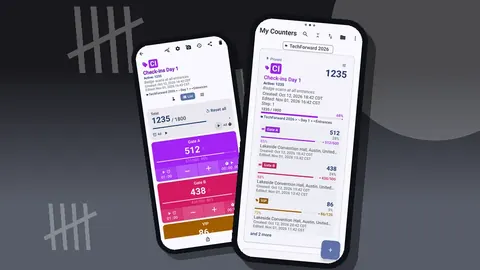
On the control phone, a counter with one tag per gate in List view gives a quick overview. Control updates each row with the radioed figure, sees the total against target at the top of the screen, and knows when to start holding people at the gates.
Act before the limit, not at it. A working figure at 85 or 90 percent of licensed capacity, set as the target, gives time to slow entry before you have to stop it.
Can several stewards count on separate phones?
Counter App does not sync between phones. Each device holds its own counts. This keeps counting independent of the venue's network, which often fails exactly when the crowd peaks, and all counting works offline.
To get consistent setups across phones:
- Build the counters, tags and targets on one phone.
- Create a backup ZIP including only those counters and their category.
- Import the ZIP on each steward's phone. The import preview shows what will be imported and lets you choose replace, copy or skip for duplicates.
- Rename or delete tags that a particular gate doesn't need.
At shift change, the outgoing steward hands over the phone rather than the job. The count carries on without a break, and History shows exactly when the handover happened if the steward adds a note.
Reading the timeline
History is where a crowd count becomes useful for planning. Every count event is logged with its exact timestamp, step, value before and after, and the tag it belonged to.
Scroll through a gate's history and you see the flow: the queue at opening, the lull mid-afternoon, the surge before the headline act, the exodus at the end. Exits matter as much as entries. A big burst of exits in the half hour before the headline might mean the sound was poor, the weather turned or the transport options were drying up.
History has no search, so to pull out a particular window it is easier to export the Events section and filter it in a spreadsheet.
Exporting for the debrief
At the end of the day, each steward exports their counter. Formats are CSV, Excel (XLSX) and an HTML report. In the export dialog choose the sections: Summary for totals, Events for the timeline, Notes for context, Locations if tags store a place.
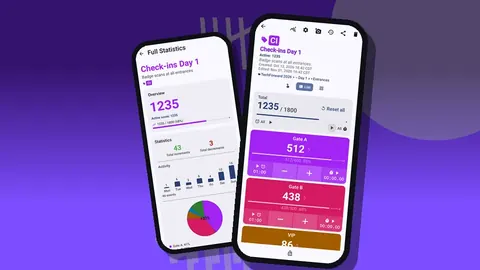
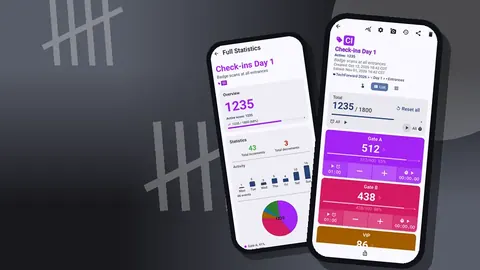
The dashboard is a good first look before anything is merged. It shows the overview total with target progress, increments against decrements, an activity bar chart and a pie chart by tag. For an occupancy counter, increments against decrements tells you total flow; a gate with many increments and many decrements was busy even if its final figure is low.
For the debrief, a planner usually wants three things from the merged files: peak occupancy and when it happened, throughput per gate, and every note stewards made. Put those on one page and the conversation about next year starts from facts.
Practical tips
- Test the routine at a rehearsal. Ten minutes with stewards counting each other through a doorway catches most mistakes.
- Agree on re-entry. For throughput, re-entries count. For occupancy, exits and re-entries both count. Say which applies at each gate.
- Charge the phones. Keep spare power banks at control.
- Lock idle counters. Locking blocks accidental taps until unlocked.
- Don't reset during the event. A reset clears a tag's value. Corrections are made with the minus button.
- Use the timer for density samples. A 5-minute timer per sampled area tells the steward when to do the next count.
A hypothetical festival day
Picture a one-day food festival in a fenced park with a licensed capacity of 3,000 and two gates. The planner sets a working target of 2,700 on an occupancy tag at each gate's phone and a separate "Food court" density counter.
At 12:40 the North gate's figure is climbing fast; the South gate is quiet. At the 13:00 radio check, the sum is 2,550. Control asks both gates to slow entry and opens a holding lane outside North.
At 13:20 a vibration alert on the South phone shows its tag reached target. The steward checks with control and learns the actual sum is still below the limit, because North has been seeing exits. Entry continues at a controlled pace.
In the debrief, History from the North phone shows that the 12:40 surge came from a single bus arrival. Next year the planner asks the bus company to stagger drop-offs.
Practical details
- Counters and tags. Unlimited counters; each tag has its own value, step, target, timer and stopwatch.
- Step. From 1 to 100, set per counter and per tag.
- Feedback. 13 count sounds and 8 vibration styles.
- Stored on the phone. Crowd counts need no account, and there is no Counter App cloud.
- Internet. Gate counting runs offline; the app connects only for optional notifications, update checks and map tiles.
- Pricing model. It is free to download with no ads; try it free for 3 days, then choose a yearly or monthly plan or a one-time lifetime purchase.
Get the app at counterapp.online.
Frequently asked questions
Can a crowd counter app track live occupancy at one entrance?
Yes, on a single phone. Tap plus for each entry and minus for each exit on the same tag, so the value is the number inside, and set a capacity target for a sound or vibration alert.
Can festival gates on different phones add up automatically?
No. Counter App has no live sync between phones, so stewards count on their own devices and control sums the figures by radio or from the exports.
Can event stewards count crowds with the phone in a pocket?
Yes, once volume-button counting is turned on; it runs in the background and on the lock screen through a foreground service, and the keys can be remapped to plus and minus.
What data does a crowd count debrief get from Counter App?
History logs each count with an exact time, and exports come as CSV, Excel or an HTML report with Summary, Events, Notes and Locations sections.
What is the difference between crowd throughput and occupancy?
Throughput counts everyone who came through the gates over the day and only needs entries, while occupancy is how many people are inside now and needs entries and exits.
How often should gate stewards radio in their occupancy figures?
A regular interval such as every fifteen minutes works, and a repeating 10-minute timer on the tag can remind the steward to report.
When does auto-lock help with a crowd count?
Auto-lock suits a fixed-capacity area such as a tasting tent, locking the counter at the limit so nobody adds another person by accident.