Counter App

Conference Attendee Tracking by Session and Room
Key takeaways
Conference attendee tracking per session works with one Android phone per door running Counter App — Tally & Clicker: one counter per room per day, one tag per session with the seated capacity as its target, plus for each entry and minus for each exit, then export every room's counter to Excel and merge the files.
- Conference attendee tracking with Counter App — Tally & Clicker uses one Android phone per door and one counter per room per day.
- Each session slot in a conference room is a tag, so a door volunteer counts the whole day inside one counter.
- Tapping minus on the same session tag for each exit keeps the value equal to the number of people currently in the room.
- Counter App logs every entry and exit with an exact time, which shows arrival surges, late arrivals and mid-session departures.
- Counter App complements badge scanning and registration platforms by measuring how many people were physically in each room.
A conference programme is a set of bets. The committee guessed which talks would pull a crowd, which rooms to give them, and how much coffee to order for the afternoon break. Attendance per session is the only honest feedback on those bets, and most events collect it badly: a volunteer glances in at minute ten, writes "about 60" on a clipboard, and the number is forgotten by the time anyone builds next year's schedule.
This guide covers a lightweight method for tracking conference attendance by session and room using one Android phone per door. It does not replace badge scanning or a registration platform. It answers a narrower question that those systems often miss: how many people were physically in each room, and when did they arrive and leave?
What should a conference measure about session attendance?
Before setting anything up, agree on which numbers the organising team will actually use. Three are usually worth the effort.
Peak occupancy per session. The most people in the room at once. This is what tells you whether the room was too small, and it is the number fire wardens care about.
Arrival pattern. How many came in during the first five minutes versus late. A talk where half the audience arrives ten minutes in may be scheduled too close to the previous session, or in a room that is hard to find.
Mid-session departures. People walking out of a talk say something different from people never arriving. If you count exits, you can see whether a session lost its audience.
You do not need all three everywhere. A small breakout room might only need entries. The main hall, with a capacity limit, needs entries and exits so the running figure stays accurate.
Write the choice down in the volunteer brief. When counting rules differ between rooms, the comparison between sessions quietly breaks.
The structure
Counter App organises counts into counters, and each counter holds tags with their own values. For a conference, a clean structure is:
- Category level 1: the event, for example "TechForward 2026".
- Category level 2: the day, such as "Day 1" and "Day 2".
- Category level 3: the room or track, if you run many rooms.
- Counter: one per room per day, named so it reads well in an export: "Hall B – Day 1".
- Tags: one per session slot in that room: "09:30 Keynote", "11:00 Panel", "14:00 Workshop".
Categories support up to three nesting levels with custom colours, and you can pin the category for the current day so it sits at the top of the list. When Day 2 starts, pin that instead.
Why a tag per session instead of a counter per session? Because the door volunteer stays at one door all day. Keeping their whole day inside one counter means they never have to navigate away; they just move to the next tag row when the next session begins.
If you track exits, use the minus button on the same tag rather than a separate "exits" tag. The value then always shows people currently in the room, and History still records each departure as a −step event with its own time.
Give each tag a target equal to the room's seated capacity. Targets can count up to a goal and optionally trigger a sound or vibration alert when reached, which gives the volunteer a clear signal that the room is full without them doing arithmetic.
Counting at the door
The volunteer's job is simple: one tap per person entering, one minus per person leaving. The hard part is doing it while also greeting people, pointing at the seating and answering "is this the AI talk?".
Two features help here.
Volume-button counting. In settings you can enable counting with the phone's volume keys. Keys can be remapped, so volume-up can add and volume-down can subtract, each with its own sound and vibration feedback. This works in the background and on the lock screen via a foreground service, so the phone can sit in a pocket or a lanyard pouch. It is off by default, so switch it on during the morning briefing, not at the door. Note that some devices may still show the system volume bar when the keys are pressed.
Lock-screen notification. The ongoing notification offers −step, +step and Stop buttons, which is handy when a volunteer wants to glance at the value without unlocking.
Pick a step of 1 for room doors. A step larger than one is useful when groups arrive together, for example a school party of 10, but on a conference door it mostly causes miscounts.
When something odd happens, add a note to the event: "fire door propped open, some entered from rear", "session started 12 min late". Notes on count events show up in History with an icon and are included in exports, so the context travels with the numbers.
Collecting the timeline
A single end-of-session total hides most of what you want to know. Because Counter App logs every count with an exact time, the timeline comes for free.
Open History for a counter and you see each event: +1 or −1, the timestamp, the value before and after, and which tag it belonged to. Scroll through a keynote and the shape appears: a slow trickle twenty minutes early, a surge in the last three minutes, a second smaller surge of latecomers, then a scattering of departures near the end.
That shape is useful in a planning meeting. If every morning session has a heavy late surge, the coffee break before it is probably too short or too far from the rooms. If the 14:00 slot loses a third of its audience halfway through, it might be the post-lunch dip, or it might be the talk.
There is no search inside History, so if you need to find a particular moment, scroll by time or export the Events section and filter it in a spreadsheet.
How do you track attendance across several conference rooms?
Counter App does not sync between phones. Each room's volunteer counts on their own device, and the totals come together afterwards. This sounds like a limitation, but it is also why the method is robust: no Wi-Fi dependency, no shared login, nothing to break when the venue network falls over during the keynote. All counting features work offline.
To keep the rooms consistent:
- Build the structure once. Set up the categories, a counter per room and the session tags on one phone.
- Copy it to the other phones. Create a backup ZIP that includes the relevant counters and categories, and import it on each volunteer's phone. The import preview shows what will be added and lets you choose how to handle duplicates: replace, copy or skip.
- Delete what each volunteer doesn't need. The Hall C volunteer only needs the Hall C counter. Fewer counters means fewer wrong taps.
- Label phones physically. A sticker with the room name on the back saves a surprising amount of confusion at shift change.
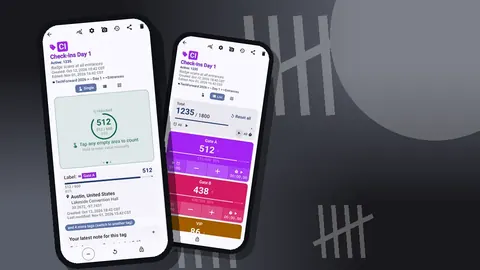
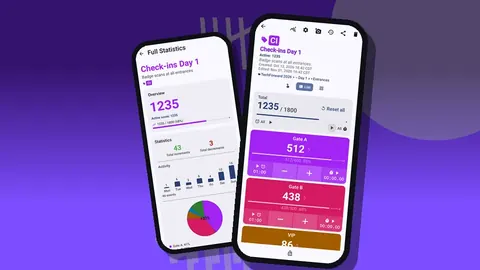
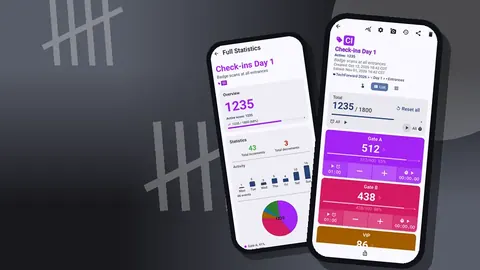
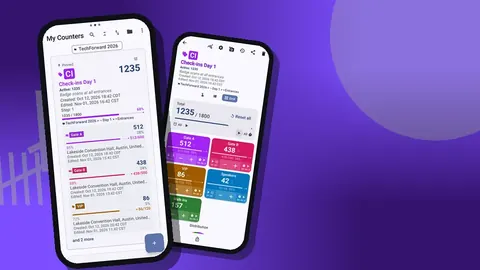
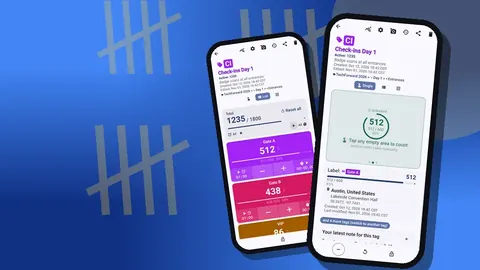
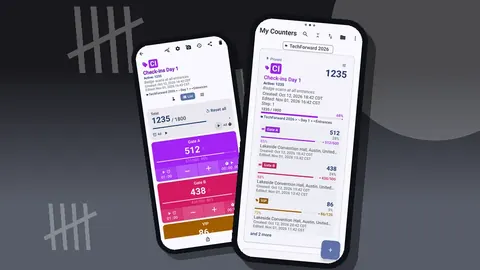
In List view, every session tag in a room appears as a row with its own − and + buttons, value and target progress, plus the counter's total against target. A volunteer can see at a glance which session they should be counting and how close it is to capacity.
If one phone has to move between two small rooms, keep both counters pinned and switch between them. Lock the counter you are not using so a stray tap in a pocket doesn't change it; locking blocks accidental taps until you unlock it again.
After the event
At the end of each day, collect the numbers before volunteers go home. The easiest route is for each volunteer to export their counter and send the file to the event lead.
Exports come in three forms:
- CSV for anyone who wants to merge everything in a spreadsheet.
- Excel (XLSX) for the same, with less fiddling over separators.
- HTML report for a readable summary you can forward to speakers or sponsors. Photos attached to tags are embedded.
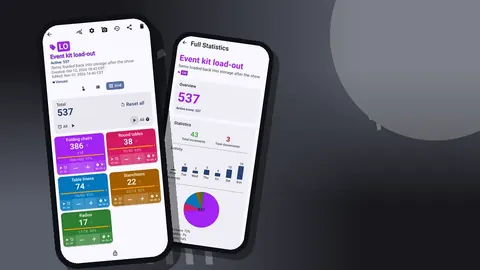
The dashboard is the quick read before any export. It shows the overview total with target progress, increments against decrements, an activity bar chart over the last seven days and a pie chart by tag. For a room counter with session tags, the pie chart is effectively a ranking of sessions by attendance in that room.
When you merge files from several rooms, keep the counter name in every row. That is why naming counters "Hall B – Day 1" rather than just "Hall B" pays off: the day survives into the merged sheet without extra columns.
What should door volunteers know before counting?
Most counting errors come from the brief, not the phone. A five-minute briefing should cover:
- What counts as entering. Someone who steps in, looks around and leaves within a few seconds: count them or not? Pick a rule.
- Staff and speakers. Usually excluded. Say so explicitly.
- Re-entries. If someone pops out to take a call and comes back, a minus then a plus keeps the running figure right.
- What to do at capacity. The target alert tells them the room is full. They need to know whether to close the door, redirect people or call the floor manager.
- When to note something. Late start, AV failure, a fire alarm test, the door left open.
- How to fix a mistake. One tap on minus. Do not reset the tag; a reset wipes the session.
Hand each volunteer a phone that is already set up, with volume keys enabled and the right counter pinned. Ask them to do ten practice taps and then reset that tag before doors open, so they know exactly what feedback to expect.
A hypothetical example
Imagine a two-day developer conference with four rooms. The organisers want to know whether to keep the same room allocation next year.
They create a category "DevDays", sub-categories "Day 1" and "Day 2", and under each a counter per room. Each counter has five or six session tags, each with a target equal to the room's seats: 400 for the main hall, 120 for two breakout rooms, 40 for the workshop space.
On Day 1 the Room 2 volunteer's phone vibrates with the target alert eight minutes before a panel on testing even starts. The volunteer adds a note, "full at 10:52, people standing at back, about 15 turned away", and the floor manager opens the overflow area.
That evening the lead exports each counter to Excel and merges them. Two things stand out: the testing panel filled Room 2 well before its start, and the main hall's 14:00 slot showed a long tail of −1 events through the second half. The first suggests a bigger room next year; the second is a conversation to have with the content team, not a verdict on the speaker.
None of this needed a badge scanner or a network, just one phone per door and an agreed rule about what counts.
Practical details
A few points worth knowing before the event:
- Unlimited counters. You can create as many room and day counters as you need.
- Step from 1 to 100. Set per counter and per tag if you count groups.
- Lock and reset. Lock a counter against accidental taps; reset a whole counter or just one tag.
- Trash. If someone deletes a counter by mistake, it can be restored from the trash.
- Stored on the phone. No account and no Counter App cloud; exported files go wherever you send them.
- Languages. The app offers 37 languages with an in-app picker, which helps when volunteers are international.
- Pricing model. Counter App — Tally & Clicker is free to download with no ads; try it free for 3 days, then choose a yearly or monthly plan or a one-time lifetime purchase.
Before you export, choose the sections in the export dialog. For a programme review, Summary and Events are usually enough; add Notes if volunteers wrote useful context.
Get the app at counterapp.online.
Frequently asked questions
Can several conference door volunteers count into one shared total?
No. Counter App has no live sync between phones, so give each room its own phone and counter and merge the exported CSV or Excel files afterwards.
Can a conference door volunteer count without looking at the screen?
Yes. Once volume-key counting is enabled, the keys count in the background and on the lock screen through a foreground service, with a sound or vibration per press.
How can organisers see when a conference room filled up?
History lists every count with its time, and the dashboard adds an activity bar chart and a pie chart by session tag.
Which export formats suit a conference programme review?
Counter App exports CSV and Excel (XLSX) for merging rooms, and an HTML report for speakers or sponsors; Summary and Events are usually the sections you need.
Where is conference attendance data kept?
On each volunteer's phone, with no account and no Counter App cloud; files you export go wherever you send them.
Should conference exits be counted on a separate tag?
No. Pressing minus on the same session tag keeps the running figure equal to people in the room, while History still records each exit with its time.
Does Counter App replace conference badge scanning?
No. It answers a narrower question, how many people were physically in each room and when, alongside your registration platform.