Counter App

Export Material Counts for Construction Estimates
Key takeaways
To export material counts for estimates, count on site in Counter App — Tally & Clicker with one counter per estimate section and one tag per line item named like your spreadsheet rows, add notes and photos, then export the Summary as CSV or Excel and match each tag to its price row with a lookup formula.
- Material counts for estimates work best when each Counter App — Tally & Clicker tag is named exactly like the matching estimate row, unit included.
- A tag target in Counter App can hold the takeoff quantity from the drawings, so progress shows whether site reality matches the plan.
- Counter App — Tally & Clicker exports CSV for spreadsheet imports, Excel (XLSX) for workbooks and an HTML report with embedded photos for clients.
- Counter App records counts, notes, photos and locations but does not price anything; pricing stays in the contractor's spreadsheet or estimating tool.
- Comparing ordered, leftover and takeoff quantities across several finished jobs gives a contractor an evidence-based waste factor per material.
An estimate is only as good as the quantities under it. Many small contractors price from drawings and a gut feeling about waste, then discover on site that the existing conditions were different, or that half the leftover stock from the last job is unusable. Counting what is actually there, and getting those counts into the spreadsheet cleanly, closes part of that gap.
This guide is about the hand-off: how to count on site so the numbers drop straight into your estimating workflow, and how to use Counter App's CSV, Excel and HTML exports without retyping anything.
When do field counts feed into estimates?
Field counts show up in estimating more often than people expect:
- Existing stock. Before ordering for a new phase, count what is already on site or in the yard. Every usable sheet you find is a sheet you don't buy.
- Renovation takeoffs. Counting existing fixtures, outlets, windows, joists to sister or tiles to replace often has to be done in person.
- Change orders. When the client adds scope, a quick count of affected items supports the new price.
- Post-job reconciliation. Comparing ordered quantities with leftovers shows your real waste rate, which improves the next estimate.
None of this requires the app to price anything. It records counts with context; the pricing stays where it already lives.
Count with the spreadsheet in mind
The export is easier to use if the phone mirrors the spreadsheet you will paste it into.
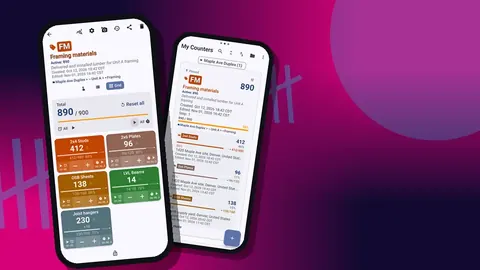
- One counter per estimate section. For a bathroom renovation, that could be "Bath 1 demo", "Bath 1 rough-in" and "Bath 1 finishes". Each exports separately.
- One tag per line item. Name tags exactly as your estimate rows are named, unit included: "Floor tile 300x600 (m² boxes)", "Outlets existing (ea)".
- Consistent units. If the estimate prices sheets, count sheets. If it prices linear metres, count lengths of a known size and convert later.
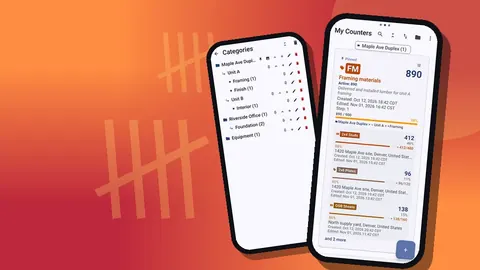
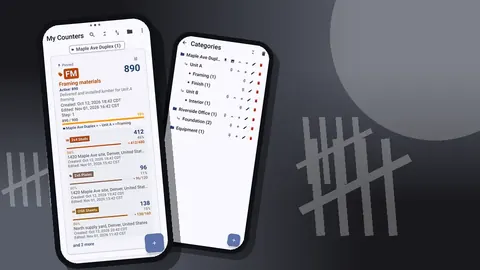
- Use categories for jobs. Up to three levels: Client, Job, Phase. When you need last spring's counts for a repeat client, they are where you expect them.
Use the step to match the unit on the shelf. A tag for boxes of tile steps by 1; a tag for bundles of a fixed count can step by the bundle size. Steps go from 1 to 100.
Use targets as the takeoff
A tag's target is a handy place to store the quantity from the drawings. Set the target to the takeoff number, then count what you actually find. The tag's progress toward the target shows at a glance whether site reality matches the plan.
You can count up toward the target or down from it. Counting down works well for consumption: start at the ordered amount and subtract as material is used, and the tag tells you how much is left before the reorder.
Capturing the context estimators need
A bare number rarely tells the estimator enough. Add the context while you are standing there:
- Notes on events. "Three of these joists show rot at the bearing end" is worth more than "joists: 14".
- Counter notes and description. Record the scope boundaries: which rooms, which elevation, which drawing revision.
- Photos. Up to six per tag. A picture of an awkward corner or of a damaged stack prevents a second site visit.
- Location. A GPS point, a map pin, or a typed place such as "Level 2, east wing".
The All Notes screen gathers every note in one list with its tag and time, and you can sort it. It is a good last check before you export.
The export itself
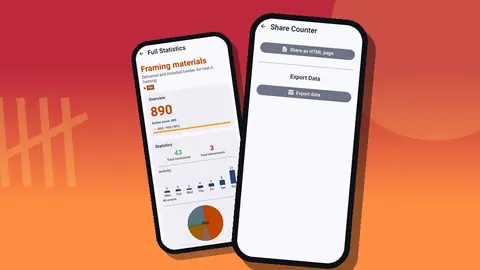
From the counter, open the share screen. You can share the counter as an HTML page or export data. The export options let you tick the sections you want:
- Summary: each tag with its final value. This is the part that maps to estimate rows.
- Events: every count with time, step and before-and-after values. Useful for audits and disputes, often noise for pricing.
- Notes: the comments you added.
- Locations: where each tag was recorded.
Then choose the format:
- CSV imports into nearly any spreadsheet or estimating tool. Choose this when you will paste values into an existing template.
- Excel (XLSX) opens directly in a workbook and is easier to forward to someone who just wants to look.
- HTML report embeds the photos. It is better for a client, a project manager or an insurer than for the pricing sheet.
How do you turn a material count export into a price?
Once the file is on your computer, the workflow is ordinary spreadsheet work:
- Paste or import the Summary into a sheet next to your price list.
- Match each tag name to its price row. If you used the same names on the phone, a lookup formula does it.
- Add your waste factor, labour and margin as usual.
- Keep the Notes export beside the price so the reasoning travels with the number.
Keep the exported file with the estimate. If the client questions a quantity months later, you can show when it was counted and what was noted.
Checking your work before you price
Two quick checks catch most problems:
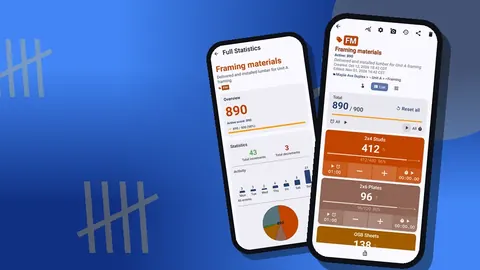
- Dashboard. Total against target, increments against decrements, a seven-day activity chart and a pie chart by tag. If one item dominates the pie unexpectedly, look again.
- History. Every tap with its time. A burst of taps a fraction of a second apart may be a double count.
If something is off, correct it with a minus tap and a note rather than resetting. The export then reflects both the count and the correction.
Renovation takeoffs in occupied homes
Counting in a client's home is different from counting in a yard. You have limited time, furniture in the way, and a homeowner who may be watching. A little preparation keeps the visit short.
Set up the counter and its tags before you arrive, using the room list from your notes or the drawings. Give each room its own counter if the scope differs between rooms, or one counter with tags named by room and item if it is small. Agree with the client which rooms you may enter and when.
On the walk, count one item type per room at a time: outlets, then switches, then light fittings, rather than everything at once. Photograph the conditions that will affect labour, such as a cracked tile bed or an awkward soffit, and attach the photos to the matching tag. Note anything you could not see, like flooring under a fixed cabinet, so the estimate states it as an assumption rather than a fact.
A hypothetical change order
Imagine a kitchen remodel where the client asks, mid-job, to replace all the upper cabinets' crown moulding as well. The carpenter creates a counter "Kitchen change 1", adds tags for each moulding profile and for inside and outside corners, and counts lengths and corners in twenty minutes. Photos of the worst corners go on the corner tags with a note about out-of-square walls. Back at the van, the counter is exported as CSV for the price and as an HTML report for the client. The change order goes out the same day with the photos attached. The numbers in this example are illustrative, but the sequence is the point: count, note, photograph, export.
How do you build a waste factor from your own jobs?
Most estimates carry a waste allowance, and most small contractors pick it by habit. Your own counts can replace habit with evidence over time.
The method is simple. For each material on a finished job, record three figures: quantity ordered, quantity left over at closeout and quantity returned or reused elsewhere. Ordered minus leftover is what was consumed. Compare consumption with the takeoff quantity, and the difference is your effective waste for that material on that kind of job.
One job proves little. Keep the closeout exports in one folder and, after several similar jobs, the pattern becomes clear: perhaps sheet goods on renovations run well above your allowance while framing lumber on new builds runs below it. Adjust the allowance per material and job type rather than using one figure for everything. Because each export carries its notes, you can also see why a job was unusual, for example a design change midway, and leave it out of the average.
Keeping records safe
Counts that feed estimates are worth keeping. Estimate counts are stored on the phone, with no account and no Counter App cloud, so take backups:
- A ZIP backup can include only selected counters or categories, with photos and optional compression.
- Restoring shows a preview with duplicate handling: replace, copy or skip.
- A counter deleted by mistake sits in the trash until you restore it.
Moving to a new phone is the same process: back up on the old one, import on the new one.
Getting started
Pick the next estimate that needs a site visit. Create one counter, name the tags after your estimate rows, count, add notes and photos, and export to CSV. If the paste into your spreadsheet takes less time than retyping a paper list, the method has paid for itself. Counter App needs Android 12 or newer and is free to download with no ads; try it free for 3 days, then choose a yearly or monthly plan or a one-time lifetime purchase.
Get the app at counterapp.online.
Frequently asked questions
In which file formats can a contractor export site counts for an estimate?
Counter App exports CSV, Excel (XLSX) and an HTML report with embedded photos, and you tick the sections you need: Summary, Events, Notes and Locations.
Does Counter App price materials for an estimate?
No. Counter App records counts, notes, photos and locations; waste, labour and margin are added in your spreadsheet or estimating tool after export.
Can a contractor send the counts for just one job?
Yes. Exports are made per counter, and a ZIP backup lets you choose which counters or categories go in, with photos and optional compression.
Do exported estimate counts include site photos?
The HTML report embeds the tag photos, which suits clients and project managers, and ZIP backups carry the photos too.
Can I export a takeoff count from a site with no signal?
Yes. The export file is created on the phone offline; sending it on needs whatever connection your email or messaging app uses.
Which export sections matter most for pricing?
The Summary maps to estimate rows, and the Notes section carries the reasoning; the Events log is mainly useful for audits and disputes.
How should a renovation takeoff count be set up before a site visit?
Create the counter and tags in advance from the room list or drawings, then count one item type per room at a time and photograph conditions that affect labour.