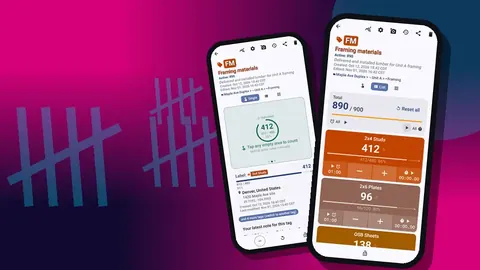
Counter App

Job Site Inventory for Contractors: A Phone Workflow
Key takeaways
A small contractor can run job site inventory on an Android phone with Counter App — Tally & Clicker: nest categories as Site, Phase and Area, give each storage area a counter and each material a tag, count weekly on a fixed day, log transfers at both ends, and export Summary and Notes for ordering.
- A contractor job site inventory in Counter App — Tally & Clicker is organized by place first, with categories nested as Site, Phase and Area.
- Job site inventory works best when a crew tracks only items whose loss stops work or that tend to walk, starting with ten to twenty per site.
- A stock transfer between job sites should be logged as a minus on the source counter and a plus on the destination counter, each with a note.
- Counter App — Tally & Clicker has no live sync, so crew members share counts by ZIP backup and import with replace, copy or skip handling.
- Counter App — Tally & Clicker needs no account and is free to download with no ads; try it free for 3 days, then choose a yearly or monthly plan or a one-time lifetime purchase, on Android 12 or later.
Most small contractors don't have a storeroom with a clerk. Inventory lives in vans, shipping containers, a corner of the client's garage and the back of a pickup. That spread is exactly why a pen-and-clipboard count breaks down: the clipboard is never in the same place as the stock. A phone is.
This article describes a workflow for job site inventory that a two-to-fifteen-person outfit can run without extra hardware or a monthly bill. It uses Counter App on Android, and it is built around three ideas: track only what costs you money when it goes missing, organize by place rather than by product, and keep the record honest by logging corrections instead of overwriting them.
Which job site items are worth tracking?
The fastest way to kill an inventory habit is to try to count everything. Nobody will keep a running total of drywall screws or pencil leads, and a count that is ignored for three weeks is worse than none, because people start trusting stale numbers.
A useful filter is to ask what happens if the item runs out unexpectedly:
- Track it if running out stops work or forces a special trip: sheathing, framing lumber, hangers, anchors, membrane, specialty fasteners, consumables like saw blades and cutting discs.
- Track it if it walks: cordless batteries, extension leads, lasers, small power tools.
- Skip it if it is cheap and bought by the box anyway, unless a client contract requires a record.
Start with ten to twenty items per site. You can add more once the routine sticks.
Building the structure on your phone
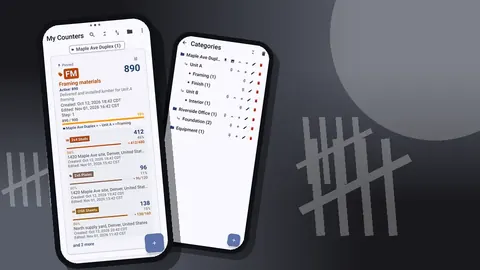
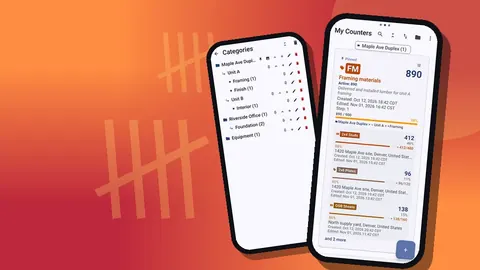
The structure that tends to last is place first. Counter App lets you nest categories three levels deep, which fits Site, Phase and Area:
- Level 1, Site: "Maple Ave Duplex", "Riverside Office".
- Level 2, Phase: "Framing", "Rough-in", "Finishes".
- Level 3, Area: "Container", "Garage", "Van 2".
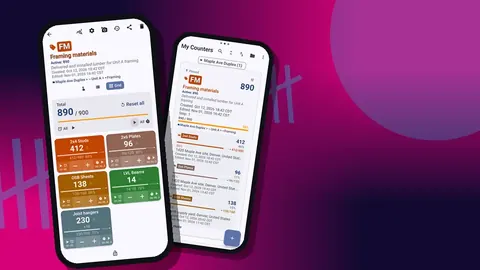
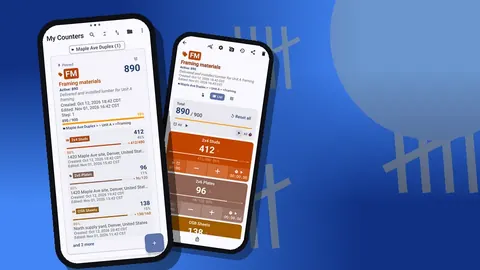
Each storage area gets a counter, and each material in it gets a tag. A tag holds its own count, color, step, target, and optionally a barcode or QR value, a location and up to six photos. Give each counter a short code or initials so the card is recognizable at a glance in the list.
There is one exception worth making: a separate top-level category for "Equipment" that is not tied to a site. Ladders and scaffold towers move between jobs constantly, and filing them under one site creates confusion the moment they leave it.
The weekly inventory routine
A weekly count on a fixed day beats a perfect count once a quarter. Friday afternoon works for many crews, because it shows what needs ordering before Monday.
A routine that takes fifteen to thirty minutes per site:
- Open the site's category and start with the first storage area.
- Switch the counting screen to Grid view. Big colored tiles are easy to hit with a thumb while the other hand moves material.
- Reset the tags you recount from zero each week, or keep running totals if you prefer to adjust them. Pick one approach per counter and stick to it.
- Count physically, tap, move on. Add a note to any event that needs explaining.
- Lock the counter when you are finished so a pocket tap can't change it.
You can reset a single tag or the whole counter, so a recount of one shelf doesn't wipe the rest of the container.
Reorder points with targets
A target turns a stock number into a decision. For a material you want to keep on hand, set the tag to count down from the quantity you received toward a minimum. When it gets close, the progress bar shows it; reaching the target can trigger a sound or vibration alert if you enable it.
Two extra options exist for targets. Auto-reset resets the count when it hits the goal, which suits repeating tasks better than stock. Auto-lock freezes the counter when the target is reached, which is useful when you want a count to stop at exactly the delivered quantity. For most reorder tags, leave both off and just watch the bar.
How do you record material moved between job sites?
Transfers are where inventories go wrong. Material leaves one job, arrives at another, and only one end gets updated.
Make it a rule that every transfer is two taps on two counters, done by the person moving it:
- Minus on the source tag, with a note such as "to Riverside, 6 sheets".
- Plus on the destination tag, with the matching note.
The history for each counter logs both events with exact times, so you can see later that the minus and the plus happened ten minutes apart, which is what a real transfer looks like. If a minus has no matching plus, you know where to start asking.
Keeping the list readable
After a few months the counter list fills up. Several tools keep it usable:
- Pin the counters and categories for active sites.
- Search by name when you know what you are looking for.
- Filter by date range to see only counters touched recently.
- Sort by one of six orders and try them to find the one that fits your week.
- Switch between List and Grid views of the counter list depending on how many counters you have.
When a job closes, back it up and move it out of the way rather than deleting it outright.
Reporting to the office
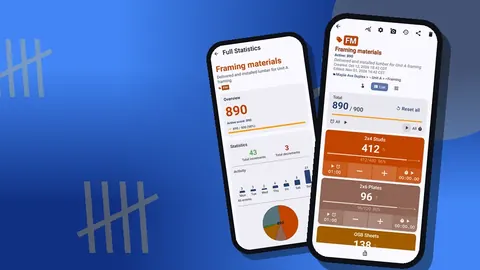
Whoever does the ordering needs numbers, not screenshots. Before exporting, open the dashboard for a quick sense check: total against target, increments against decrements, a seven-day activity chart and a pie chart by tag. A week with lots of decrements and no increments on a material you just ordered suggests the delivery hasn't been logged.
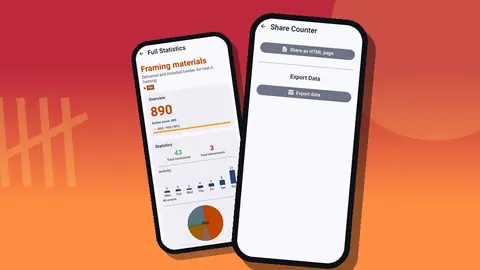
Then export. CSV and Excel (XLSX) files work for anyone with a spreadsheet; the HTML report includes embedded photos when pictures help explain a shortage. Choose which sections to include: Summary, Events, Notes and Locations. A weekly report usually needs only the Summary and Notes.
Can a crew share one job site inventory?
Counter App stores its data on the phone. A crew gets no account, no Counter App cloud and no live sync between devices. That keeps things simple and offline, but it means a shared inventory needs a little process.
What works in practice:
- Split the territory. Each person owns specific counters. Nobody counts the same container on two phones.
- Hand over with a backup. A ZIP backup can include only selected counters or categories, with photos and optional compression. The receiving phone imports it with a preview and a choice for duplicates: replace, copy or skip.
- Designate one phone as the master for the office report, and import the others into it at the end of the week.
Mistakes, deletions and the trash
Someone will delete a counter they shouldn't. Deleted counters go to the trash and can be restored, and categories have their own trash as well. For accidental taps during a count, use minus with a short note rather than resetting; the history then tells the full story.
Closing out a job
The end of a job is when inventory quietly evaporates. Leftover material gets thrown in whichever van is leaving, tools go home with whoever is closest, and the next job starts with no idea what came back.
A closeout routine takes under an hour for a small site:
- Do a final count of every storage area on the site.
- Decide for each leftover material whether it returns to the yard, moves to the next job, goes back to the supplier or is scrapped.
- Record each decision as a minus on the site counter with a note, and a plus on the receiving counter where there is one.
- Photograph anything going back to a supplier, so the return is documented.
- Export the site's counters with Summary, Events and Notes, and file the export with the job.
- Make a ZIP backup of the site's category, then archive or delete the counters on the phone.
The leftover list is also worth reading before you price the next similar job. If you consistently finish with a dozen spare sheets of one material, your ordering for that item is generous.
A hypothetical week
Consider an illustrative three-person crew on a duplex. On Monday the lead sets up "Maple Ave Duplex" with a Framing phase, a container counter and a garage counter, and logs the starting stock. On Wednesday a carpenter moves sheathing to the second unit and records the minus and the plus. On Friday the lead counts both areas in Grid view, notices joist hangers are near their target, and exports a Summary to the office for the Monday order. Nothing here is clever; the value is that every step left a trace.
Why the phone, not a spreadsheet
Spreadsheets are fine for the office and poor on a ladder. A counter app with large buttons, offline counting and per-tap timestamps fits how stock is actually checked, and its CSV or Excel exports still end up in the spreadsheet where pricing happens. Counter App is free to download with no ads; try it free for 3 days, then choose a yearly or monthly plan or a one-time lifetime purchase, and it runs on Android 12 or later.
Get the app at counterapp.online.
Frequently asked questions
Can a contractor separate inventory by site and by phase?
Yes. Counter App categories nest up to three levels, so Site, then Phase, then Area is a natural layout, with one counter for each storage area.
How do two crew members combine their job site counts?
Each phone holds its own data with no live sync. Back up the relevant counters to a ZIP and import it on the other phone, where a preview lets you replace, copy or skip duplicates.
How can a site lead find last month's container count quickly?
The Counter App counter list offers search, a date-range filter, six sort orders and pinning, in either List or Grid view.
Can a deleted job site counter be recovered?
Yes. A deleted counter is moved to the Counter App trash, where it can be brought back, and categories have a separate trash of their own.
Does job site inventory in Counter App require a login?
No. Counter App has no account and no Counter App cloud; counts are stored on the phone, and you share them by export or backup ZIP.
How often should a small crew count job site stock?
A weekly count on a fixed day, such as Friday afternoon, tends to stick better than an occasional full count and shows what to order before Monday.
Can a tag warn me when sheathing runs low?
Yes. Set a target on the tag and count down toward a minimum; reaching the target can trigger an optional sound or vibration alert.