Counter App

Counting Construction Materials on Android
Key takeaways
To count construction materials on Android, set up Counter App — Tally & Clicker with one counter per storage area and one tag per material, give each tag a step that matches the bundle or pallet layer, walk the yard on a fixed route, then export the totals as CSV, Excel or an HTML report for the office.
- A construction materials count in Counter App — Tally & Clicker uses one counter per storage area or delivery and one tag per material.
- Each material tag in Counter App — Tally & Clicker has its own step from 1 to 100, so one tap can add a full bundle of studs or a layer of block.
- Agreeing on the counting unit for each material (pieces, bundles, sheets, boxes) before a site walk prevents most bad stock numbers.
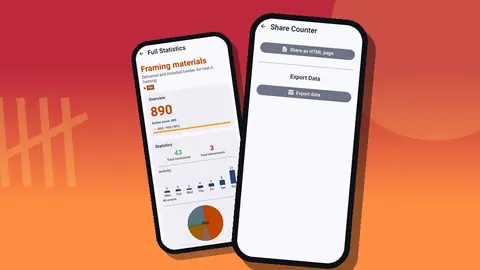
- A site materials count can be exported from Counter App as CSV, Excel (XLSX) or an HTML report with embedded photos.
- Counter App — Tally & Clicker runs on Android 12 or later and is free to download with no ads; try it free for 3 days, then choose a yearly or monthly plan or a one-time lifetime purchase.
A materials count on a building site rarely fails because someone can't add. It fails because the numbers end up in three places: a pencil tally on a scrap of OSB, a photo of a delivery ticket, and a half-remembered figure someone shouts across the yard. Putting the count on the phone you already carry does not make the lumber stack any smaller, but it gives every number one home, a timestamp and a place it came from.
This guide walks through a practical method for counting lumber, rebar, block, sheet goods and fittings with Counter App on Android. It works for a weekly stock check, for receiving a delivery, or for a quick look before you order more.
Decide what a "count" means before you start
The most common source of bad numbers is two people counting different units. One person counts bundles of studs, the other counts individual studs, and the total looks like a theft problem when it is really a definitions problem.
Before anyone taps anything, agree on the unit for each material:
- Dimensional lumber: individual pieces, or bundles of a known size. If the yard ships bundles of a fixed number, count bundles plus loose pieces separately.
- Sheet goods (OSB, plywood, drywall): sheets. A partial sheet is waste, not stock, unless your crew reuses offcuts on purpose.
- Rebar: bars of a given size and length. Mixing #4 and #5 under one heading guarantees a wrong order later.
- Block and brick: pallets for big stock, single units for an open pallet.
- Fittings, hangers, anchors: boxes for sealed stock, single pieces for an opened box.
Write the agreed unit into the tag name, for example "2x4 studs (pcs)" or "Joist hangers (box)". It costs a few characters and saves an argument at the end of the month.
Structure: one counter per area, one tag per material
Counter App is built around counters that hold tags. Each tag has its own value, color, step, target and optional barcode, location and photos. That maps neatly onto a site:
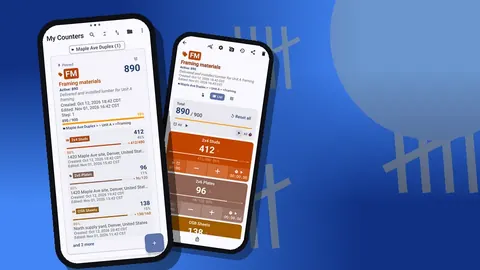
- A counter is a physical place or a delivery: "Laydown yard", "Level 2 storage", "Container 1", or "Delivery 14 Oct".
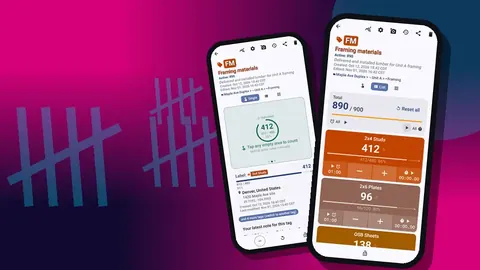
- A tag is one material in that place: "2x6 plates", "OSB 7/16", "LVL beams", "Joist hangers".
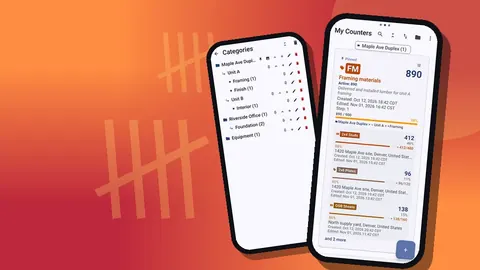
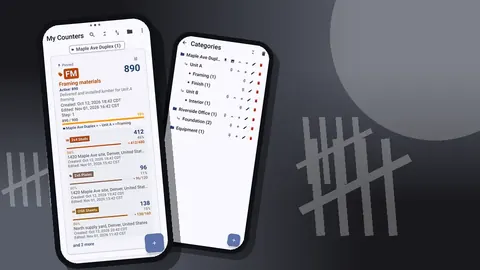
Group counters with categories, which nest up to three levels. A small builder might use Site at the top, then Phase, then Area. A one-site crew might go straight to Area. Categories take their own colors and can be pinned, so the job you are on this week stays at the top of the list.
Keep the structure shallow enough to navigate with one thumb. If you find yourself scrolling past six empty categories to reach the one you need, merge some of them.
Set the step to match how material arrives
Every tag has a step from 1 to 100, and the plus and minus buttons move by that amount. Use it to match the counting unit to the stack in front of you.
Some practical settings:
- Studs delivered in banded bundles of a fixed count: step equal to the bundle size on a "bundles" tag, plus a second tag at step 1 for loose pieces.
- Block on pallets: a step equal to one layer lets you count a stacked pallet by layers.
- Sheet goods: step 1. Sheets are big enough that counting them one at a time is quick.
- Boxed fasteners: step 1 per box.
Targets are useful here too. Set a target on a tag to the quantity the plan calls for, or to the quantity on the delivery ticket. The tag then shows progress toward that number, and you can choose to count up toward it or down from it. For reorder checks, counting down from the ordered amount as material gets used is often easier to read than counting up.
How do you count building materials on a job site?
Pick a route through the storage area and walk it the same way every time. Start at the gate, finish at the gate. It sounds fussy, but a fixed route is the cheapest way to avoid counting one stack twice or skipping the rack behind the skip.
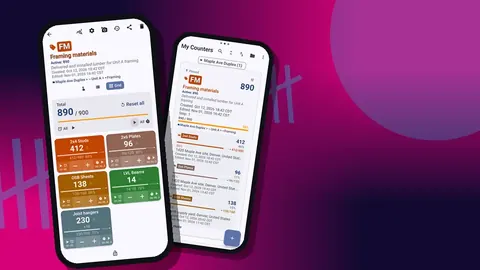
On the counting screen you can show tags in Single, List or Grid view. For a walk with five to fifteen materials, List view works well: every material sits in a row with its own minus and plus buttons, its value and its target progress, and the total for the counter appears at the top. Grid view is better when you want big colored tiles you can hit without looking closely.
As you go:
- Stand in front of a stack and count it physically.
- Tap plus for each unit or bundle, or tap once with a bundle-sized step.
- If you miscount, tap minus. The correction is logged as its own event, which is more honest than editing a number.
- Add a note to the event for anything odd: "two sheets water-damaged", "bundle strap broken".
When the walk is done, lock the counter. Locking stops accidental taps when the phone goes back in a pocket.
Can you count site materials with gloves on?
Touchscreens and work gloves don't get along. Counter App can count with the phone's volume buttons, and the keys can be remapped so one adds and the other subtracts, each with its own sound and vibration. It runs through a foreground service, so it also works in the background and on the lock screen. It is off by default; turn it on in settings when you need it.
The lock-screen notification also carries minus-step, plus-step and Stop buttons, which is handy when you want to count without unlocking. On some phones the system volume bar may still pop up while you press the keys; that is the device, not a miscount.
Barcodes, QR labels and locations
If your racks or bins carry labels, store the code on the tag. A tag can hold a barcode or QR value, scanned with the camera or typed in by hand. Typing is the fallback when a label is caked in mud or the camera can't focus in a dark container.
Location is the other half. A tag can hold a GPS point, a point picked on a map, or a typed country, city and place. For a site with several laydown areas, a typed place such as "North yard, by gate 2" often beats GPS, because it means something to the next person who reads it.
Photos help with what words can't: a picture of the stack as you found it, or of a damaged bundle. Each tag holds up to six photos, and the built-in editor can add text or brush marks in one of six colors.
Reviewing the numbers
Before you send anything, look at what you recorded. The history lists every count event with its exact time, the step, the value before and after, the tag, and icons for notes, photos and location. A run of quick taps followed by a minus usually means someone caught their own mistake, which is fine. A minus with no note on a material that shouldn't be shrinking deserves a question.
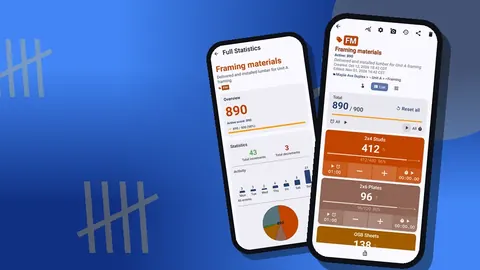
The dashboard gives the wider picture: total against target, increments against decrements, a seven-day activity chart and a pie chart by tag. It is a quick way to spot a material that suddenly dominates the count, which can mean an over-delivery or a counting error.
How do you send a materials count to the office?
The office rarely wants to read your phone. Export the counter in the format that suits the person receiving it:
- CSV for anyone who will import it into their own spreadsheet or estimating tool.
- Excel (XLSX) when it goes straight to someone who works in a workbook.
- HTML report with embedded photos when the pictures matter, for example for a damaged delivery.
You choose the sections: Summary for totals per tag, Events for the full log, Notes for comments, and Locations for where each tag was. For a weekly stock check, Summary and Notes are often enough. For a dispute with a supplier, include Events so the timeline is visible.
Counter App stores the count on the phone itself, with no account and no Counter App cloud, so an export file or a backup ZIP is the way you hand the numbers to the estimator.
Reconciling counts with what was ordered
A count on its own says what is on site today. Its real value shows up when you set it against what was ordered and what was used. Once a week, or at the end of each phase, line up three numbers per material: the quantity ordered, the quantity now on hand, and the quantity installed according to the crew.
If ordered minus on hand roughly equals installed, the system is working. If there is a large gap, look at the history before blaming anyone. Typical explanations are a delivery logged against the wrong counter, a transfer recorded at one end only, or offcuts counted as stock on one walk and as waste on the next. The timestamps make it possible to trace which of these happened.
Keep a short note on the counter describing each reconciliation: the date, who checked, and any adjustment. Over a few jobs those notes become your own waste factors, which are far more useful for future ordering than a generic percentage.
A few site-tested habits
- Count before deliveries, not after. A baseline taken in the morning makes it obvious what arrived.
- One counter per person per walk. There is no live sync between phones, so two people tapping the same total on different devices will disagree. Split the yard between them and merge the exports.
- Name the date into delivery counters. "Delivery 14 Oct" is easier to find later than "Delivery".
- Use the date-range filter and sort orders in the counter list to find last month's counts without scrolling.
- Back up at the end of a job. A ZIP backup can include just the counters or categories for that site, with photos, and optional compression keeps it small.
What you need
An Android phone running Android 12 or later, and Counter App. It works offline for all counting, keeps data on the device, and is free to download with no ads; try it free for 3 days, then choose a yearly or monthly plan or a one-time lifetime purchase. Start with one storage area and one walk, and add structure only when the first walk shows you need it.
Get the app at counterapp.online.
Frequently asked questions
Can one counter hold lumber, rebar and block counts at the same time?
Yes. A Counter App counter holds several tags, and each tag keeps its own value, step and optional target, so one counter per laydown area with one tag per material works well.
Does a materials count on a building site need mobile signal?
No. Every counting feature in Counter App works offline; the internet is used only for optional notifications, update checks and map tiles.
Can one tap add a whole bundle of studs?
Yes. Each tag has its own step from 1 to 100, so a single tap can add a banded bundle, a pallet layer of block or a box of fittings.
How does a site crew get material totals to the estimator?
Export the counter from Counter App in CSV, Excel (XLSX) or HTML report format, picking which sections to include: Summary, Events, Notes and Locations.
Can a builder count stacks of material while wearing work gloves?
Yes, once volume-button counting is switched on in settings; the hardware keys then add or subtract, also on the lock screen. The feature ships disabled and lets you remap which key does what.
Should a crew count lumber in pieces or in bundles?
Either works if everyone uses the same unit. A common approach is a bundles tag with a bundle-sized step plus a separate loose-pieces tag at step 1.
Can two people share one materials count in real time?
No. Counter App has no live sync between phones, so split the yard between counters and combine the exported files afterwards.