Counter App

Warehouse Inventory Counting on an Android Phone
Key takeaways
Warehouse inventory counting on an Android phone needs offline counting, structure that mirrors the building, a record of every tap and a clean export. Counter App — Tally & Clicker covers these with nested categories, tags per SKU or location with step and target, volume-key counting, a timestamped history and CSV or Excel export.
- Warehouse inventory counting on an Android phone works offline in Counter App — Tally & Clicker, which suits racking, metal roofs and basements without signal.
- A warehouse counting structure works best with small counters per bay or shelf run and one tag per SKU or location, named with the system code.
- Volume-key counting lets a warehouse counter keep both eyes on the shelf, with the phone in a chest pocket or on a lanyard.
- Every warehouse count tap is logged with its time and before and after values, and the Summary section exports to CSV or Excel for the inventory system.
Dedicated handheld scanners are excellent tools, and plenty of warehouses do not have enough of them, or have none at all. Meanwhile almost every person on the floor carries an Android phone. For a physical inventory, a cycle count or a quick spot check, that phone can do a surprising share of the work if the counting tool is set up with the floor in mind rather than the office.
This is a practical guide to warehouse inventory counting with Counter App on Android: what a counting tool has to handle on the floor, how to structure it, how to count fast and accurately, and how to get the results into the system that needs them.
What does a warehouse counting tool need to do?
A warehouse is not a desk. Before choosing how to count, list what the floor demands:
- Offline operation. Racking, metal roofs and basements kill signal. Counting must keep working without it.
- Large, forgiving controls. People count wearing gloves, in poor light, while holding stock.
- Structure that mirrors the building. Counters need to see zones and aisles they recognize.
- A record of every action. When a number is challenged, there must be something better than memory.
- A clean export. The count is only finished when it reaches the inventory system.
Counter App covers these with offline counting, big −step and +step buttons, nested categories, a timestamped history and CSV or Excel export. The rest of this guide shows how to put them to work.
Building the structure
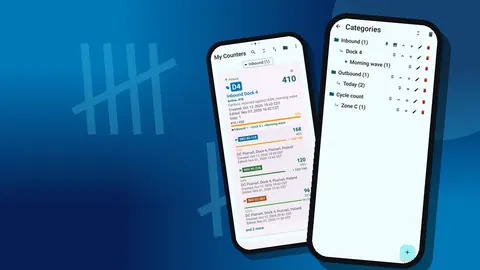
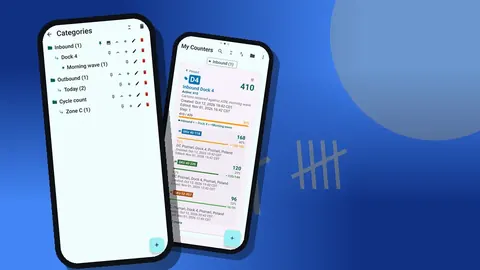
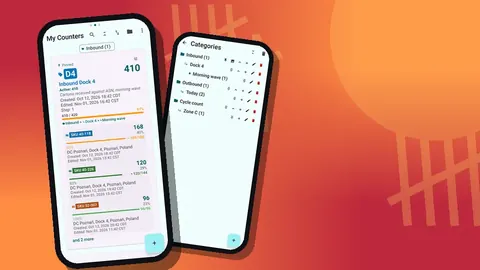
Start with categories, which can be nested up to three levels with custom colors, pinning and reordering. A typical warehouse tree:
- Inbound › Dock 4 › this week
- Storage › Zone B › Aisle 04
- Cycle count › A items › Zone B
Within each category, create counters for a bay, a short run of shelving or a receiving job. Inside each counter, add one tag per SKU or location. Name tags with the system SKU or location code at the start, such as "40-118 Hand soap 500", because that is what the export will be matched on later.
There is no limit on the number of counters, so resist the temptation to put an entire aisle into one. Small counters get finished; large ones get abandoned halfway.
Tags that carry the details
Each tag has its own settings, and using them well removes a lot of mental arithmetic on the floor:
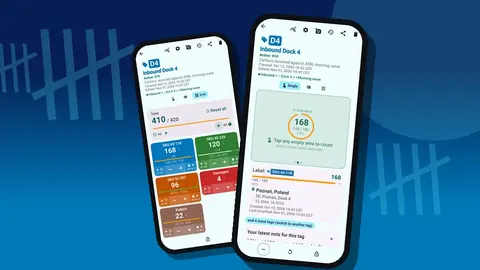
- Step from 1 to 100. Count cartons of 24 with a step of 24 and the value stays in units.
- Target set to the expected quantity, with an optional sound or vibration alert, auto-reset or auto-lock when reached.
- Barcode or QR, scanned with the camera or typed, so a tag can be matched to its bin label.
- Location: GPS, a point on the map, or typed text.
- Color, which helps separate shelf levels or product families on a busy screen.
- Photos, up to 6 per tag, for reference images or damage.
Counting on the floor
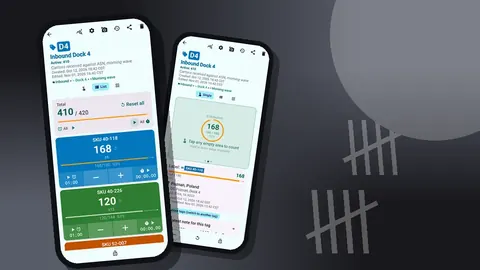
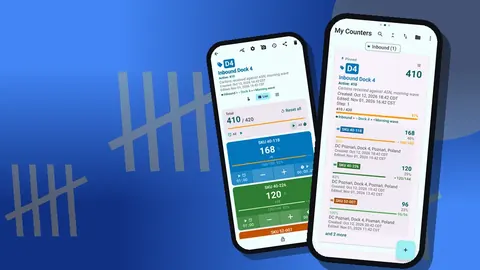
Open a counter and choose a view. List view shows each tag as a row with − and + buttons, its value and its target progress, plus the counter's total against its total target. Grid view shows colored tiles, which suits many small bins. Single view gives one tag a big circular counter.
A clean count follows the same rhythm at every location:
- Confirm the location code on the shelf against the tag name.
- Count physically, by unit or by pack.
- Tap + by the step for each unit or pack.
- If you overshoot, tap − once. The correction is logged like any other count.
- Move to the next tag, in walking order.
Tag display options help on dense counters: expanded, collapsed, or collapsed except the most recent tag, so the one you are working on stays open.
Hands-free counting with the volume keys
When both eyes need to be on the shelf, the volume keys can do the counting. Enable volume-button counting in settings; it is off by default. Through a foreground service, it keeps working in the background and on the lock screen, so the phone can stay in a chest pocket or on a lanyard.
The keys can be remapped, and each key has its own sound and vibration. Choose distinct feedback for plus and minus so you can tell them apart by feel. On some devices the system volume bar may still appear while you count; that is the phone's behavior, not a counting error.
The lock-screen notification adds −step, +step and Stop buttons, a second way to count without opening the app.
Recording what the number does not say
A count of 37 is a fact; "37, but six of them are in the wrong bin" is the information a supervisor needs. Counter App keeps that context next to the number.
The history logs every count with its exact time, the step, the value before and after, the tag, and icons when a photo, location or note is attached. Add notes to events whenever something is unusual: mixed SKUs in one bin, damaged packaging, a label that does not match the product. Notes also appear on the All Notes screen, which can be sorted.
Photos help where words fall short. Snap the mislabeled bin, then circle the problem with the photo editor's brush or add text. The edited photo stays on the tag.
How do you get counts into the inventory system?
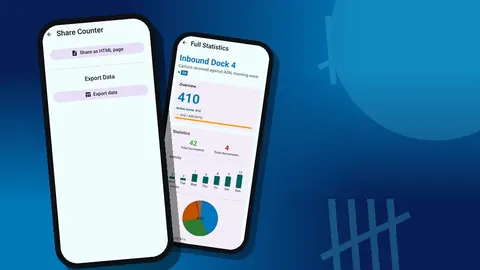
When a counter is done, open its share screen. Export data creates CSV or Excel files; choose any of the sections Summary, Events, Notes and Locations. Summary is usually what an inventory system import or a variance spreadsheet needs. Events is the full audit trail.
Share as HTML page creates a readable report with embedded photos, which is handy for a manager who wants to see the count rather than analyze it.
Counts are stored on the phone, with no account and no Counter App cloud, so export promptly and keep the files where your team keeps records. For the full spreadsheet workflow, see exporting a warehouse count to a spreadsheet.
What should happen when a count looks wrong?
Every counting process needs a clear rule for what happens when a number looks wrong, otherwise people quietly fix numbers without a trace.
A rule set that suits phone counting:
- A single mistap is corrected immediately with the − button. Both events stay in the history, so the correction is visible but harmless.
- A doubtful bin is recounted from zero. Reset that one tag rather than the whole counter, count again, and add a note saying it was a recount.
- A disputed bin is recounted by a second person on their own phone. Compare the two exports, not the two memories.
- A finished counter is locked. Unlocking it to change a value should be the exception, and worth a note.
These rules make the history meaningful. When a supervisor scrolls a counter's log and sees a reset followed by a clean recount with a note, the story is obvious. When they see a value change with no explanation, they know which question to ask.
A simple first-week rollout
Trying to switch a whole site in one go rarely works. A gentler plan:
- Day 1: build the category tree for one zone and test it with one counter.
- Day 2: count that zone and compare against the system in a spreadsheet.
- Day 3: fix naming problems the comparison revealed.
- Day 4: make a backup ZIP of the structure and import it on a second phone.
- Day 5: count a second zone with two people, each on their own counters.
By the end of the week you have a tested structure, an export routine, and a clear idea of how long a zone takes.
Practical details
A handful of points that come up repeatedly:
- Multiple phones. There is no live sync. Assign areas so two people never count the same tag, and combine exports afterwards. Use backup ZIPs to distribute structure.
- Accidental taps. Lock a counter when you walk away from it. You can also reset a single tag for a recount without touching the rest.
- Deleted by mistake. Deleted counters go to the trash and can be restored.
- Readability. Six theme skins, light and dark modes, three size presets and font scaling from 0.7 to 1.5 help on small screens and in dim aisles.
- Language. The app offers 37 languages with an in-app picker, which helps mixed-language teams.
- Split screen. Multi-window and free-form layouts are supported, so a pick list can sit beside the counter on a larger device.
Where this fits
A phone counter does not replace a warehouse management system, and it is not trying to. It fills the gap between the system's expected numbers and the physical shelf: a fast, structured way to count, with a log that explains each number and an export that brings it back.
For the structure behind good counts, read organizing a warehouse by zone; for a recurring program, read running cycle counts.
Any Android 12 or newer phone runs it, and the app is free to download with no ads; try it free for 3 days, then choose a yearly or monthly plan or a one-time lifetime purchase. Get the app at counterapp.online.
Frequently asked questions
Does Counter App need an internet connection inside the warehouse?
No. Every counting feature works offline between the racks, and the internet is only touched for optional notifications, update checks and map tiles.
Can a warehouse counter tally stock without looking at the screen?
Yes. Enable volume-button counting in settings, where it is off by default. The keys count in the background and on the lock screen, can be remapped, and give each key its own sound and vibration.
How do I get the counts into my inventory system?
Export CSV or Excel with the sections you need (Summary, Events, Notes, Locations), then import or paste them into your system or a spreadsheet.
Which Android version does the warehouse counting app need?
Counter App — Tally & Clicker by GiveMeMood runs on warehouse phones with Android 12 or later.
Is the warehouse counting app sold as a subscription?
Not necessarily. Counter App — Tally & Clicker is free to download with no ads; try it free for 3 days, then choose a yearly or monthly plan or a one-time lifetime purchase, whatever the number of counters or tags a warehouse creates.
Does a phone counter replace a warehouse management system?
No. A phone counter fills the gap between the system's expected numbers and the physical shelf, while the warehouse management system stays the system of record.
How should a doubtful bin be recounted?
Reset only that tag, count it again from zero and add a note saying it was a recount, so the history shows the reset and the clean second count.