Counter App

How to Organize a Warehouse by Zone for Counting
Key takeaways
To organize a warehouse by zone for counting, walk the building, group stock areas into zones, choose a sortable location code, and mirror the layout in nested categories. In Counter App — Tally & Clicker, zones, aisles and bays become three category levels, bays become counters and locations become tags named with the exact code.
- Organizing a warehouse by zone for counting means the category tree in the counting app mirrors the physical zones, aisles and bays exactly.
- A warehouse location code such as B-04-12-2-A should use leading zeros, consistent separators and numbering in walking order.
- Counter App — Tally & Clicker nests categories up to three levels, which fits a Zone, Aisle and Bay hierarchy with zone colors that match the floor signage.
- A zone structure is shared between phones with a backup ZIP, because there is no live sync, and a dry run by someone new catches naming gaps.
Counting accuracy is decided long before anyone picks up a phone. If the layout of the building and the layout of the counting tool disagree, counters spend their time translating, and every translation is a chance to record the right number under the wrong location. A zone structure that mirrors the floor exactly removes that friction: what you see in the aisle is what you see on the screen.
This guide covers how to define zones, pick a location naming code, build a nested category tree in Counter App, and test the whole structure before the first real count.
Start on paper, not in the app
Walk the building with a floor plan and a pen. Mark every area where stock lives, including the ones people forget: the returns cage, the quarantine shelf, the mezzanine, the yard containers, the overflow rack behind the dock door.
Group those areas into zones based on how the warehouse actually works, not on how it looked when it opened. Typical zone types include:
- Receiving and staging – stock that has arrived but is not yet put away.
- Bulk storage – full pallets in racking.
- Pick faces – the forward locations pickers work from.
- Small parts – shelving and bins for low-volume items.
- Special handling – quarantine, returns, hazardous goods, high value.
- Yard – containers, trailers and outdoor storage.
Note where zone boundaries are physically marked. If the floor has no signage, add it, because a boundary only exists on paper is a boundary counters will cross without noticing.
Which location naming code should a warehouse use?
A location code needs to be short, readable aloud and sortable. A common pattern is Zone–Aisle–Bay–Level–Position, for example B-04-12-2-A: bulk zone, aisle 4, bay 12, level 2, position A.
Rules that save trouble later:
- Use leading zeros. Aisle 04 sorts before aisle 10; aisle 4 might not.
- Keep separators consistent. Hyphens everywhere, or nowhere.
- Avoid easily confused characters such as O and 0, or I and 1, in the same position.
- Number in walking order. Bays should increase in the direction people walk.
- Write it down. One page explaining the code, posted at the entrance to each zone.
The same code appears on the shelf label, in the tag name, in the inventory system and in the export. That chain is what lets a spreadsheet match counts to system quantities without manual editing.
How do warehouse zones map onto categories?
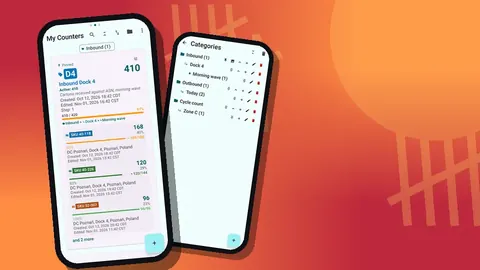
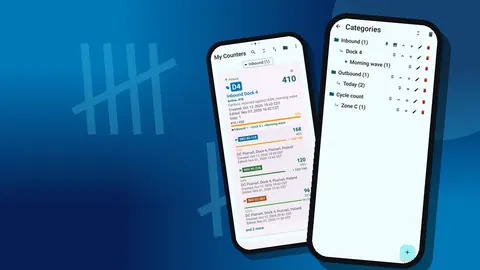
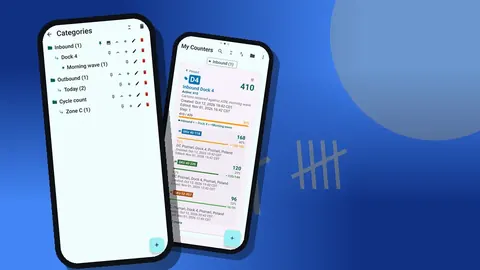
Counter App's categories nest up to three levels, which maps neatly onto most warehouse hierarchies:
| Level | Example |
|---|---|
| 1 | Zone: Bulk storage |
| 2 | Aisle: B-04 |
| 3 | Bay: B-04-12 |
Smaller buildings can use Zone › Aisle and leave the third level for a special purpose, such as separating a cycle count from a full count. Larger buildings may need the levels for Zone › Aisle › Bay and keep levels and positions in the tag names.
Give each zone category a color. If the floor signage for bulk storage is blue, make the bulk category blue too. Counters will start to recognize where they are by color before they read anything.
Categories can be pinned and reordered. Order them in the sequence of the building walk, not alphabetically, so the list on screen follows the route on foot.
Place counters and tags
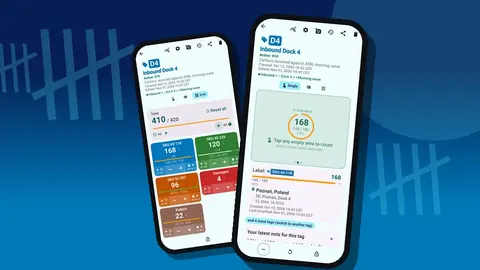
Below the categories sit counters, and inside each counter sit tags. A practical rule is one counter per bay or per short run of shelving, with one tag per location or per SKU inside it.
For each tag, set:
- Label – the full location code, optionally followed by the SKU.
- Color – shelf level or product family, whichever helps more.
- Step – 1 for single units, or the pack size (up to 100) for items always counted in packs.
- Barcode – the code from the bin label, scanned or typed.
- Target – the expected quantity, if you want progress shown.
Keep counters small enough to finish in one sitting. A counter that holds an entire aisle tends to get half-counted and then forgotten.
Special zones need special settings
Not every zone behaves the same way, and the setup should reflect that.
- Pick faces change constantly. Count them at a quiet moment, and consider Grid view so many small locations fit on one screen as colored tiles with their values and target percentages.
- Quarantine and returns need context. Use notes on every event and photos on tags; each tag holds up to 6 photos.
- High-value cages benefit from locked counters. Lock them when not in use so taps cannot change a number by accident.
- Yard zones have no shelf labels. Store a location on each tag, either GPS, a point picked on the map, or typed text such as "Yard, container row C".
- Staging should be counted as its own zone, otherwise stock in transit is counted twice or not at all.
Make the list easy to use
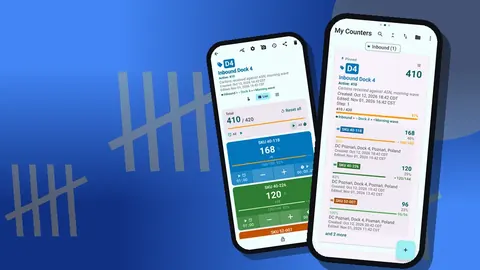
The counter list is where people start every count, so make it quick to navigate. Each counter card shows a code badge, the total, a target progress bar, the full category path and the first few tags. That category path matters: a counter can confirm they are in B-04 without opening anything.
Use the list's tools deliberately:
- Pin the counters assigned this week.
- Search for a location code when a supervisor asks for a spot check.
- Filter by date range to see what was touched recently.
- Switch between List and Grid depending on how many counters a zone has.
Sorting for the walk
The counter list offers six sort orders. Choose the one that best matches the physical route, and keep it the same across phones so everyone sees the same order. If names follow the zero-padded code, a name sort will usually follow the aisle sequence on its own.
Labels on the floor, labels on the screen
The structure only works if what the counter reads on the rack is exactly what they read on the phone. Audit that match before the first count rather than after the first variance.
Walk each aisle with the phone open on its category and check, bay by bay:
- Does every physical location have a tag, and does every tag have a physical location?
- Is the label on the shelf the same string as the tag name, including zeros and separators?
- Where a bin has a printed code, does the code stored in the tag read back correctly when scanned or typed?
- Are color conventions consistent: the zone color on the floor sign, the category color in the app?
Fix mismatches at the source. If a shelf label is wrong, reprint the label; if a tag name is wrong, rename the tag. Never leave a known difference "because everyone knows". The person who counts that aisle in six months might be on their first week.
It is also worth noting unusual locations in the tag's notes field, for example "behind the column, access from aisle 05". That kind of detail is what turns a structure into something a stranger can count.
Share the structure
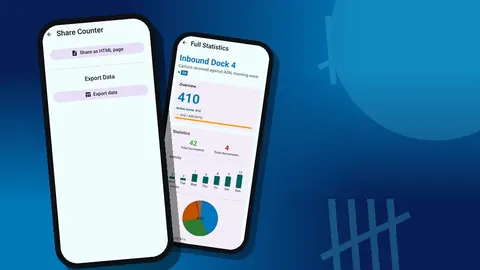
Building the tree once and copying it is far better than asking each counter to build their own. Make a backup ZIP that includes the relevant categories and counters, with optional photo compression to keep it small, and send it to the other phones.
On import, a preview shows what the backup contains and lets the receiver replace existing items, add copies, or skip duplicates. Note that importing as a copy also duplicates counters, so choose replace or skip when you are updating a structure someone already has.
There is no live sync between phones. When the layout changes, update one master phone and redistribute a fresh backup.
How do you test the zone structure before counting?
Before the first real count, pick one zone and do a dry run:
- Hand a phone with the structure to someone who did not build it.
- Ask them to count three bays without help.
- Watch where they hesitate: a missing location, an ambiguous name, a category in the wrong order.
- Fix every hesitation in the master structure.
- Repeat in a second zone.
A dry run takes an hour and usually catches the errors that would otherwise surface as variances weeks later.
Revisit the layout
Warehouses change. New racking goes in, a zone is repurposed, a seasonal overflow area appears. Each change should update three things at once: the floor signage, the location code document and the category tree.
Moved or retired counters should go to an archive category rather than straight to deletion. If something is removed by mistake, both categories and counters have a trash with restore. Phone settings are also worth a look when new devices arrive: size presets, font scale from 0.7 to 1.5 and a light or dark theme make the same structure readable on a small phone and a larger one.
For the counting routines that run on top of this structure, see running cycle counts and warehouse inventory counting on Android.
Counter App needs Android 12 or later and is free to download with no ads; try it free for 3 days, then choose a yearly or monthly plan or a one-time lifetime purchase. Get the app at counterapp.online.
Frequently asked questions
How many levels of categories can a warehouse zone tree have?
Up to three nesting levels, for example Zone, Aisle and Bay. Each zone category can take its own color and can be pinned and reordered to follow the walking route.
What happens if I delete a category by mistake?
Categories have their own trash, and deleted counters can be restored from the trash as well.
Can I give the same zone structure to another team member?
Yes. Make a backup ZIP that includes the categories and counters you want, then import it on the other phone. The import preview handles duplicates with replace, copy or skip.
Can I store a location for outdoor yard zones?
Yes. A tag can hold a GPS position, a point picked on a map, or a typed country, city or place.
Do zone structure changes sync between phones?
No. Update one master phone when the layout changes and send the other phones a fresh backup ZIP, choosing replace or skip on import.
Why should warehouse location codes use leading zeros?
Leading zeros make aisle 04 sort before aisle 10, so a name sort in the counter list follows the physical aisle sequence.
Should staging be its own counting zone?
Yes. Counting staging as a separate zone stops stock in transit from being counted twice or missed between receiving and putaway.