Counter App

How to Run Cycle Counts With Counter App
Key takeaways
To run cycle counts, rank items with ABC analysis, give each class a count frequency, and count a short daily list instead of everything once a year. Counter App — Tally & Clicker mirrors the program in nested categories, records each count with notes and timestamps, and exports results for same-day reconciliation in a spreadsheet.
- Cycle counting replaces one annual stocktake with small, frequent counts of a rotating subset of items, scheduled by importance.
- ABC analysis ranks warehouse items by annual consumption value, so A items are cycle counted more often than B and C items.
- In Counter App — Tally & Clicker, a cycle count program fits three category levels: cycle count, item class and zone or aisle.
- Cycle count variances should be reconciled the same day, and a counter should always be exported before it is reset for the next round.
A full physical inventory once a year has an obvious appeal: one weekend, everybody counts, the books get corrected, and the warehouse moves on. The trouble is everything that happens between those weekends. Errors pile up for eleven months, nobody can say which week a bin went wrong, and the annual count turns into a hunt for causes that have long since disappeared.
Cycle counting replaces that single event with small, frequent counts of a rotating subset of items. Done well, every item is counted on a schedule that matches its importance, and discrepancies are found while the person who caused them still remembers the shift. This guide lays out a cycle counting process you can start next week, with Counter App as the counting and logging tool.
1. How do you rank items with ABC analysis?
Not every item deserves the same attention. ABC analysis sorts items by how much they matter, usually by annual consumption value (units used per year multiplied by unit cost).
- Export the item list with annual usage and cost from your inventory system.
- Calculate the annual value per item and sort from highest to lowest.
- Work down the list adding a running total. The items making up the bulk of the value become A items; the next tier becomes B; the long tail becomes C.
The exact cut-offs are your call. Many warehouses find that a small fraction of items carries most of the value, but check your own data rather than assuming a ratio.
Value is not the only lens. Override the classification for items that are easy to steal, critical to production, prone to damage, or known troublemakers in past counts. A cheap part that halts a line when it runs out can earn an A.
2. How often should each class be counted?
Once items are classed, give each class a frequency. As an illustrative starting point:
| Class | Example frequency |
|---|---|
| A | Monthly |
| B | Quarterly |
| C | Twice a year |
Divide the number of counts per year by your working days to get a daily workload. If a site has a few hundred A items counted monthly plus quarterly B and twice-yearly C counts, the daily list may be only a few dozen locations. That is a manageable task for one person for part of a shift.
Build the calendar in a spreadsheet: one row per location or item, its class, and its next count date. Each morning, filter for today.
3. Build the structure in Counter App
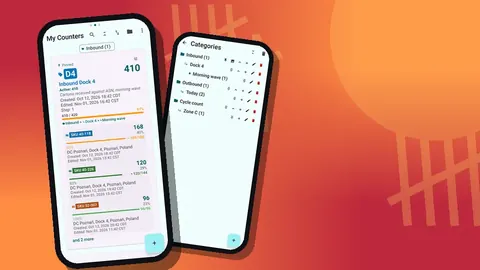
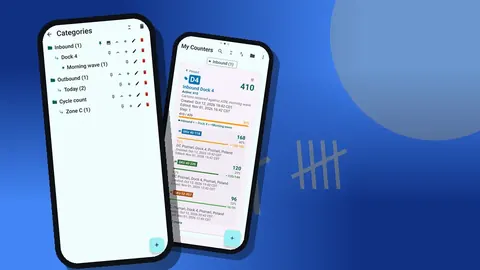
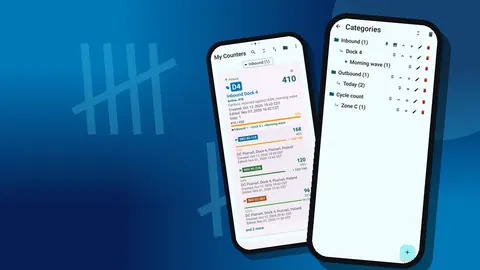
Mirror the program in categories. Counter App supports up to three levels, which fits cycle counting naturally:
- Level 1: Cycle count
- Level 2: A items, B items, C items
- Level 3: zones or aisles, such as Aisle 04
Inside each zone category, create counters for count locations, and inside each counter, tags for the SKUs or bins. Use the SKU or location code at the start of every tag label so the export matches the system without manual cleanup. If bins carry printed codes, store them in each tag's barcode field; they can be scanned with the camera or typed.
Give tags a target equal to the system quantity when you want counters to see progress. Some teams prefer blind counts, where the counter does not know the expected number, because it removes the temptation to stop at the expected figure. If you run blind counts, leave targets empty and compare only in the spreadsheet.
Finding today's counts
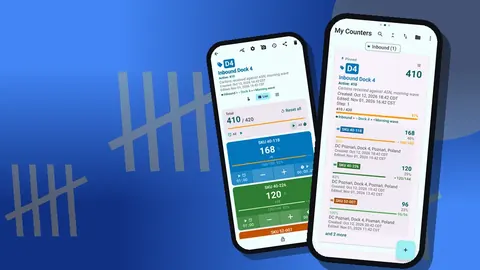
Each morning, pin the counters on today's list. Pinned counters sit at the top of the counter list, so the counter does not scroll through every zone. The list also offers search, a date-range filter and six sort orders, which makes it easy to check which counters were touched recently and which ones were missed.
4. Run the daily count
The count itself should be boring, which is the point.
- Walk to the first location on the list.
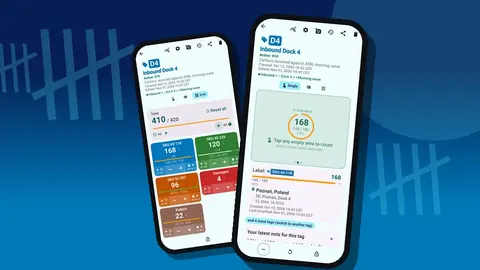
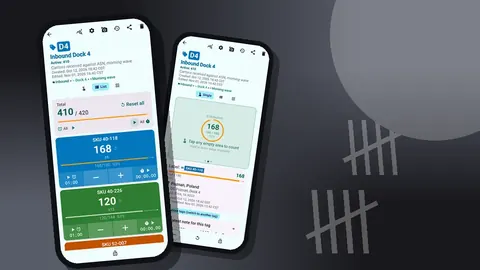
- Open its counter in List view: each tag shows − and + buttons, its value and, if set, its target progress.
- Count each bin and tap + by the step. If items sit in fixed packs, set the step to the pack size (anything from 1 to 100) and count packs.
- When a number surprises you, recount immediately and add a note to the event.
- Lock the counter when finished so it cannot change in a pocket.
For long runs of identical items, volume-button counting lets you count with the hardware keys while looking at the shelf. It is off by default and can be enabled in settings, with remappable keys and per-key sound and vibration. It also works with the screen locked, through a foreground service.
5. Reconcile the same day
Reconciliation is where cycle counting pays for itself, and it loses value every day it waits.
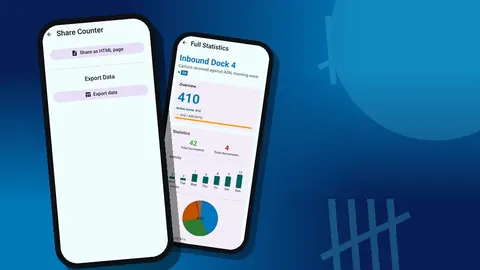
Export the finished counters as CSV or Excel with Summary and Notes selected, paste into your workbook, and compare against the system quantity. For each line outside tolerance:
- Read the note first. The All Notes screen gathers every note with its tag and time; it often explains the variance outright.
- Recount. A second count by a different person, or the same person after a break, settles most disputes.
- Check recent transactions. Picks or receipts posted during the count window can create a timing gap rather than a real error.
- Adjust only when explained or confirmed. Record the reason code with the adjustment.
Then reset the counter or the individual tags for the next round. Export before resetting, always.
Should cycle counts be blind or guided?
Every cycle counting program eventually has to decide whether counters see the expected quantity. Both choices have a cost.
A guided count shows the system quantity as a target. Counters move faster because they know when a bin is plausibly complete, and the progress bar makes unfinished locations obvious. The risk is anchoring: a tired counter who sees 40 expected and counts 38 may decide they miscounted rather than report a shortage.
A blind count hides the expected number. It is slower and more tiring, but every number recorded is an independent observation, which is what reconciliation needs.
A practical compromise is to run A items blind and B and C items guided, or to run everything blind for the first months of a program and relax it once the team's counting habits are trustworthy. In Counter App the difference is only whether you fill the tag's target field. If you do use targets, consider leaving the auto-lock off for cycle counts, so a counter who finds more than expected can still record the overage instead of being stopped at the system figure.
6. Look for patterns every month
Individual variances get fixed; patterns get prevented. Once a month, look across the reconciliation log:
- Do variances cluster in one zone, one shift or one product family?
- Are certain items consistently over in one bin and short in a neighbour, which suggests putaway errors?
- Did counts actually happen on schedule?
The dashboard of each counter helps with the last question. It shows the total against target, increments versus decrements, a seven-day activity bar chart and a pie chart by tag. A counter whose activity chart is empty for weeks tells you the calendar is slipping in that area.
7. Adjust the program
A cycle counting program should change as it learns.
- Move items with repeated variances up a class or to a shorter interval.
- Move items that are clean for a year down to a longer interval if workload is tight.
- Add a count trigger for events such as a stockout, a negative system balance, or a bin found empty during picking.
- Revisit the ABC classes after major range changes or once a year.
Keep the category structure in Counter App in step with these changes. Moving a counter to another category is simpler than rebuilding it.
Common mistakes
- Counting what is easy instead of what is scheduled. The calendar exists so that awkward high bins get counted too.
- Counting during heavy picking. Pick at the same time as a count and the numbers are wrong by design. Count before shift start or freeze the location briefly.
- Skipping the recount. Adjusting on a single count trades one error for another.
- Letting reconciliation slide. A count reconciled two weeks later is little better than an annual count.
- Changing tag names. If "40-118 Shampoo" becomes "Shampoo 40-118", lookups break and trend history fragments.
The history view is a good check on counting quality. It shows every event with its time, step, and before and after values. A count with many minus corrections is not necessarily wrong, but it is worth a second look.
Keeping it running
Cycle counting fails quietly when nobody owns it. Give one person responsibility for the calendar, the reconciliation and the monthly review, even if several people count.
Some housekeeping keeps the app side tidy:
- Back up regularly. Count data is stored on the phone, with no account and no Counter App cloud, so a backup ZIP is your safety net. You can choose which categories to include and compress photos.
- Archive old counters into a "Closed" category rather than deleting them. If something does get deleted, the trash lets you restore it.
- When a new team member joins, give them a backup of the cycle count categories; the import preview lets them replace, copy or skip duplicates.
For the spreadsheet side of reconciliation, see exporting counts to a spreadsheet. For setting up zones before you start, see organizing a warehouse by zone.
For Android 12 and up, the app is free to download with no ads; try it free for 3 days, then choose a yearly or monthly plan or a one-time lifetime purchase. Get the app at counterapp.online.
Frequently asked questions
Can I filter counters to see what was cycle counted recently?
Yes. The date-range filter, search and 6 sort orders in the counter list narrow it to a period or bring recently used cycle count counters to the top.
Should I reset a counter before each cycle count?
Export first, then reset. You can reset the whole counter or a single tag, so a recount of one bin does not wipe the others.
Where do I record why a count was off?
Add a note to the count event. Notes appear in the history and on the All Notes screen, and they can be included in the export.
Can I lock a counter after counting?
Yes. A locked counter ignores taps until you unlock it, which protects a finished count from accidental changes.
Can a whole team cycle count at once?
Each person counts on their own phone; there is no live sync. Give each counter their own areas and combine the exports in a spreadsheet.
How do I run a blind cycle count in Counter App?
Leave the tag targets empty so the counter does not see the expected quantity, and compare the counts with the system only in the spreadsheet.
Should auto-lock be on during cycle counts?
Usually not. With auto-lock off, a counter who finds more stock than the system expects can still record the overage instead of being stopped at the target.