Counter App

Freight Receiving Counts With Your Phone
Key takeaways
To count freight receiving with a phone, create one counter per delivery, add a tag per purchase order line and set each ordered quantity as the target. Counter App — Tally & Clicker alerts when a line is complete, shows short lines before the driver leaves, stores damage photos and keeps a timestamped receiving record you can export.
- A freight receiving count in Counter App — Tally & Clicker uses one counter per delivery and one tag per purchase order line, with the ordered quantity as the target.
- Auto-lock on a receiving tag stops a PO line at its ordered quantity, so an overage is counted into a separate Over tag instead.
- Freight damage is documented with up to six photos per tag, annotated in the photo editor, plus a note on the event before the driver leaves.
- Checking every PO line against its target before signing the delivery note turns a short shipment into a visible, below-target line.
The moment the driver pulls away with a signed delivery note, your leverage over a short or damaged shipment drops sharply. Claims become emails, emails become arguments about whose count is right, and the person who unloaded the truck is asked to remember a Tuesday afternoon three weeks later. Receiving is the cheapest place in the warehouse to catch an error, and it only takes a disciplined count before the signature.
A phone is well suited to that job. It is already in the receiver's pocket, it takes photos, and with a counter set up per delivery it becomes a checklist that knows the ordered quantities. Here is a receiving workflow built around Counter App, from preparing before the trailer opens to keeping a log you can search months later.
How do you prepare before the trailer opens?
Most receiving errors are created before the first carton moves: nobody knew what was expected, so nobody noticed what was missing. Spend two minutes preparing.
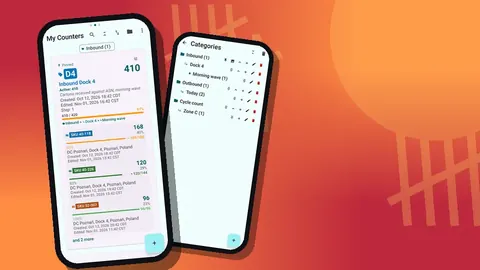
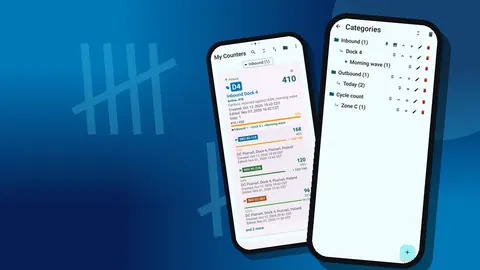
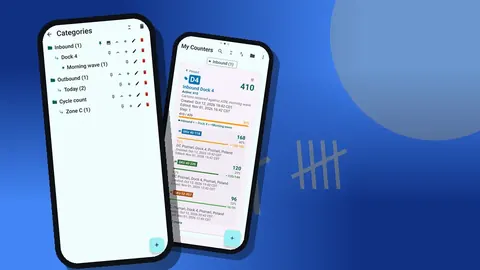
Create a counter for the delivery and name it so it is unmistakable later, for example "PO 2291 – Dock 4 – supplier name". Put it in a category tree such as "Inbound › Dock 4 › October", which keeps a month of deliveries in one place. Categories go three levels deep, can have their own colors, and can be pinned, so today's dock sits at the top of the list.
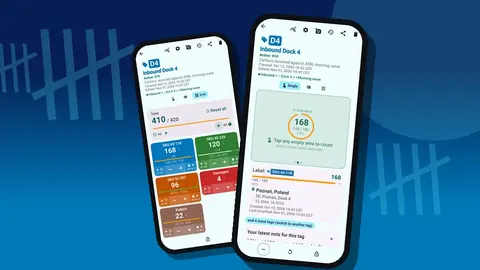
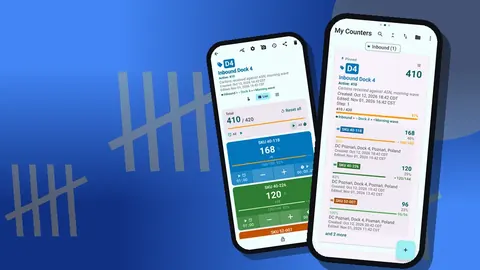
Inside the counter, add one tag per purchase order line. Use the SKU in the tag label so the export lines up with your system later. Add a "Damaged" tag and a "Pallets" tag; nearly every delivery needs both.
If your team receives the same suppliers' lines repeatedly, set up one delivery counter carefully and keep it as a template. Before a new delivery, reset the counter and rename it for the new PO, then adjust any targets that changed.
Targets from the purchase order
Each tag can have a target, and that is where the PO quantity goes. If the order says 48 units of SKU 40-118, set the target to 48.
Then use the target settings on purpose:
- Sound or vibration alert when the target is reached, so you know a line is complete without staring at the screen.
- Auto-lock on reaching the target, so a stray tap does not push a line to 49.
- Step that matches the pack: if cartons hold 12 and you count cartons, set the step to 12 and the value stays in units.
A tag that never reaches its target is your short shipment, visible before the driver leaves. A tag that would have gone over if it were not locked tells you there is an overage to record.
Count off the truck
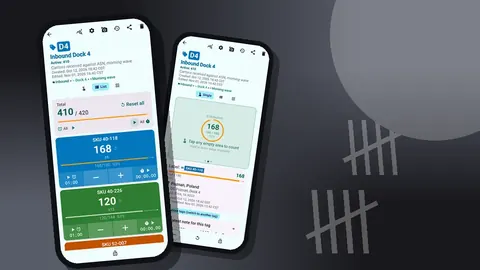
Work the delivery in a fixed order: pallet by pallet, top layer to bottom, or however your dock does it, but the same way every time. Open the counter in List view, which shows each line with its − and + buttons, its value and its progress toward target, plus the overall total against the overall target.
A few counting habits that keep a receiving count honest:
- Count what is there, not what the label says. Break down mixed pallets; an outer label claiming 48 is a claim, not a count.
- Tap per carton or per unit, never per guess. If a layer is too large to count individually, count cartons per layer and layers per pallet, and note the method on the tag.
- Correct immediately. If you over-tap, press − once. The correction is logged with its own time.
- Track pallets separately. The "Pallets" tag catches the case where the whole count is right but a pallet that belongs to another delivery came off this trailer.
What should you check before signing the delivery note?
When the trailer is empty, look at the counter before you sign anything. Every line falls into one of three states:
- At target – received as ordered.
- Below target – short. Recount that line once, then note the shortage on the delivery paperwork.
- At target and locked, with more stock left over – over. Count the extra into a separate "Over" tag or note.
The total versus target at the top of the list gives you the whole-delivery picture in one line. If it matches, you can sign with confidence. If it does not, you know exactly which lines to write up.
How do you document freight damage for a claim?
Damage claims succeed on evidence. For every damaged carton:
- Tap the "Damaged" tag by the affected quantity.
- Take photos on the tag before moving the carton: the damage close up, the carton label, and the carton in place on the pallet. Each tag holds up to 6 photos.
- Use the photo editor to circle the damage or add a short text label. The brush, text, six colors and rotation tools cover what you need.
- Add a note to the event: what was damaged, how many units, and whether the driver saw it.
Photograph the trailer interior and seal before unloading if your process requires it. Those photos belong on the counter's first tag or a dedicated "Trailer" tag.
Close the record
Before you leave the dock, open the history. It lists every count with its exact time, the step, the value before and after, the tag, and icons for attached notes and photos. That timeline is useful for two reasons: it shows when the receiving actually happened, and it gives a supervisor a way to check a disputed line without asking the receiver to reconstruct it from memory.
Then lock the whole counter. A locked counter ignores taps, so the receiving record cannot be changed by accident when the phone goes back into a pocket. If you add a location to the counter's tags, such as the dock number and site name typed as text, the record also says where the freight came in.
When the paperwork and the freight disagree
Delivery notes, packing lists and the purchase order do not always agree with each other, let alone with the pallet. Decide in advance which document the count is checked against. The purchase order is usually the right reference, because it is what your business agreed to pay for, while the packing list describes only what the supplier believes was loaded.
Common mismatches and a sensible way to handle each:
- Substituted item. The supplier sent a different SKU in place of the ordered one. Do not count it into the ordered line. Add a separate tag named with the substitute's code and note that it was not on the order.
- Split delivery. Part of the order arrives today, the rest later. Count what arrived, leave the line below target, and write "balance to follow" in a note so nobody chases it as a shortage.
- Unit of measure confusion. The order is in units, the label says cases. Settle the conversion before counting and set the tag's step to match, so the value is always in the order's unit.
- Unlabeled cartons. Open one, identify the contents, and photograph the inside before counting the rest.
Whatever the case, the rule is the same: record what physically arrived, separately from what was expected, and let the comparison happen afterwards. A receiving count that has been nudged to match the paperwork is worse than no count at all.
Keep a receiving log
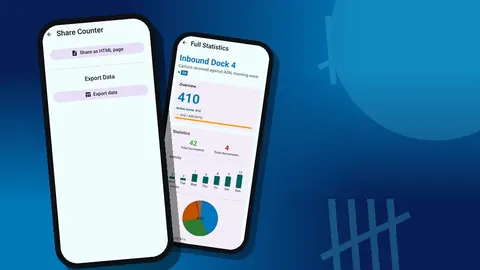
From the share screen, you have two options:
- Share as HTML page produces a readable report with embedded photos. It is the format to send to a buyer or attach to a supplier claim.
- Export data produces CSV or Excel files with the sections you choose: Summary, Events, Notes, Locations.
A simple log is a spreadsheet with one row per delivery: date, PO, supplier, lines ordered, lines received in full, short lines, damaged units, and a link to the stored report. Over time this becomes a supplier scorecard you built without extra effort.
Since receiving data is stored on the phone, with no account and no Counter App cloud, export or back up at a fixed interval. A backup ZIP keeps counters, history and photos together, and you can choose which categories to include.
Tips for busy docks
- Count with the volume keys. Turn on volume-button counting in settings (it is off by default). The keys count even with the screen locked via a foreground service, they can be remapped, and each can have its own sound and vibration. On some devices the system volume bar may still appear in the warehouse.
- Use the lock-screen notification. It shows −step, +step and Stop buttons, which is handy with gloves on.
- One receiver per counter. If two people unload one trailer, give each a counter for their half. There is no live sync between phones, so merging happens in the log.
- Pick feedback you can hear. With 13 count sounds and 8 vibration styles, choose a combination that carries over forklift noise.
- Keep a template per frequent supplier. Resetting a known counter is faster than rebuilding the lines every time.
After receiving
Receiving is only the first count a product sees in your building. Feed short and damaged lines straight into your follow-up process, and consider adding received items to the next cycle count so a putaway error does not hide for months. For that next step, see the guide to running cycle counts, and for turning the receiving log into reports, see exporting counts to a spreadsheet.
It needs Android 12 or newer and is free to download with no ads; try it free for 3 days, then choose a yearly or monthly plan or a one-time lifetime purchase. Get the app at counterapp.online.
Frequently asked questions
Can the app alert me when I reach the ordered quantity?
Yes. Set the ordered quantity as a tag's target and turn on the sound or vibration alert. You can also auto-lock the tag when the target is reached so extra taps are ignored.
How many damage photos can I attach?
Up to 6 photos per tag. The photo editor adds brush strokes, text and rotation, which helps point at the exact damage.
Can I record where the delivery was received?
Yes. A tag can store a GPS position, a point picked on a map, or a typed place such as a dock number and site name.
Can I share a receiving record with a supplier?
You can export an HTML report with embedded photos, or CSV and Excel files, and send them however your team normally sends documents.
Does receiving count work inside a trailer with no signal?
Yes. Counting off the trailer needs no connection, because the app only goes online for optional notifications, update checks and map tiles.
Should a receiving count be checked against the packing list or the purchase order?
The purchase order is usually the right reference, because it is what the business agreed to pay for, while the packing list only shows what the supplier believes was loaded.
How do I handle a substituted item on a delivery?
Do not count it into the ordered line. Add a separate tag named with the substitute's code and note that it was not on the order.