Counter App

Rep Counter App for Athletic Training on Android
Key takeaways
An athletic training rep counter app turns each exercise into a tappable tally with its own step, target and timer. In Counter App — Tally & Clicker, a coach sets one counter per athlete or session, logs reps by screen or volume keys, and exports the timestamped history to CSV or Excel for a weekly volume record.
- In Counter App — Tally & Clicker, a strength coach can give each exercise its own tag with a step from 1 to 100, so one tap logs a full set.
- A rep target on an exercise tag can trigger a sound or vibration alert, plus optional auto-reset or auto-lock, when an athlete reaches the planned volume.
- Every logged rep in the athletic training history carries a timestamp, so weekly volume can be grouped by day after a CSV or Excel export.
- Volume-key counting lets a coach log reps while spotting, including from the lock screen; the feature is off by default.
Strength and conditioning work lives or dies on volume. A sprinter who did twelve hard starts on Monday and twenty on Wednesday had a different week from one who did twenty both days, even if both "did starts". Most coaches know this, yet the record of what was actually completed often ends up as a scribble on a clipboard or a vague memory by Friday.
A rep counter on your phone fixes the recording part. It does not design the program, and it does not judge quality of movement. What it does is take the counting off your mind so your eyes can stay on the athlete. This guide shows how to set that up with Counter App on Android, from defining the unit you count to exporting a clean weekly log.
Decide what a rep means before you count it
The most common reason training logs become useless is inconsistency in the unit, not missing data. If one coach logs a "rep" as a single jump and another logs it as a set of five, the totals cannot be compared. Agree on the definitions first and write them into the tag description.
Some workable conventions:
- Plyometrics: one ground contact equals one rep. Box jumps, bounds and hops are counted per contact.
- Sprints and starts: one effort at full intent equals one rep. Walk-backs and build-ups are not counted.
- Strength lifts: count completed sets with a step equal to the planned reps, or count single reps if the athlete is working to failure.
- Mobility and prehab: count rounds of the circuit rather than individual movements.
Once each exercise has a definition, it becomes a tag inside the athlete's counter. A tag has its own colored label, value, step and target, and you can add a short note describing the standard. Coaches who share an athlete benefit most from this, because the definition travels with the number.
How should you set up counters for a training block?
There are two common structures, and the right one depends on how you coach.
One counter per athlete. This suits individual sports and small groups. Name the counter after the athlete and the block, such as "Maya – hurdles block 2", and add a tag per exercise. Everything about that athlete's week sits in one place.
One counter per session. This suits a team coach who runs the same session for a whole squad. Name it after the date and focus, and add a tag per exercise or per group. Comparisons between sessions are easier, comparisons between athletes are harder.
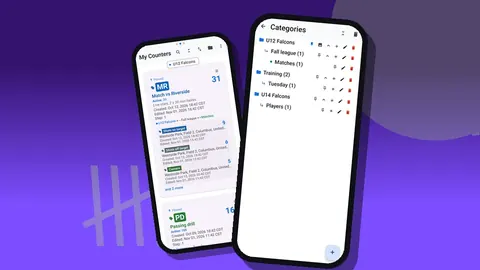
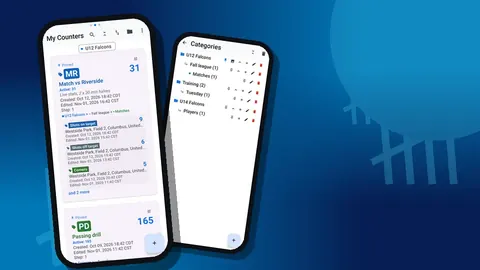
Whichever you choose, use categories. They nest up to three levels, so a layout like "Senior squad > Sprints > Block 2" works without inventing a naming code. Categories can have their own colors and can be pinned, which brings this block's athletes to the top of the counter list. When a block ends, the counters stay where they are; you simply unpin the old category and pin the new one.
Counters can also carry a short code or initials, a color and a description. The code badge is handy when several athletes have similar names, because it is visible on the list card.
Step and target settings
The step is the amount added or removed per tap. It can be any value from 1 to 100, both per counter and per tag. A practical pattern:
- Single-contact plyometrics: step 1.
- Strength sets of five: step 5, so one tap logs the whole set.
- Rounds of a ten-movement circuit: step 1, counting rounds.
Targets let a tag count up or down to a goal. If the plan says forty ground contacts, set the target to forty and turn on a sound or vibration alert. If you prefer counting down, start from the planned volume and watch the number drop to zero. Two further options are worth knowing: auto-reset returns the tag to its start value when the target is reached, which suits repeated identical sets, and auto-lock freezes it so an accidental tap cannot add a rep that never happened.
Counting without breaking concentration
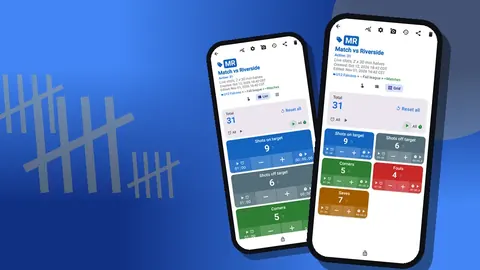
The counting screen offers three views of the tags: Single, List and Grid.
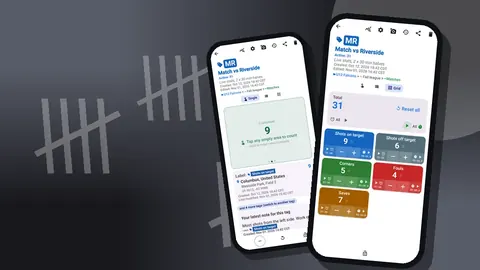
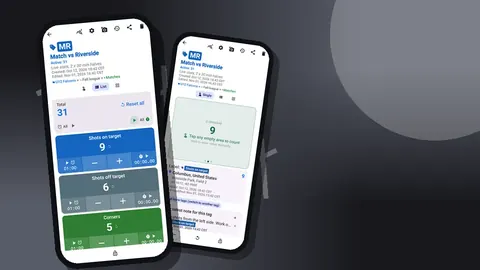
- Single shows one tag as a large circular counter with its target progress. It is the best choice when one athlete is doing one exercise and you want to see the number from a distance.
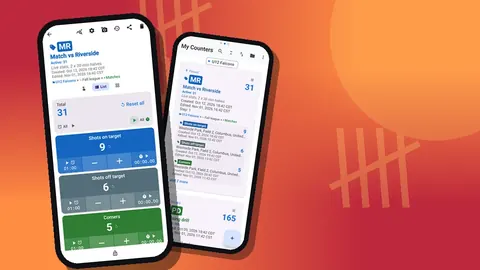
- List puts every exercise in a row with its own minus and plus buttons, value and target progress. It works for a circuit, where you jump between stations.
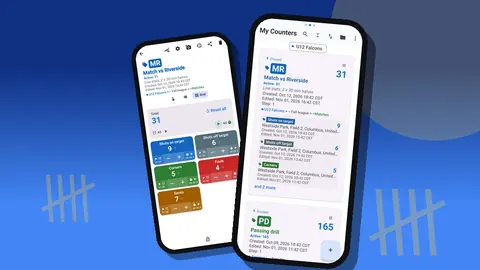
- Grid gives each tag a colored tile, useful when you are running several athletes in parallel and want large touch targets.
Tag display can be expanded, collapsed, or collapsed except the most recent. The last option is underrated: only the tag you touched last stays open, so the screen stays calm while you move through the session.
When nobody should touch the counter, lock it. A locked counter ignores taps, which matters when the phone is left on a bench and athletes pick it up to check their numbers.
Hands-free counting with the volume keys
Coaches spot, hold pads, feed balls and run stopwatches. Tapping a screen in the middle of that is awkward. During drills the volume buttons can do the counting, even in the background or on the lock screen, thanks to a foreground service. The keys can be remapped, and each key can have its own sound and vibration, so you know by feel whether you added or removed a rep.
This feature is off by default; switch it on in settings. Some devices may still show the system volume bar while you count, which is harmless. A lock-screen notification with minus, plus and Stop buttons gives another way to count without unlocking the phone.
Timed work and rest
Each tag can run its own timer or stopwatch. Timer presets are 30 seconds and 1, 2, 3, 5 or 10 minutes, or you can enter your own duration. A typical use is rest control between heavy sets: start a two-minute timer as the bar goes down, and the countdown beeps tell you when the next set is due. There are seven alarm sounds and eight vibration patterns, so choose one that you can hear over music in the weight room.
The stopwatch suits work intervals with no fixed length, such as "hold the plank as long as form is clean". Timers and stopwatches can be reset one at a time or all together from the List view.
How do taps become a weekly volume record?
Every tap is written to the history with its exact time, the step, the value before and after, and the tag label. That means the record of the week builds itself as you coach. Nothing needs to be copied out at the end of the day.
Notes can be attached to events. A quick note after a set, such as "dropped to 70 kg, back tight" or "stopped early, hamstring tension", keeps context beside the number. Notes are also collected on the All Notes screen, which can be sorted, so a week of observations can be read in one pass.
If an athlete records a video or you want a picture of a bar position, each tag can hold up to six photos. The photo editor lets you draw on an image, add text and rotate it, which is enough to mark a knee angle or a foot position.
Reading the dashboard
The dashboard gives an overview of a counter: the total and target, increments compared with decrements, an activity bar chart for the last seven days, and a pie chart by tag. For training volume, the bar chart is the most useful view. A week where one day towers over the rest is easy to spot, and that is often the day before a complaint of soreness.
The pie chart answers a different question: how the volume is split between exercises. If the plan said "mostly acceleration work" and the pie is dominated by bounding, the plan and the training have drifted apart.
How do you export reps to a coaching log?
When the week ends, export the counter. Counter App writes CSV, Excel (XLSX) and an HTML report with embedded photos. The export options let you include or exclude Summary, Events, Notes and Locations. For a volume log, Summary and Events are usually enough; add Notes when you want the comments in the same file.
In the spreadsheet, the event rows can be grouped by date to give daily totals, then by week. The app does not compute acute and chronic workload ratios, and it does not need to. Once the numbers are in a spreadsheet, you can apply whichever load model your program uses.
A hypothetical week, to show the flow
This is an illustrative example, not a case study. Imagine a coach preparing three jumpers for an indoor meet.
On Monday she creates a category "Jumps > Indoor block" and three counters, one per athlete. Each counter has tags for "Bounds (contacts)", "Short approach jumps", "Depth jumps" and "Squat sets". The bounds tag has a step of 1 and a target of 60; the squat tag has a step of 1 and a target of 4 sets.
During Tuesday's session she switches to Grid view, so the three athletes' active tags are large tiles. She counts bounds with the volume keys while standing at the pit. When one athlete reaches sixty contacts the phone vibrates, and she moves him to the next block without counting on her fingers.
On Thursday one jumper reports a sore heel. She adds a note to the last depth-jump event and lowers his target for Saturday. On Sunday she exports all three counters to Excel and pastes them into her season workbook. The weekly totals are there, the heel note is there, and next Monday's plan can start from facts.
Keeping the system tidy over a season
A rep counter only stays useful if the data stays readable. A few habits help:
- Keep tag names stable. If "Bounds (contacts)" becomes "Bounding" next block, the spreadsheet will treat them as two exercises.
- Use the search and filters. The counter list has search, a date-range filter and six sort orders, so finding last month's block takes seconds.
- Reset instead of recreating. When a block repeats, reset the counter or individual tags rather than creating a new structure each week.
- Make regular backups. A backup ZIP can include photos and lets you choose which counters and categories to include. Import later with a preview and choose to replace, copy or skip duplicates.
- Clean up with the trash. Deleted counters go to the trash and can be restored, so tidying up is low risk.
Since the data is stored on the phone, with no account and no Counter App cloud, and there is no live sync between phones, an assistant coach who needs the same numbers should receive an export or a backup ZIP rather than expecting the counters to update on their device.
Final thought
Counting reps is a small job, but it is the foundation of every load decision you make. A phone that counts for you, alerts you at the target and keeps a timestamped history lets you watch movement instead of keeping arithmetic in your head. Counter App runs on Android 12 and later, works offline for every counting feature, and is free to download with no ads; try it free for 3 days, then choose a yearly or monthly plan or a one-time lifetime purchase. For drill-based counting in a team sport, see the basketball drill counter guide.
Get the app at counterapp.online.
Frequently asked questions
Can one tap add a whole set instead of a single rep?
Yes. The step can be any value from 1 to 100, set per counter and per tag. A tag with a step of 8 adds a full set of eight reps with one tap, and the minus button removes the same amount.
Can a strength coach count reps with the phone's volume keys?
Yes, once volume-button counting is enabled in the Counter App settings, where it starts switched off. The keys then count from the background or the lock screen, and each key can be remapped with its own sound and vibration so a coach can tell plus from minus by feel.
Does the app alert me when an athlete hits the planned volume?
A tag or counter can count up or down to a target, with an optional sound or vibration alert. You can also turn on auto-reset or auto-lock when the target is reached.
How do I get weekly totals into a training log?
Export the counter to CSV or Excel (XLSX) and choose which sections to include: Summary, Events, Notes and Locations. The events carry timestamps, so a spreadsheet can group them by day or week.
Are athletes' rep counts uploaded to a cloud service?
Counter App needs no account and has no Counter App cloud; rep counts are stored on the coach's phone. Moving them to another device is done with a backup ZIP imported on the second phone.
Does a rep counter app judge exercise technique?
No. Counter App — Tally & Clicker records counts, times and notes, while judging the quality of each rep remains the coach's job.
Which Android version does the athletic training rep counter need?
For a strength and conditioning coach, Counter App — Tally & Clicker needs Android 12 or later and is free to download with no ads; try it free for 3 days, then choose a yearly or monthly plan or a one-time lifetime purchase.