Counter App

Track Player Stats with a Counter App on Android
Key takeaways
To track player stats with a counter app, pick three observable stats, create a counter per player or per game, and give each stat or player its own tag. Counter App — Tally & Clicker on Android logs every tap with a timestamp, keeps notes beside events and exports to CSV, Excel or HTML for weekly review.
- A coach tracking player stats in Counter App — Tally & Clicker can use one counter per player for development or one counter per game for match review.
- Three clearly defined player stats, counted the same way every session, give a more reliable picture than a long list counted inconsistently.
- Notes on individual history events keep the context behind a player's numbers, such as a changed position or an early substitution.
- Counter App records player stat counts with timestamps but does not rate players; ratios are calculated in a spreadsheet after a CSV or Excel export.
Every coach carries an impression of each player: who works hard, who fades late, who makes the extra pass. Impressions are useful, and they are also biased. The loud player gets remembered, the quiet one who does the job every week gets missed. A simple tally of a few stats, kept consistently, is the cheapest way to test your impressions against what actually happened.
This guide is about building that tally on an Android phone with Counter App. It covers which stats to pick, two ways to structure the data, how to count without missing the action, and how to review the numbers without spending your Sunday in a spreadsheet.
How many player stats should a coach track?
Professional analysis departments record hundreds of events per game. A youth or amateur coach with one phone cannot, and should not try. Pick three stats that connect to what you are coaching this month.
A useful filter has three questions:
- Is it observable without debate? "Completed pass to a teammate" is clear. "Good decision" is not.
- Will it change a coaching decision? If a number cannot change training or selection, it is noise.
- Can one person count it live? If you need replays, leave it for a dedicated analyst.
Examples that pass for different sports:
- Football (soccer): shots on target, successful tackles, ball recoveries.
- Netball or basketball: turnovers forced, assists, rebounds.
- Volleyball: serves in, serve receives to target, blocks touched.
- Hockey: circle entries, interceptions, penalty corners won.
Write the definition of each stat into the tag notes so that an assistant coach counts the same thing you do.
Should you use one counter per player or per game?
Counter App gives you counters, and inside each counter, tags. Each tag has its own value, colored label, step and target. How you map players and stats onto that depends on the question you want to answer.
Layout A: one counter per player
Each player is a counter, named with their name and given their shirt number as the code. Inside, each stat is a tag: "Tackles won", "Recoveries", "Shots on target". This layout answers "how is this player developing over the season?" because all of a player's numbers live together.
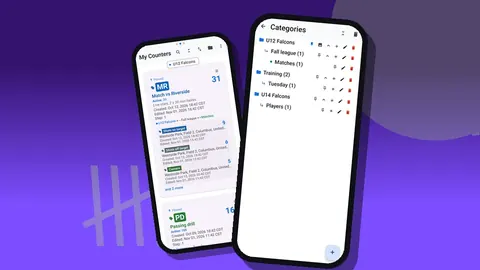
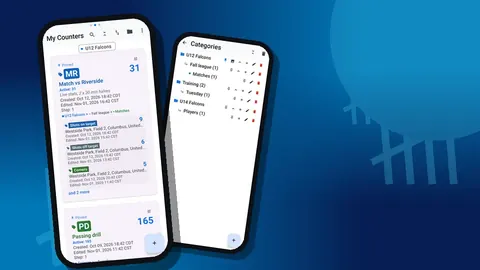
Use categories to keep it manageable. They nest three levels deep, so "U14 > Defenders > Spring" is a natural path. Categories have their own colors, can be reordered and pinned, and a deleted category goes to the category trash rather than vanishing.
Finding the right player fast
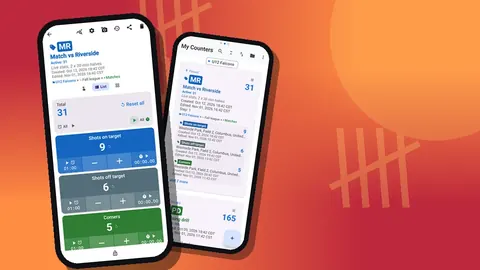
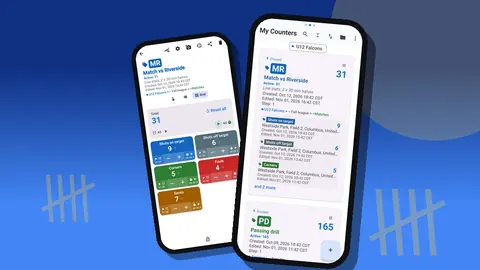
With a counter per player, a squad of twenty quickly becomes a long list. The counter list has search, a date-range filter, six sort orders and pinned counters. Pin the five players you are focusing on this week and they stay on top. Switch between List and Grid view in the counter list depending on whether you want more detail or more counters per screen.
Layout B: one counter per game or session
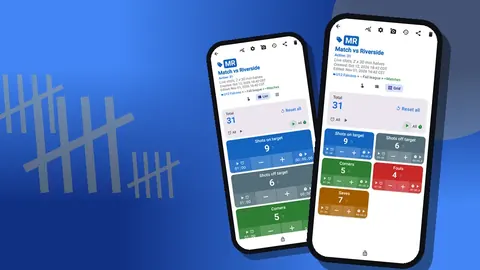
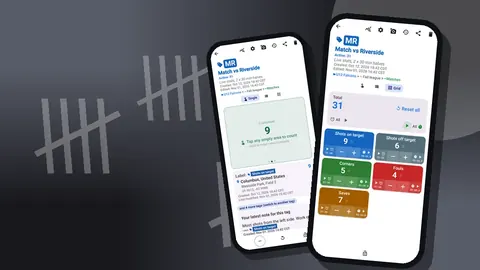
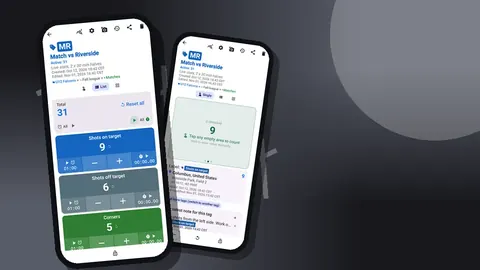
Here each game is a counter, such as "Match vs Riverside", and each player or each player-stat pair is a tag. This layout answers "what happened in this game?" and makes post-match review fast. It gets crowded with many players, so it suits a single stat across the squad, for example "ball recoveries" with one tag per player.
Many coaches end up using both: Layout A for long-term development stats counted at training, Layout B for match-day review.
Configuring each stat
Each tag can carry a target. Setting a target of, say, five recoveries for a defender turns the tag's progress bar into a quick visual of whether the expectation was met. The target can count up or down, with an optional sound or vibration when it is reached. Step is normally 1 for stats, but a tag counting minutes or a points-based drill can use any value up to 100.
Tags can also hold a barcode or QR code. Some coaches print a QR on each player's training bib list so an assistant can scan to confirm which player's counter they are using.
Counting during sessions
On the counting screen you can show tags as a single tag, a list or a grid. For live stats, Grid is usually best: each tag becomes a colored tile with large minus and plus buttons, value and target percentage. List view is better when you have many players and want names to stay readable.
Practical rules for live counting:
- Stand where you can see the whole area. Counting from the bench means missing half the events.
- Count only clear events. If you hesitate, skip it. A consistent undercount is more useful than an inconsistent guess.
- Use the minus button honestly. If you hit the wrong player's tile, fix it immediately; the history will record both the mistaken tap and the correction.
- Lock the counter at half-time. A locked counter ignores taps when the phone is in a bag or passed around.
For coaches who also hold a clipboard or a whistle, volume-key counting helps. It is switched off by default; once enabled, the phone's volume keys add or remove counts on the active tag, even with the screen off, via a foreground service. The lock-screen notification adds minus, plus and stop buttons for the sideline.
Notes are half the value
A number without context invites wrong conclusions. If a midfielder's recoveries dropped, was she out of form, playing a different position, or coming back from illness? Add a note to the event or the counter: "played right back today", "came off at 60 minutes". The All Notes screen collects every note with its tag label and time, and it can be sorted, so you can read the week's context in one place.
Photos help in a different way. Each tag can hold up to six photos, and the built-in photo editor lets you draw arrows and write text on them. A photo of a whiteboard set-piece with the player's position circled is a useful companion to their numbers.
How do you review player stats each week?
The temptation after a few weeks of counting is to build an elaborate analysis. Resist it at first. A five-minute weekly review beats a three-hour monthly one that never happens.
Open the dashboard for each counter. It shows the total against the target, increments against decrements, a bar chart of the last seven days of activity, and a pie chart by tag. For Layout B (game counters), the pie chart shows how a stat was distributed across the squad. For Layout A (player counters), the bar chart shows whether the player's activity came mostly from one session.
The history is the detailed view. Each event lists the step, exact time, the value before and after, and icons when there is a photo, a location or a note. Reading the history for a game in order shows when things happened. Recoveries clustered in the first twenty minutes and then stopping tells you something about fitness or tactics.
Exports for deeper analysis
When you want trends across the season, export. Counter App produces CSV, Excel (XLSX) and an HTML report with embedded photos. In the export options, Summary, Events, Notes and Locations are separate checkboxes. A player-facing report might use only Summary and Notes. A season file for yourself should include Events, since the timestamps allow grouping by game or by week.
The app does not rate players or compute ratios. That is intentional and practical: you decide what "good" looks like for your team, and a spreadsheet applies it.
A hypothetical review conversation
Illustrative scenario. A coach of an under-14 side has been counting ball recoveries per player for six games, using Layout B. Her impression was that one central midfielder was "not pulling his weight". The exported totals show his recoveries are in line with the other midfielders, but the history shows most of them come in the first half.
So the conversation she has with him is not "you need to work harder". It is "your first halves are strong; what changes after half-time?" He mentions he has been skipping breakfast on match days. That is a very different coaching conversation, and it started with a simple tally.
Pitfalls to avoid
- Tracking stats you do not coach. If you never train finishing, counting shots will only frustrate everyone.
- Changing definitions mid-season. If "tackle won" starts including fouls won, the season comparison breaks.
- Comparing players in different roles. A centre-back's recoveries and a winger's are not the same stat in practice.
- Publishing rankings. Posting a league table of players' stats in the group chat damages trust. Use numbers in one-to-one conversations.
- Forgetting backups. The data is stored on the phone, with no account and no Counter App cloud. Make a backup ZIP regularly; import later with a preview and choose replace, copy or skip for duplicates.
If more than one coach counts, remember there is no live sync. Each coach counts on their own phone and the data is combined after export, or moved with a backup ZIP.
Where to go next
For counting in structured drills, the basketball drill counter guide shows how to use targets and timers within a session. For match-day scorekeeping, see sports score tracking on Android.
Counter App works offline for all counting, runs on Android 12 and later, and is free to download with no ads; try it free for 3 days, then choose a yearly or monthly plan or a one-time lifetime purchase. Three stats, counted honestly, will tell you more about your squad than any number of impressions.
Get the app at counterapp.online.
Frequently asked questions
Should I make one counter per player or one per game?
Both work. One counter per player with a tag per stat suits development tracking across a season. One counter per game with a tag per player suits match review. Categories with up to three levels keep either layout organised.
How many players can a coach track in Counter App?
There is no limit on counters, and each counter can hold several tags with their own value, step and target, so a full squad fits comfortably.
Can I write context next to a number?
Yes. Notes can be added to counters and to individual history events. The All Notes screen gathers them with sorting, so a week of observations can be read together.
Can player stats be shared with players or parents?
Yes, by exporting the counter as CSV, Excel (XLSX) or an HTML report with embedded photos and choosing the Summary, Events, Notes and Locations sections. There is no live sync, so sharing player numbers always goes through an export or a backup ZIP.
Does the app calculate percentages or ratings?
No. It records counts with timestamps. Ratios such as completion rate are easy to calculate in a spreadsheet after export.
Can two coaches count player stats on different phones?
Yes, but each phone keeps its own counts because there is no live sync between phones. The two sets of player stats are combined in a spreadsheet after export, or moved across with a backup ZIP.
What makes a good stat for a youth coach to tally?
A good stat is observable without debate, linked to a coaching decision and countable live by one person, such as ball recoveries or shots on target.