Counter App

Sports Score Tracking App for Android Matches
Key takeaways
To track sports scores on an Android phone, create one counter per game and add tags for each team's score and a few match stats. Counter App — Tally & Clicker counts with step values for multi-point scores, times timeouts with per-tag timers, works offline at the ground and exports games to CSV or Excel.
- Sports score tracking in Counter App — Tally & Clicker works with one counter per game and one tag per team score or match stat.
- Score tags can use steps such as 2, 3 or 5, so a basketball basket or a rugby try adds the right points with one tap.
- A scoring mistake during a match is fixed with the minus button, and the history keeps both the wrong tap and the correction.
- A season record of games is built by exporting each game counter to CSV or Excel and pasting the summaries into one workbook.
The scoreboard at a community ground is often a volunteer with a flip chart, or nothing at all. Coaches and team managers end up keeping their own score, and once you are keeping score you may as well record the few match stats that explain it. An Android phone can do both, as long as the setup is simple enough to survive a tense final quarter.
This guide shows how to keep a live score and a handful of match stats with Counter App, then turn a season of games into a single table. It applies to most team sports: football, basketball, netball, hockey, rugby, volleyball.
What should you record beyond the score?
The score tells you who won. A few extra numbers tell you why, and they are what you will talk about at Tuesday training. Keep the list short; the person keeping score is usually also watching the game.
Sensible additions by sport:
- Football: shots on target, shots off target, corners, fouls, saves.
- Basketball: scores by type, turnovers, offensive rebounds, team fouls.
- Netball: centre-pass conversions, turnovers won, missed shots.
- Hockey: circle entries, penalty corners won and conceded.
- Rugby: tries, conversions, penalties conceded, lineouts won.
A useful rule is one stat for attack, one for defence and one for discipline. Fouls or penalties conceded often explain a loss better than any attacking number.
Setting up a game counter
Create one counter per game. Give it a name that sorts well, such as "R7 vs Riverside (A)", a code for the opponent, and a color for home or away. The description can hold the kick-off time or the competition. Counters are unlimited, so there is no need to reuse one.
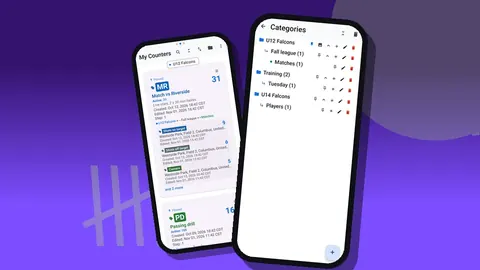
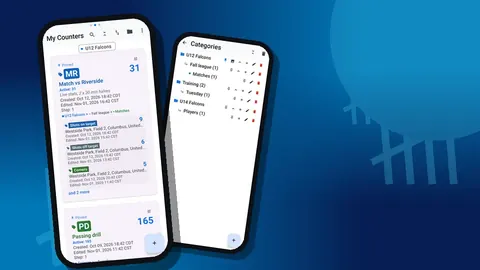
Put the game inside a category for the season, and optionally a subcategory for the competition: "Season 2026 > League" and "Season 2026 > Cup". Categories nest up to three levels, can have their own colors and can be pinned, so the current season sits at the top of the list.
Tags for scores and stats
Inside the game counter, add tags. The score tags come first:
- "Us" and "Them" with a step of 1 for sports scored in single goals.
- For basketball, "Us 2pt", "Us 3pt", "Us FT" and the same three for the opponent, with steps of 2, 3 and 1.
- For rugby, separate tags for tries (step 5), conversions (step 2) and penalties (step 3).
The step can be any value from 1 to 100, so the arithmetic happens at the moment of the tap. Then add the stat tags with a step of 1. Use one color family for your team and another for the opponent, so you never have to read a label in a hurry.
If there is a goal you want to reach, such as a minimum of eight shots on target, add a target to that tag. Targets can count up or down, and a sound or vibration can confirm when the target is hit.
Recording the venue
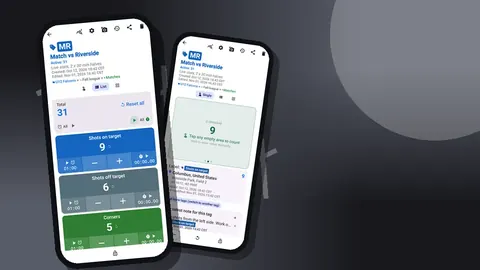
Tags can store a location, either from GPS, picked on a map, or typed as a country, city and place. Setting the ground on the main score tag means every exported game carries its venue, which helps when you later compare home and away results. The location appears on the tag card in Single view.
A pre-match checklist
Ten minutes before kick-off is the right time to prepare the phone, not the moment the first goal goes in. Run through a short list in the car park or the changing room:
- Create or reset the game counter and check that the tag names match last week's.
- Confirm the step on every score tag, especially in sports with several scoring values.
- Set the venue on the main score tag.
- Check the battery and screen brightness for outdoor light.
- Unlock the counter, open Grid view and press each tile once and minus once to make sure nothing is locked.
- Tell the substitutes or the manager who is keeping score today.
The whole routine takes a couple of minutes and prevents the most common match-day problem: a scorer who discovers halfway through the first period that the counter was still locked from last week.
During the match
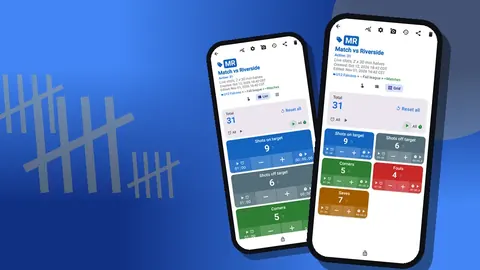
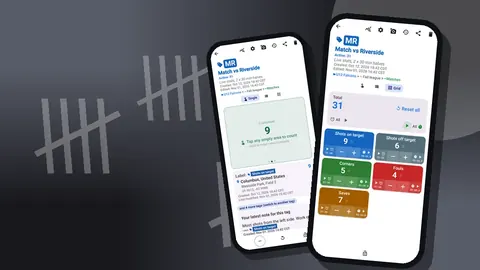
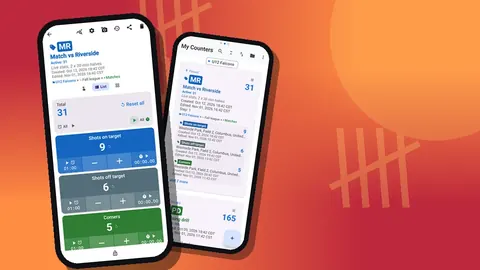
Open the counting screen in Grid view. Each tag becomes a colored tile with its value, target percentage and minus and plus buttons. For six to ten tags, Grid fits everything on one screen. If you only track the score, Single view shows one tag as a large circular counter, and List view is a compact alternative with a total line on top.
Tips that come from scoring in the rain:
- Lock between periods. A locked counter ignores taps, so the phone can go in a pocket at half-time.
- Score first, stats second. If two things happen at once, record the score and let the stat go.
- Correct immediately. If you tapped the wrong team, press minus on that tag. The history keeps both the mistake and the correction.
- Pin the game. Pinned counters stay at the top of the counter list, so you reopen the right game in one tap.
The volume keys can count too, which helps when you are holding an umbrella or a clipboard. It is off by default and is enabled in settings. Once on, the keys work in the background and from the lock screen through a foreground service, with remappable keys and their own sound and vibration. The lock-screen notification adds minus, plus and Stop buttons.
Period and timeout timers
Every tag can run a timer or a stopwatch. Presets are 30 seconds and 1, 2, 3, 5 and 10 minutes, with a manual field for anything else. Use a one-minute timer for timeouts, a ten-minute one for a sin-bin, or a stopwatch to time how long the team defends a lead. There are seven alarm sounds and eight vibration patterns, and countdown beeps warn you before the alarm.
This is a helper for the bench, not an official match clock. When a referee keeps time, theirs is the one that counts.
After the final whistle
Before leaving the ground, add a note to the counter: the final score as agreed with the referee, injuries, weather, unusual decisions. Notes can also go on individual history events, such as "penalty given against us, disputed".
The history is the record of the game in order. Each event shows the step, exact time, the value before and after and the tag label. Reading it reconstructs the flow: two quick goals conceded after half-time, or a long spell with no shots on target. That sequence is often more useful in the debrief than the totals.
The match dashboard
The dashboard summarises the counter with the total against target, increments against decrements, a seven-day activity bar chart and a pie chart by tag. The increments versus decrements figure is a quick indicator of how many corrections you made, which tells you whether your live scoring needs work.
How do you build a season record from game counters?
A single game is a story; a season is a pattern. Export each game counter to CSV or Excel (XLSX). In the export options, tick Summary for the totals, add Events when you want the timeline, and include Notes and Locations if you want the context and venue in the file.
Keep one season workbook. Paste each game's summary into a new row: date, opponent, venue, score, and your three stats. After half a season, simple spreadsheet formulas show averages, home and away splits and trends in fouls conceded. The app does not produce league tables or standings, but once the counts are in a spreadsheet you can build whatever view you need.
For a club newsletter or parents' group, an HTML report is the cleaner option. It opens in a browser and can embed photos attached to the tags, such as the team photo before kick-off.
Finding old games
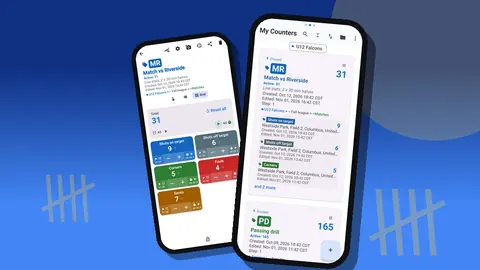
The counter list has search, a date-range filter and six sort orders, in List or Grid view. Filtering to last month's dates or searching for an opponent's name finds the game you want to compare, even late in a long season. Deleted games go to the trash and can be restored.
Common scorekeeping mistakes
- Too many tags. Ten stats look impressive on the screen and get counted badly. Three stats counted well beat ten counted badly.
- Inconsistent names. "Shots on target" in one game and "SOT" in the next will not line up in the spreadsheet. Copy the same tag names every time.
- Recording from memory. If you missed an event, leave it out rather than estimating.
- No backup. Game data is stored on the phone, with no account and no Counter App cloud. Make a backup ZIP with photos every few weeks; importing shows a preview and lets you replace, copy or skip duplicates.
- Two scorers, two phones, no plan. There is no live sync between phones. If two people score, agree who keeps the official score and merge stats after export.
Who should keep the score?
The head coach is usually the worst choice, because coaching and scoring compete for the same attention. A team manager, a parent volunteer or an injured player on the bench is better. Give them a simple setup with the same tag names every week, show them the minus button, and agree that the score tags matter more than the stats.
If you also want to count player-level numbers at training, the player stats guide shows how to structure that. Counter App runs on Android 12 and later, keeps working without a signal, and is free to download with no ads; try it free for 3 days, then choose a yearly or monthly plan or a one-time lifetime purchase.
Get the app at counterapp.online.
Frequently asked questions
Can I count a basket as two or three points with one tap?
Yes. Every tag has its own step from 1 to 100, so you can make separate tags for one-, two- and three-point scores, or a try worth five, and each tap adds the right amount.
Is there a game clock in the score tracking app?
Every score tag can run a timer and a stopwatch, with presets of 30s, 1m, 2m, 3m, 5m and 10m or a typed length. That makes a handy timeout or period helper, not an official scoreboard clock.
What if I tap the wrong team?
Press minus on that tag. The history records the mistaken tap and the correction with exact times, so the final score is right and the trail is honest.
Can I keep a whole season of games?
Yes. Counters are unlimited. Put each game in a season category, then export to CSV or Excel (XLSX) to build a season table in a spreadsheet.
Does live scoring need a mobile signal at the ground?
No. Every counting feature of Counter App works offline at the ground, and a connection is only needed for optional notifications, update checks and map tiles.
Can the match venue be saved with each game?
Yes. A tag can store a location from GPS, a map pick, or a typed country, city and place, so exported games carry their venue for home and away comparisons.
Does Counter App produce league tables or standings?
No. Counter App — Tally & Clicker keeps scores and match stats per game, and league tables or season averages are built in a spreadsheet from the exported counts.