Counter App

Basketball Drill Counter App: Makes, Misses, Reps
Key takeaways
A basketball drill counter app records makes, misses, rotations and sprint completions as separate tallies during practice. With Counter App — Tally & Clicker on Android, a coach builds one counter per session, taps colored Grid tiles or the volume keys, sets targets for make-X drills and exports the session to a spreadsheet for percentages.
- A basketball drill counter in Counter App — Tally & Clicker uses one tag per drill outcome, such as FT made and FT missed, inside a counter per practice.
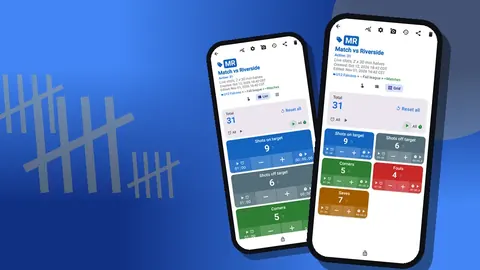
- Grid view shows every basketball drill outcome as a colored tile with its own minus and plus buttons, readable between whistles.
- A target on a made tag can sound or vibrate when a make-ten drill is finished, with optional auto-reset or auto-lock.
- Shooting percentages for a basketball practice are calculated in a spreadsheet after exporting the made and missed counts to CSV or Excel.
Watch a basketball practice and two kinds of drills appear: the ones that get measured and the ones that just get run. The second kind feels productive. Players sweat, sneakers squeak, the clock ticks. Yet when the session ends, nobody can say whether the corner-three drill went better than on Tuesday, and that is exactly the question that should shape Thursday's plan.
Measuring does not require a stats assistant on the baseline. It requires picking two or three numbers per drill and counting them the same way every time. This guide walks through doing that with Counter App on an Android phone, from building the practice to reading the export.
Which basketball drill numbers are worth counting?
Trying to track everything is the quickest way to track nothing. Decide before practice what matters in each block:
| Drill type | What to count |
|---|---|
| Form shooting | Makes out of a fixed number of attempts |
| Free throws | Made and missed, per player or per group |
| Shell defence | Clean rotations against breakdowns |
| Full-court layups | Consecutive makes before a miss |
| Closeout drill | Contests with a hand up against late arrivals |
| Conditioning | Sprints completed inside the time limit |
For one person holding a phone during live play, two numbers per drill is usually the ceiling. If you have a manager or an injured player on the bench, they can take a third.
A good test for a stat is whether you would change something based on it. "Corner 3 made" passes, because a bad week tells you to rep the corner more. "Dribbles" fails, because no plan changes on that number.
Building the practice in Counter App
A counter per practice, tags per drill outcome
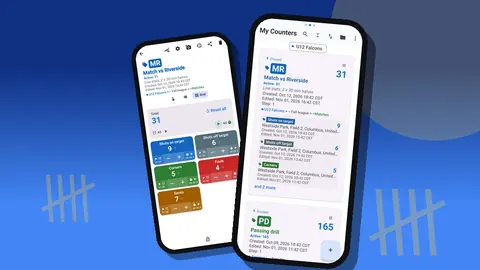
Create a counter named for the session, such as "Tue – shooting + shell". Inside it, add a tag for each outcome:
- FT made / FT missed
- Corner 3 made / Corner 3 missed
- Shell: clean / Shell: breakdown
- Sprints completed
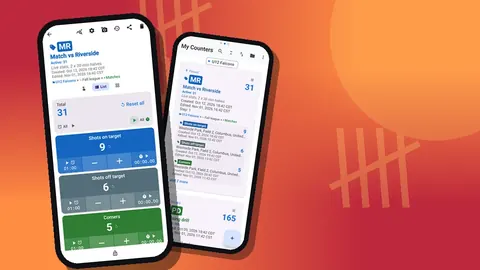
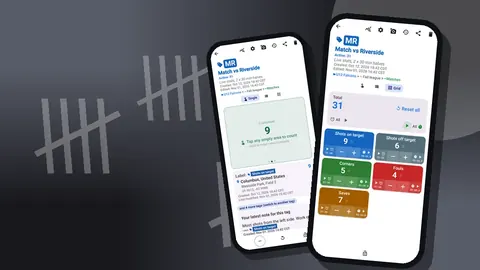
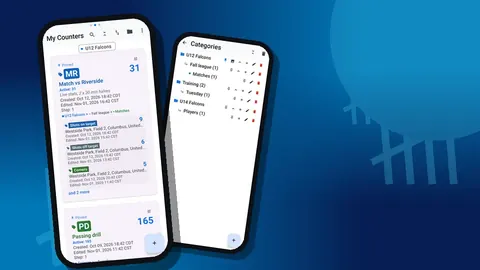
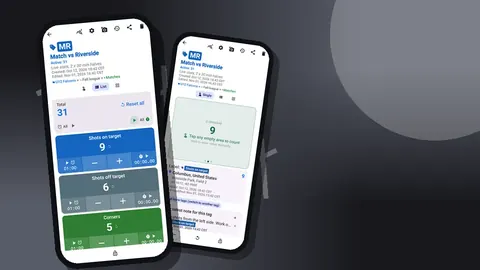
Open the counting screen in Grid view and every tag appears as a tile with its value, target percentage and its own minus and plus buttons. Grid is the layout that best survives being glanced at between whistles.
Color pairs and tag settings
Color-code the pairs: green for made, red for missed, and a neutral color for single-outcome tags such as sprints. The goal is that your thumb finds the right tile from peripheral vision. Each tag also has its own step, so a "team makes" tag in a group drill could count in twos if two balls are always in play.
If the grid gets crowded, switch tag display to collapsed, or to "collapsed except most recent", so only the tile you last touched stays expanded. The screen stays calm without hiding any data.
Per-player tracking
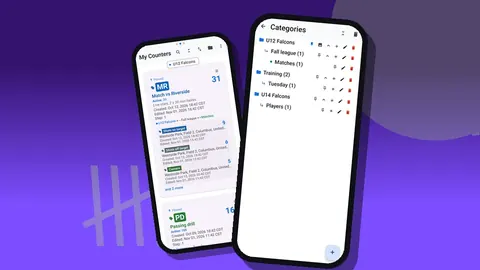
For individual shooting work, flip the structure: one counter per player, with made and missed tags inside. Place the players in a category for the team and a subcategory for the position group; categories go three levels deep, so "Varsity > Guards > Shooting" works. Pin the players you are focusing on this week and they sit at the top of the counter list.
Counter codes help too. Give each player's counter their jersey number as its code, and the badge on the list card identifies them faster than a name.
Running the drill
How do you end a make-ten drill automatically?
Many drills end at a number: make ten from each spot, or twenty consecutive free throws as a team. Put a target on the "made" tag and let the app sound or vibrate when it is reached. If the drill restarts on a miss, either reset the tag by hand (you can reset one tag without touching the others) or enable auto-reset, which returns the tag to its start value when the target is hit.
Counting down also works. Enter the target with "Set counter value", switch the tag's goal to Countdown with a goal of zero, and subtract a make each time, so the number on the tile shows how many are still needed. Players respond surprisingly well to hearing "four left" instead of "sixteen made".
Auto-lock is the third option. Once a drill target is met, the tag locks, so a stray tap during the water break cannot inflate the result.
Timed drills
Every tag can run a timer or stopwatch for the drill. The two-minute and three-minute presets suit a timed shooting drill: start the countdown, count makes until it beeps. There are presets for 30 seconds, 1, 2, 3, 5 and 10 minutes, a field for a custom length, seven alarm sounds and eight vibration patterns. Pick an alarm that cuts through gym noise and keep it consistent so players learn what it means.
The stopwatch answers a different question: how long does the group take to reach a target? Start it with the first ball and stop it on the last make. Over a month, the time to finish the same drill is a clean measure of improvement.
Hands busy? Use the volume keys
When you are rebounding or feeding passes, tapping a screen is awkward. Switch on volume-button counting in settings (it is off by default) and the volume keys count, in the background and even on the lock screen through a foreground service. Each key can be switched on or off, set to add or subtract, and given its own sound and vibration. Both keys always count on the active tag, so they cannot be split into a "made" key and a "missed" key; select the tag on screen first, then use the keys. Some phones still show the system volume bar while you do this, which does not affect the count.
The lock-screen notification offers minus, plus and Stop buttons, which is another way to count without unlocking.
After practice: from taps to decisions
Read the history
Every tap is in the history with its exact time, the step, the value before and after, and the tag label. Reading it in order shows the shape of a drill, not just the total: five misses in a row after a sprint block tells a different story from misses spread evenly.
Add a note to an event right after a notable moment, such as "switched to off hand" or "legs gone after suicides". The note stays with that event, and all notes are also gathered on the All Notes screen.
Glance at the dashboard
The dashboard shows the counter's total against its target, increments compared with decrements, a seven-day activity bar chart and a pie chart by tag. The pie chart is the quickest way to see the made-to-missed split across drill types before doing any arithmetic. The bar chart shows which days of the week carried the most counted activity, useful when you want to balance shooting volume.
How do you calculate shooting percentage from the counts?
Counter App does not compute shooting percentages, and you do not need it to. Export to CSV or Excel (XLSX), and a spreadsheet handles the rest: made divided by made plus missed, per drill, per day. When exporting, you can choose the sections Summary, Events, Notes and Locations. Summary is enough for totals; Events gives timestamps if you want to study streaks.
Keep one workbook per season and paste each practice in as a new sheet or new rows. An HTML report is a tidy alternative when you want to send a readable summary to an assistant coach or a player. It opens in any browser and can include photos attached to tags.
A hypothetical example
Illustrative only. A coach runs a free-throw block at the end of a hard conditioning session, logging "FT made" and "FT missed" for the group. A week later she runs the identical block at the start of practice, before any running. She exports both sessions and lays them side by side in a spreadsheet.
Whatever the comparison shows, the decision that follows is now based on a measured difference rather than a feeling. If fatigue clearly hurts this group's free throws, she might add pressure shooting late in practice to train it. If there is no visible difference, she can stop worrying about the order of blocks and spend the time elsewhere.
Habits that keep the data useful
- Same drill, same name. If the tag is "Corner 3 made" this week, it should not be "Corner threes" next week, or the spreadsheet will treat them as two drills.
- Count immediately. Tapping later from memory reintroduces the guesswork you were trying to remove.
- Lock counters you are not using. A locked counter ignores taps when players pick up the phone to check numbers.
- Reuse rather than rebuild. Resetting a counter for the next shooting day keeps the tag structure intact.
- Back up monthly. A backup ZIP keeps the season safe, and import shows a preview with options to replace, copy or skip duplicates.
For player tracking beyond drills, read the guide to tracking player performance stats. If you also keep score in games, see live score tracking.
The short version
Pick a few numbers, count them every time, export once a week. Counter App provides the grid of buttons, the targets, the timers, the history and the export. It runs on Android 12 and later and is free to download with no ads; try it free for 3 days, then choose a yearly or monthly plan or a one-time lifetime purchase. The coaching decisions remain yours; they simply rest on something firmer than memory.
Get the app at counterapp.online.
Frequently asked questions
Can a basketball coach track makes and misses as separate tallies?
Yes. Create one tag for each, for example 'FT made' and 'FT missed'. Each tag keeps its own value, and an export gives you both numbers so a spreadsheet can calculate the percentage.
Can every basketball drill tag fit on one screen?
Yes. Grid view on the counting screen turns each drill outcome into a colored tile with its own minus and plus buttons, which suits a practice with several shot types.
Does a basketball drill counter need Wi-Fi in the gym?
No. Counting drills works offline in Counter App, and a connection is only touched for optional notifications, update checks and map tiles.
Can I end a drill automatically when the group reaches a number?
You can set a target on a tag with a sound or vibration alert. Auto-reset returns the tag to its start when the target is reached, and auto-lock stops further counting.
Can a tag hold a QR code for a shooting station?
Yes. Tags can store a barcode or QR code, scanned with the camera or typed in by hand.
Does Counter App compute basketball shooting percentages?
No. Counter App — Tally & Clicker records makes and misses with timestamps, and a spreadsheet divides made by made plus missed after a CSV or Excel export.
Can a coach count free throws with the volume keys while rebounding?
Yes, after the coach switches on volume-button counting in settings. The keys add or subtract on the active tag, also from the lock screen, which leaves the coach's hands free for rebounding and passing.