Counter App

Swim Coach Lap Counting on Android, Lane by Lane
Key takeaways
Swim coaches can count laps lane by lane on Android by making one counter per session and one tag per lane. Counter App — Tally & Clicker shows the lanes as tiles or rows, alerts when a lane reaches its set distance, times rest with per-tag timers and exports timestamped lengths for split analysis.
- A swim coach can count laps for several lanes at once in Counter App — Tally & Clicker by giving each lane its own tag inside a session counter.
- A lane tag's step can count single lengths, two lengths per return, or metres, such as a step of 25 in a 25 m pool.
- A target with auto-lock on a lane tag signals the end of a set and blocks a stray tap from adding an extra length.
- Timestamps on every counted length let a swim coach work out splits in a spreadsheet after exporting the session events.
A swim coach on deck has a counting problem nobody else in sport has quite as badly. Six lanes, three or four swimmers each, all on different send-offs and different distances, and the coach is supposed to correct a catch in lane two while knowing that lane five has one length left. Swimmers miscount too, especially in long freestyle sets, and "I think that was my twelfth" is not a reliable answer.
A phone with a multi-lane counter handles the arithmetic so the coach can watch technique. This guide walks through doing it with Counter App on Android.
Why is lap counting hard for a swim coach?
The trouble is not counting itself. It is counting several things in parallel while doing another job. Common workarounds each have a weakness:
- Swimmers count themselves. Fine for experienced squads, unreliable for juniors or long sets.
- Lap boards at the turn end. Good for distance swims, but someone has to flip them.
- Coach counts in their head. Works for one lane. By the third lane, errors creep in.
- Pen and paper tally marks. Wet paper and pens are a poor match.
A phone counter with one button per lane is closer to how the problem is structured: several independent tallies, visible at once, each with its own finish point.
Session setup in Counter App
One counter per session, one tag per lane
Create a counter for the session, such as "Thu AM – aerobic 3k". Add a tag for each lane: "Lane 1", "Lane 2" and so on. If several swimmers share a lane on staggered starts, either count the lead swimmer or add a tag per swimmer: "L3 Ana", "L3 Ben".
Colors help. Many pools have lane ropes in alternating colors; mirroring them on the tags makes the right tile easier to spot. Each tag can also store a note, such as the swimmer names in that lane today.
Decide what one tap means. Two common conventions:
- Count lengths, step 1. One tap every time a swimmer touches either wall. Simple and precise, but busy.
- Count laps at the far end, step 2. Stand at the turn end and tap once per return. The step of 2 keeps the tag in lengths.
You can also count in metres. In a 25 m pool, a step of 25 makes the tag show distance directly. Steps can be any value from 1 to 100, set per counter and per tag.
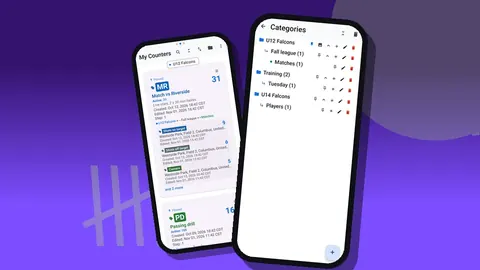
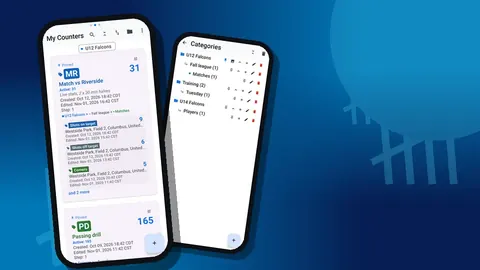
Categories help over a season: "Squad > Seniors > Autumn" or "Squad > Juniors > Technique". Up to three levels are available, and you can pin the current group so it appears first.
How do you get an alert when a lane finishes a set?
Set a target on each lane tag equal to the set distance: 16 lengths for 400 m in a 25 m pool, or 400 if you count in metres. Turn on a sound or vibration alert so you know when a lane has finished. Targets can count up or down; counting down from 16 means the tile shows lengths remaining, which is what swimmers usually want to hear.
Two automatic options are useful in the pool:
- Auto-lock freezes the tag at the target, so a stray tap after the swimmer finishes cannot add a length.
- Auto-reset returns the tag to its start value, which suits a set of repeats where each one is the same distance.
On deck
The counting screen shows tags in three views:
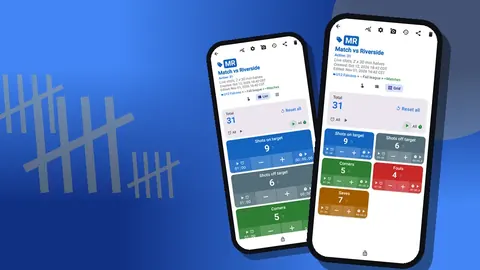
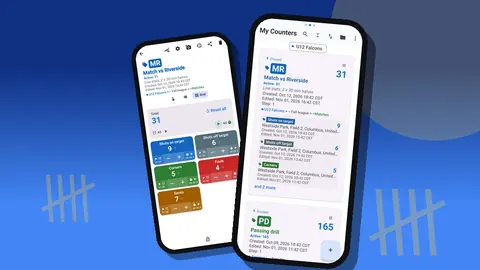
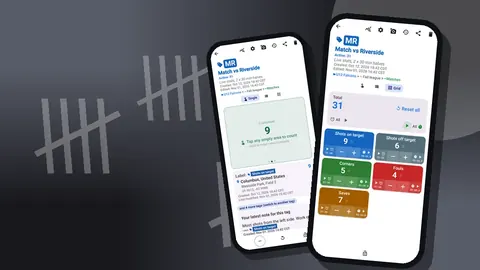
- Grid: colored tiles per lane with value, target percentage and large minus and plus buttons. Best for six or more lanes.
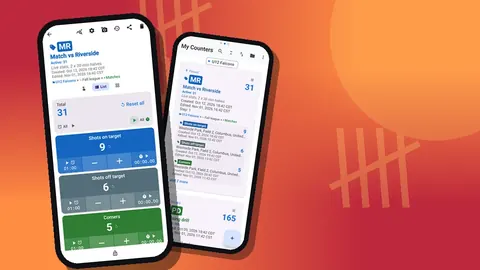
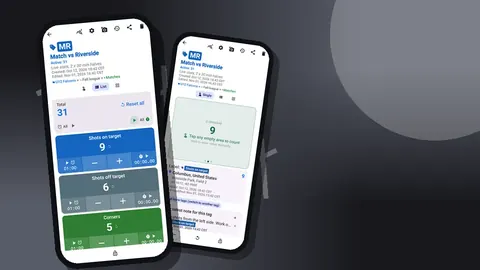
- List: one row per lane, top to bottom, with the total against the target at the top and timer and stopwatch controls for all tags. Best when you want lanes to stay in pool order.
- Single: one large circular counter. Best for one swimmer doing a distance swim.
Practical habits:
- Hold the phone the same way every time. Muscle memory finds the lane faster than reading.
- Count at one end only. Walking the deck and counting both ends produces double counts.
- Correct immediately. If you tapped lane three for lane four, press minus on three and plus on four. The history records the correction.
- Lock the counter during technique work. When nobody is being counted, lock it so a splash or a sleeve does not add lengths.
Counting with the physical keys
Touchscreens and wet fingers do not get along. The volume keys are a reliable alternative. Turn on volume-button counting in settings; it is off by default. The keys then count in the background and on the lock screen through a foreground service. You can remap the keys and give each its own sound and vibration, so a short buzz means "added" without looking.
This works best for a single lane or a single swimmer, because the keys act on the active tag. Some phones still show the system volume bar during this. For the lock screen there is also a notification with minus, plus and Stop buttons.
Keep the phone in a waterproof pouch or case of your choice. Counter App does not make the phone water resistant.
Send-offs, rest and test sets
Each tag can run its own timer and stopwatch. Timer presets are 30 seconds and 1, 2, 3, 5 and 10 minutes, and any other duration can be typed in. Countdown beeps sound before the alarm, with seven alarm sounds and eight vibration patterns to choose from.
Typical uses:
- Rest intervals. A 30-second timer on a lane between repeats.
- Test sets. A stopwatch per lane on a 400 m test; the lengths and the elapsed time sit side by side.
- Kick or drill blocks. A three-minute timer for a fixed-time drill, counting lengths until it ends.
Timers can be reset one at a time or all together, which is handy at the start of a new repeat.
One swimmer, one big number
For distance work, Single view shows one swimmer's count large enough to read from the water if you hold the phone up at the turn. Prop the phone at the end of the lane and the swimmer can glance at the number on each turn.
After the session
Read the history
The history records every tap with the exact time, the step, the value before and after, and the lane tag. Because each length has a timestamp, the gaps between taps show the split for each length. A swimmer whose lengths stretch out in the final quarter of a set has a pacing problem, and the history shows it without a dedicated timing system.
Add notes to individual events for anything you saw: "breathing to one side only", "stopped at wall, goggles". Notes appear on the All Notes screen too, sortable by time.
Dashboard and export
The dashboard shows the counter's total and target, increments and decrements, a seven-day activity bar chart and a pie chart by tag. Across a week, the bar chart shows how much was counted per day, which roughly mirrors distance if you count consistently. The pie chart shows how the work split between lanes.
For a training log, export to CSV or Excel (XLSX). Choose Summary for totals, Events for the per-length timestamps, Notes for your observations and Locations if you coach at more than one pool. An HTML report is useful for parents or swimmers who want a readable summary.
The app does not calculate splits or pace per 100 m. With Events in a spreadsheet, the difference between consecutive timestamps gives you the split, and simple formulas can average them.
A hypothetical session
Illustrative example only. A coach runs an 8 x 100 m set in a 25 m pool with five lanes. She creates "Sat – 8x100 aerobic", adds tags "Lane 1" to "Lane 5", sets each step to 2 because she counts at the far end, and gives each tag a target of 4 lengths with auto-reset on. Every time a lane completes 100 m, the phone vibrates and the tile resets for the next repeat. A 20-second rest timer runs on each tag between repeats.
After the set she exports the events. In the spreadsheet she can see that one lane's repeat times drifted up through the set while the others stayed steady. That gives her a question to ask, and a lane to watch, on Monday.
Tips from the deck
- Name lanes, not swimmers, for squad sets. Lanes stay the same; swimmers move.
- Reuse the session counter. Reset it for the next session with the same structure rather than rebuilding it.
- Use dark mode under bright pool lights. Light, dark and system themes are available, along with six skins and adjustable font scale for readability.
- Back up weekly. Lap data is stored on the phone, with no account and no Counter App cloud. A backup ZIP keeps the season safe and imports with a preview and replace, copy or skip for duplicates.
- Check the language setting for visiting coaches. The app has 37 languages and an in-app language picker.
Counter App runs on Android 12 and later, works offline at any pool, and is free to download with no ads; try it free for 3 days, then choose a yearly or monthly plan or a one-time lifetime purchase. For dryland work, the rep counter guide for athletic training uses the same tools for sets and reps.
Get the app at counterapp.online.
Frequently asked questions
Can I count laps for several lanes at once?
Yes. Make one tag per lane inside a session counter and open the counting screen in Grid or List view. Each lane has its own value, minus and plus buttons and target progress.
Can a tap count a length or a full lap?
You decide. The step can be anything from 1 to 100, so a tap can add one length, or two if you only count at the turn end, or a full 50 m in metres.
Will the phone tell me when a lane finishes the set?
Set a target on the lane tag and turn on a sound or vibration alert. Auto-lock can freeze the tag at the target so a late tap does not add a length.
Can a swim coach time send-offs and rest?
Yes. Every lane tag has a timer and a stopwatch, with presets of 30s, 1m, 2m, 3m, 5m and 10m plus manual input, countdown beeps, seven alarm sounds and eight vibration patterns.
Can I count with wet hands?
Volume-button counting, switched on in settings, lets the phone's physical keys add or remove counts, including on the lock screen. It is off by default. Protect the phone from water with your own case or pouch.
Does Counter App calculate swim splits or pace per 100 m?
No. The app timestamps each tap, and the split for each length is the difference between consecutive timestamps once the events are exported to a spreadsheet.
Is Counter App waterproof on a pool deck?
An app cannot make a phone water resistant. Keep the phone in a waterproof pouch or case of your own choice when counting laps at the poolside.