Counter App

A Coach's Phone as Assistant: A Season Scenario
Key takeaways
In this fictional season scenario, a field hockey coach replaces notebook memory with phone tallies. Using Counter App — Tally & Clicker on Android, she counts three defined stats per player, adds notes to events, reviews dashboards every Sunday and exports to Excel, which turns vague selection hunches into specific, fair conversations with players.
- The fictional field hockey coach in this scenario counts three defined stats per player: circle entries, clean first touches and turnovers conceded.
- Player counters in Counter App — Tally & Clicker show development across weeks, while drill counters with a tile per player show one session.
- Volume-key counting lets a sideline coach tally with the phone in a jacket pocket once the feature is enabled in settings.
- A weekly review of the dashboard and an Excel export gave the scenario's coach evidence to weigh against her impression of two forwards.
The coach in this article is fictional. The scenario is written to show one realistic way of using a phone for tallies across a season; it does not describe a real person, team or result.
The notebook in the car
Picture a field hockey coach who has spent years with youth and development squads. Her routine after training is one many coaches will recognise: sit in the car with the engine off, open a spiral notebook, and try to reconstruct the session. "Strong in the circle today." "Shape still loose on the left." The notes are sincere, but they are shaped by whatever was most dramatic. The players who quietly do their job week after week hardly appear at all.
What finally pushes her to change is a selection call. Two forwards are competing for one starting spot, and she realises she cannot say with any confidence which of them has created more in training over the last month. She has opinions, built from a handful of memorable moments, but no record.
She also notices something less comfortable: the forward she favours is the one who talks to her most after sessions. That might be a coincidence. It might not. Either way, she wants something that does not depend on who stays behind to chat.
Week one: what should a coach count?
Her first instinct is to track everything, and she talks herself out of it on the drive home. One person on a sideline cannot reliably count ten things. She chooses three that she can see clearly from where she stands:
- Circle entries with the ball under control.
- Clean first touches under pressure in the passing drill.
- Turnovers conceded in the opposition half.
For each one she writes a single-sentence definition. "Circle entry: the ball crosses the 23-metre arc in possession, not from a deflection." The definitions go into the tag notes, so an assistant could count the same thing without asking.
She also makes a rule for herself: if she is unsure whether something counts, she does not count it. A steady undercount is still comparable week to week. A count padded with guesses is not.
The setup on her phone
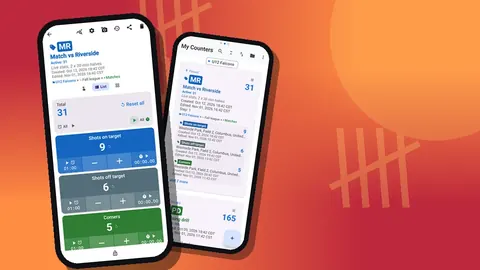
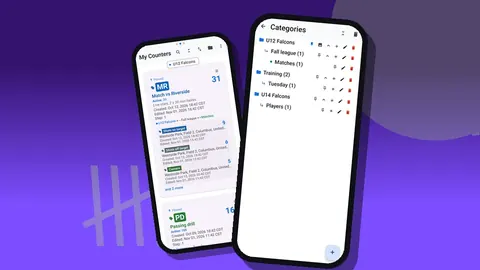
She builds the structure in Counter App on an evening at home rather than on the pitch. A category for the squad sits at the top. Inside it go subcategories for attack, midfield and defence, which is as deep as she needs, though the app allows three levels. Each player gets a counter named after them with their initials as the code, so the badge on the list card identifies them at a glance.
Inside each player's counter she adds three tags matching her three stats, colored green for circle entries, blue for first touches and red for turnovers. Keeping the same colors in every counter means her thumb learns the layout once.
Finally, she pins the two forwards she is deciding between. Pinned counters stay at the top of the list, so on a cold evening she is not scrolling past twenty names to find them.
Drill counters with a tile per player
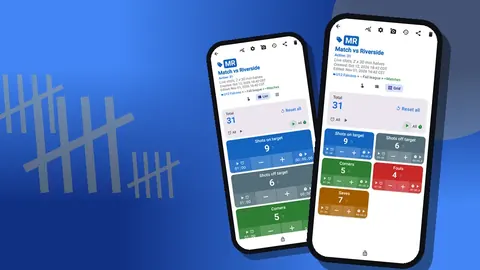
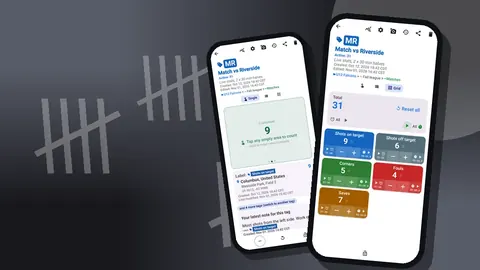
Player counters work well for long-term records but are slow during a group drill, where she would need to switch counters for every event. So she adds a second kind: one counter per drill, named something like "Passing square – Tue", with a tag per player. Opened in Grid view, every player in the drill is a colored tile on one screen, with its own minus and plus buttons.
That gives her two layouts that answer two questions. Player counters say how someone develops across weeks. Drill counters say what happened in one session.
Weeks two to four: the awkward phase
The first sessions are clumsy. She taps the wrong tile, forgets to count during a heated small-sided game, and once sets the phone down on the bench for an entire drill. A few adjustments make it work.
Volume keys. She enables volume-button counting in settings; it is off by default. With the phone zipped into her jacket, she presses a key to add a circle entry. The keys can be remapped and each can have its own sound and vibration, so the buzz itself tells her whether she added or subtracted. Counting continues in the background and on the lock screen through a foreground service. Her phone still flashes the system volume bar now and then, which she learns to ignore.
The lock. Players regularly pick up her phone to check the time. She locks the counters she is not using, and stray taps simply do nothing.
The minus button. She stops feeling guilty about mistakes. A wrong tap is corrected with one press of minus, and the history shows both the slip and the fix.
Notes on the spot
When something is worth remembering, she adds a note to that history event straight away: "entry from the left, quick stick", or "lost it trying the reverse again". Writing takes seconds, and the note stays attached to the exact moment instead of floating in a notebook. The history lists each event with the step, the exact time, the before and after values, and an icon showing that a note exists.
By week four the routine has stopped feeling like an extra job. She notices she watches play more closely, because she now has a reason to watch for specific things.
Week five: the first review
On a Sunday evening she opens the dashboard for each forward. It shows the total against the target, increments against decrements, a seven-day activity bar chart and a pie chart by tag. The pie chart for each player shows the balance between entries, touches and turnovers, which is a decent first impression in itself.
Then she exports both counters to Excel and places the numbers side by side.
In this scenario, the data does not match her instinct. The forward she had pencilled in looked spectacular in a couple of sessions, and those were the moments she remembered. The other forward has entered the circle steadily in almost every session and has conceded fewer turnovers. The notes explain part of the difference: the steady player's entries come from patient build-up, which is precisely what the team has been working on.
The point is not that one player "won". The coach now has something concrete to weigh against her instinct, and something concrete to tell both players about what she wants to see.
The conversation that changes
Before, her feedback sounded like "I think you've been doing well". Now she can sit with a player, open an HTML page from the share screen showing the counts and the annotated drill photo, and talk about specific behaviour. "You got into the circle in nearly every session; I want to see the same patience against a press."
The player who missed out gets a better conversation too. Rather than a vague "keep working", she hears that her turnovers in the opposition half are the thing standing between her and a start, and that the coach will be counting them again next month. A target she can change is easier to accept than a judgment she cannot.
Parents occasionally ask how selection works. The coach does not share other players' numbers, but she can explain that she counts three things for everyone, the same way, every session.
Mid-season: photos of the board
Around week eight she starts photographing the tactics whiteboard after each session and attaching the picture to the relevant tag. Each tag holds up to six photos. In the photo editor she draws arrows for runs, circles a player's position and adds a line of text, choosing from six colors and four fonts. Rotation fixes the pictures she takes at an awkward angle.
The all-photos gallery turns into an unexpected archive: a timeline of what the team actually practised, labelled by tag and date. When she plans the next season, it is the first place she looks.
How does she keep the data safe?
Because there is no account and no Counter App cloud, the data is stored on her phone. Once a month she makes a backup ZIP, including photos, and keeps it with her other club files. She chooses which counters and categories to include, and enables photo compression to keep the file smaller.
When she changes phones in the spring, she imports the ZIP on the new device. The import preview shows what is coming in, and she chooses to skip duplicates since nothing exists yet. An old drill counter she deleted by mistake turns up in the trash and is restored in a tap.
End of season: what she kept and what she dropped
Looking back, she keeps the habit and trims the edges:
- Kept: three stats, counted at every training session, reviewed every Sunday.
- Kept: notes on events. They proved more useful than the numbers in some conversations.
- Kept: the drill counters with one tile per player.
- Dropped: counting during matches she was also coaching tactically. That job moves to an assistant with a separate counter, following the approach in the score tracking guide.
- Dropped: a fourth stat she added in mid-season and rarely reviewed.
What can a coach take from this scenario?
The lesson is not about technology. It is that a small, consistent record changes the quality of coaching conversations. Three numbers per player, defined clearly and counted honestly, are enough to challenge an impression or confirm it.
If you want to try the same approach, start smaller than you think: one stat, one squad, four weeks. Counter App runs on Android 12 and later, works offline for every counting feature and is free to download with no ads; try it free for 3 days, then choose a yearly or monthly plan or a one-time lifetime purchase. For a more structured approach to player numbers, read tracking player stats with a counter app.
Get the app at counterapp.online.
Frequently asked questions
Is the field hockey coach in this story real?
No. She is a fictional character, and the scenario is an illustration of one realistic way to use a phone for tallies over a season. No real team or result is described.
Can a field hockey coach count with the phone zipped in a jacket?
Yes, once volume-button counting is switched on in settings, where it is off by default. The physical keys then count from the background and the lock screen, and a distinct sound or vibration per key confirms each press.
Can an assistant coach see the head coach's counts live?
No. Counts on the head coach's phone are never synced live to another phone. The head coach shares a CSV, Excel or HTML export, or hands over a backup ZIP that imports with a preview and replace, copy or skip handling for duplicates.
Can a photo of the tactics whiteboard be attached to a player's tag?
Yes. A single tag accepts up to six photos, and the editor adds brush strokes, text, six colors and rotation. The all-photos gallery then lists every whiteboard picture with its tag label and date.
How did the coach in the scenario move her data to a new phone?
She made a backup ZIP with photos on the old phone, imported it on the new one and used the import preview with the skip option for duplicates.
Which three stats did the fictional field hockey coach count?
She counted controlled circle entries, clean first touches under pressure and turnovers conceded in the opposition half, each defined in one sentence in the tag notes.