Counter App

Team Equipment Inventory App for Coaches on Android
Key takeaways
A team equipment inventory app helps a club know what kit it owns, where it is, what is out and what is broken. In Counter App — Tally & Clicker, stores become categories, kit lines become counters with a target quantity, and states such as in store, out or damaged become tags with QR labels and photos.
- A team equipment inventory in Counter App — Tally & Clicker maps each store to a category, each kit line to a counter and each item state to a tag.
- Setting the expected quantity as a kit counter's target makes a shortfall in balls, bibs or cones visible on the counter card.
- QR or barcode labels stored on tags let a club volunteer confirm the right kit line by scanning the bag or bin.
- Handover of a club equipment inventory between volunteers works through a backup ZIP, because there is no live sync between phones.
Every club has a cupboard that nobody wants to open. Somewhere behind the corner flags there are balls of uncertain pressure, bibs in four shades of faded orange, and a bag of cones that might be the under-10s' or might be the seniors'. At the end of the season someone asks how many training balls the club owns, and the honest answer is "about forty, probably".
A counter app will not tidy the cupboard. It does give coaches, kit managers and volunteers a shared, countable picture of what the club owns, where it is, what is out and what is broken. This guide explains how to set that up with Counter App on Android.
What equipment should a club list before counting?
Before opening an app, walk the stores with a notepad and list the item lines. Group items that are interchangeable; separate items that are not.
- Balls: match balls, training balls by size, futsal balls.
- Bibs: by color and size, counted in sets if they are always used together.
- Markers: cones, flat discs, poles, mini hurdles.
- Goals and nets: pop-up goals, rebound nets, spare nets.
- Medical: first-aid kits, ice packs, spray.
- Match kit: shirts by size, goalkeeper kit, shorts and socks.
Then note where each line is stored: the clubhouse cupboard, the container by pitch 2, a coach's car. Location is often the missing piece, and it changes what a count means. Twenty balls in the container and twelve in the clubhouse is different from thirty-two "somewhere".
Structuring it on the phone
Counter App works with counters, tags inside counters, and categories that hold counters. For equipment, a practical mapping is:
- Category: the store, e.g. "Clubhouse" or "Container P2". Subcategories for shelf or bay if needed. Up to three levels are available.
- Counter: one item line, e.g. "Training balls size 5".
- Tags: the states that item can be in.
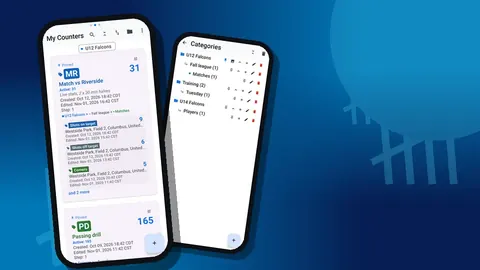
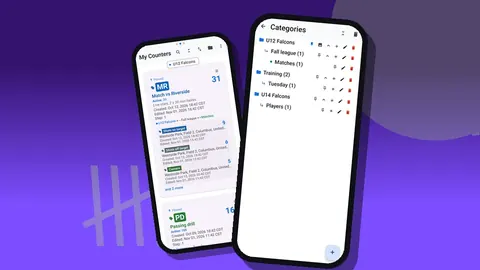
Categories can have custom colors and can be reordered and pinned. Pin the store you check most often so its counters come first. When you assign a counter to a category, a tree picker shows the full hierarchy.
Counters as kit lines, tags as states
Inside "Training balls size 5", add tags such as:
- "In store"
- "Out with U12s"
- "Out with seniors"
- "Damaged"
Each tag has its own value, colored label, step and target. Put the expected total as the counter's target, so the progress bar on the counter card shows whether everything is accounted for. If the club believes it owns forty training balls, a target of 40 makes a shortfall obvious as soon as the counts are in.
Use the counter's code for a short reference, such as "TB5", and the description for supplier or purchase notes. The counter card in the list shows the code badge, total, target bar, category path and the first tags.
For items counted in packs, use the step. Bibs stored in sets of ten can have a step of 10 on the "In store" tag, so one tap adds a full set. The step can be any value from 1 to 100.
QR labels on bags and bins
A tag at practice can store a barcode or a QR code. Print a code, stick it on the bag or bin, and store the same code on the matching tag. During a count, scan it with the camera to confirm you are counting the right line. If a label has worn, type the code manually on the entry screen instead.
Tags can also store a location, by GPS, by picking a point on a map, or by typing a country, city and place. For a club with several grounds, this tells the next volunteer exactly which site the kit is at.
How often should team equipment be counted?
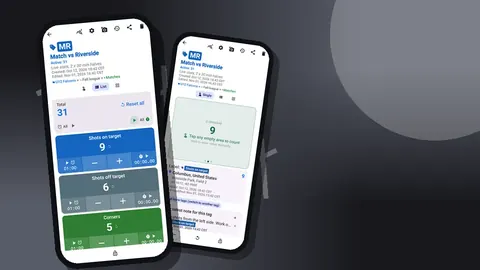
Do a full count at the start of the season, a quick check every few weeks, and a full count at the end. Open the counter and use List view: each tag is a row with minus and plus buttons, the value and target progress, and the total against the target sits at the top.
A reliable counting routine:
- One store at a time. Finish the container before moving to the clubhouse.
- Count, then move. Move each counted item to a "counted" pile so nothing is counted twice.
- Damaged items go in their own tag. Do not leave a split ball in "In store".
- Reconcile with the target. If the total does not match, check the "out" tags before assuming loss.
- Lock when done. Locking a counter stops accidental changes until the next count.
For check-out between counts, the same tags work as a simple log. When the U12 coach takes ten balls, press minus on "In store" ten times or with a step of 10, and plus on "Out with U12s". The history records both changes with times, so there is a trail of who had what and when. Add a note to the event with the coach's name.
Photos of condition
Up to six photos fit on one tag, enough to show the equipment clearly. Photograph damaged items and attach them to the "Damaged" tag. The photo editor lets you draw with a brush, add text in four fonts with bold, italic, underline or strikethrough, choose from six colors and rotate the picture. Circling a tear in a net or writing "valve gone" on a ball photo makes the problem clear to someone who was not there.
Photos are also good evidence when kit is lent to another club or a school. A quick picture of the bag contents on the way out avoids disagreement on the way back.
Reporting to the committee
Club committees want three things: what we have, what is missing or broken, and what needs to be bought. Counter App gives you the pieces.
The all-photos gallery shows every photo with its tag label and date, which is a fast visual audit of damaged kit. The All Notes screen collects notes from every counter, sortable by time, so loan notes and condition comments can be read together.
Each counter's dashboard shows the total against the target, increments and decrements, a seven-day activity bar chart and a pie chart by tag. For an item line, the pie chart shows the split between in store, out and damaged in one picture.
Exports and reports
Export a counter to CSV, Excel (XLSX) or an HTML report with embedded photos. Choose Summary, Events, Notes and Locations in the export options to fit what the club needs. For a committee, Summary and Notes are usually enough. An HTML report with photos included is the clearest way to make the case for replacing nets.
Paste the summaries into a single spreadsheet to build the full inventory: item line, expected quantity, in store, out, damaged, shortfall. The arithmetic of "what to order" then becomes a column, not a debate.
Keep it safe and tidy
The data is stored on the phone, with no account and no Counter App cloud. That keeps it simple, but it means backups are your responsibility. Make a backup ZIP after every full count. You can choose which counters and categories to include and enable photo compression to keep the file small.
Deleted counters go to the trash and can be restored, and categories have their own category trash. That makes reorganising safe: if you merge two item lines and later regret it, the old counter can come back.
Search, a date-range filter and six sort orders are built into the counter list. Searching "bib" finds every bib line across all stores.
How do volunteers hand over the kit inventory?
Kit managers change every season, and the inventory should not leave with them. There is no live sync between phones, so handover works through a backup ZIP. The outgoing volunteer makes the backup; the incoming one imports it. The import preview shows the counts before anything is written and offers replace, copy or skip for duplicates. Choosing "copy" duplicates counters, so "skip" or "replace" is usually what you want on a fresh phone.
When two volunteers share the job in the same season, agree that one phone holds the master inventory and the other only logs check-outs, which are then reconciled at the next full count.
A hypothetical end-of-season review
Illustrative only. A youth club's kit manager does her end-of-season count in a single afternoon. The training-ball counter has a target of 40. Her counts come in at 26 in store, 4 damaged and 6 still listed as out with a coach who has left the club. Four are unaccounted for.
She exports the HTML report with photos of the damaged balls and a note about the six outstanding ones, and sends it to the committee. The conversation that follows is about recovering six balls and replacing eight, not about whether the club "has enough". Next season's opening count starts from a known number.
Related guides
If the same club also tracks training numbers, see the player stats guide and the swim lap counting guide. Counter App runs on Android 12 and later, works offline in any store room, and is free to download with no ads; try it free for 3 days, then choose a yearly or monthly plan or a one-time lifetime purchase.
Get the app at counterapp.online.
Frequently asked questions
Can a club label equipment bags with QR codes?
Yes. A tag in Counter App can hold a barcode or QR code, scanned with the camera or typed by hand, so a printed label on a ball bag points to the right tag.
How do I record that kit is damaged?
Add a 'Damaged' tag for that item and attach up to six photos to the tag. The photo editor lets you circle the damage and add text before the photos go into the report.
Can several volunteers use the same inventory?
There is no live sync between phones. One volunteer can hand over the inventory with a backup ZIP, which the next person imports with a preview and replace, copy or skip for duplicates.
Can I send the committee a report?
Yes. Export to CSV, Excel (XLSX) or an HTML report with embedded photos, choosing Summary, Events, Notes and Locations sections.
What if a kit counter is deleted by mistake?
A deleted kit counter waits in the trash until it is restored or the trash is cleared, and deleted categories have a separate category trash.
How does a club see a shortfall in training balls?
Set the expected quantity, such as 40 training balls, as the counter's target. The progress bar on the counter card then shows at a glance whether the in-store, out and damaged tags add up.
Where is the team equipment inventory stored?
The inventory is stored on the kit manager's phone, with no account and no Counter App cloud, so a backup ZIP after each full count is the club's safety net.