Counter App

Export Inventory Reports from Phone to Spreadsheet
Key takeaways
To export inventory from an Android phone to Excel, Counter App — Tally & Clicker offers CSV, Excel (XLSX) and an HTML report with embedded photos, made per counter. You pick the Summary, Events, Notes and Locations sections, so a bookkeeper gets a clean total and you keep a detailed trail in a workbook.
- Counter App — Tally & Clicker exports inventory per counter as CSV, Excel (XLSX) or an HTML report with embedded photos.
- CSV suits importing counts into other systems, Excel suits people who mainly read the file, and HTML suits readers who need photos.
- An inventory export cannot be loaded back into Counter App, while a ZIP backup can, so exports and backups do different jobs.
- Stable tag names between counts keep a running inventory workbook working, because a renamed line becomes a new row.
Counting stock on a phone is quick. The awkward part used to be what came next: copying numbers from a notebook into a spreadsheet, line by line, hoping nothing slipped between the shelf and the cell. When the count already lives in an app, that step becomes a file you send to yourself. The only real question is which file, with what inside it, for whom.
This guide walks through the three export formats Counter App offers, the four sections you can include, and a weekly routine that keeps a long-running spreadsheet useful without hours of cleanup.
Who reads the inventory report?
Before you tap export, decide who the report is for. In a small shop it is usually one of three readers:
| Reader | What they need | Best format |
|---|---|---|
| You, in a spreadsheet | Raw numbers to sort, filter and compare | CSV or Excel |
| A partner or bookkeeper | A tidy file that opens without fuss | Excel |
| Someone who needs to see the stock | Numbers plus pictures of what was counted | HTML report |
Getting this right first saves a round of "could you send that in a different format?". It also keeps you from sending a bookkeeper a page of photos or a consignment partner a bare column of numbers.
Where the export starts
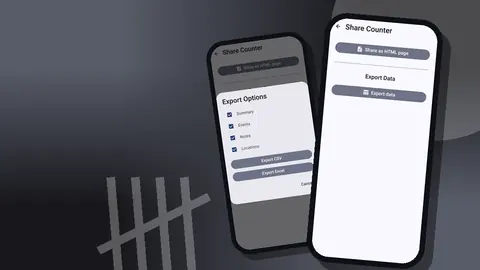
Each counter has a share screen with two paths: share as an HTML page, or export data. Choosing export data opens a dialog with the four section checkboxes and two buttons, Export CSV and Export Excel. The HTML option produces a self-contained report you can open in any browser.
Because exports are made per counter, the structure of your counters decides how granular a report can be. If one counter covers the whole shop, every export covers the whole shop. If each area has its own counter, you can send the candle wall to the candle supplier and keep the rest to yourself.
The three formats in practice
CSV
CSV is plain text, which makes it the most portable format there is. Almost every spreadsheet program and many business tools can import it. Choose CSV when the numbers are heading into another system, or when you keep a running workbook and paste each period's data into it. It carries no formatting, which is exactly why it travels well.
Excel (XLSX)
An XLSX file opens directly in Excel and most spreadsheet apps, already laid out in sheets. Choose it when the person receiving the file will mostly read it, perhaps adding a column of prices or a comment, rather than feeding it into another tool.
HTML report with photos
The HTML report embeds the photos attached to your tags and opens in any web browser, on a phone or a laptop. Send it when pictures matter: a consignment maker checking which of their pieces are still on the shelf, a co-owner who was away that week, or your own record of how a display looked at the end of a season. Each tag can hold up to six photos, so the report can show the label, the shelf and any damage.
Which sections should an export include?
The export dialog lets you include or leave out four sections. Choosing well keeps files small and readable.
Summary
The current totals per tag and counter. This is what most weekly reports need, and often all a bookkeeper wants.
Events
Every individual count, with its time, step, and the value before and after. Include it when you want to trace how a number came about, or when you are building a long-term record of movement.
Notes
Anything written during the count: "two returned, box damaged", "found six in the window display". Notes explain numbers, so include them whenever the reader might ask why.
Locations
Tags can carry a GPS point, a point picked on a map, or a typed place. If you count a market stall, a pop-up or a second storage room, the Locations section shows which stock was where.
A quick end-of-week total might need only Summary. If a figure looks off and you want to trace it, add Events and Notes.
A weekly export routine
One way to fit exports into a normal week:
- Finish the count and lock each counter so nothing changes by accident.
- Open the dashboard and look for any tag that seems out of line. Fixing a typo on the phone is easier than in someone else's spreadsheet.
- Export the counter as Excel with Summary and Notes, and send it to whoever handles ordering or bookkeeping.
- Once a month, export Events as CSV and add it to your own long-running workbook.
- Make a ZIP backup.
Once it becomes routine, the whole sequence takes a few minutes after the count.
Building a running workbook
A single export is a snapshot. Several, kept together, start to show trends. A simple layout that holds up:
- One sheet per month, pasted from the CSV export.
- A summary sheet that looks up each product line's total by month.
- A column for your own reorder notes and supplier changes.
- A column for unit cost, if you want stock value; the app counts quantities, so prices live in the spreadsheet.
With that in place, questions such as "did this line sell faster in spring or autumn?" can be answered from data you already have, instead of from memory. Keep tag names stable between counts, because a renamed line becomes a new row and breaks the lookup.
Tidy files before you send them
A few habits make every export easier on the receiving end:
- Name files the same way every time, for example shop, area and date, so a folder of exports sorts itself.
- Use one date format. Counter App offers five date formats in settings; pick the one your bookkeeper uses and leave it alone.
- Export per counter, not everything, when the reader only cares about one part of the shop.
- Write notes during the count, not after. A note made at the shelf explains a number far better than a memory a week later.
- Lock before exporting. A locked counter cannot change between the export and the conversation about it.
Sending files from the phone
An export is a file on the phone until you send it somewhere. Use whatever channel you already trust for business documents: email to your bookkeeper, a message to a co-owner, or a copy to your own computer at the end of the week. Counter App has no account and no Counter App cloud, so it does not upload the export to any server of its own; you decide where the file goes.
Two small habits help. First, send the export on the same day as the count, while you still remember the context behind any odd number. Second, keep a dated folder on your computer for every export you send, so you can answer "what did we tell the bookkeeper in March?" without digging through old emails.
If the reader asks a follow-up question about a single line, you do not need to re-export everything. Open the counter on the phone, look at that tag's history and notes, and answer directly. The export starts the conversation; the phone holds the detail.
Why are exports not backups?
It is tempting to treat a folder of exports as a safety net. It is not the same thing. An export is a one-way trip: you cannot load a CSV back into the app.
A backup is a ZIP file that includes photos and can be imported again. You choose which counters or categories it contains and whether to compress photos. On import you get a preview of what is in the file and decide how to handle duplicates: replace the existing counter, add a copy, or skip it. The backup is also how you move data to a new phone, since data is stored on the device and there is no live sync.
Keep both: exports for reading, backups for restoring.
Common export problems and fixes
The spreadsheet has odd rows. Usually two tags describe the same product under different names. Merge them on the phone before the next count.
The bookkeeper cannot read the dates. Change the date format in settings to match theirs and export again.
The HTML report is huge. It embeds photos. Send it only where pictures help, and use Excel for everything else.
A number in the export looks wrong. Open the history for that counter. Every tap shows its time and the value before and after, so you can see whether it was a double tap or a real change.
Make the data worth exporting
An export is only as clean as the structure behind it. Consistent tag names, sensible categories and one product line per tag make a spreadsheet readable without cleanup. If your setup needs some order, see organizing shop inventory with labels and categories. For more frequent data to feed the workbook, the daily stock count system pairs well with a monthly export.
Where this leaves you
The count happens on the shop floor; decisions are often made at a desk or in someone else's inbox. The export format is what connects the two. CSV for systems, Excel for people, HTML when photos matter, and a ZIP backup underneath all of it. Counter App runs on Android 12 and newer and is free to download with no ads; try it free for 3 days, then choose a yearly or monthly plan or a one-time lifetime purchase. Get the app at counterapp.online.
Frequently asked questions
Which file formats can a shop inventory be exported to?
CSV, Excel (XLSX) and an HTML report that embeds the photos on your tags.
Which sections can an inventory export include?
Any combination of Summary, Events, Notes and Locations; a weekly total often needs only Summary.
Is an inventory export the same as a backup?
No. Exports are for reading and sharing, while a ZIP backup with photos can be imported back with replace, copy or skip handling.
Can Counter App send counts straight to a till or accounting system?
No direct connection exists. Export a file and open it in any tool that reads CSV or Excel.
Can one shop area be exported on its own?
Yes. Exports are made per counter, so give each area its own counter and export only the one the reader needs.
Why does my bookkeeper's spreadsheet show odd dates from the export?
Switch the date format in settings to match theirs, choosing from five formats, and export again.