Counter App

Organize Shop Inventory with Labels and Categories
Key takeaways
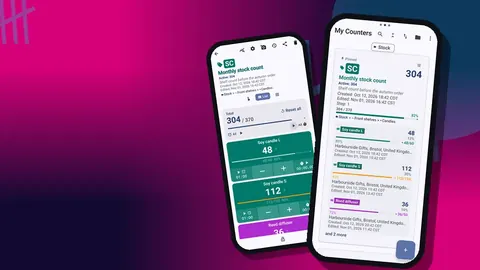
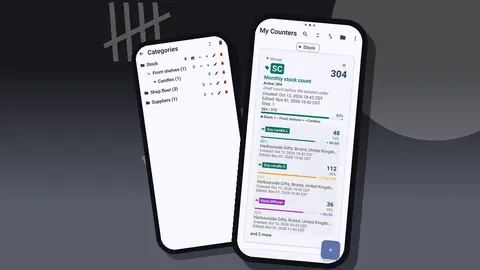
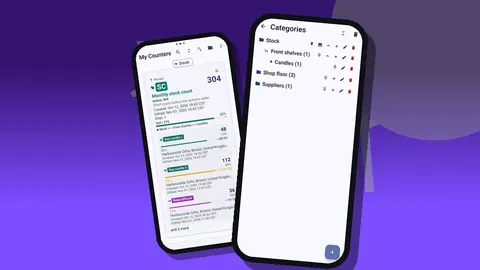
To organize retail store inventory on a phone, give each layer one job: categories for departments or rooms, counters for areas you can count from one spot, and tags for product lines named in one pattern. Counter App — Tally & Clicker adds colors, pinning, search and a category picker for moving counters as the range changes.
- Most small-shop inventory problems are filing problems: lines nobody can find, duplicate names or old seasonal ranges cluttering the list.
- In Counter App — Tally & Clicker, a counter should cover a shop area that can be counted in one sitting without moving, such as one rail.
- A tag naming pattern of item, distinguishing detail and size, such as "Scarf, Blue silk, One size", keeps lists scannable and exports clean.
- Seasonal shop ranges are best moved to a Seasonal category at the end of the season instead of being deleted.
Most inventory problems in a small shop are filing problems in disguise. The count itself is fine; nobody can find the line they are supposed to update, or two people named the same item differently, or a seasonal range from last winter is still cluttering the screen in July. Fix the structure and counting gets easier without anyone working harder.
This guide builds a structure from the top down, then covers naming, color and the small habits that keep it tidy as your range changes.
What are the three layers of a shop inventory?
Counter App gives you three layers to work with. Thinking about each one separately avoids most of the mess.
| Layer | Holds | Good for |
|---|---|---|
| Category (up to 3 levels) | Counters | Departments, rooms, seasons |
| Counter | Tags | One area or product family you count in one go |
| Tag | A value | One product line or variant |
The usual mistake is making one layer do another's job: a category for every product, or one giant counter for the whole shop. Keep each layer to its own role.
Layer one: categories
Categories are for browsing, not counting. Keep them broad and stable.
A clothing boutique might use:
- Clothing → Women → Tops
- Accessories → Bags
- Seasonal → Winter
A gift shop might go by room instead: Front of Shop, Back Wall, Stockroom. Either works. Pick the one that matches how you think when you look for something, and how you walk when you count.
Rules of thumb:
- Do not use the third level unless the second has become crowded.
- Give each top-level category a distinct color so it reads at a glance.
- Pin the categories you open every day, and reorder the rest by habit.
- Name categories with nouns, not dates, unless they really are seasonal.
Each counter is placed into a category with a tree picker, so moving a counter when your structure changes is a matter of choosing a new branch. If you delete a category by mistake, it goes to the category trash rather than disappearing.
Layer two: counters
A counter should be something you can count in one sitting without leaving the spot. "Tops rail by the window" is a good counter. "All clothing" is not, because nobody can count it without walking the whole shop, and a half-finished count of it is useless.
Use the counter fields deliberately:
- Name: the area or family, in plain words.
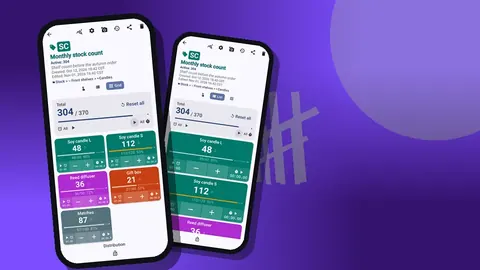
- Initials or code: two or three letters such as WT for Women's Tops; it shows on the counter's badge.
- Color: match it to the category or to a physical marker in the shop.
- Description: where the area physically is, for anyone new.
- Notes: standing instructions, such as "count back stock in the drawer under the rail too."
- Link: a supplier's catalogue page for that range.
A counter can also carry a target for its total, which is handy for things like a display that should always hold a certain number of pieces.
Layer three: tags and naming
Tags are where naming discipline matters most. A consistent pattern helps you scan a long list and keeps exports readable.
A pattern that works well is Item, Distinguishing detail, Size:
- Scarf, Blue silk, One size
- Wallet, Brown leather, Bifold
- Earrings, Silver hoops, Small
Put the noun first so items group together when you scan. Avoid in-jokes and abbreviations only you understand; the helper who covers your holiday will thank you. Keep tag order the same as shelf order, so the list on screen matches the walk.
Color labels on tags
Every tag has its own colored label. Pick a small, fixed set of meanings and stick to it. For example:
- one color for consignment stock,
- one for items that need supplier notice,
- one for clearance lines.
More than four or five meanings and nobody will remember them. Write the color rules into a counter's notes so the meaning is on record.
Steps and targets
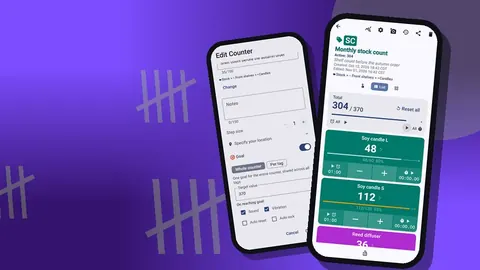
Each tag has its own step from 1 to 100 and an optional target. A line that arrives in packs of six counts with a step of six; a reorder level becomes a target with a sound or vibration alert. Setting these while you build the tag saves fiddling during the count.
Photos and codes
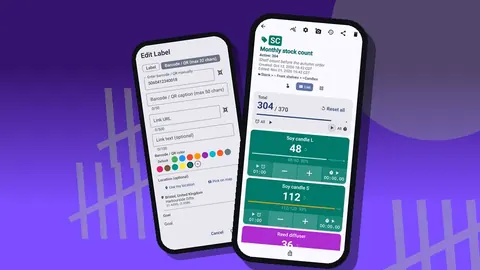
Up to six photos per tag settle look-alikes, and the photo editor lets you mark the detail that matters. A barcode or QR code on the tag, scanned or typed, ties it to the physical item or shelf. See barcode and QR counting for small shops for labelling ideas.
Finding things later
The counter list supports search, a date-range filter, six sort orders and pinned counters, and you can switch it between List and Grid view. Search works on the counter list, not inside history, which is one more reason to name counters clearly.
For day-to-day use, pin the counters you open every morning. If you run a daily stock count, its counter belongs at the top.
Seasonal and discontinued lines
Seasonal ranges come and go. Rather than deleting them, keep a Seasonal category and move their counters there when the season ends. Next year the structure, photos and codes are waiting for you.
Discontinued lines are different. Do a final count, export it if you need a record, then delete the tag or counter. Deleted counters go to the trash and can be restored, so cleaning up carries little risk.
A worked example: one gift shop
To make the layers concrete, imagine a gift shop with a window display, a candle wall, a card rack, a table of kitchenware and a stockroom behind a curtain.
The owner creates two categories, Shop Floor and Stockroom, and gives them different colors. Under Shop Floor sit four counters: Window, Candle Wall, Cards and Kitchen Table, each with a two-letter code. Under Stockroom sit two counters, Shelves and Overflow Boxes. The candle wall counter holds tags such as "Candle, Fig, Large" and "Candle, Fig, Small", in the order they stand on the shelf, each with a photo of the label and a step of one. The overflow boxes counter uses steps that match the case size, so one tap adds a full case.
Consignment candles from a local maker get one color, lines that need supplier notice get another, and the color rules are written in the Candle Wall counter's notes. The whole setup fits on one screen per area and takes an afternoon to build. When the season changes, a Seasonal category under Shop Floor takes the Christmas counters until next year.
When does a shop structure need a rethink?
Structures drift. Watch for these signals:
- A counter takes more than one trip to count. Split it by shelf or rail.
- You keep scrolling past tags you never touch. Move them to their own counter, or to the Seasonal category.
- Two tags describe the same thing. Merge them: count both, add the totals to one, delete the other.
- Colors have lost their meaning. Rewrite the rules in the notes and recolor anything that does not fit.
- Nobody but you can count. Add photos and plainer names until a new helper could manage alone.
- The export needs cleaning every time. That is almost always inconsistent tag names.
A quick review after each full count catches most of this before it becomes a mess.
Make it comfortable to use
A stockroom is often dim, and a long count is tiring on the eyes. Settings help: six theme skins, light, dark or system mode, three size presets, font scaling from 0.7 to 1.5, ten fonts and five date formats. A larger font and a high-contrast skin are worth trying before your next long count, especially on a shared phone. The app also offers 37 languages with an in-app picker, which matters for staff who read another language more comfortably.
A one-afternoon setup plan
- Sketch your categories on paper. Two levels is usually enough.
- Walk the shop and list counters as physical areas you can count from one spot.
- Create tags in shelf order using one naming pattern.
- Set steps for packed lines and targets for reorder points.
- Add photos to look-alikes only; do the rest later.
- Count one area to test the structure, then adjust names before expanding.
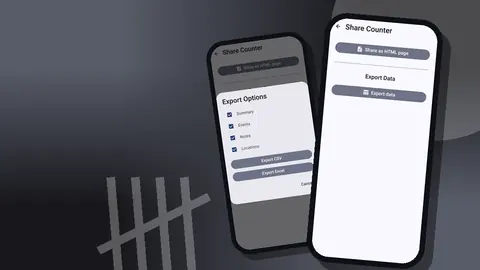
A clean structure also makes exports readable without cleanup, covered in exporting inventory reports to a spreadsheet.
Who should own the inventory structure?
In a shop with more than one person counting, decide who is allowed to add categories, rename counters or change color meanings. Everyone can count, but one person keeps the map. Without that rule, small well-meant changes pile up until two helpers file the same delivery in different places. A short note in a pinned counter, listing the naming pattern and color rules, gives everyone the same reference.
Keep the structure boring
The best shop structure is one nobody thinks about. Categories that match rooms or departments, counters you can count from one spot, tags named the same way every time, and a short list of color meanings. Counter App works offline, runs on Android 12 and newer, and is free to download with no ads; try it free for 3 days, then choose a yearly or monthly plan or a one-time lifetime purchase. Get the app at counterapp.online.
Frequently asked questions
How many category levels can a shop inventory use in Counter App?
Three. Most shops find two levels enough and keep the third for a crowded department.
Can a shop search for one product line in a long list?
Search, a date-range filter and six sort orders work on the counter list; history has no search, so clear names matter.
Should each shop product be a counter or a tag?
Usually a tag. A counter is an area or product family counted in one go, and each line inside it is a tag with its own value, target, photos and code.
How many color meanings should shop tags use?
Four or five at most, such as consignment, supplier notice and clearance, written into a counter's notes so everyone reads them the same way.
Can a counter be moved to another category after the shop is set up?
Yes. Open the edit counter dialog and choose a new branch in the category picker.
Who should be allowed to change a shop's inventory structure?
One person should keep the map of categories, names and colors, while everyone else counts.