Counter App

Cutting Retail Inventory Time: A Boutique Scenario
Key takeaways
To do inventory faster in a small retail store, remove steps rather than count faster: list items in shelf order, add photos to lookalikes, let a helper count an area alone, count with the volume keys and export instead of retyping. This hypothetical scenario shows each change in Counter App — Tally & Clicker.
- The gift shop in this Counter App inventory story is hypothetical, and no measured time savings are claimed.
- A manual shop count loses time in four places: hunting on the list, telling lookalikes apart, transcription and only the owner being able to count.
- Photos on confusing tags in Counter App — Tally & Clicker let a helper who does not know the range match shelf items to pictures.
- Exporting a locked shop count to Excel removes the evening of typing tally marks into a spreadsheet.
This is a hypothetical scenario, not a customer testimonial. The shop and the people in it are invented to illustrate a workflow, and no measured results are claimed. The Counter App features described are real.
Picture a small gift and homeware shop. One owner, one part-time helper on Fridays, a few hundred product lines and a stockroom that never stays tidy for long. Every week the owner walks the floor with a printed list and a pencil, then sits down at the back counter to type the tally marks into a spreadsheet. The count is slow, and the typing afterwards is slower and more error-prone.
The headline promise of "half the time" is tempting, but this scenario does not hang on a number. It looks at where the hours actually go, and changes one thing at a time.
Where did the old inventory routine lose time?
Before changing anything, it helps to name the leaks. In this scenario there are four:
- Hunting on the list. The printed list is alphabetical; the shelves are not. Finding the right line takes longer than counting the items on it.
- Telling look-alikes apart. Three candle scents in the same jar. Two mugs in nearly the same glaze. Each one means picking things up, reading labels and second-guessing.
- Transcription. Every number is written twice: once on paper, once in the spreadsheet, with a chance to slip each time.
- Only the owner can count. The helper does not know the range well enough, so the job never gets delegated and always lands on the busiest person.
Every change below targets at least one of these leaks. None of them requires counting faster; they remove steps.
Change one: list the shop the way it is laid out
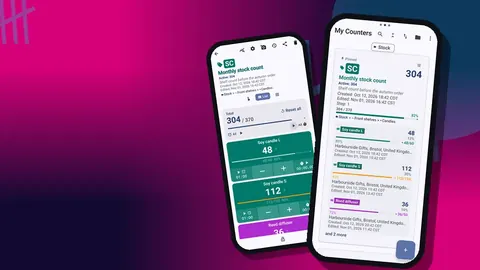
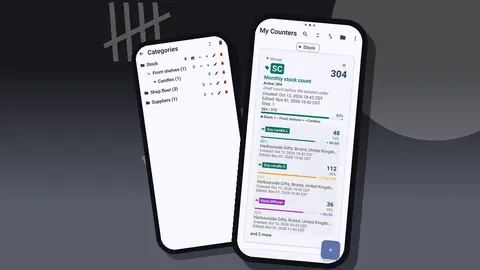
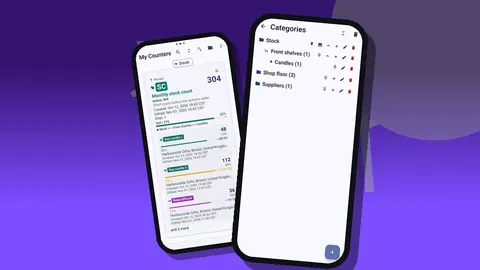
The owner sets up one counter per physical area: Window, Candle Wall, Kitchen Table, Cards, Stockroom. Inside each, one tag per product line, in the order the owner meets them walking left to right. Categories group the counters into Front of Shop and Back of Shop, each with its own color, and the two categories are pinned.
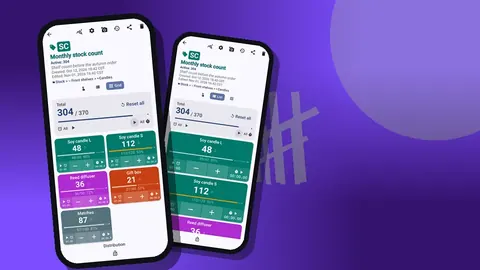
Now the counting screen follows the walk. The owner never scrolls up and down hunting for "Mug, sage glaze"; the next line on screen is the next thing on the shelf. When a new product arrives, its tag goes in the right place in shelf order, not at the bottom of the list.
Change two: photos on every confusing tag
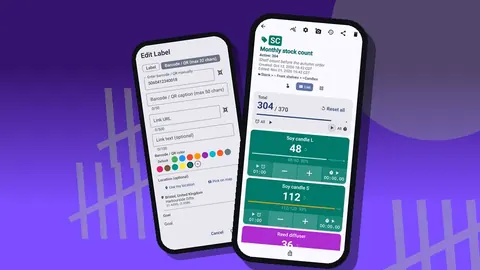
The candles and mugs get photos, up to six per tag, showing the label, the lid and the color under the shop lights. Using the built-in photo editor, the owner circles the scent name on one candle, writes "L" or "S" on the jar sizes, and adds a note in text over a vase photo saying which shelf it lives on.
This fixes the look-alike problem at once. It also quietly fixes the fourth leak, because a person who has never seen the range can now match a shelf to a picture.
Change three: let the helper count
With photos in place, the Friday helper takes the Cards and Kitchen Table areas alone. The owner keeps the Candle Wall, where judgment is still needed about chipped lids and testers. Two people, two areas, at the same time.
Counter App keeps data on each phone and does not sync live. So the helper counts on the shop's spare phone, which received the setup through a ZIP backup earlier in the week. After the count, the helper makes a backup of just those two counters, and the owner imports it on the main phone. The import preview shows what is coming in and asks whether to replace the existing counters, add copies, or skip them. The owner chooses replace for those two areas, and the main phone now holds the whole shop.
Change four: hands on the shelf
Holding a phone and touching stock at the same time is clumsy. The owner turns on volume-button counting in settings, where it is off by default, and maps the upper key to plus and the lower key to minus, each with its own short sound. It works with the screen locked, through a foreground service. Now the phone stays in an apron pocket and the eyes stay on the shelf.
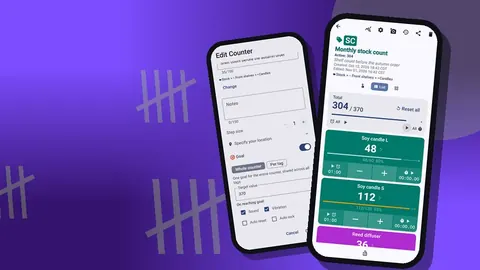
On boxed stock, the tag's step is set to the box quantity, so one press adds a whole box. Loose units on the shelf get their own tag with a step of one.
Change five: no more typing
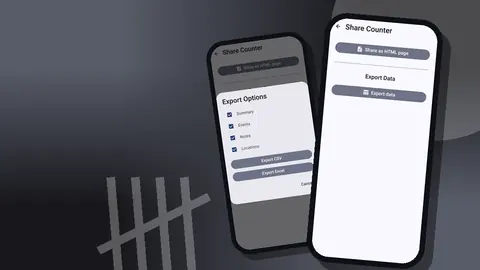
At the end of the count, the owner locks each counter so nothing can change by accident, then exports. The export dialog offers Summary, Events, Notes and Locations; the owner ticks Summary and Notes and exports to Excel, which goes straight to the bookkeeper by email. The evening transcription session disappears entirely.
Once a month the owner also exports the Events section as CSV into a personal workbook, which keeps a longer view of how lines move. For details, see exporting inventory reports from phone to spreadsheet.
Change six: notes in the moment
A chipped mug, a candle with a cracked lid, stock found in the wrong drawer: each gets a note on the count event as it is found, not remembered later. The All Notes screen gathers every note in one place, with its tag label and time, and can be sorted. On Monday morning the owner reads that list instead of trying to recall what happened on Friday.
Over a few weeks, the notes start to tell a story of their own. The same drawer keeps turning up misplaced stock, which suggests the drawer, not the helper, is the problem.
Change seven: a dashboard glance before Monday
Once the counts are locked, the owner opens the dashboard for each area. It shows the total against the target, increments versus decrements, a 7-day activity chart and a pie chart by tag. The owner is not looking for anything precise here, only for something that seems out of place: a line that suddenly dominates the pie, or a day with far more activity than usual. In this scenario, the Kitchen Table area shows a burst of decrements on Friday, which turns out to be the helper correcting a double tap. The history confirms it, with the time and the value before and after each tap, and the owner adds a note so the bookkeeper does not ask.
That glance takes a minute or two. It catches the kind of mistake that used to surface only weeks later, when a reorder came out wrong.
What did not change
It is worth being clear about what the phone does not fix in this scenario. The stockroom is still messy; the owner still opens boxes to see what is inside. A cluttered shelf takes longer to count no matter what records it. The app does not know about sales, so the count is still a snapshot of the shelf, not a live stock level.
The owner's response is small: a ten-minute tidy of each area the day before counting it, and a note on any tag where stock is regularly found in the wrong place. The tidy is the boring part, and it probably matters as much as any feature.
What does a faster count really mean?
The scenario does not need a stopwatch to make its point. The gains come from removed work:
- No hunting, because the counter order matches the shelves.
- No second-guessing, because photos settle the look-alikes.
- No transcription, because the export replaces typing.
- Shared workload, because the helper can count an area alone.
- Fewer recounts, because a locked counter cannot be bumped and history shows exactly when each number changed.
How much time this saves in a real shop depends on the size of the range, the state of the stockroom and how many items have photos. That is exactly why it is worth testing on one area before believing anyone's headline.
How can you test this in your own shop?
If the scenario sounds like your week, start small:
- Pick the area with the most look-alike items.
- Make one counter for it, with a tag per line in shelf order and photos on anything confusing.
- Count it once the old way and once with the phone, on two different days.
- Write down, while it is fresh, which step felt slowest each time.
- Compare not just the time, but how sure you feel about the result, and how long the typing took afterwards.
- If it helps, add the next area. If not, you have lost an evening.
For structure ideas before you expand, read organizing shop inventory with labels and categories. For codes on handmade or unlabelled items, see barcode and QR counting for small shops.
Counter App runs on Android 12 and newer, works offline, and is free to download with no ads; try it free for 3 days, then choose a yearly or monthly plan or a one-time lifetime purchase, so testing one area during the free trial costs only an evening of setup. Get the app at counterapp.online.
Frequently asked questions
Is the gift shop in this faster-inventory story real?
No. The shop and its people are invented for illustration, and real time savings depend on your range, stockroom and routine.
Can a part-time shop helper count products they do not know?
Photos make it much easier: with up to six per tag, a helper can match the item on the shelf to its picture.
How do shop count results reach the bookkeeper without retyping?
Lock the counters and export to Excel, CSV or an HTML report with photos, ticking only the sections the bookkeeper needs.
How do I protect a finished shop count from stray taps?
Lock each counter as soon as its area is done; a locked counter ignores taps until it is unlocked.
How does a helper's count from a spare phone reach the main phone?
The helper backs up just their counters as a ZIP, and the owner imports it, choosing replace for those areas in the preview.
Where should a shop start when trying a faster count?
With the area that has the most lookalike items, counted once the old way and once with the phone on different days.