Counter App

How Counter App Fits Small Retail Inventory Work
Key takeaways
A small retail store inventory app sits between a notebook and a full inventory platform. Counter App — Tally & Clicker is a counting tool, not a till: it organises a shop into categories, counters and tags with photos, codes and targets, keeps a timed history and exports to CSV, Excel or HTML, without automatic sales deductions.
- Counter App — Tally & Clicker is a counting app, not a point-of-sale system, so it does not know when an item sells.
- A shop in Counter App has three layers: categories nested up to three levels, counters for countable areas and tags for product lines.
- Counter App suits small shops with one or two people counting by hand, and fits less well where sales must deduct stock automatically.
- Counter App, from developer GiveMeMood, runs on Android 12 and newer and is free to download with no ads; try it free for 3 days, then choose a yearly or monthly plan or a one-time lifetime purchase.
Small shops sit in an awkward gap. A notebook is too loose for a few hundred product lines, but full inventory platforms are built for chains, warehouses and integrations a single-location store never touches. This article looks at a lighter option: what a dedicated counting app can and cannot do for a small retailer, using Counter App as the worked example.
We will go through it the way a shop owner meets it: first the structure, then the shop floor, then the back office, and finally an honest look at where it fits and where it does not.
What is Counter App, and what is it not?
Counter App is a counting tool. It keeps counts, targets, photos, notes and a timed history, and exports them. It is not a till, it does not know when something sells, and it does not adjust stock automatically. There is no account and no Counter App cloud; data is stored on the phone.
Understanding that boundary up front makes it easy to see where it helps: anywhere you would otherwise walk the floor with a clipboard, a pencil and a list that does not match the shelves. Stocktakes, daily checks of fast movers, delivery checks, consignment counts and display audits all fall into that space.
Mapping the shop onto the app
The app has three layers. Getting each layer right is most of the setup work.
Categories
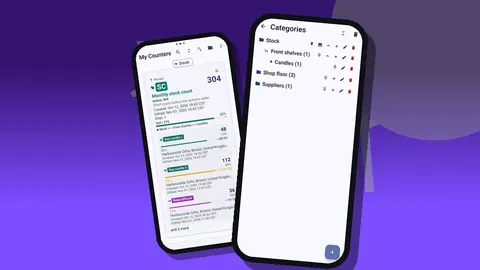
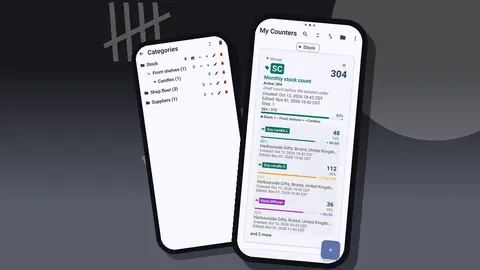
Categories group counters and nest up to three levels, with custom colors, pinning and reordering. A boutique might use Clothing, then Tops, then Summer Range. A gift shop might use rooms instead: Front of Shop, Back Wall, Stockroom. A deleted category goes to a category trash rather than vanishing, which makes reorganising less nerve-racking.
Counters
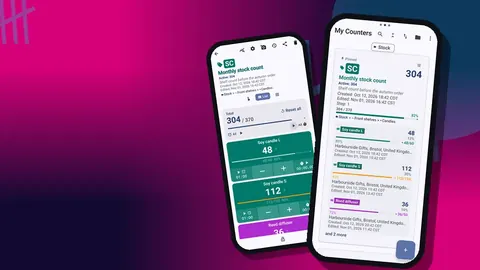
A counter is one countable unit of work: a shelf run, a product family, the stockroom, a delivery. Each has a name, a color, short initials or a code, a description, notes and a link, handy for a supplier's order page. The counter list offers List or Grid view, search, a date-range filter, six sort orders and pinned counters, so a growing list stays navigable.
Tags
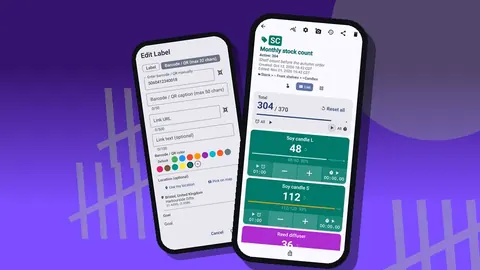
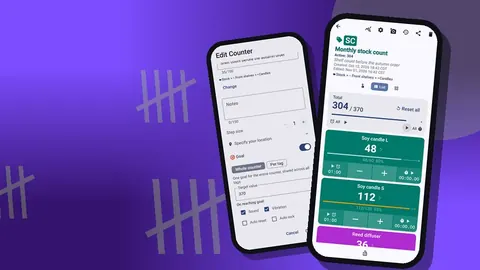
Inside each counter, tags are the individual product lines. A tag carries its own value, step from 1 to 100 and optional target, plus a colored label, a barcode or QR code, a location, up to six photos, notes and a link. A tag can even have its own stopwatch or timer, useful if you want to time a restock run or a window change.
For a fuller treatment of naming and hierarchy, see organizing shop inventory with labels and categories.
On the shop floor
Seeing what you are counting
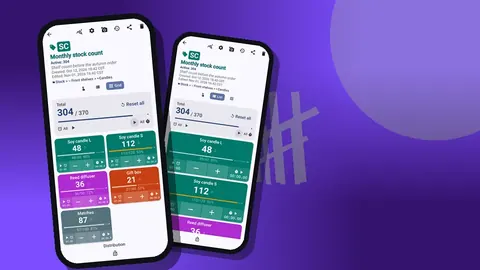
The counting screen shows tags in Single, List or Grid view. Grid suits a display table with many similar items; List suits a long shelf; Single puts one line large on screen for a careful check. Tags can be shown expanded, collapsed, or collapsed except the most recent one, which keeps the screen tidy during a long count.
Each view has plus and minus buttons that move the value by the tag's step. Set a step of six on a line that arrives in boxes of six, and one tap adds a box.
Identifying items
Photos do most of the identification work in a small shop. Six photos per tag is enough for front, back, label and variants. The photo editor adds a brush, text in four fonts with bold, italic, underline and strikethrough, six colors and rotation, so you can circle a scent name or write a size on a vase.
Codes help too. Scan a barcode or QR label with the camera, or type the code in when a label will not scan. More on that in barcode and QR counting for small shops.
Keeping your hands free
Volume-button counting lets you count with the phone's volume keys, in the background and on the lock screen, through a foreground service. Keys can be remapped, each with its own sound and vibration. The setting starts off, and some phones may still display the system volume bar. From the lock screen, a notification gives you minus, plus and stop buttons too.
The app offers 13 count sounds and 8 vibration styles, so a press can be confirmed by ear or by feel.
Targets and alerts
Any tag can count up or down to a target. Reaching it can trigger a sound or vibration, and optionally reset or lock the tag automatically. For a shop, the obvious use is a reorder point on fast movers; a second is a delivery check, where the target is the quantity on the invoice.
Preventing mistakes
Lock a counter when it is done so an accidental tap cannot change it. Reset a whole counter or a single tag when starting fresh. Deleted counters go to a trash and can be restored.
In the back office
History and dashboard
Every count is logged with its time and the value before and after, with icons for photos, locations and tags, and you can add notes to events. The dashboard pulls it together: overview of total and target, increments versus decrements, a 7-day activity bar chart, a pie chart by tag, plus photos and notes. The All Photos gallery and the All Notes screen, which can be sorted, help when you are hunting for that one note about a damaged delivery.
History has no search, so clear tag names matter. Search lives in the counter list.
Export and backup
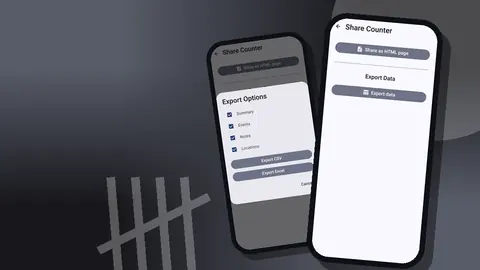
Exports come as CSV, Excel or an HTML report with embedded photos, and you choose the sections: Summary, Events, Notes, Locations. Backups are ZIP files with photos, selective by counter or category, with optional photo compression and a preview on import that handles duplicates by replacing, copying or skipping. The export guide walks through which format to use when.
Practical details
- Offline: all counting features work without a connection. Internet is needed in a small shop only for optional notifications, update checks and map tiles.
- Look: six theme skins, light, dark or system mode, three size presets, font scale from 0.7 to 1.5, ten fonts and five date formats. A larger font and a high-contrast skin help in a dim stockroom.
- Languages: 37, switchable inside the app, useful when staff prefer a different language.
- Layout: multi-window and free-form support, so the app can sit beside another window on a tablet or foldable.
- Help: an in-app user guide.
- Pricing model: free to download with no ads; try it free for 3 days, then choose a yearly or monthly plan or a one-time lifetime purchase.
Which shops does a counting app fit best?
A counting app makes most sense for shops that:
- count by hand today and lose time transcribing;
- stock product lines that are easy to confuse without a photo;
- want a timed history of counts without adopting a full inventory platform;
- have one or two people doing the counting.
It is a weaker fit if you need sales to deduct stock automatically, or several people editing the same live list at once from different phones. Data moves between phones by backup and import, not live sync.
Questions to ask before you switch
Before moving your counts to any app, answer these honestly:
- Who counts? If it is one or two people, each with a phone, a per-device app works well; data can be moved with a backup and import.
- Where does stock live? If some sits off-site, a tag's location (GPS, a map pin or a typed address) can record where.
- What happens to the numbers? If they go to a spreadsheet or a bookkeeper, check that CSV, Excel or HTML suit them.
- How often do you count? Daily checks benefit most from targets and alerts; quarterly stocktakes benefit most from photos and structure.
- What do you need it not to do? If you need pricing, purchase orders or sales data, plan to keep those in a spreadsheet beside it.
A typical week with the app
To make the features concrete, here is how a week might look in a shop with one owner and a helper. On Monday morning, the owner opens a pinned watch-list counter, checks a dozen fast movers against their targets and writes the reorder. On Wednesday a delivery arrives; a counter named after the delivery holds the invoice quantities as targets, and each box is counted up until the alerts confirm everything is there, with a photo and a note on the one damaged carton. On Friday the helper counts two areas from photos while the owner counts the trickiest shelf. On Sunday evening every counter is locked, an Excel file goes to the bookkeeper, and a ZIP backup goes onto the computer.
None of this is complicated, and none of it needs the app to know about sales. It simply replaces paper at each point where paper used to slow things down.
A sensible first step
Do not migrate the whole shop on day one. Build one counter for one area, count it twice, export the result, and see whether the workflow suits you. If it does, the rest of the store follows the same pattern, one area at a time. Get the app at counterapp.online.
Frequently asked questions
Is Counter App a point-of-sale system for a small shop?
No. It records counts, targets, photos, notes and a timed history, but it does not process sales or deduct stock automatically.
How many photos can a shop attach to one product line?
Up to six per tag, which covers front, back, label and variants, and each can be marked up in the photo editor.
Which Android version does a shop phone need for Counter App?
Android 12 or newer.
Can a shop owner and a helper count on separate phones?
Separate phones work, though they never sync live. Counters move between them with a ZIP backup and import that offers replace, copy or skip for duplicates.
Does a small shop need an account to use Counter App?
No. There is no account and no Counter App cloud; inventory data is stored on the phone.
Can Counter App time a restock run or a window change?
Yes. Any tag can carry its own stopwatch or timer.