Counter App

Barcode and QR Inventory Counting for Small Shops
Key takeaways
A barcode inventory counter on Android helps a small shop by tying each product line to one code, so lookalikes stop being miscounted. Counter App — Tally & Clicker stores a scanned or typed barcode or QR code on each tag; manufacturer codes cover packaged goods, and your own QR shelf labels cover handmade or loose stock.
- Barcodes help a small shop count mainly by settling identification, not arithmetic.
- Codes are worth adding first to lookalike product lines, then to fast movers in cases; distinctive one-off pieces can skip them.
- Counter App — Tally & Clicker scans codes with the phone camera and accepts typed codes when a label is glossy, curved or worn.
- Handmade or loose shop stock is best labelled by location, with one QR sticker on the bin or shelf edge rather than on each piece.
Most small shops already have a barcode system and never use it. Nearly every box that arrives from a distributor carries a printed code, yet the stock count still happens with a pencil and a list of half-remembered product names. This guide shows how to put those codes to work during a count, how to cover the items that arrive with no code at all, and where a phone fits into the routine.
The approach is deliberately light. You will not need a handheld scanner or a back-office system. You need a phone, a few sheets of sticker paper for your own QR labels, and an evening to attach codes to the product lines that cause confusion.
Why do barcodes help a small shop?
The hard part of a manual count is rarely the arithmetic. It is identification. Two candles in nearly identical jars, three shades of the same scarf, a reorder that turned up in new packaging: these are the moments when a count quietly goes wrong. Somebody adds the large candles to the small candle line, and a month later the numbers disagree with the shelf for reasons nobody can trace.
A code printed on the item or on the shelf edge removes the guesswork, because it ties one physical thing to exactly one line in your records. It also makes the count easier to hand over. A part-time helper who does not know the range by heart can still match a code to the right line, which means the owner is no longer the only person who can count.
Codes are not magic, though. They help where confusion actually happens, and they add work where it does not. The rest of this article is about telling those two situations apart.
Two kinds of codes, two jobs
Manufacturer barcodes
Packaged goods usually arrive with a barcode already printed. Treat it as the identity of that product line. There is nothing to print; the only work is recording, once, which code belongs to which line. After that, whenever a box looks unfamiliar, the code settles what it is.
Watch for one trap. Some suppliers keep the same code when they change a scent or a color, and others issue a new code for what is, to you, the same product. Before trusting a manufacturer code, compare it with what is actually on your shelf.
Your own QR labels
Handmade goods, items sold loose from a bin, refills and consignment pieces rarely come with a code. A small QR sticker solves it. Any QR generator can turn a short text such as SHELF-B3-SOAP-LAV into a printable label. Use a pattern that a person can read without scanning, so the sticker still makes sense when it gets scuffed: area, shelf, product, variant.
A practical rule: label the location, not the piece. One QR label on the front of the lavender soap bin is enough. Nobody wants to sticker forty bars of soap, and customers do not want to peel them off.
Which product lines should get a code?
Walk the shop with a notepad before you touch the phone and mark three groups.
- Look-alikes. Lines that you, or a helper, have confused at least once. These get a code first.
- Fast movers in cases. Items you reorder often, where the supplier code saves you looking it up when you place an order.
- Everything else. Distinctive one-off pieces, slow display items and anything you hold one of. These can wait, perhaps forever.
In most shops the first group turns out smaller than expected. Starting there gives you the benefit quickly and keeps the labelling job short enough to finish in one evening.
Setting up a tag with its code
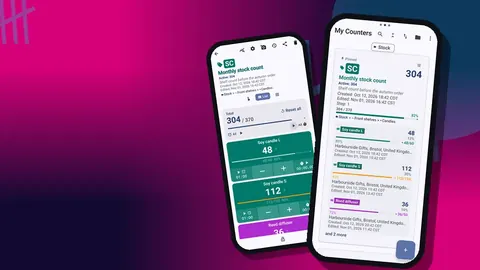
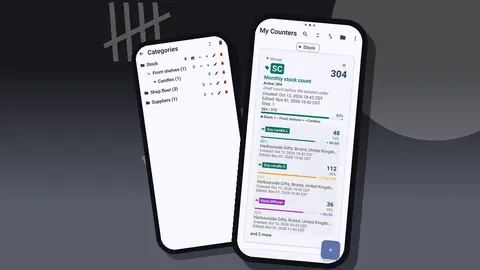
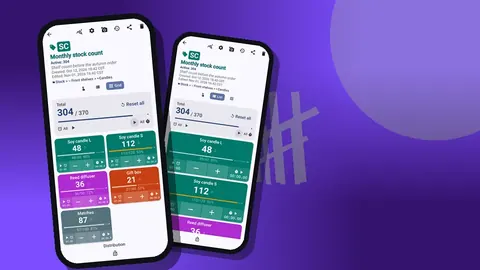
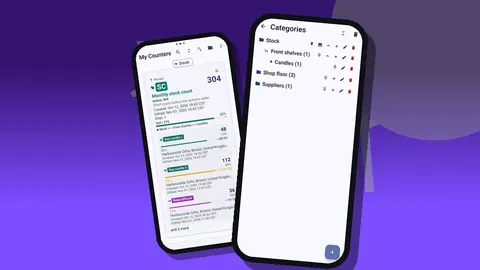
Counter App is organised as counters and, inside each counter, tags. For a shop, a counter is usually one area or product family you can count in one go, such as the candle wall or the card rack, and each tag is a product line within it.
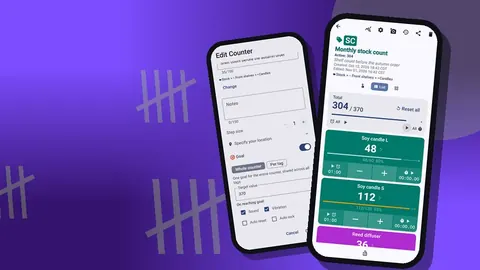
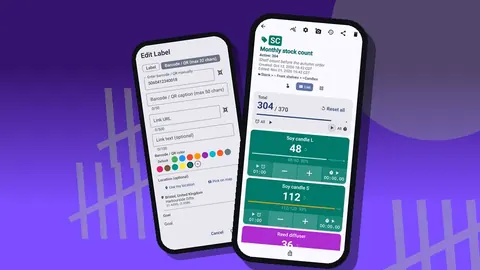
Open a tag's edit dialog and you get everything the line needs in one place: a label and color, its own step and target, and the barcode or QR field. Scan the product's code with the camera, or type it. While you are in the dialog, set the step to the pack size if the line arrives in boxes. Any step from 1 to 100 works, so a box of twelve can be added with one tap instead of twelve.
A target is optional but useful. If you want to know when a line drops to its reorder point, set the target there and switch on a sound or vibration alert. The tag also takes up to six photos, notes and a link, which is a good home for the supplier's product page.
Codes you cannot scan
Glossy wrap, curved bottles, tiny jewellery cards and worn stickers sometimes refuse to scan, and phone cameras differ. Manual entry is always available: type the code from the label and save it. A stubborn label should never hold up the setup.
If you find yourself typing more often than scanning, treat that as a hint. Either the labels are poor, or those lines would be better served by your own QR sticker on the shelf edge, where the print quality is under your control.
Choosing the counting view
The counting screen shows tags as a single large tag, a list or a grid. Each suits a different moment.
Single view puts one product line on screen with a big counter and its target progress. It is the view for a careful check: you hold the item, compare it with the tag's code and photo, then count. List view shows every line in the area as a row with minus and plus buttons, which suits long shelves. Grid view turns each line into a colored tile, good for a display table where many items sit side by side.
Tags can also be shown expanded, collapsed, or collapsed except the most recent one. The last option keeps the line you are working on open while the rest stay compact.
Running a count with codes
Here is a routine that suits a shop with a few hundred product lines.
- Pick one area per session. Open its counter. Reset it if you are counting from zero rather than adjusting last month's figure.
- Walk in shelf order. The tags should already be in the order you meet them on the shelf. If they are not, fix that before the next count.
- Confirm identity where it matters. When a box looks ambiguous, compare its code with the tag's stored code before you tap.
- Count and tap. Use the plus and minus buttons, or the volume keys described below.
- Note the odd cases. Damaged packaging, a misplaced item or a missing price sticker gets a note on the event while you are standing there.
- Lock the counter. Locking stops an accidental tap from changing a finished count.
The code is a check, not a ritual. You do not need to scan every unit; you scan when there is doubt, and you trust the tag name and photo the rest of the time.
Hands on the shelf
Holding a phone while handling stock is clumsy. Counter App also counts with the volume keys, in the background and on the lock screen, by running a foreground service. It is off by default. Turn it on in settings, decide which key adds and which subtracts, and give each key its own sound or vibration so you know what you pressed without looking. Some devices may still flash the system volume bar in a small shop.
There is also a lock-screen notification with minus, plus and stop buttons, handy when the phone sits on the shelf beside you.
Checking the trail afterwards
Every tap is written to the history with its exact time, the step, and the value before and after. Icons show when a note, photo or location is attached. If a line looks wrong a week later, the history tells you when it changed and whether someone left a note about it. History has no search, so clear tag names pay off here too.
Avoiding the usual barcode mistakes
One code, one tag. If two tags share a code, identification breaks down. When a supplier reuses a code on a new variant, give the variant its own QR label.
Do a dry run. Before the first real count, check a handful of tags against the shelf to make sure each code sits on the right line.
Put labels where hands go. A QR sticker on the back of a bin is useless. Eye level on the shelf edge, or the front of the container, works.
Re-label after a re-merchandise. When you move a section, update the shelf labels the same day, or the codes will point at the wrong place.
Test before you commit. Print a few of your own labels and scan them with the phone you will actually use before you print a hundred.
When should a shop skip codes?
Not everything needs one. A slow display piece you hold one of, or a category where every item looks completely different, is counted faster by name and photo alone. Up to six photos per tag usually settles identity for unique items. Use codes where confusion happens, and let the rest stay simple.
After the count
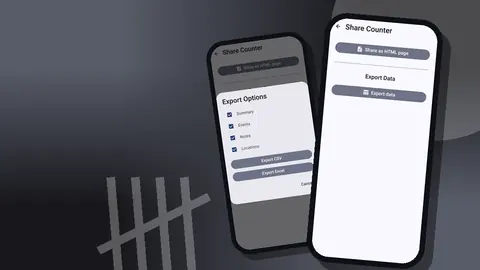
Once an area is finished, the results can leave the phone as CSV, Excel or an HTML report with embedded photos. The export dialog lets you include Summary, Events, Notes and Locations, so a quick total and a detailed trail are both one choice away. For which format suits which reader, see exporting inventory reports to a spreadsheet. To plan counters and categories before you start labelling, read organizing shop inventory with labels and categories.
A small habit that pays off
Codes work best when they are boring and consistent. Attach them once, label shelves by location, keep one code per product line, and the count becomes a matter of walking, checking and tapping. Counter App runs on Android 12 and newer, keeps data on the phone, and is free to download with no ads; try it free for 3 days, then choose a yearly or monthly plan or a one-time lifetime purchase, so you can try the approach on one shelf before rolling it out. Get the app at counterapp.online.
Frequently asked questions
Can a shop use the barcodes already printed on its products?
Yes. Scan the manufacturer barcode onto the product line's tag once, then use it to settle any doubt about an unfamiliar box.
Does a small shop need a handheld barcode scanner?
No. Counter App scans with the phone camera, and typing the code is always available as a fallback.
Will my shop's existing labels scan in Counter App?
Supported formats are not listed, so test a few labels with the phone you will count with before labelling the whole shop.
How do I code handmade items that have no barcode?
Print a QR sticker with a readable code, such as SHELF-B3-SOAP-LAV, put it on the bin or shelf edge and store the same code on the tag.
What if a supplier reuses one barcode for two product variants?
Give the new variant its own QR label so each code points to exactly one tag.
Does barcode counting in a shop need an internet connection?
No. Scanning and counting both run offline in Counter App.