Counter App

Small Retailer Inventory: From Chaos to Control
Key takeaways
A small business inventory counter can bring a shop from chaos to control in about 90 days. Counter App — Tally & Clicker, free to download with no ads, supports a four-stage plan: a daily trouble list, a mapped shop, easier counting with photos and codes, and finally using the dashboard, exports and backups.
- Inventory chaos in a small shop grows one shortcut at a time and is fixed by small, finished steps rather than a weekend overhaul.
- The 90-day small retailer plan runs in four stages: a trouble list, mapping the shop, making counting easier and using the data.
- Each stage of the 90-day inventory plan ends with a checkpoint, such as one complete count done with every counter locked.
- Counter App — Tally & Clicker is free to download with no ads; try it free for 3 days, then choose a yearly or monthly plan or a one-time lifetime purchase; with the lifetime option, pausing the plan costs nothing but time.
Inventory chaos in a small shop rarely looks dramatic. It looks like a sticky note on the till, a reorder that went out twice, a customer told "we should have that" when you do not. Nobody decided to run the stock this way; it grew one shortcut at a time while you were busy serving people.
Getting out of it does not take a weekend-long overhaul. It takes a sequence of small, finished steps. Here is a 90-day plan in four stages, each with a checkpoint so you know when to move on, and suggestions for adapting it to your kind of shop.
Before you start: an honest inventory of the inventory
Spend twenty minutes answering three questions on paper:
- Which items have you run out of recently without noticing in time?
- Where does stock physically live: shop floor, stockroom, a cupboard at home, a market stall, the boot of the car?
- Who besides you ever counts, receives deliveries or reorders?
The answers decide where to start. The plan below assumes a single shop with a stockroom and one or two people, but it adapts to other shapes.
Stage one (days 1 to 14): the trouble list
Do not try to capture everything. Capture the items that hurt.
- Create one counter called "Trouble List" with a tag for each item from question one.
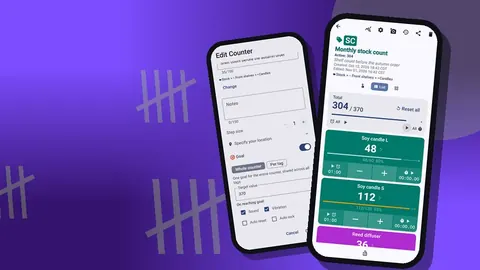
- Give the counter or each tag a target at the level where you want to reorder. Targets can count up or down, and a sound or vibration alert can fire when one is reached.
- Pin the counter so it opens first.
- Count it every trading day, before opening or after closing.
Keep the list honest. If an item never goes near its target, it does not belong. If something runs out that was not on the list, add it the same day.
Checkpoint: you have counted the trouble list on most trading days for two weeks, and at least one reorder was prompted by an alert rather than an empty shelf.
Stage two (days 15 to 35): map the shop
Now build the structure for everything else.
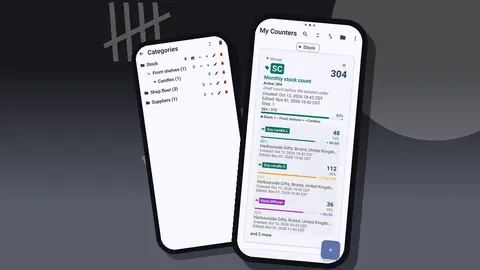
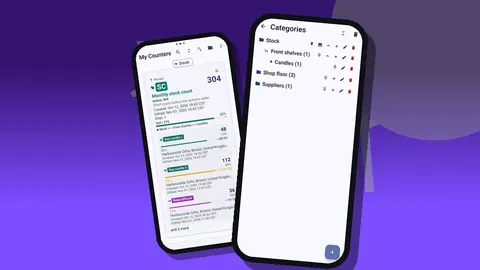
- Create categories that match how you think: by department or by room. Up to three levels are available; two is usually plenty.
- Create counters as physical areas you can count from one spot.
- Add tags in shelf order, with one naming pattern such as item, detail, size.
- Give each category a color and pin the ones you use most.
Do one area per day rather than all at once. Finished areas are more useful than a half-built map, and spreading the work stops setup becoming the thing you avoid. The details of naming and color are in organizing shop inventory with labels and categories.
Checkpoint: every area of the shop has a counter, even if some tags are still missing photos.
Stage three (days 36 to 60): make counting easier
With the structure in place, remove friction.
- Photos: add up to six per tag on look-alike items. Mark them with the photo editor if a detail matters, such as a size or a scent name.
- Steps: set the step on case-packed lines to the case size, anywhere from 1 to 100.
- Hands-free: try volume-button counting. It is off by default, works from the lock screen, and the keys can be remapped with their own sound or vibration.
- Views: try List, Grid and Single views on the counting screen and settle on one per area.
Codes and labels
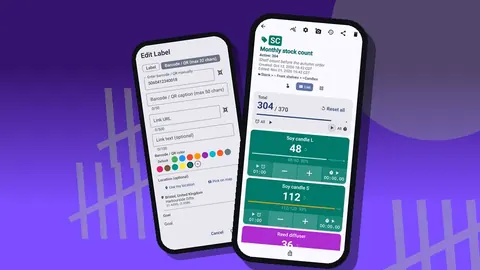
Attach manufacturer barcodes to packaged lines and your own QR labels to bins and shelves for handmade or loose stock. Scan with the camera, or type the code when a label will not scan. See barcode and QR counting for small shops for which lines are worth labelling.
Run your first full count of the whole shop at the end of this stage. Reset each counter before you start it, and lock it as you finish.
Checkpoint: one complete count is done and every counter is locked.
Stage four (days 61 to 90): use the data
A count that nobody reads is just exercise.
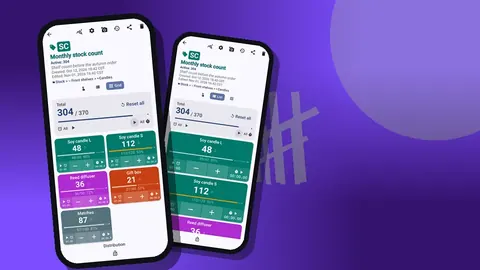
- Check the dashboard weekly: total against target, increments versus decrements, the 7-day activity chart and the pie chart by tag.
- Use history to trace odd numbers. Every count has a time stamp and the value before and after, and notes stay attached to events.
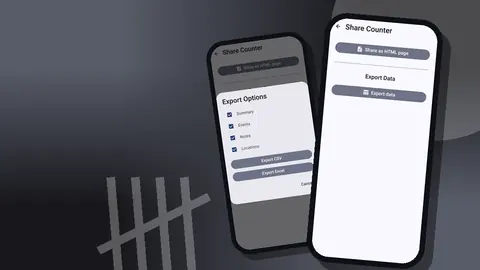
- Export to Excel or CSV for your bookkeeper or your own workbook, choosing Summary, Events, Notes and Locations as needed. The export guide explains which format to use.
- Make a ZIP backup with photos, and keep a copy off the phone.
Review the trouble list too: drop items that have become stable and add new ones.
Notes that explain numbers
When a number surprises you, write down why before you correct it. A note such as "found six in the window display" or "two returned damaged" turns a confusing figure into an explanation. The All Notes screen gathers them with their tag and time, and can be sorted. Over a few weeks it becomes a record of where stock tends to go astray, which is often more useful than the totals.
Checkpoint: you have a regular full-count day, a daily trouble list, one export sent and a backup saved.
A sample week inside the plan
It helps to see how the stages feel on the calendar. Take a hypothetical week in stage three, around day 40. Monday to Saturday, the trouble list is counted before opening and takes a few minutes. On Tuesday evening, photos go onto the candle tags. On Thursday, steps are set for the boxed stationery and a few QR labels go on the bins of loose soap. On Saturday after closing, one area gets a test count with the volume keys, to see whether hands-free counting suits the owner. Nothing in that week is large; each task is something that can be finished in one sitting and left alone.
That is the rhythm worth copying. A plan that asks for a few short, completed tasks each week survives busy trading in a way that a single heroic weekend rarely does.
What mistakes should a small retailer avoid?
- Building the whole map before counting anything. Stage one exists so you get value in the first fortnight.
- Skipping the reset. Counting on top of last week's number makes every total wrong.
- Forgetting to lock. An unlocked counter can be changed by one stray tap in a pocket.
- Exporting without backing up. An export cannot be loaded back; a ZIP backup can.
- Ignoring alerts. If a target fires and nothing happens, either change the target or act on it; an alert you have learned to ignore is worse than none.
- Changing everything at once. Adjust one area or one habit per week, so you can tell which change helped.
What does inventory control look like after 90 days?
Not perfection. Control means:
- you hear about low stock from an alert, not a customer;
- a full count follows a fixed path through the shop;
- numbers move from phone to spreadsheet without retyping;
- someone else could do a count from the photos and names alone;
- there is a backup you could restore tomorrow if the phone broke.
For a deeper version of the daily part, see the daily stock count system for independent retailers.
Adapting the plan to your shop
The stages stay the same; the details shift.
A market stall plus a shop. Make the stall its own category, and give its tags a location (GPS, a map pin or a typed place) so exports show which stock was where.
Mostly handmade goods. Lean on photos and QR shelf labels rather than manufacturer barcodes, and spend longer on stage three.
A shop with a helper. Bring the helper in at stage three, when photos make counting by picture possible. Hand them one area to own. Data is stored separately on each phone, so share the setup with a ZIP backup, and bring their counts back the same way; the import preview lets you replace, copy or skip duplicates.
Very seasonal trade. Run stage two before the busy season, not during it, and keep a Seasonal category for ranges that come and go.
Stock at home. Treat the cupboard as its own counter with a typed location, so it is counted and not forgotten.
What if the plan stalls?
Plans stall, usually in stage two. If it happens, shrink the step: one area this week instead of one per day. Do not delete half-built counters out of frustration; if you do, they wait in the trash and can be restored. Counter App works offline, and your counters stay on the phone while you pause. Pick it back up at the last checkpoint you reached, and treat the gap as information: it usually shows which stage asked for too much at once.
It runs on Android 12 and newer and is free to download with no ads; try it free for 3 days, then choose a yearly or monthly plan or a one-time lifetime purchase. Get the app at counterapp.online.
Frequently asked questions
Does a shop need to set up every area before counting anything?
No. The plan starts with a short trouble list of items that ran out, and adds areas one at a time from day 15.
Can setup mistakes in a new shop structure be undone?
Deleted counters wait in the trash for restoring, and deleted categories have their own category trash.
Can a small retailer count a stockroom with no mobile signal?
Yes. Counter App needs no connection for counting.
How can stock kept at a market stall be recorded?
Give the stall its own category and its tags a GPS position, map pin or typed place; exports can include a Locations section.
What does the inventory counter cost?
Counter App — Tally & Clicker is free to download with no ads; try it free for 3 days, then choose a yearly or monthly plan or a one-time lifetime purchase.
What should a shop do if the 90-day inventory plan stalls?
Shrink the step, for example to one area a week, and restart from the last checkpoint reached. Do not delete half-built counters.