Counter App

Restaurant Opening and Closing Checklist on Android
Key takeaways
A restaurant opening checklist app should keep lists short, ordered by walk path and specific, with room for problems and a record. Counter App — Tally & Clicker is a counter app, but counters work as areas and tags as tasks with a target of one; notes, photos and timestamps give managers proof of each shift.
- Good restaurant opening and closing checklists are short, ordered by walk path, specific, have room for problems and leave a record.
- Counter App — Tally & Clicker is not a dedicated checklist app, but a tag with a target of 1 works as a checklist task.
- The Counter App history shows whether a closing checklist was worked through in order or ticked all at once the next morning.
- Many restaurants keep a single charged checklist phone by the office door because Counter App does not sync between phones.
The opening shift and the closing shift are often run by different people, on different days, with nobody overlapping. The checklist is the only thread connecting them. When that checklist is a laminated card nobody reads, problems hand over in silence: the closer never mentioned the dish machine was leaking, so the opener finds a puddle at 11:45 with the first booking at noon.
This is a way to make opening and closing checklists something people actually complete, and something a manager can verify without being in the building.
What makes a restaurant checklist work?
Good checklists share a few traits whatever the format:
- Short. At sixty items, half get ticked without being done. Split long lists by area.
- Ordered by walk path. The closer should never have to cross the kitchen twice.
- Specific. "Check walk-in" means nothing. "Walk-in temperature read and noted" means one thing.
- Room for problems. A tick box cannot say "fryer 2 thermostat sticking".
- A record. Somebody not on shift must be able to see what was done and when.
The format matters less than these five. A phone simply makes the last two much easier.
Using counters and tags as a checklist
Counter App is not a checklist app. Its structure, though, maps cleanly onto one, and it brings timestamps, notes, photos and exports that a card cannot.
Structure: areas and tasks
- Categories: "Opening" and "Closing". Pin both so they sit at the top of the counter list. If you run several sites, add a level per site; categories nest up to three levels.
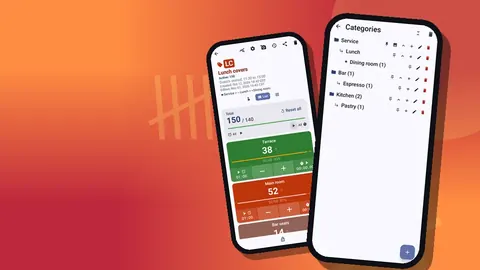
- Counters: one per area, such as "Front of house", "Line", "Dish", "Bar", "Exterior". Give each its own color and a short code.
- Tags: one per task inside each area: "Unlock rear door", "Fryers on", "Walk-in temp noted", "Floor mats down".
Use the counter's notes for standing instructions ("probe the walk-in at the back shelf, not by the door") and its link for a manual or a supplier's service number.
A target of one per task
Set each task tag's target to 1. At the start of the shift, reset the counter so every tag is at zero. As each task is done, tap its tag once and it reaches its target. Optional sound or vibration confirms it, and auto-lock on target stops a second tap from double-ticking a task. Anything still at zero is not done.
For a few tasks a number makes sense instead. "Bins out" might have a target of 4 if there are four bins; "Chairs up" could count sections. Steps from 1 to 100 are available per tag.
Working through an area
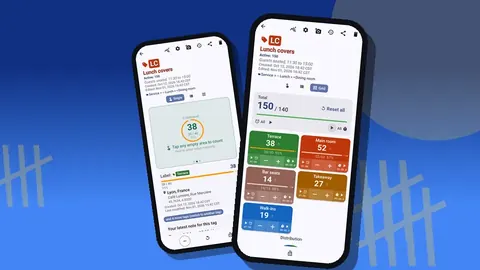
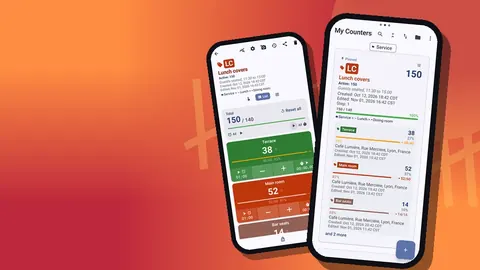
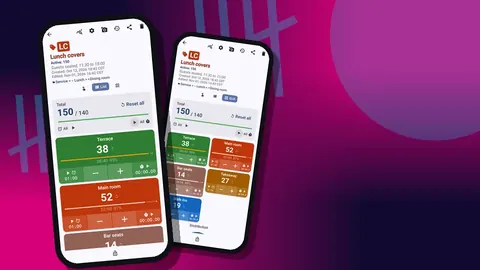
Open the area's counter. List view shows tasks as rows with their state; Grid view shows them as colored tiles, where any tile still at zero stands out. Tag display can be collapsed, or collapsed except the most recent, so finished tasks fold away and the screen shows what is left.
Closers carrying trays can enable volume-button counting in settings. It is off by default, works from the lock screen, and the keys can be remapped. A lock-screen notification also offers minus, plus and stop.
Recording what you found
This is where a phone beats a laminated card.
- Notes on events. Tick "Walk-in temp noted" and add the reading as a note. Tick "Dish machine cleaned" and add "Drain slow, needs a look".
- Photos on tags. Each tag holds up to 6 photos. Photograph the leak, the cracked tile, the delivery left in the rain. The photo editor lets you rotate, draw with a brush in six colors and add text, so the problem is circled before anyone has to ask.
- Location. With more than one site, a tag can carry GPS, a pin on the map or a typed address, which keeps records clear when one manager covers several places.
Timers for timed tasks
Some tasks have a clock: fryer heat-up, sanitizer contact time, combi oven preheat, a hood filter soak. Every tag in a busy kitchen also carries a separate timer and stopwatch. Presets cover 30 seconds, 1, 2, 3, 5 and 10 minutes, with manual input, countdown beeps, 7 alarm sounds and 8 vibrations. Start the timer on the task and move on; the alarm brings you back.
Locking it when done
When the checklist is complete, lock the counter. Nobody can change it by accident while wiping the phone down or putting it in a drawer. The next shift resets it to start their own run.
What does the checklist history prove?
History logs every tap with its exact time, step, value before and after, and tag, with icons for notes, photos and location. A manager can see whether the closing checklist was worked through in order at 23:20, or ticked all at once the next morning. That is not about catching people out; it is about knowing whether the list fits the shift. If tasks are always ticked in a burst at the end, the list is probably in the wrong order or too long.
History has no search, so name tasks clearly.
Handing over to the manager
At the end of the shift, the closer opens the share screen. Two routes:
- Share as an HTML page for a manager who reads on their phone, with photos embedded.
- Export data as CSV or Excel for a long-running log.
The export options let you choose sections: Summary, Events, Notes and Locations. For a closing record, Events with their times and Notes are the important parts.
Photos the next shift can find
The All Photos screen collects every photo across tags with its label and date, and All Notes lists every note with sorting. The opener can scroll both in a minute and walk in knowing what the closer found.
A sample closing list for a small kitchen
An example to adapt, not a standard.
- Line: fryers off and oil covered, flat-top scraped, burners off, reach-ins wiped and closed.
- Walk-in: temperature read and noted, door seal checked, nothing stored on the floor.
- Dish: machine drained and cleaned, chemicals topped up, drains cleared.
- Front: till closed, chairs up, floors swept, candles out.
- Exterior: bins out, rear door locked, alarm set.
Five counters, around twenty tags, each with a target of one. Each area fits on one screen.
An opening list mirrors it: alarm off, doors unlocked, walk-in temperature noted, fryers on with a heat-up timer, dish machine filled, floor checked, float counted.
Handling exceptions
Real shifts break the list. The fryer will not light, the delivery is late, the closer gets sent home sick at ten. A few rules keep the record honest when that happens:
- Never tick a task that was not done. Leave it at zero and add a note on a related task explaining why.
- Write the workaround. "Fryer 2 dead, used fryer 1 only, engineer called" is more useful to the opener than silence.
- Hand over unfinished areas explicitly. If someone else finishes the close, they continue on the same phone, so the history shows both runs in time order.
- Do not reset mid-shift. A reset wipes the evidence of what was already done.
When the manager reviews the export, exceptions with notes are the most valuable lines in it. They show where the list, the equipment or the staffing needs attention, and they are exactly what a laminated card loses.
Should staff use a shared phone or their own?
Many restaurants keep one checklist phone on a hook by the office door. It is always charged, always on the same screen, and nobody argues about whose phone it is. If staff use their own phones instead, give each the same structure through a ZIP backup and import, and have each closer export their result. There is no live sync, so the shared phone is usually simpler for checklists.
Rolling it out
- Write the list on paper first. Walk the closing route with your best closer and write every step in order.
- Cut it down. Remove anything that is never skipped, and anything that does not matter if it is.
- Build it using the structure above.
- Run it alongside the old card for a week. Fix order and wording from what staff say.
- Retire the card.
Back up the finished structure as a ZIP so it can be restored, or imported on a second phone if openers and closers use different devices. When you import, the preview offers to replace, copy or skip any duplicates.
Things to avoid
- Turning inventory into tick boxes. Counts belong in their own counters; see restaurant inventory counts. The bar count after close is covered in bar inventory counting.
- Letting the list grow forever. Review it every quarter and cut.
- Never reading the export. If nobody looks, the notes stop.
Break the checklist into areas, give each task a target of one, capture problems with notes and photos, lock the counter and send the report. The next shift starts knowing what the last one found. Get the app at counterapp.online.
Frequently asked questions
Is Counter App a dedicated restaurant checklist app?
No. It is a counting app whose counters and tags map onto checklist areas and tasks, with timestamps, notes, photos and exports.
How can a manager confirm the closing checklist was done?
History shows each task tap with its exact time, and the closer can send the counter as an HTML report, CSV or Excel.
Can a closer photograph a leak or broken equipment on the checklist?
Yes. The relevant task tag holds up to six photos, and the editor can circle the problem and add text.
How do I stop a finished opening checklist from being changed?
Lock the counter when the list is complete; auto-lock on target can also freeze each task tag as soon as it is ticked.
Can openers and closers run the checklist on different phones?
Yes, after importing the same structure from a ZIP backup on each phone. Results are shared through exports because the phones do not sync.
What should a closer do when a checklist task could not be done?
Leave the task at zero and add a note explaining why, such as a dead fryer and an engineer called. Never tick a task that was not done.