Counter App

Bar Inventory Count App for Android: Spirits, Beer, Wine
Key takeaways
A bar inventory count on Android works best when open bottles are estimated in tenths, the route through the bar never changes, and each product is a tag in the counter for its shelf. Counter App — Tally & Clicker logs every tap with a time and exports the closing count to CSV or Excel for pour cost.
- A bar inventory count that treats every open bottle as one full bottle overstates stock and hides pour losses.
- The tenths convention for bar counts scores a sealed spirit bottle as 10 and a bottle about a third full as 3.
- In Counter App — Tally & Clicker, a bartender can count bottles with the volume keys after enabling the feature, leaving both hands free for lifting bottles.
- Counter App does not weigh bottles or calculate pour cost; the exported closing count goes into a spreadsheet for that.
Bar stock does not behave like kitchen stock. A walk-in is mostly sealed cases and whole units, while a back bar is a row of open bottles at every level between full and empty. That single difference explains why so many bar counts drift into rough guesses, and why the pour cost built on top of them stops meaning anything. This guide sets out a counting method designed around open bottles, then shows how to run it on an Android phone with Counter App.
Why "how many bottles" is the wrong question
Count an open bottle of gin as one bottle and your inventory is overstated by whatever has already been poured from it. Repeat that across forty or fifty open bottles and the error grows large enough to hide the losses you are trying to find: heavy pours, unrung comps, a recipe made with a double where the spec says a single.
Bars deal with partials in three common ways. Some weigh every open bottle against a table of full and empty weights. Some count only sealed stock and ignore anything opened. Most estimate the fill level by eye in tenths. Weighing is the most precise and needs a scale plus a maintained list of bottle weights. Ignoring partials is quick and systematically wrong. Tenths sit between the two, and that is the convention this guide uses.
The tenths convention
Treat each spirit bottle as ten parts. Sealed is 10. Just over half is 6. A splash at the bottom is 1. You are not measuring millilitres; you are making the same estimate the same way every week. Consistency beats precision here, because the number you care about is the change between two counts, and a steady estimator produces a steady change.
A few house rules keep tenths honest:
- Hold the bottle at eye level against a light, not tilted.
- Round down when you are unsure. Optimism inflates stock.
- Agree what a "1" is. Some bars call anything under a tenth zero and move it to the empties box.
Beer and wine need less judgement. Count cases as cases and loose bottles or cans as singles. Wine goes by the bottle, bin by bin. Kegs follow whatever unit your house already uses, whether that is full, half or a weight reading.
How do you map a bar for counting?
Before you open the app, walk the bar with a notepad. Write the route you will follow every time: speed rail left to right, back bar top shelf to bottom, under-bar fridges, then the liquor store room, the beer cooler and the wine racks. That list becomes the structure, and keeping it fixed is what makes week-to-week comparisons trustworthy.
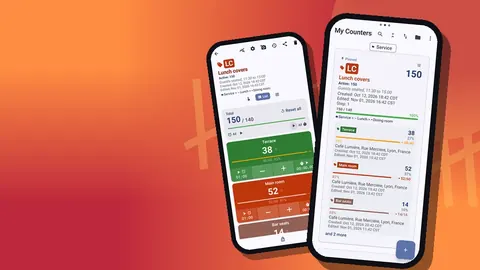
In Counter App, create a category called "Bar". If the venue has more than one bar, add a sub-category for each, such as Main bar and Terrace bar. Categories nest up to three levels, so "Bar → Main bar → Back bar" is available if you want it. Give the category a color and pin it so it sits at the top of the counter list during the count.
Inside, create one counter for each stop on the route:
- Speed rail
- Back bar: whiskey
- Back bar: other spirits
- Under-bar fridges
- Liquor store (sealed)
- Beer: cases and singles
- Wine: by bin
- Mixers and syrups
The counter's description field is a good place for the route note itself ("start at the till end"), and the link field can point to your supplier's order page.
Tags, steps and codes for each bottle
Every product becomes a tag inside the counter for its shelf. Add tags in shelf order, not alphabetically, so the screen mirrors what is in front of you. A product added mid-season goes into its correct position on the shelf, never tacked onto the end.
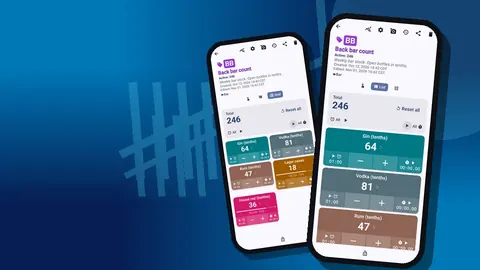
Steps decide how much one tap adds. For open spirits counted in tenths, leave the step at 1. For sealed stock in the store room, either count whole bottles with a step of 1 in a separate counter, or set the step to 10 so one tap equals one sealed bottle in tenths. Mixing those two on one tag is how errors creep in, so pick one rule per counter and write it in the counter's notes.
Beer works best as two tags per product: one for full cases, one for loose bottles. If you habitually count loose bottles by the six, set that tag's step to 6. Any step from 1 to 100 is allowed per tag.
Colors help bartenders think. Use one color for bourbon and rye, another for gin, another for agave spirits, and so on. A tag can also carry a target. For the bar, the most useful target is your par for sealed backups, so a quick look tells you which spirits are short before the order goes in.
Scanning lookalike bottles
Each tag can hold a barcode or QR code, scanned with the camera or typed. That earns its place on bottles that look almost the same: two expressions from one distillery, a 70 cl and a litre of the same vodka, a house wine that changed label design. When in doubt, check the code before you tap. Damaged or curved labels sometimes will not scan; typing the code is always available as a fallback, and the code is also there when a supplier asks for exact product references.
Grid view for a long back bar
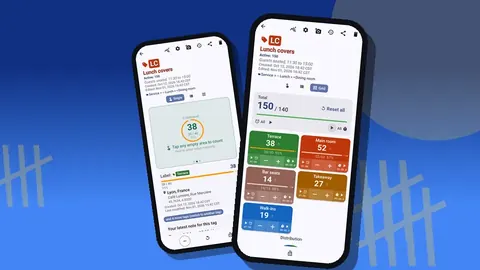
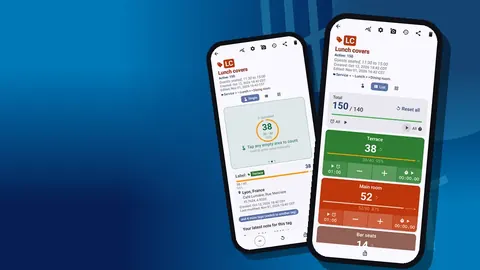
On the counting screen, tags can be shown as a single large tag, a list or a grid. A list shows each bottle as a row with minus and plus buttons, its value and its progress toward target, which suits a speed rail with a handful of products. For a long back bar, the grid tends to be quicker: colored tiles mean you find "gin" by color before you read a word. Tag display can be expanded, collapsed, or collapsed except the most recent, which keeps the bottle you just counted open while the rest fold away.
Hands-free counting after close
A bar count usually means lifting bottles, which leaves no hand for the phone. Volume-button counting fixes that. It is off by default; turn it on in settings, choose which key adds and which subtracts, and give each key its own sound or vibration so you can tell them apart by feel. Once enabled, the keys count in the background and from the lock screen through a foreground service. Some phones may still show the system volume bar when you press.
There is also a lock-screen notification with minus, plus and stop buttons, which helps if a second person is reading fill levels aloud while you log.
The count, step by step
- Count after the last bartender has finished and before anything is restocked.
- Reset the counter for the area so you start from zero, not from last week's figure.
- Walk the route in the fixed order.
- Hold each bottle to the light, estimate tenths, tap or press the key that many times.
- When something looks wrong, such as a bottle that was sealed yesterday and now reads 2, add a note on that event.
- Lock the counter when the area is done so a stray tap cannot change it.
Reading the event log
History records every tap with its exact time, the step applied, the value before and after, and the tag it belonged to. Icons mark events that carry a note or location. That makes a disputed number easy to check: you can see whether the whiskey shelf was counted at 01:10 in one sweep or patched together the next afternoon. History has no search, so clear tag names pay off when you scroll back.
Notes written during the count also gather on the All Notes screen, sortable, so the manager can read every flagged bottle in one place without opening each counter.
What does variance between bar counts tell you?
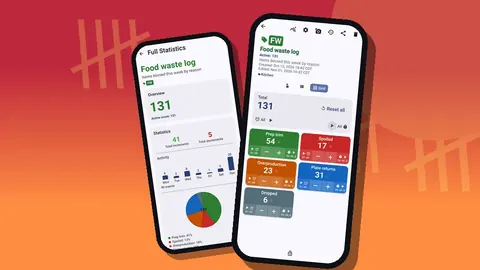
The useful signal is not one week's total; it is which products drift. If one vodka keeps falling faster than its sales suggest, that is where to look: a generous pour, a cocktail spec being ignored, or product leaving the bar unrecorded. The dashboard shows the counter's total against target, increments against decrements, a seven-day activity bar chart and a pie chart by tag. After a few counts you will know which slices are normally large and notice when one grows.
A rhythm many bars settle on is a full count weekly plus a short midweek spot check of the bottles that move most. Build a separate counter called "Spot check" holding only those tags. It takes minutes and catches problems days earlier.
How do you get a bar count into a pour cost sheet?
From the share screen, export the counter as CSV or Excel, or as an HTML report with any embedded photos. Pick any mix of the Summary, Events, Notes and Locations sections. Summary is enough for a costing sheet; add Events and Notes when you want to trace a single bottle.
Pour cost itself is calculated in your spreadsheet. Opening inventory plus purchases, minus closing inventory, gives what was used; value it at cost and divide by beverage sales for the period. Counter App supplies the closing count. It does not know bottle costs or sales, and it does not pretend to.
Keeping the count honest
- Do not let the person who poured all night be the only person who counts. Pair up or rotate.
- Photograph anything unusual. Each tag holds up to 6 photos, and the photo editor can circle a broken seal or add a date.
- Keep the structure stable. A reordered shelf without reordered tags turns a ten-minute count into a hunt.
- If two people split the bar across two phones, remember there is no live sync. Build the structure once, make a ZIP backup, import it on the second phone, and merge both exports afterwards.
For the rest of the house, the restaurant inventory count guide treats the bar as one more storage area, and the opening and closing checklist shows how to fold the count into the close.
Count open bottles in tenths, keep the route fixed, export for pour cost and watch which products drift. The method finds the problems; the phone just makes it easy to repeat. Get the app at counterapp.online.
Frequently asked questions
Can a bar inventory app tell how full a bottle of spirits is?
Counter App does not weigh or measure bottles. Bars using it typically estimate each open spirit in tenths and tap that many times.
Can bartenders scan bottle barcodes to tell lookalike expressions apart?
Yes. Store each bottle's code on its tag by scanning or typing it, then check the code before tapping when two bottles look alike.
How is pour cost calculated from a bar count?
In a spreadsheet: opening stock plus purchases minus closing stock gives usage, which is valued at cost and divided by beverage sales. Counter App supplies the closing count.
Can a bartender count bottles with the volume buttons?
Yes. Turn on volume-button counting in settings, where it starts disabled, and the keys add or subtract even with the screen locked.
How do two bartenders split a bar count across two phones?
Divide the bar by area, give the second phone the same structure through a ZIP backup and import, and merge both exports afterwards. The phones do not sync live.
How often should a bar run a spot check between full counts?
Many bars add a short midweek check of their fastest-moving bottles to the weekly full count. A separate spot-check counter holding only those tags keeps it to minutes.