Counter App

Restaurant Inventory Count on Android: A Practical Guide
Key takeaways
A restaurant inventory count on Android becomes reliable when it follows the physical walk path, uses one counting unit per item and happens on the same day each week. Counter App — Tally & Clicker mirrors storage areas as categories, sections as counters and items as tags at par, then exports the closing count for food cost.
- Most skipped items in a restaurant inventory count come from a count sheet ordered differently from the shelves.
- Every restaurant inventory item needs one fixed counting unit written into its name, such as "Lemons (each)".
- Counter App — Tally & Clicker maps a kitchen as categories for storage areas, counters for sections and tags for items, nested up to three levels.
- Restaurant food cost is calculated outside Counter App: opening inventory plus purchases, minus closing inventory, divided by food sales.
A restaurant inventory count is only useful if it is done the same way every time. One perfect count tells you very little. A run of comparable counts tells you how fast product moves, where it disappears and what you should actually be ordering. This guide builds the routine first and the tool second, then shows how to run it on an Android phone with Counter App.
Why start a restaurant count with the walk path?
Most inventory sheets list items in the order somebody typed them, not the order the storage is laid out. That single mismatch causes most skipped items. Before setting anything up, walk your storage with a notepad and write the physical route: walk-in from left wall to right wall, then the freezer, then dry storage shelf by shelf, then the bar back, the chemical shelf and any overflow cupboard.
That route is your structure. Each stop is a section; each item on the shelf is a line in that section. When the order on screen matches the order on the shelves, the counter never has to hunt, and the count speeds up with no extra effort.
Walk it twice. The first time you will miss the case of oil on the floor under the bottom rack and the box of takeaway containers in the office.
Fix a unit for every item
The second source of bad numbers is units. One person counts a case of tomatoes as 1, another counts it as the weight on the label, a third counts loose tomatoes. Pick one counting unit per item and put it in the name: "Canola oil (20 l jug)", "Chicken thighs (5 kg case)", "Lemons (each)".
Partial units need a house rule too. A simple one: count full cases on one line and loose units on another. For bulk dry goods, count opened bags as halves or quarters and write that rule down.
Building the structure in Counter App
Categories for storage areas
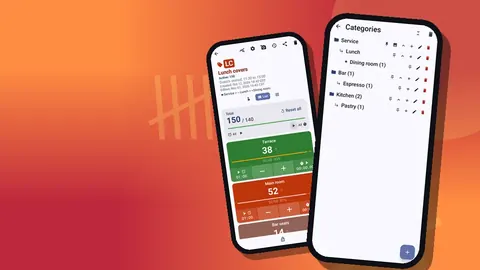
Categories nest up to three levels, which maps neatly onto a kitchen: a top level for the site (Main kitchen), a second level for storage area (Walk-in, Freezer, Dry, Bar), and a third if you need it (Dry → Shelf A). Give each area its own color so a glance tells you where you are, and pin the categories you count every week. When you create a counter, a category picker drops it straight into the right branch. Categories can be reordered to follow the route, and deleted ones go to a category trash.
Counters for sections, tags for items
Inside a category, create one counter per stop on the walk path, such as "Walk-in: proteins" or "Dry: tins and jars". Each counter has a name, color, short code, description, notes and link. The description is a good place for "start at the door end", the link for the supplier's order page.
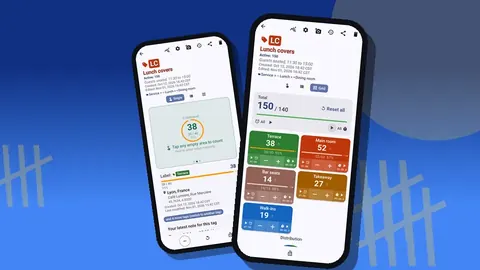
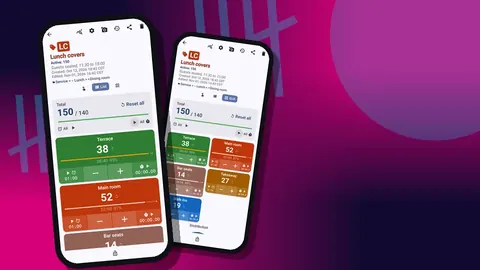
Inside each counter, add a tag per item in shelf order. A tag has its own value, color and step, so "Chicken thighs (case)" and "Lemons (each)" can sit in the same counter yet count differently. Steps run from 1 to 100: if an item always arrives in sixes, a step of 6 adds a full sleeve with one tap.
Targets as par levels
Each tag can have a target. Set it to your par and every item's progress toward par shows on the counting screen, so anything well short of target is an ordering candidate. Targets can count up or down, and an optional sound or vibration alert fires when one is reached, which helps during receiving. A tag can also store a barcode or QR code, scanned with the camera or typed, useful for lookalike products and for supplier references.
Running the count
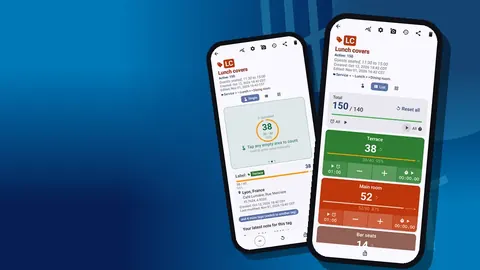
- Open the first storage area and its first counter. Switch the counting screen to List view so every item in the section is visible.
- Reset the counter, or individual tags, so you count from zero rather than adjusting last week's figure.
- Count shelf by shelf, tapping each tag up to what is on the shelf.
- If you are carrying a case with both hands, turn on volume-button counting in settings. It is off by default; once enabled, the volume keys count up and down even with the screen locked, and you can remap them with their own sound and vibration.
- When something looks wrong, such as a dented tin or a case past its date, add a note to the event or take a photo on the tag. Each tag holds up to 6 photos.
- Lock the counter when the section is done, so nobody bumps the numbers while you move on.
Tag display can be set to collapsed except the most recent, which keeps a long section tidy without hiding where you are.
Finding a counter quickly
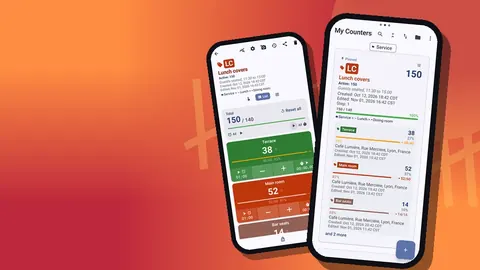
As the structure grows, the counter list helps: List or Grid view, search by name, a date-range filter, six sort orders and pinned counters. Sorting by your own order keeps the route intact; searching finds "Dry: spices" in a second when someone asks whether you still have saffron.
How do you check a number after the count?
History records every tap with its exact time, the step, the value before and after, and the tag, with icons for notes and photos. When someone asks why the beef number looks low, you can see exactly when it was counted and whether it was corrected. History has no search, so plain tag names pay off.
Turning the count into decisions
Export for food cost
From the share screen, export as CSV or Excel for your costing sheet, or as an HTML report with embedded photos for an owner who wants something readable. Sections can be mixed freely: Summary, Events, Notes and Locations. Summary is usually enough for a weekly costing sheet; include Events and Notes for a supplier dispute.
Food cost itself is calculated outside the app: opening inventory plus purchases, minus closing inventory, divided by food sales. Counter App gives you a reliable closing number; the spreadsheet does the maths.
Read the dashboard for movement
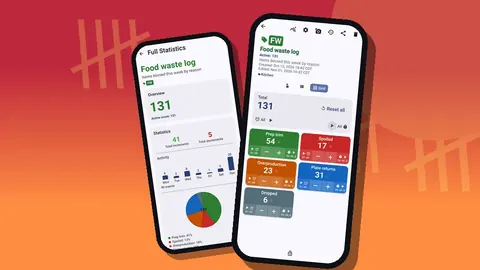
The dashboard shows totals against targets, increments versus decrements, a seven-day activity bar chart and a pie chart by tag. For trends over months, compare exports side by side. Items whose usage swings widely week to week are the ones to investigate for waste, over-portioning or ordering mistakes.
Can more than one person count at once?
Counter App keeps its data on the phone; it is not a shared cloud system and there is no live sync between phones. If two people split the count, divide by storage area: one takes the walk-in, the other dry storage, each on their own phone. To give both phones an identical structure, build it once, make a ZIP backup, and import it on the second phone. The preview shows what is coming in and lets you replace, copy or skip duplicates. At the end, both export, and the manager combines the files.
Receiving against the count
The weekly count tells you what to order; receiving tells you whether you got it. Create a counter called "Receiving" with tags for the items you order most. When a delivery arrives, reset it and count boxes up against the delivery note. A tag that stays below its target is a short. Add a note with the invoice number, and a photo of anything damaged; the photo editor lets you circle the crushed corner or add text. The supplier conversation then starts with evidence instead of memory.
Put away only after receiving is counted. Otherwise the next weekly count includes product nobody checked in.
A weekly rhythm that sticks
- Same day, same time. Count before deliveries arrive, so you are not counting product that has not been put away.
- Same route. Never reorder the shelves without reordering the tags.
- Same person, ideally. Rotate only after the new person has shadowed one full count.
- Review within a day. A count nobody reads for a week is a ritual, not a control.
- Back up monthly. A ZIP backup with photos protects the structure as well as the numbers; you can choose which categories to include and compress photos.
Common mistakes in the first month
- Building tags alphabetically "to tidy up later". Later never comes.
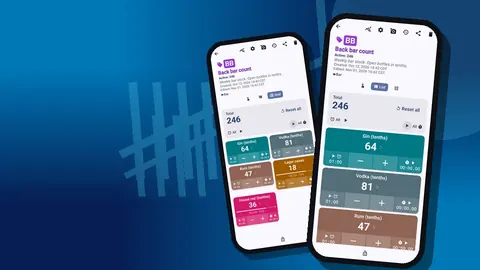
- Counting the bar with kitchen rules. Open bottles need their own method.
- Leaving discontinued items in the list. Delete them; deleted counters go to the trash and can be restored.
- Setting pars once and never looking again. Revisit them with each menu change.
If the kitchen also tracks prep, see daily mise en place counts with your phone. Partial bottles are covered in bar inventory counting on Android, and food waste tracking uses the same structure for what gets thrown away.
Map the route, fix a unit per item, mirror both in categories, counters and tags, set targets at par and count on the same day every week. The app will not do your costing, but it makes the closing number trustworthy. Get the app at counterapp.online.
Frequently asked questions
Can a restaurant organize its count by walk-in, freezer and dry storage?
Yes. Use a category per storage area, a counter per section on the walk path and a tag per item, with colors and pinning.
How do I count cases and loose units of the same kitchen item?
Use two tags, one for full cases and one for loose units, each with its own step from 1 to 100.
How does a restaurant count reach the food cost spreadsheet?
Export the counter from the share screen as CSV or Excel; the Summary section is usually enough for a weekly costing sheet.
Does a walk-in count need Wi-Fi?
No. The whole count runs offline in Counter App, which suits a walk-in or basement store with no signal.
Is Counter App a subscription for restaurants?
Not necessarily. Counter App — Tally & Clicker by GiveMeMood is free to download with no ads; try it free for 3 days, then choose a yearly or monthly plan or a one-time lifetime purchase, and runs on Android 12+.
How do two people split a restaurant inventory count?
Divide by storage area, give both phones the same structure through a ZIP backup and import, and have the manager combine both exports. There is no live sync.
How should a restaurant check deliveries against the weekly count?
Use a Receiving counter with targets from the delivery note; any tag left below target is a short to note with the invoice number.