Counter App

Scan Barcodes for Parts Inventory Counts on Android
Key takeaways
Parts inventory scanning on Android with Counter App — Tally & Clicker works by giving each part number its own tag, storing the bin's barcode or QR code on it, and scanning the label to jump to that tag during a cycle count. Pack-size steps speed counting, and CSV or Excel exports feed your inventory system.
- A parts cycle count in Counter App — Tally & Clicker uses one tag per part number, named exactly like the shelf label.
- Bin labels can be stored on Counter App tags as a barcode or QR code, scanned with the camera or typed when a label is damaged.
- A tag step equal to the pack quantity lets a stores clerk count sealed packs of parts with one tap per pack.
- Counter App can count a bin down to a reorder point and alert with sound or vibration, but places no orders and connects to no ERP.
Parts inventory in a plant rarely fails in dramatic ways. It fails one bin at a time: bearings that were "definitely in stock" until the line needed them, gaskets counted twice because two people did the same shelf, a fuse drawer that nobody has opened since the last audit. Regular cycle counts catch these problems early, and a phone with barcode scanning makes cycle counting quick enough that people actually do it.
This guide covers parts inventory scanning on Android with Counter App: building the count sheet, labeling bins, counting in batches and getting the numbers out.
What does a parts cycle count need?
A cycle count is a small, frequent count of a subset of locations, rather than a once-a-year shutdown. To work, it needs three things: a fixed list of what to count, a way to find the right line on that list quickly, and a record of what was counted and when. Paper delivers the first, struggles with the second and loses the third. A counter app with tags and codes handles all three on one screen.
Build the count sheet as tags
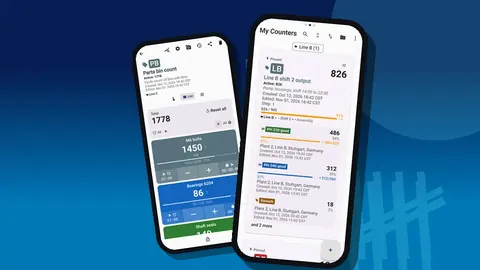
Create one counter per storage area or per count cycle, for example "Parts bin count – rack A". Inside it, add one tag per part number. Tag names should match the shelf label exactly: "M6 bolts", "Bearings 6204", "Seals 35x52", "Gaskets DN50", "Fuses 10A". Matching names to labels removes hesitation at the shelf.
Each tag keeps its own value, step and target, so a single counter can hold fasteners counted by the box and seals counted by the piece. Colors help too: give fasteners one color and electrical parts another so the screen reads at a glance.
If you count several areas, file the counters in categories, for example "Stores" with "Rack A", "Rack B" and "Line-side" below it. Up to three levels are available.
Attach codes to bins
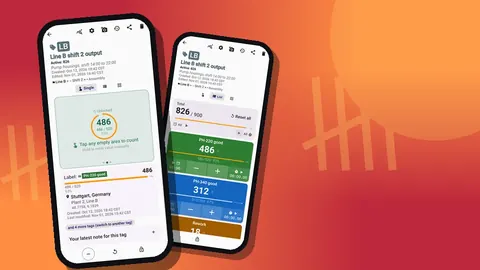
A tag on the shop floor can store a barcode or a QR code. Scan the bin label with the camera once during setup and the code is saved with the tag. During the count, scanning the label takes you straight to the right part instead of scrolling a long list.
Labels in stores get scratched, oily and faded. When the camera cannot read one, use the manual entry screen and type the code. Make a note to replace that label; a cycle count is a good moment to fix the labeling, not just the numbers.
The app does not publish a list of specific barcode formats, so print a test sheet of your real labels and try them before rolling the method out.
If you prefer to keep the setup simple, codes are optional. A short list of twenty parts in walking order works fine without them. Codes start paying off once a counter holds more tags than fit on one screen.
Batch steps for packed parts
Counting M6 bolts one by one is nobody's idea of a good afternoon. When parts arrive in sealed packs, set the tag's step to the pack quantity. The step can be any value from 1 to 100, per counter and per tag. With a step of 50, each tap on the bolts tag adds one sealed bag; loose bolts can be counted on a second tag with a step of 1, or added afterwards.
A practical split that avoids mistakes:
- Full sealed packs: count with the pack-size step.
- Opened packs: weigh or count individually, then add with step 1.
- Never mix the two on the same tag unless everyone counting knows the rule.
Reorder levels as count-down targets
Targets can count up or down. For a kanban-style bin, set the tag to count down from the full quantity to the reorder point. Every time parts are drawn, tap minus. When the value reaches the target, the app can play a sound or vibrate. That alert is the cue to raise a replenishment request through whatever process you already use.
Auto-reset can bring the tag back to its starting value when the target is reached, which suits a two-bin system where the empty bin is swapped for a full one. Auto-lock does the opposite: it freezes the tag so nobody keeps drawing against a bin that should be refilled. Choose based on how your stores work.
To be clear about limits: the app gives a counting signal. It does not place orders or connect to an ERP.
Running a cycle count
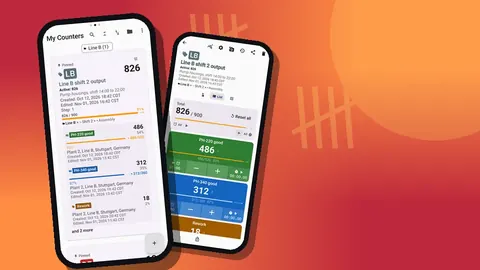
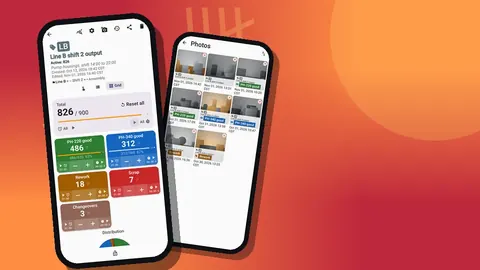
On the day, open the counter, switch to Grid view and work through the shelf in order. Each part has a colored tile with its value, target percentage and large minus and plus buttons. Scan the bin code to jump to the right tile when the order on screen and the order on the shelf diverge.
Rules that keep cycle counts trustworthy:
- Reset only the tags you are about to count. Resetting a single tag leaves the others untouched.
- Count everything in the location, including parts that look misplaced, then note them.
- Do not adjust for "known" errors. Count what is physically there; reconciliation comes later.
- Lock the counter when finished so it cannot change on the way back to the desk.
For a large area, splitting the work between two people is fine as long as each person counts different shelves. There is no live sync between phones, so two people tapping the same tag on two phones produces two separate counts that must be combined by hand.
How do you investigate a count variance?
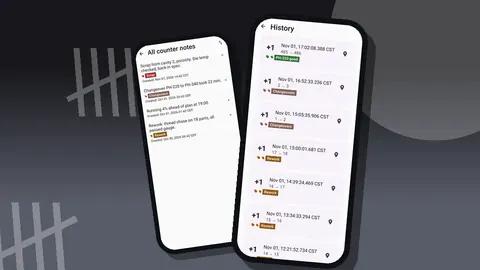
When the system quantity and the counted quantity disagree, the history helps you work out why. It logs every tap with an exact timestamp, the step and the before and after values, plus icons for notes and locations. If a bin was counted, then counted again, both passes are visible.
A simple variance routine: list every tag where the count differs from the system by more than an agreed tolerance, recount those bins the same day, and only then post the adjustment. Attach a note to the recount event, such as "found 2 boxes behind rack", so the next person sees the reason. The All Notes screen gathers those notes for the whole counter.
Photos can help here as well. Up to six per tag let you record a mislabeled bin or a damaged pack before it is moved.
Review and export
The dashboard shows the total across all tags, increments versus decrements, a seven-day activity chart and a pie by tag. For inventory, the activity chart is a quick check that counting really happened on the days it was scheduled.
Moving data off the phone
Export the counter as CSV or Excel (XLSX). In the export options, choose Summary for the final quantity per tag, and Events if your auditors want the full trail with timestamps. Notes and Locations can be added for context. Most inventory systems and spreadsheets accept CSV directly; map the tag name or stored code to the part number column on import.
An HTML report with embedded photos is also available for sharing a variance summary with a supervisor who does not want to open a spreadsheet.
Count data is stored on the phone; there is no account and no Counter App cloud. A backup ZIP, which can include photos and lets you choose counters or categories, is how you move the setup to another phone or keep a copy.
Labeling tips for scan-friendly stores
Scanning only saves time if the labels cooperate. A few habits make a big difference:
- Put the label on the bin front, at the same height on every shelf, so the phone camera finds it without searching.
- Print the human-readable part number under the code. When scanning fails, the typed code is right there.
- Use matte label stock in oily areas; glossy labels reflect workshop lights and slow the camera down.
- Keep one code per location. Two labels on one bin, an old and a new one, guarantee that someone scans the wrong one.
- Re-label during the count. If a label scans badly, note it on the tag event and replace it before the next cycle.
A short photo of each bin, attached to its tag, also helps new staff find unfamiliar locations. Up to six photos per tag is enough for the bin, its label and a close-up of the part.
Mistakes that distort cycle counts
- Counting a bin while parts are being picked from it. Pause picking or count before the shift starts.
- Using one tag for two part revisions. Old and new revisions look alike and get mixed; give each its own tag.
- Leaving a count half-finished overnight. Lock the counter, but finish the area the same day so the snapshot is consistent.
- Treating the target alert as a purchase order. It is a signal for a person to act on, nothing more.
A rotation that keeps stores honest
Pick a cadence that matches value and usage: fast-moving and critical parts weekly, mid-range parts monthly, slow movers quarterly. Keep one counter per class so each count is short. Over a quarter every location gets counted, and no single count takes more than half an hour.
For stores teams on Android 12+, Counter App — Tally & Clicker from GiveMeMood is free to download with no ads; try it free for 3 days, then choose a yearly or monthly plan or a one-time lifetime purchase. Get the app at counterapp.online.
Frequently asked questions
Will our bin labels scan for a parts cycle count?
A part tag stores a barcode or QR code, read by the camera or typed in. No list of supported formats is published, so try your real bin labels before rolling out.
Can I find a part number quickly in a long list?
Counters can be found by search, date range and six sort orders in the list. Within one counter, scanning the bin code jumps straight to the right part tag.
Can the app alert me when a bin is low?
Set a target on a tag and count down toward it; reaching it can trigger a sound or vibration alert. It is a counting aid, not an automatic reorder system.
Can I move the data into our inventory system?
Export to CSV or Excel (XLSX) and import that file into whatever system you use.
What if a label is damaged and will not scan?
Type the code on the manual entry screen instead. The tag is matched the same way.
Can two stores clerks cycle count the same rack on two phones?
Yes, if each takes different shelves. Phones do not sync live, so two people tapping the same part tag create separate counts that must be added together by hand.
How often should manufacturing parts be cycle counted?
A common rotation is fast-moving and critical parts weekly, mid-range parts monthly and slow movers quarterly, with one counter per class.