Counter App

Production Line Count App for Android Supervisors
Key takeaways
A production line count app on Android lets the supervisor record output as it happens. In Counter App — Tally & Clicker, create one counter per line and shift, add a tag per variant plus rework, scrap and changeovers, set batch steps and shift targets, then export CSV, Excel or an HTML report at the end of the shift.
- A production line count in Counter App — Tally & Clicker uses one counter per line and shift and one tag per variant, rework, scrap and changeovers.
- Batch steps from 1 to 100 let a line lead add a full tray or carton of good units with one tap.
- A shift target on each variant tag turns Counter App into a pacing tool, with an optional auto-lock for fixed-quantity runs.
- Output should be counted at one fixed point, ideally after final inspection, so shifts stay comparable.
On many lines the official output number is assembled after the fact: someone reads a machine counter, someone else adds the hand-built units, and a third person subtracts what went to rework. By the time it reaches the morning meeting, nobody is sure which number is right. A production line count app on the supervisor's or line lead's Android phone gives one place where output is recorded as it happens, broken down by variant, with rework and scrap kept separate.
This guide walks through a setup that works for small and mid-sized lines, from the first counter to the end-of-shift export.
What should a production line count include?
Before opening any app, decide what the line count is for. Usually it answers three questions: how many good units of each variant were made, how many needed rework or were scrapped, and how the shift compared with its target. Anything outside those questions, such as downtime reasons in detail or material consumption, belongs in its own counter or its own system. Counters that try to capture everything get abandoned.
Count good units at one fixed point, ideally after final inspection. Counting at different stations on different days makes shifts incomparable.
One counter per line and shift
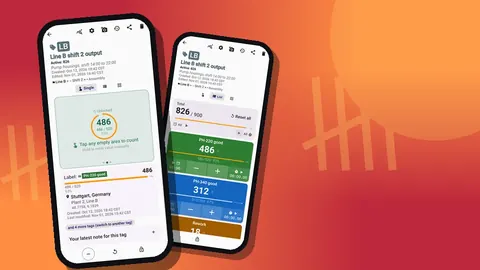
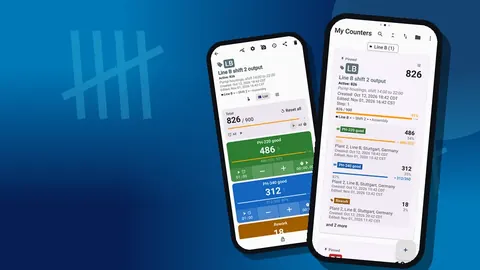
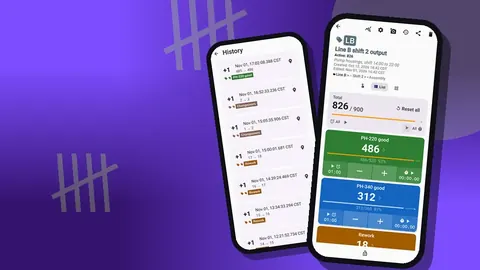
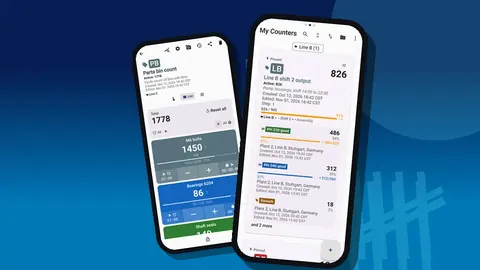
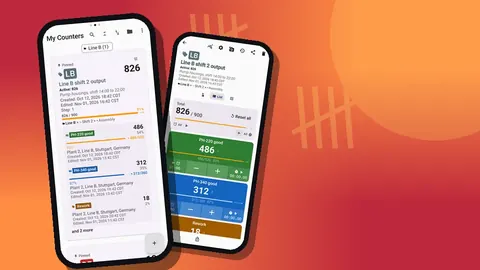
Create a counter for each line and shift combination: "Line B shift 2 output", "Line B shift 3 output", "Line C shift 2 output". Give each a short code such as LB2, which shows as a badge on the list and makes the right counter easy to spot. The description field is a good place for the station where counting happens.
Put the counters in categories by line. Counter App supports three levels of categories with custom colors and pinning, so "Line B" can be pinned on top while it is your main focus. Some supervisors add a third level for the week, which keeps old shifts out of the way without deleting them.
There are two workable patterns for repeating shifts:
- Reuse: one counter per line and shift, exported and reset at the end of every shift. Short list, but the reset must never happen before the export.
- Fresh counter: create a new counter with the same tags each day and a dated name. The list grows, but every shift is preserved and comparisons are easy.
Tags for variants and outcomes
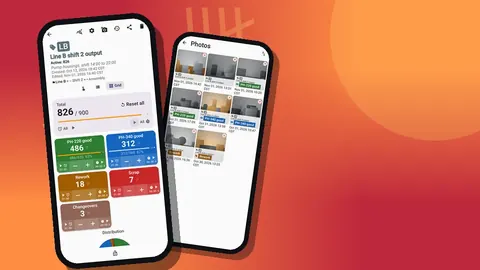
Inside the counter, add a tag for each outcome you need to count. A typical set for a two-variant line:
- PH-220 good
- PH-340 good
- Rework
- Scrap
- Changeovers
Each tag has its own value, color, step and target. Using separate tags for each variant means the total is the sum of good units across variants, while the dashboard still shows the split. Rework and scrap stay visible instead of being quietly subtracted.
Count changeovers as their own tag. They are not output, but knowing that a shift had four changeovers instead of one often explains a low total better than any comment.
Steps and targets
Batch counting saves taps and mistakes. If PH-220 leaves the line in trays of 12, set that tag's step to 12. Each tap adds a full tray. The step can be anything from 1 to 100, per counter and per tag. Keep rework and scrap at step 1, since those are counted piece by piece.
Targets turn the counter into a pacing tool. Set a target on each variant tag that matches the planned quantity for the shift, or one target on the counter. When the target is reached, the app can play a sound or vibrate. Auto-lock can freeze a tag at its target if the plan says "make exactly this many and stop", which is common for short runs before a changeover. Leave auto-lock off when overproduction is acceptable and simply worth knowing about.
Where should the counting phone be during a shift?
The counting screen can show tags as a single large counter, a list, or a grid. Which one works depends on the station:
- Single view, with one large circular counter and target progress, suits a station that only ever counts one variant.
- List view shows every tag with its value and target progress in one column, best for a line lead walking between stations.
- Grid view gives each tag a colored tile with big buttons, which is easier with gloves.
A phone mounted at the counting point in a sturdy case works well. If the lead carries the phone instead, volume-button counting can be enabled in settings. It is off by default, works with the screen locked through a foreground service, and the keys can be remapped with their own sound and vibration. The lock-screen notification also offers minus, plus and stop.
Lock the counter whenever the phone is unattended. Locked counters ignore taps, which protects the count from a sleeve brushing the screen.
Timing changeovers
On the line, each tag runs a stopwatch and timer independently. Start the stopwatch on the Changeovers tag when the last good part of one variant comes off, stop it when the first good part of the next variant appears, and add a note with the time. Over a few weeks this gives a simple changeover record without a separate tool. Timer presets from 30 seconds to 10 minutes are useful for short timed checks, such as counting output over five minutes to estimate the current rate.
Reading output during the shift
Open the dashboard mid-shift to check the pace. It shows the total against the target, increments versus decrements, a pie chart of the split by tag and an activity bar chart. If two hours in the total sits at a fifth of the target, there is still time to react.
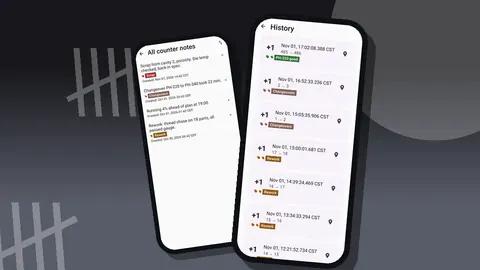
The history log records every tap with an exact time and before and after values. A gap of forty minutes with no counts is a downtime event worth asking about. A burst of minus taps suggests someone corrected a miscount; a note on that event explains what happened.
End-of-shift export
At the end of the shift, export before doing anything else. From the share screen choose CSV, Excel (XLSX), or an HTML page. In the export options pick the sections:
- Summary: totals per tag, enough for the shift report.
- Events: every count with its time, for anyone analyzing hourly output.
- Notes: the comments added during the shift.
- Locations: useful only if tags carry a place.
Send the file to whoever compiles the daily report, then lock or reset the counter for the next shift. Line counts are kept on the phone, with no account and no Counter App cloud, so the exported file is the hand-off.
Keeping history across shifts
If you create a fresh counter per shift, the counter list becomes your archive. Its date-range filter narrows the list to a week or a month, six sort orders line counters up by name or date, and search finds a specific shift. Pin the current week's counters so they stay at the top.
For a longer view, paste each shift's Summary into one spreadsheet. A column per shift and a row per tag is enough to chart output, rework and scrap over time. That chart, rather than any single shift, is what tells you whether the line is improving.
When you replace a phone, a backup ZIP moves counters and categories across, with photos if you want them. On import, a preview shows what is in the file and lets you replace, copy or skip duplicates. There is no live sync between phones, so pick one phone as the official counter for each line.
Pitfalls seen on real lines
A handful of problems account for most bad line counts, whatever tool is used:
- Double counting at two points. If the machine counter and the line lead both record output, decide which one is official and treat the other as a cross-check.
- Rework counted as new output. A reworked unit that passes final check is the same unit, not an extra one. Count it once in Rework when it fails, and do not add it to the variant tag again if it was already counted.
- Silent corrections. Fixing a wrong total by tapping minus ten times without a note makes the history look suspicious. Add one line of explanation.
- Targets that never change. If the plan changes mid-shift, update the target too, or the pacing signal becomes misleading.
- Mixed units on one tag. Pieces and trays on the same tag produce numbers nobody can interpret. The step setting is there to keep units consistent.
Most of these are habits, not settings. A five-minute talk at the start of the first week prevents more errors than any configuration.
Rollout checklist
- Agree on the counting point and the unit for each variant.
- Create the counters, tags, steps and targets, and test them for one shift.
- Show line leads the lock button and the minus correction.
- Decide who exports, when, and to whom.
- Review the first week of exports together and adjust the tag list once.
Line leads can run Counter App — Tally & Clicker (GiveMeMood, Android 12+) — free to download with no ads; try it free for 3 days, then choose a yearly or monthly plan or a one-time lifetime purchase. Get the app at counterapp.online.
Frequently asked questions
Can I count by product variant on the same line?
Yes. Create one counter for the line and shift, then add a tag for each variant. Each tag keeps its own value, step and optional target.
Can operators count in batches instead of single units?
Yes. The step can be any value from 1 to 100, set per counter and per tag, so one tap can add a full tray or carton.
Does it need Wi-Fi on the shop floor?
No. Line counting runs offline; only optional notifications, update checks and map tiles use a connection.
How does a line lead get shift output into the daily report?
Export the shift counter as CSV, Excel (XLSX) or an HTML report, ticking Summary, Events, Notes or Locations as the shift report needs.
Can I stop a finished shift from being changed?
Lock the counter. A locked counter ignores taps until you unlock it, and a target can also auto-lock a tag when it is reached.
Should rework be subtracted from a variant's good count?
No. Count failed units once on a Rework tag and keep variant tags for good units, so rework stays visible instead of being quietly netted off.
Can changeover time be recorded in a line count?
Yes. Start the stopwatch on a Changeovers tag when the last good part of one variant comes off and stop it at the first good part of the next, then note the time.