Counter App

Track WIP on the Factory Floor Using Your Phone
Key takeaways
To count factory floor WIP with a phone, map every place work can sit to a tag in Counter App — Tally & Clicker, walk the same route at the same time each day, and tap each stage's count. WIP limits become targets with alerts, notes explain blocked work, and each walk exports to CSV or Excel for comparison.
- A WIP floor walk becomes a trend only when the same route is counted at the same time each day in the same units.
- In Counter App — Tally & Clicker, each WIP stage on a floor walk is one tag, named after the floor marking and ordered in walking order.
- A per-tag step of 1 to 100 lets a floor walker add a full tray of 24 in one tap while the stage total still reads in pieces.
- WIP limits can be entered as tag targets in Counter App, with a sound or vibration alert when a stage reaches its limit.
Work in progress is the inventory nobody owns. It sits between machines, on carts and in staging lanes, and it is invisible in most systems until it either ships or gets scrapped. Counting it by hand on a regular floor walk is still one of the most direct ways to see where flow is breaking down. A phone makes that walk faster and the record more reliable than a clipboard.
This article describes a repeatable WIP floor walk using Counter App on Android, from mapping stages to reading the results.
Why count WIP by walking the floor?
Systems report what was booked, not what is physically there. A work order may say a batch moved to welding, while the parts are still stacked by the saw because the forklift was busy. The floor walk catches those gaps. It also shows bottlenecks in a way a report cannot: three full carts in front of one station is a picture everybody understands.
The value comes from repetition. A single walk is a snapshot. The same walk at the same time each day, counted the same way, becomes a trend. Everything below is about making the walk consistent.
Map stages to tags
Walk the route once without counting. Note every place WIP can sit: incoming staging, before and after each machine, rework rack, final inspection, outbound lane. Each of those becomes one tag inside a counter.
Give the tags names that match the floor markings. If the lane by the press is painted "P2-IN", name the tag "P2-IN", not "Press queue". People counting at speed match labels, not descriptions. Order the tags in walking order so the list on the phone follows the route.
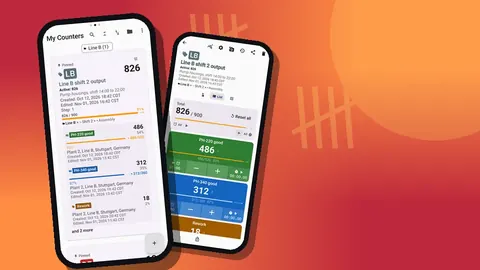
Decide on the unit before the first count. Pieces, carts, trays and pallets all work, but mixing them breaks the numbers. If one stage is counted in trays of 24 and another in pieces, use the step setting: a tag can add any value from 1 to 100 per tap, so the tray stage can add 24 at a time while the total still reads in pieces.
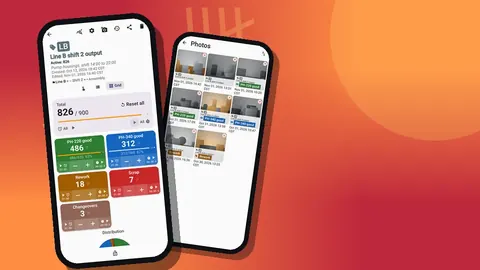
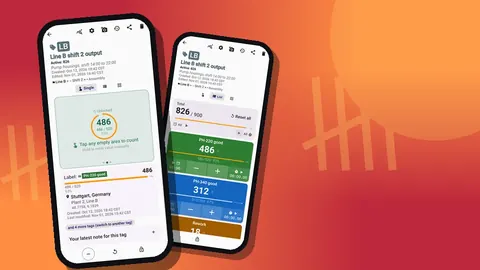
Each tag can also carry a location, either from GPS, from a point on a map, or as a typed place such as "Hall 2, bay 4". Indoors, a typed place is usually more useful than GPS.
Organize walks with categories
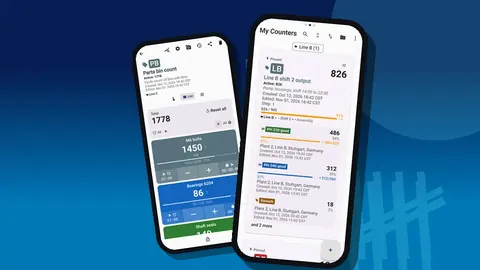
Use categories to separate areas and keep the list readable. A plant with two halls might use "Hall 1" and "Hall 2" as top-level categories, with lines or cells beneath. Counter App supports three levels, custom colors and pinning, so the current week's walks can stay at the top.
There are two ways to structure the counters themselves:
- One counter per walk, named with the date and time, for example "Hall 2 WIP Mon 07:00". This keeps every walk as its own record and is easiest to compare later.
- One permanent counter that you export and then reset after each walk. This keeps the list short but relies on everyone exporting before resetting.
The first approach is safer for teams; the second suits a single supervisor who is disciplined about exports.
Set WIP limits as targets
If your stages have WIP limits, put them into the app. Each tag can have a target, and reaching it can trigger a sound or vibration alert. When the counter at "P2-IN" hits its limit of 40 pieces, the phone tells you before you have finished counting that lane. That is the moment to note the cause.
Targets can also auto-lock a tag when reached, but for WIP counting that is usually unhelpful, because you want to keep counting past the limit to know by how much it was exceeded. Leave auto-lock off for WIP walks and use it for things with fixed sample sizes.
Doing the walk
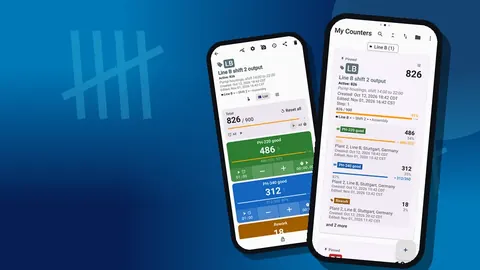
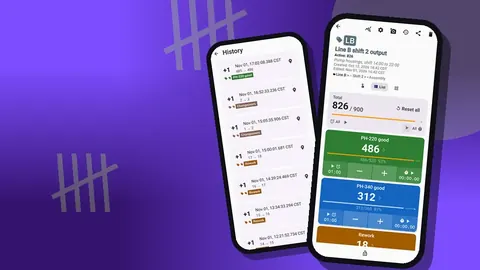
Open the counter, switch to List view and start at the first stage. Count the physical WIP, tap the plus button, move on. A few practical rules:
- Count what is there, not what should be there. If a cart is half empty, count the pieces, not the cart.
- Count each stage once. If you lose count, reset only that tag and count it again; resetting one tag does not touch the rest.
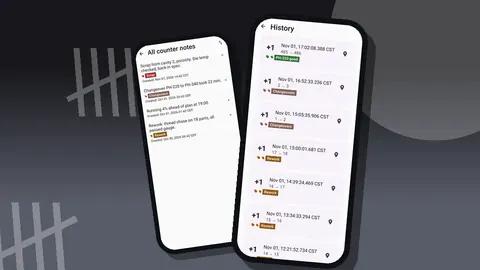
- Note blocked work. A quick note on the tag event, such as "waiting for gauge" or "no operator", turns a number into an explanation.
- Lock the counter at the end. Locking stops accidental taps while the phone is in your pocket on the way back to the office.
The counting screen can show tags expanded, collapsed, or collapsed except the most recent one. On a long route, collapsed except most recent keeps the screen short while still showing the stage you just counted.
Counting one-handed
When you are holding a flashlight or lifting a tarp, volume-button counting helps. Enable it in settings and the volume keys add or subtract a step, also with the screen locked, through a foreground service. Keys can be remapped and each can have its own sound and vibration so you can tell plus from minus by feel. The feature ships switched off, and on some handsets the system volume bar may still pop up.
The lock-screen notification adds minus, plus and stop buttons, which is another way to count without unlocking.
Timing a queue
Sometimes the question is not how much WIP sits at a stage, but how fast it moves. Every stage tag carries a separate stopwatch and timer. A simple method: start a two-minute timer from the presets at a station and count how many pieces leave during that time. Repeat at the same station each walk and you have a rough throughput indicator to put next to the WIP count. Countdown beeps tell you when time is up without staring at the screen.
How do you read a WIP walk to find the bottleneck?
When the walk is done, the dashboard shows the total WIP against any overall target, a pie chart split by stage and an activity bar chart. The pie is the quickest way to see where material is accumulating. If one stage holds a third of all WIP, that stage, or the one after it, is the constraint.
Look for patterns across stages rather than single numbers:
- WIP high before a machine and low after it: that machine is the bottleneck.
- WIP high after a machine and before inspection: inspection capacity is short.
- WIP high in rework: quality problems upstream are consuming capacity.
- WIP high everywhere: release to the floor is running ahead of capacity.
The history log keeps every tap with an exact timestamp and before and after values, so you can also see how long the walk took and whether any stage was recounted.
Exporting and comparing walks
From the share screen, export the walk as CSV or Excel, or share it as an HTML page that opens in any browser. In the export options, Summary gives the per-stage totals, Events gives every count with its time, and Notes and Locations add the context you recorded.
For comparison over time, put the Summary of each walk into one spreadsheet, one column per walk. A line chart per stage across a week of walks shows trends that are easy to miss when looking at single days. If you kept one counter per walk, the counter list's date-range filter and six sort orders help you find all walks for a period, and search finds a particular one by name.
Walk data is kept on the phone, with no account and no Counter App cloud. If several supervisors walk different halls, each exports their own counters, or moves them to one phone with a backup ZIP that can include photos.
Common mistakes
- Changing the route. Adding or skipping stages makes walks incomparable. Agree on the stage list and add new tags only deliberately.
- Walking at random times. WIP at 07:00 and WIP at 14:00 are different things. Fix the time.
- Counting from memory. Always count at the stage, not from the office window.
- Leaving notes until later. By lunchtime nobody remembers why the cart was blocked.
When two people walk different halls
In larger plants one person cannot walk every area at the same time. Split the route by hall, give each walker their own counter with the same naming pattern, and agree on a fixed start time. Because there is no live sync, each walker exports their counter afterwards, and the spreadsheet combines them. Keeping tag names identical across halls where stages are similar makes that combination a simple copy and paste.
A simple weekly routine
Monday to Friday, walk at the same time and save each walk as its own counter. On Friday afternoon, export the week, paste the summaries side by side and pick one stage to improve next week. The following Friday, check whether that stage's WIP actually fell. That loop, kept up for a few months, is often worth more than any new system.
Counter App — Tally & Clicker by GiveMeMood needs Android 12+ and is free to download with no ads; try it free for 3 days, then choose a yearly or monthly plan or a one-time lifetime purchase. Get the app at counterapp.online.
Frequently asked questions
Can I record where each stage is on the floor?
Yes. Each tag can store a GPS position, a point picked on a map, or a typed place, so every stage carries its physical location.
Can I count WIP with one hand while walking?
You can enable volume-button counting in settings. It works with the screen locked and keys can be remapped. It is off by default.
How do I compare this morning's walk with yesterday's?
Create one counter per walk with a dated name, then use the counter list's date-range filter and sort orders, or export each walk to CSV or Excel.
Can I reuse the same stage layout every day?
Reset the counter or single tags to zero before the next walk, or keep one counter per walk and export each one before resetting.
Does the phone need Wi-Fi in the plant?
No. A WIP walk can be counted with no signal at all; the app reaches the internet only for optional notifications, update checks and map tiles.
Should WIP be counted in pieces, trays or carts?
Any unit works as long as every walk uses the same one. If one stage holds trays and another loose pieces, set the tray stage's step to the tray quantity so totals stay in pieces.
Should auto-lock be on for a WIP limit target?
Usually not. On a WIP walk you want to keep counting past the limit to see how far it was exceeded, so leave auto-lock off and rely on the alert.