Counter App

Community Outreach Tracking on Android, Even Offline
Key takeaways
A community outreach tracking app should capture contacts and services at the moment they happen without recording who the clients are. In Counter App — Tally & Clicker, one counter per route holds tags for contacts, first contacts, items handed out and referrals, notes flag follow-ups, and timestamped exports cover monthly and grant reporting.
- A community outreach counter should count contacts, services, referrals, first contacts and follow-ups, not individual clients.
- Counter App — Tally & Clicker works offline on outreach routes where signal disappears.
- Outreach locations in Counter App should be attached to sites, not to people, and exported Locations should be reviewed before sharing.
- Notes starting with FU: and the All Notes screen turn outreach counts into a weekly follow-up list.
Outreach work happens in places that are bad for paperwork: under a bridge in the rain, in a crowded day-centre doorway, on a doorstep during a cold-weather check. Staff do the conversation first and the recording later, which usually means the recording happens at 6 pm from memory. The numbers that come out of that process are not wrong, exactly, but nobody would want to swear by them.
This article shows how a small outreach team can use Counter App on Android to count contacts and services at the moment they happen, keep useful notes for follow-up, and still protect the people they serve. It works offline, which matters on routes where signal disappears.
What should an outreach program count?
Start with the questions your funders and partners ask, then work backwards to what needs a tap. Typical outreach measures include:
- Contacts — distinct conversations or encounters during a shift.
- Services delivered — meals, hygiene kits, blankets, water, harm-reduction supplies.
- Referrals made — to housing, health, benefits or legal partners.
- First contacts — people the team has not met before.
- Follow-ups completed — a second visit that was promised and kept.
Resist counting everything. Each extra tag is a decision a tired worker must make in a doorway. Five or six well-defined tags beat fifteen vague ones, and the export will be easier to explain.
Structuring the counters
A reliable pattern is one counter per route or site, each with the same set of tags. "North river route", "Station area" and "Day centre" each get a counter with identical service tags. Because the tags match, the exports line up column for column when you compare sites.
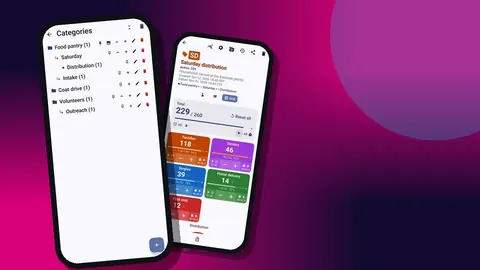
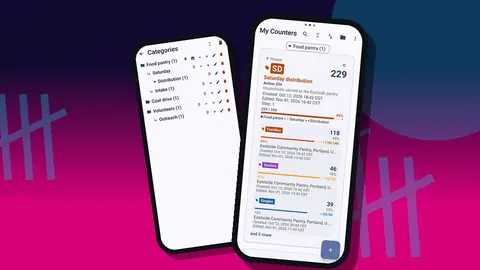
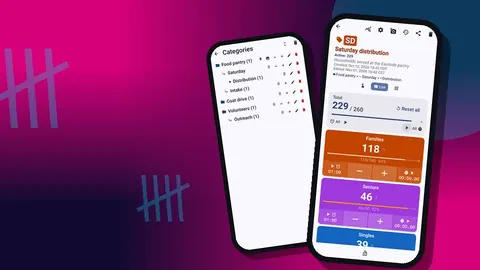
Put all of these counters in an Outreach category, with a second level for each program if you run several (for example, winter outreach versus year-round). Categories nest up to three levels and can be pinned, so the current season sits at the top of the list.
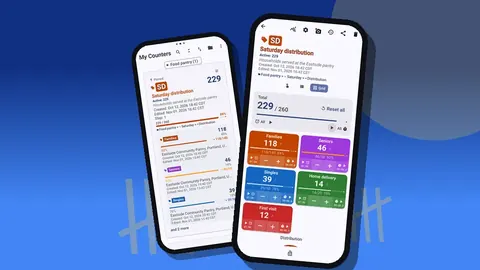
Give every counter brief initials or a code so volunteers spot it at a glance. On the list screen, the code badge makes it obvious which route a worker has open, which helps when two people share one phone across shifts.
Why count services instead of people?
It is tempting to make a tag per regular client. Do not. A counting app on a work phone is not the right place for identifiable information about vulnerable people, and your organization almost certainly has rules about where such data may live.
Instead, keep tags about what happened:
- "Contact" — every conversation.
- "First contact" — tapped in addition to Contact when it is someone new.
- "Hygiene kit", "Meal", "Blanket" — one tag per item type you hand out.
- "Referral" — one tap per referral, with the partner name in a note if needed.
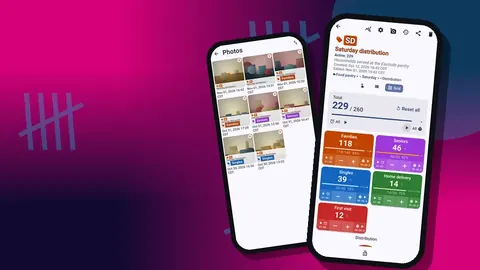
Grid view suits fieldwork well: each tag becomes a colored tile with its own −/+ buttons, large enough to hit with a cold thumb. Choose colors with care. If "Referral" is always purple across every counter, workers stop reading labels after the first week.
A day in the field
A practical shift routine looks like this:
- Before leaving, open the route counter and check it was reset or that last shift's totals were exported.
- On each contact, tap Contact, then any service tags. If it is a new person, tap First contact.
- When something needs a follow-up, add a short note to that event. Keep it non-identifying: "needs ID replacement, will be at site Thursday".
- Back at base, review the history for obvious mistakes and use −step to correct them.
For workers who prefer not to keep pulling out a phone, volume-button counting helps. It is off by default. Once enabled, the volume keys add or subtract counts even in the background and on the lock screen, through a foreground service, and you can remap the keys and give each one its own sound and vibration. A lock-screen notification with −step, +step and Stop buttons is another route. A few phones still flash the system volume bar while counting this way.
Counting on the route needs no connection; the app goes online only for optional notifications, update checks and map tiles.
Location for planning, not tracking people
Each tag can hold a location: a GPS position, a point picked on a map, or a typed country, city or place. For outreach, attach locations to sites, not to individuals. A tag for "Contacts — east underpass" with that place attached tells a planner where demand is concentrated without recording anyone's movements.
Some teams prefer to keep the location on the counter level by having one counter per site, and leave tags location-free. Either approach works; what matters is a written rule about what a location means.
If you export the Locations section, check it before sharing outside your team. A spreadsheet of precise coordinates is more sensitive than it looks.
Notes that turn into follow-ups
Notes are where outreach data becomes outreach work. A tag has its own note, and individual count events can carry notes too. At the end of the week, the All Notes screen collects them across counters, with sorting, so a team lead can scan everything that was flagged.
A simple convention makes this list actionable:
- Start follow-up notes with "FU:" so they stand out.
- Add the day or site where the follow-up will happen.
- When it is done, tap the Follow-up completed tag and mention it in the note.
Photos are available too, up to six per tag, with a built-in editor for brush strokes and text. For outreach, use them for things like a damaged shelter site or a supply cache, never for people without their consent and your organization's approval.
Monthly impact reporting
Monthly reporting is mostly a matter of exporting the right sections:
- Summary gives totals per tag against targets. This is the board-friendly view.
- Events gives one row per tap with a timestamp, which lets you filter by date.
- Notes is useful internally but usually stays out of external reports.
- Locations is optional and should be reviewed first.
Export to CSV or Excel for the spreadsheet that feeds your impact report, or to an HTML report with embedded photos when a partner wants something readable without opening a spreadsheet. Name files consistently: route, month, year.
How do you report outreach for a grant period?
Grant periods rarely line up with your calendar. Because every count is logged with an exact time, the Events export lets you filter to any window — a funder's October to March year, for instance — without resetting counters on special dates.
For annual reporting, keep the twelve monthly exports and add them up, rather than relying on one export at year end. If a number is challenged, you can point to the month it came from. The counter list also has a date-range filter and six sort orders, which help you find older counters quickly when assembling a report.
Targets for program commitments
Many outreach grants commit to a number of contacts or referrals. Put that number on the matching tag or counter as a target. You can count up toward it or down from it, and choose a sound or vibration alert when it is reached.
Targets also help with pacing. If the annual commitment is 1,200 contacts — an example figure — and the progress bar is at a quarter in month five, you know early that something needs to change: more shifts, a different route, or a conversation with the funder.
Training new outreach staff
New workers learn the app faster than they learn the counting rules, so train the rules. A one-page sheet covering what counts as a contact, when to tap First contact, and what may or may not go in a note does more than any tour of the interface.
Pair a new worker with an experienced one for their first few shifts and let the new person do the tapping. Afterwards, review the history together. Seeing every tap with its time is a gentle, concrete way to spot misunderstandings. When staff change phones, move the counters with a backup ZIP; there is no live sync, and the import preview lets you replace, copy or skip counters that already exist.
Sharing one phone across a team
Some teams cannot give every worker a dedicated phone. If a single work phone moves between shifts, a few habits keep the data clean. Open the route counter at the start of the shift and read the totals aloud to your partner, so both of you know the starting point. Lock the counter when the phone goes back in the bag. At handover, the outgoing worker adds a short note to the last event summarising anything the next shift should know. The history then reads as a clear sequence of shifts rather than an anonymous stream of taps.
Related reading
Outreach numbers will never capture the whole value of the work. Accurate counts gathered without slowing anyone down still give a program something solid to stand on when funding decisions are made. Counter App — Tally & Clicker by GiveMeMood runs on Android 12+ and is free to download with no ads; try it free for 3 days, then choose a yearly or monthly plan or a one-time lifetime purchase. Get the app at counterapp.online.
Frequently asked questions
Can outreach contacts be counted on a route with no mobile signal?
Yes. Every counting feature works offline on the route; a connection is used only for optional notifications, update checks and map tiles.
Should outreach workers record client names in Counter App?
Counter App is a counting tool. Count contacts and services, and keep identifying client details in your organization's case management system, according to your privacy policy.
Can an outreach team record where contacts happened?
Yes. A tag can store a GPS position, a point picked on a map, or a typed country, city or place.
Can an outreach worker count contacts without taking the phone out?
Yes, once volume-button counting is switched on in settings; the side keys then count in the background and from the lock screen.
Can an outreach report leave out notes and locations?
Yes. Each CSV, Excel or HTML export has tick boxes for Summary, Events, Notes and Locations, so sensitive sections can stay out.
How many tags should an outreach counter have?
Five or six well-defined tags usually beat fifteen vague ones, because every extra tag is a decision a tired worker must make in a doorway.