Counter App

Nonprofit Event Attendance Counter for Android
Key takeaways
A nonprofit event attendance counter turns a felt number into evidence. With Counter App — Tally & Clicker, create one counter per event, a tag per guest type and one phone per entrance, set the RSVP count as a target, then export Summary and Events for the board and funders, keeping every event counter for year-over-year comparison.
- A nonprofit event attendance count should first decide whether it measures headcount, guest types, peak occupancy or session attendance.
- Counter App — Tally & Clicker events with several doors need one phone per entrance, combined afterwards by export or backup import.
- Setting the RSVP number as a target in Counter App shows event turnout as a share of acceptances.
- Keeping one dated counter per event, instead of resetting, makes year-over-year attendance comparison possible.
Nonprofits hold a remarkable number of events: open days, community meals, volunteer orientations, donor receptions, workshops, annual meetings. Each one ends with someone asking how many people came, and the answer is often a guess shaped by how the evening felt. Felt numbers are fine for a chat, but they make poor evidence when a board is deciding whether to run the event again.
This article covers a simple, repeatable way to count event attendance with Counter App on Android, from single-room workshops to events with several entrances, and how to turn the counts into something a board or funder will trust.
Which attendance question is the event answering?
"Attendance" means different things to different readers. Decide which one you need before the event:
- Total headcount — how many people came through the door.
- Attendance by guest type — members, new visitors, families, partners, donors.
- Peak occupancy — how many were in the room at once, which needs both in and out counts.
- Session attendance — how many attended each workshop within a larger event.
Programs funded to reach new people usually care about first-time visitors. Donor events care about which invitation lists turned out. Write the question at the top of your event plan, and count only what answers it.
Setting up event counters
Create a counter for each event, named with the date: "Open day 14 Sep". Inside it, add a tag per guest type. Give each tag its own color, and keep the colors consistent across your events so volunteers learn them once.
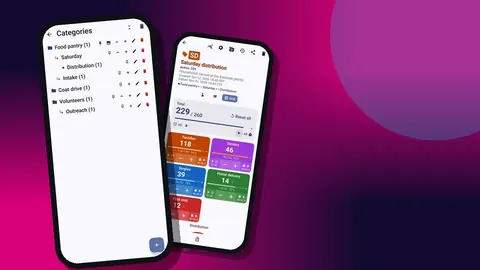
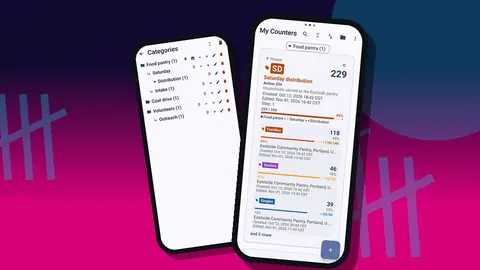
Use the category tree to file the counter. Categories go three levels deep, which allows "Events > Community meals > 2026", and the picker dialog places a new counter in the right branch without hunting. Pin the category of the current season so its events sit at the top of the counter list.
If you need peak occupancy, add a tag for people leaving and use the −step button on the main tag as they go, or keep separate In and Out tags and subtract in the export. Separate tags are easier to audit.
How do you count attendance at several entrances?
When an event has several doors, put a phone with an identical counter at each one. There is no live sync between phones, so combine after the event:
- Export and add. Each door exports to CSV or Excel, and the coordinator sums the columns.
- Import backups. Each door makes a backup ZIP of its counter, and the coordinator imports them all onto one phone. The import shows a preview first, with replace, copy or skip handling where a counter already exists. Choosing copy keeps each door as its own counter.
Name the counters by door ("Open day — North door") so imported counters remain distinguishable.
Counting as guests arrive
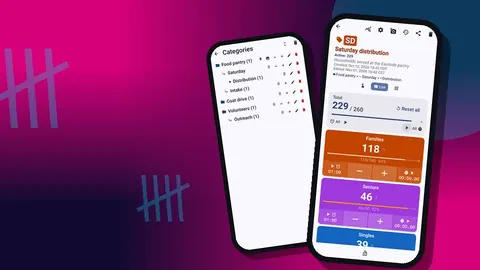
At a single entrance with several guest types, List view is the clearest: one row per tag, with −/+ buttons, value and target. A greeter taps the matching tag as each person arrives. A volunteer handling only one stream, like a family queue, may prefer Single view with its large circular counter.
Feedback keeps eyes on guests rather than screens. Choose one of 13 count sounds or 8 vibration styles. If greeters are holding name badges and pens, volume-button counting can be enabled: it is off by default, works in the background and on the lock screen, lets you remap keys, and has its own sound and vibration per key. On certain phones the system volume bar still shows up. The lock-screen notification adds −step, +step and Stop buttons.
When greeters swap, lock the counter for the handover moment so a fumble does not add a phantom guest.
Timing sessions and activities
Each tag at an event gets a dedicated timer and stopwatch as well. For events with structured programs, that is handy: a timer for a three-minute speaker slot, a stopwatch for how long the registration queue took to clear. Presets cover 30 seconds, 1, 2, 3, 5 and 10 minutes, and you can type a custom duration. Countdown beeps and a choice of 7 alarm sounds and 8 alarm vibrations make the end obvious.
Session attendance itself is just another counter: one per workshop, with a tag per guest type, filled in by the session host at the start.
Photos for documentation
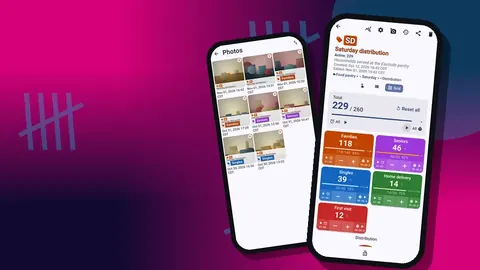
Each tag can carry up to six photos, and the all-photos gallery shows them across counters with tag labels and dates. Useful shots for attendance purposes include the room at its fullest, the registration table, and signage. Photos of individuals belong under your organization's consent policy; a wide shot of a full room usually tells the story better anyway.
The HTML export embeds photos next to the numbers, which makes a compact, readable record of the event.
How do you compare turnout with RSVPs?
For invitation-based events, put the number of RSVPs on the counter as a target. As guests arrive, the progress bar shows turnout as a share of acceptances. You can add a sound or vibration when the target is hit. If you want to see how many invited guests are still missing, set the tag to count down from the RSVP number instead.
After the event, compare by guest type. If 90 percent of board-invited guests came but only half of the general list did — example numbers — the next event's invitation strategy should look different. This comparison is the single most useful thing an attendance count can tell a development team.
Exporting for boards and funders
Export the event counter to CSV, Excel (XLSX) or an HTML report. Choose sections: Summary for totals per guest type, Events for timestamped arrivals, Notes for context, Locations if your tags hold venue addresses.
A board usually wants a single slide: total attendance, breakdown by guest type, comparison to target. The dashboard on the phone already shows total against target and a pie chart by tag, which is often exactly that slide. Funders more often want the spreadsheet, and occasionally the timestamped events to see that the count was taken live.
Year-over-year comparison
Keep each event's counter rather than resetting and reusing it. Year-over-year comparisons depend on old counters still existing. With search, a date-range filter and six sort orders in the counter list, finding "Open day" from two years ago is quick.
Back up after each event with a ZIP, choosing which counters and categories to include and whether to compress photos. Attendance counts are stored on the phone with no account and no Counter App cloud, so the backup is your insurance. Counters deleted by mistake land in the trash, where they can be restored.
Connecting attendance to donor work
Attendance numbers become more valuable when development staff can see them. A donor reception's turnout by invitation list, or a community event's share of first-time visitors, gives fundraisers a concrete talking point. Share the export, not the phone: the HTML report is easy to forward, and a CSV slots into whatever donor database or spreadsheet your team already uses.
Volunteers at the door
Greeters are often the newest volunteers, which makes the counting setup matter more. Prepare the phone before they arrive: counter open, view chosen, sound on, the counting rule in the tag notes. Show them a tap and a correction, and tell them that a missed person matters less than a guessed number. If someone forgets to count for a few minutes, a note saying so is more useful than an invented catch-up.
At events with a registration table, decide whether the greeter or the registration volunteer does the counting. Doing it twice produces two numbers that never quite match. One person, one phone, one count per door is the rule that holds up.
Small events and recurring meetings
Not every gathering needs a full setup. A monthly volunteer meeting or a support group can use a single counter with one tag for attendees and a second for first-timers. Name it by the series rather than the date and reset it after each export if you prefer, or keep one counter per session if you want the history.
For recurring events, the second option usually wins. The dashboard of each session counter shows its own activity, and twelve dated counters in one category give you a year of attendance with no extra work. That record is often what persuades a board to keep a quiet but steady program running.
A tidy habit for recurring series is to give every session counter the same tags in the same order. Exports then stack neatly, and a volunteer covering for the usual host finds everything exactly where they expect it to be.
Related reading
- Counting fundraiser tickets and admissions
- Tracking community outreach
- How one program director organized tracking
The short version
One counter per event, a tag per guest type, one phone per door, a target from your RSVPs, and an export the next morning. That routine turns "it felt busy" into a number your board can act on. For the greeters' phones, Counter App — Tally & Clicker is free to download with no ads; try it free for 3 days, then choose a yearly or monthly plan or a one-time lifetime purchase. Get the app at counterapp.online.
Frequently asked questions
Can a nonprofit count attendance at several entrances?
Yes, with one phone per door. Afterwards the coordinator sums the doors' CSV or Excel exports, or imports each door's backup ZIP as a copy onto one phone.
Can an event greeter count arrivals without unlocking the phone?
Yes. Enabled volume-button counting works from the lock screen, and the lock-screen notification offers −step, +step and Stop buttons too.
How do I find last year's open day counter?
Search the counter list by name, or narrow it with the date-range filter and six sort orders. The history screen itself cannot be searched.
Can a nonprofit time a speaker slot or workshop session?
Yes. Each tag has its own timer and stopwatch, with presets of 30 seconds to 10 minutes and manual input.
Which Android version do event volunteers' phones need?
Counter App — Tally & Clicker by GiveMeMood runs on Android 12 and newer.
How do you measure peak occupancy at a nonprofit event?
Count arrivals and departures on separate In and Out tags and subtract in the export. Separate tags are easier to audit than minus taps on one tag.