Counter App

Track Volunteer Hours on Android with Counter App
Key takeaways
A volunteer hours counter app works when hours are recorded on the day they happen. In Counter App — Tally & Clicker, fix what one tap means, keep one counter with a tag per program, give grant commitments as targets, and have shift leads tap at the end of each shift. Monthly Events exports cover any grant period.
- A volunteer hours counter needs one fixed rule for what a tap means, such as one hour, 30 minutes or one fixed-length shift.
- Counter App — Tally & Clicker lets each tag have its own step from 1 to 100, so one tap can record a whole three-hour pantry shift.
- Volunteer hours are best counted by program in Counter App, because grant reports usually ask for time given to the funded program.
- Counter App is a counting tool, not a volunteer database; contact details and background checks belong in a personnel system.
Most volunteer coordinators do not lack goodwill from their volunteers. What they lack is a reliable record of it. Paper sign-in sheets get wet, go missing in the back of a van, or come back with "2-ish" written in the hours column. Then, three weeks before a grant report is due, someone spends an evening reconstructing totals from memory and email threads.
A counter on the phone you already carry fixes the part that matters most: capturing hours on the day they happen. This guide shows how to set up Counter App for volunteer hours, how to structure counters so your reports almost write themselves, and which habits keep the numbers trustworthy over a full year.
Decide what one tap means
Before you create anything, settle the unit. This sounds trivial, yet it is the decision that causes the most trouble later. If one coordinator taps once per hour and another taps once per shift, the totals cannot be added together, and nobody will notice until the annual report.
Pick one of these rules and write it down where every coordinator will see it:
- One tap equals one hour. Simple, easy to explain, works for any shift length.
- One tap equals 30 minutes. Better if many of your shifts are 90 minutes or two and a half hours. Divide by two in the spreadsheet.
- One tap equals one shift, with a fixed step. If every pantry shift is exactly three hours, set the step to 3 and a single tap records the whole shift.
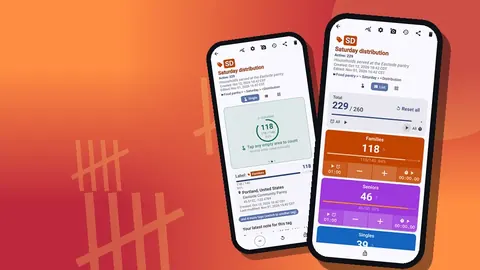
The step lives in the counter and tag settings and accepts any value from 1 to 100. You can give each tag its own step, so a weekday tag can add 3 while a Saturday tag adds 5. Whatever you choose, keep it stable for at least a reporting year. Changing units mid-year is the fastest way to make January and July incomparable.
How should volunteer hour counters be structured?
There is no single correct layout. The right one depends on what your funders and board ask about.
By program. One counter called "Volunteer hours" with a tag per program: food pantry, tutoring, coat drive, office support. This is the most common choice, because grant reports usually ask how much volunteer time went into the funded program.
By shift type. One counter per program, with tags for morning, afternoon and weekend shifts. This helps when you are trying to see which slots are understaffed, not just how many hours you received.
By volunteer group. Tags for regulars, corporate groups, students and first-timers. Useful if your organization reports on community engagement or runs a corporate volunteering partnership that wants its own figure.
For privacy and simplicity, avoid one tag per individual volunteer unless your team is very small and you have a clear policy. Counter App is a counting tool, not a volunteer database; contact details and background checks belong in whatever system your organization uses for personnel records.
Organizing with categories
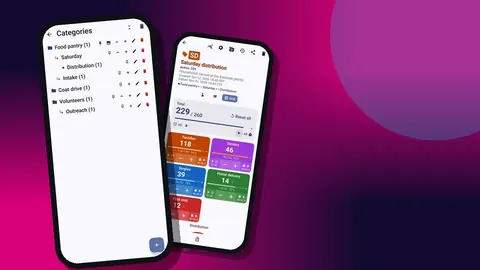
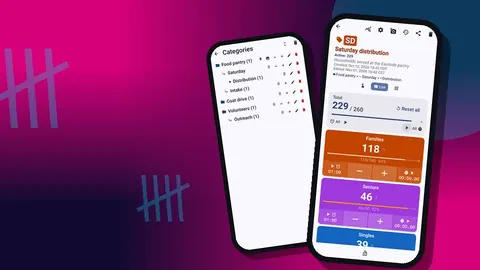
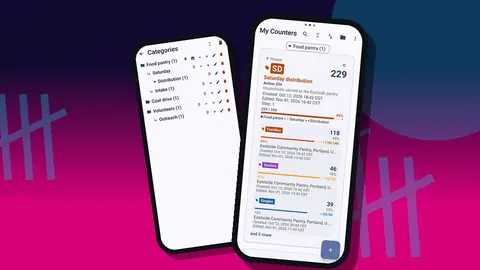
Categories go up to three levels deep, which is enough for most organizations. A layout that works well:
- Volunteers (top level)
- Hours — counters for each program's volunteer hours
- Headcount — counters for how many people showed up
- Food pantry, Coat drive — program categories holding service counts
Pin the category you use most so it sits at the top of the counter list. Categories can carry their own colors, which helps a new coordinator find the right counter quickly on a busy morning. If you retire a program, deleted categories go to a category trash, so a hasty clean-up can be undone.
Tag settings for each program
Open a tag's settings and you will find its label, color, step and target, plus optional fields for a barcode or QR code, a location and notes. For volunteer hours, three of these do real work.
Color. Give each program a color and keep it consistent everywhere: the same green for pantry on the hours counter and on the service counter. People learn colors faster than labels.
Target. If a grant commits you to, say, 400 volunteer hours on a program during the year, put 400 on that tag as a target. The progress bar shows how far along you are without anyone opening a spreadsheet. You can turn on a sound or vibration alert for when the target is reached.
Notes. A tag note is a good place for the rule itself: "1 tap = 1 hour, round to nearest hour". Anyone who picks up the phone sees it on the counting screen.
How do shift leads record volunteer hours?
The routine should take less than a minute, or it will not survive a busy season.
- At the end of each shift, the shift lead opens the program's counter.
- They tap the program tag once per volunteer-hour, or once per shift if you use a shift step.
- If something was unusual — a group of twelve students, a shift cut short by weather — they add a note to that event.
- Before leaving, they glance at the total to make sure it looks plausible.
Every tap lands in the history with an exact timestamp, the value before and after, and the tag it belongs to. If someone tapped ten times instead of one, the history shows it, and the −step button takes the extra counts back off. The correction is logged too, which is exactly what you want when an auditor asks how a number was produced.
Two small settings make the routine smoother. A count sound or vibration (there are 13 sounds and 8 vibration styles) confirms each tap without looking. And locking the counter between shifts stops pocket taps from inflating the total.
Exporting for monthly and annual reports
At month end, open the counter and choose export. You get three formats: CSV, Excel (XLSX), or an HTML report with embedded photos. You also choose which sections to include: Summary, Events, Notes and Locations.
For a monthly board update, Summary alone is usually enough: totals per tag against targets. For a grant report, add Events, which gives one row per count with its date and time. That lets you filter to the exact grant period in a spreadsheet, even if your counter has been running for longer.
A practical monthly checklist:
- Export Summary and Events to Excel.
- Save the file with the month and program in the name, in your shared drive.
- Copy the per-program totals into your running annual sheet.
- If you use reset at month end, export first, then reset.
Keeping one monthly file per counter means your annual figure is the sum of twelve files you can each defend.
Comparing programs
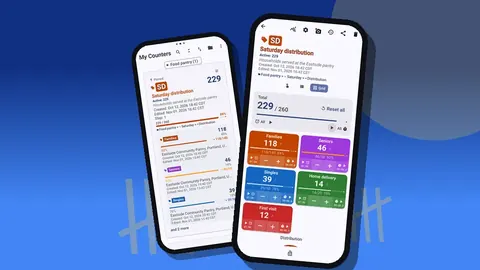
The dashboard gives a quick view without exporting anything: total against target, increments versus decrements, a seven-day activity bar chart and a pie chart by tag. For volunteer hours, the pie chart answers a question boards often ask: where does our volunteer time actually go?
The bar chart is useful for planning. If the last seven days show heavy activity on Saturday and almost nothing midweek, that is a recruitment message: you need weekday volunteers. Decrements on the dashboard also tell you how often counts are being corrected. A high number may mean the routine is confusing and needs a clearer rule.
Recognition built on real numbers
Volunteer recognition lands better when it is specific. "Thank you for all your help" is pleasant; "Our Saturday crew gave 312 hours this autumn" — an example figure, of course — is memorable. Because your counts are dated, you can pull a season's total for one shift or program and use it in a newsletter, a thank-you card or an awards evening.
If you count headcount separately from hours, you can also report how many distinct shifts were covered, which helps volunteers see that showing up regularly matters as much as long shifts.
How do you keep volunteer hour records safe?
Counter App stores the hours on the phone, with no account and no Counter App cloud. That is good for privacy, but it means a lost phone is a lost record unless you back up.
Make a backup ZIP part of the monthly routine. For the backup you decide which counters and categories go in and whether photos get compressed. Store the ZIP somewhere your organization controls. Importing it later shows a preview of what is in the file, and for counters that already exist on the phone you can replace them, add a copy, or skip them.
The same backup is how you hand the counters to a new coordinator: there is no live sync between phones, so the ZIP is the bridge. A deleted hours counter sits in the trash until restored, which covers the other common accident.
Getting the team on board
New tools fail when they feel like extra admin. Keep the rollout small:
- Start with one program for one month before expanding.
- Put the unit rule in the tag note and on a printed card at the sign-in table.
- Ask shift leads, not every volunteer, to do the counting.
- Show the team the dashboard after the first month so they see their own work reflected.
Volume-button counting is worth mentioning to leads who carry boxes all day. It is off by default; once enabled in settings, the volume keys count even in the background and on the lock screen, with remappable keys and their own sound and vibration. On some devices the system volume bar may still appear during this.
Related reading
- Counting attendance at nonprofit events
- Tracking community outreach contacts
- A program director's tracking setup
Volunteer hours are only useful when they are recorded the day they happen. A phone in the shift lead's pocket, one clear rule for what a tap means, and a monthly export are enough to get you there. Shift leads need an Android 12+ phone to run Counter App — Tally & Clicker by GiveMeMood. Get the app at counterapp.online.
Frequently asked questions
Can Counter App add more than one hour at a time?
Yes. Every counter and every tag has its own step, any whole value from 1 to 100. With a step of 4, one tap records a four-hour shift.
How do I record half hours?
Count in half-hour units instead of hours: one tap equals 30 minutes, and you divide the exported total by two in your spreadsheet.
Can I export volunteer hours for a grant report?
Yes. Export the hours counter to CSV, Excel (XLSX) or an HTML report and include Events, so the hours can be filtered to the exact grant period.
Does logging volunteer hours need internet at the site?
No. Hours can be tapped in with no signal; a connection is only for optional notifications, update checks and map tiles.
Can several coordinators share one set of numbers?
There is no live sync between phones. Each coordinator exports their counters, or sends a backup ZIP that one phone imports with a preview and replace, copy or skip handling.
Does tracking volunteer hours add a monthly fee?
Not necessarily. A coordinator can install Counter App — Tally & Clicker for free; it is free to download with no ads; try it free for 3 days, then choose a yearly or monthly plan or a one-time lifetime purchase.
Should each volunteer get their own tag in an hours counter?
Usually not. Tags per program, shift type or volunteer group keep the data simpler and more private; individual records belong in the organization's personnel system.