Counter App

Fundraiser Ticket and Admission Counter for Android
Key takeaways
A fundraiser ticket counter app records how many people actually came, by ticket type, at the door. In Counter App — Tally & Clicker, one counter per event and door holds tags for paid, VIP, comp, volunteer and walk-up admissions, a capacity target can auto-lock, and the export is reconciled against ticket sales afterwards.
- A fundraiser door count should record admissions by ticket type: paid, VIP, comp, volunteer and walk-up.
- Counter App — Tally & Clicker counts admissions but does not sell or validate tickets against a sales system.
- A capacity cap set as a target with auto-lock makes Counter App refuse further taps until the door team deliberately unlocks it.
- Timestamped admissions in the Events export show a fundraiser's arrival curve in ten-minute buckets.
At a fundraiser, the door is where money and goodwill meet. A gala guest who waits ten minutes in a cold queue arrives in a worse mood to bid. A fun run that cannot say how many runners actually started has a weaker story for its sponsor. And every treasurer eventually asks the same question: how many tickets were sold, and how many people came?
A phone counter at the door answers the second half of that question cleanly. This article explains how to count admissions by ticket type with Counter App on Android and reconcile the result with your sales records afterwards.
What to count — and what not to
Count people through the door by ticket type. That is the measure nobody else captures. Your ticketing platform or spreadsheet already knows how many were sold; what it cannot tell you is how many turned up and when.
Useful tags for a typical benefit event:
- Paid general and Paid VIP or table tickets.
- Comp — sponsors, speakers, press, performers.
- Volunteer / staff — so they do not inflate guest numbers.
- Walk-up — tickets bought at the door, if you sell them.
Do not try to replace the ticketing system with the counter. Counter App is a counting tool; it does not take payments or validate tickets against a list. You can store a QR code on a tag and scan it with the camera, but that identifies the tag, not an individual ticket.
Setting up
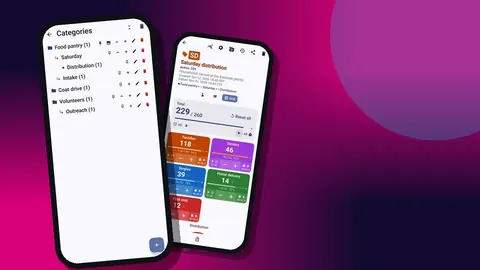
Create one counter per event and door: "Spring gala — Main entrance". Put it in a Fundraisers category, with a sub-level for the year if you run the same events annually.
Add the tags above and give each a strong, distinct color. Door volunteers change during the evening; colors survive handovers better than labels. Keep the step at 1 for individual admissions. For a table of ten arriving together, some teams add a "Table arrival" tag with step 10, which keeps the count honest without ten frantic taps.
Write the counting rule in the tag notes: "tap once per adult through the door; children under 12 not counted" or whatever your event requires.
How do you enforce a venue capacity limit at the door?
Venues often have a fire-safety limit, and some fundraisers deliberately cap numbers. Put the cap on the counter as a target. You can add a sound or vibration alert when it is reached and switch on auto-lock, so the counter refuses further taps until someone unlocks it on purpose.
That pause is the useful part. It forces the door team to stop and speak to the event lead before anyone else is admitted, instead of drifting past the limit unnoticed.
For a fun run, the same feature works for start-wave sizes: give each wave its own counter with its own cap.
At the door
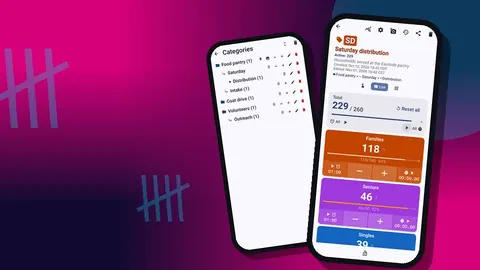
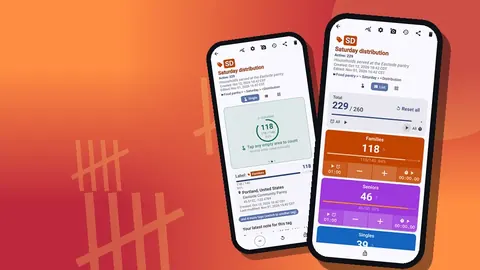
The counting screen can show tags in Single, List or Grid view. Choose by role:
- One volunteer, one ticket type — Single view, with one huge circular counter.
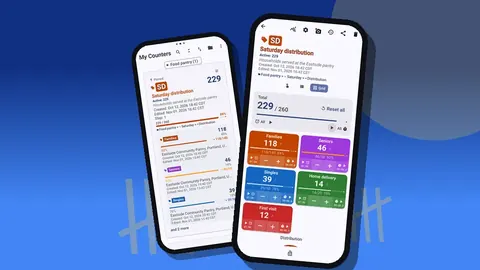
- One volunteer, every type — Grid view, a colored tile per tag.
- Lead checking totals — List view, with each tag's value and target in rows.
A simple door script: greet, check the ticket or wristband, tap the matching tag, smile. If a tap goes on the wrong tag, press − there and tap the right one. Both actions are logged.
Lock the counter during breaks. Locking blocks accidental taps from a phone in a pocket or on a table.
Hands-free counting
Door volunteers often have their hands full of wristbands, programmes and a torch. Volume-button counting lets them count without looking at the screen. It is off by default. Once enabled, the volume keys count in the background and on the lock screen through a foreground service, the keys can be remapped, and each key has its own sound and vibration.
A lock-screen notification with −step, +step and Stop buttons is available as well. Some devices still show the system volume bar when the keys are pressed, which is harmless but can surprise a volunteer the first time, so mention it in the briefing.
Notes for the things people ask about later
Somebody will ask after the event why the comp count was higher than expected, or whether the VIP queue really was that long. Notes answer these questions. Add a note to a count event when something unusual happens: "sponsor brought 4 extra guests, approved by Sam", or "scanner queue backed up 19:10–19:25".
After the event, the All Notes screen collects every note with its tag and time, with sorting. It takes five minutes to read through and gives the debrief real material.
How do you reconcile admissions with ticket sales?
Export the counter to Excel (XLSX) or CSV with the Summary and Events sections. Then, in a spreadsheet:
- Put sold tickets by type from your sales records in one column.
- Put admitted counts by type from the Summary in the next.
- Calculate the difference: no-shows, or extra walk-ups if admitted is higher.
- Check comps against the guest list kept by whoever approved them.
If your board likes a readable document, an HTML report with embedded photos — a few shots of the room filling up, for example — is often better received than a spreadsheet.
What does the arrival curve tell an event team?
The Events export has a timestamp for every admission, and so does the history on the phone. Plot arrivals in ten-minute buckets and you will see your arrival curve: when the doors were busiest and how long the peak lasted.
That curve shapes next year's plan. A sharp peak in the first twenty minutes argues for a second door lane at opening. A long, flat curve suggests guests trickle in, so a single lane is enough and the second volunteer could help elsewhere. The phone's dashboard gives a quicker summary with an activity bar chart and a pie chart by tag, which is useful for the event lead's mid-evening check.
Smaller events need less
A quiz night for 60 people does not need four tags and a capacity lock. One counter, one Admitted tag, and maybe a Walk-up tag is plenty. The routine is the same; the setup takes thirty seconds.
What still matters at small scale is exporting afterwards. Even a small event's admitted number belongs in your annual fundraising summary.
Photos
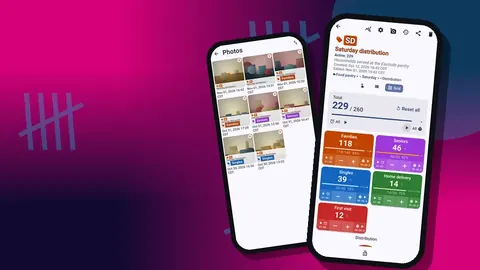
A tag has room for as many as six photos. For a fundraiser, they are useful for the sign-in table setup, the queue at peak (useful when arguing for more door staff), and any signage that confused guests. The built-in photo editor adds text and brush marks, so you can annotate a photo of a confusing sign with what it should have said.
Keeping last year's data
Do not delete last year's counter. Archive it in a dated category instead. When you plan next year's event, the counter list's search, date-range filter and six sort orders bring it back in seconds, and you can compare ticket mix and arrival times.
Make a backup ZIP after each major event. Door counts are stored on the phone, with no account and no Counter App cloud, so a lost phone without a backup means lost history. A deleted event counter can still be recovered from the trash.
Briefing the door team
A two-minute briefing before doors open prevents most problems. Hand each door volunteer the phone with the counter already open in the right view. Show them which tile or row matches which wristband color, and do one practice tap and one correction together, then reset that tag so the count starts at zero. Tell them what to do when the capacity alert sounds: stop admitting and find the event lead. Mention the lock button for breaks. Finally, ask them to add a note for anything that feels unusual, because their memory of the evening will fade by the debrief.
If the event runs long, plan the handover too. The incoming volunteer should read the current totals before taking the phone, so both people agree on the number at the moment of change.
A checklist for the morning after
- Export Summary and Events to Excel and save it in the event folder.
- Make a backup ZIP that includes the event's category.
- Read the All Notes screen and copy anything important into the debrief.
- Compare admitted versus sold by ticket type.
- Write down one change for next year while it is fresh.
Keep the checklist in the event plan template itself, so whoever runs next year's door inherits the routine along with the counters, rather than having to rediscover it from scratch.
Related reading
The door count is one of the cheapest pieces of data a fundraiser can collect and one of the most useful afterwards. Give the door volunteers a phone and a few colored buttons, and you will have it. Door teams can use Counter App — Tally & Clicker by GiveMeMood on Android 12+; it is free to download with no ads; try it free for 3 days, then choose a yearly or monthly plan or a one-time lifetime purchase. Get the app at counterapp.online.
Frequently asked questions
Does Counter App sell or validate tickets?
No. It counts admissions. You can store a QR code on a tag and scan it, but it does not check tickets against a sales system.
Can a fundraiser door volunteer count guests without looking at the screen?
Yes. With volume-button counting switched on, each press of a side key admits one guest, even from the lock screen.
Can a fundraiser door counter enforce a capacity limit?
You can set a target on a counter or tag, with an optional sound or vibration alert and auto-lock when it is reached.
What if a door volunteer taps twice?
Press the minus button on that tag. Both the extra tap and the correction appear in the history with their times.
What does a fundraiser door export contain?
A CSV, Excel (XLSX) or HTML file with whichever sections you tick: Summary for admissions per ticket type, Events for timestamped arrivals, plus Notes and Locations.
Should volunteers and staff be counted with fundraiser guests?
Count them on a separate Volunteer / staff tag. That keeps the guest numbers clean for the sponsor report while still recording everyone who came through the door.