Counter App

Food Bank Inventory Counting on an Android Phone
Key takeaways
A food bank inventory app on Android should make intake, distribution and stock counts quick enough for volunteers. With Counter App — Tally & Clicker, a pantry keeps counters for donations by source, households served and stock on hand, sets par levels as targets, and exports monthly CSV or Excel totals for network reports.
- A food bank count should start from the monthly network report: whatever the form asks for becomes a counter or a tag.
- Counter App — Tally & Clicker can track food bank intake by source in pounds, using a step of 10 for fast entry and a step of 1 for the remainder.
- Par levels in a pantry can be set as Counter App targets, counting up to par or down from it with an optional auto-lock.
- Counter App is a counting tool for food banks, not a warehouse management system; it does not manage expiry dates, lots or orders.
Small food banks and pantries run on donated time, donated space and a lot of improvisation. Inventory is often the first thing to slip: someone writes intake on a whiteboard, someone else keeps distribution in a notebook, and the monthly network report ends up as an estimate. A phone-based count does not replace a warehouse system, but for many pantries it is the step between "roughly" and "we can show you".
This article describes a practical counting setup for intake, distribution and par levels using Counter App on Android, with exports your food bank network or funders can use.
What should a food bank count first?
Look at the report you send every month before creating a single counter. Most food bank networks and funders ask for some combination of:
- Pounds or items received, often split by source (retail rescue, food drives, purchased).
- Households, individuals, seniors and children served.
- Distribution events or open days held.
- Volunteer hours.
Whatever appears on that form becomes a counter or a tag. Anything that does not appear is optional. A pantry that reports pounds received should count in pounds; converting cases to pounds at month end is error-prone.
A counter layout that works
A layout many pantries can adapt:
- Donations in (lb) — tags for each source: food drive, grocery rescue, purchased, individual drop-off.
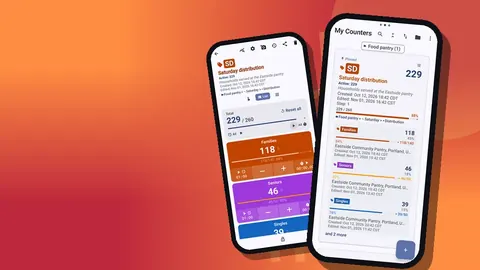
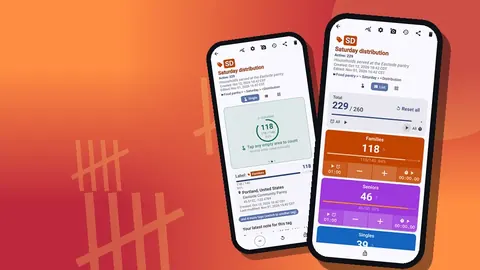
- Saturday distribution (and one for each regular distribution day) — tags for household types such as families, seniors, singles, home delivery and first visit.
- Stock on hand — tags for core categories: canned vegetables, protein, grains, baby items, hygiene.
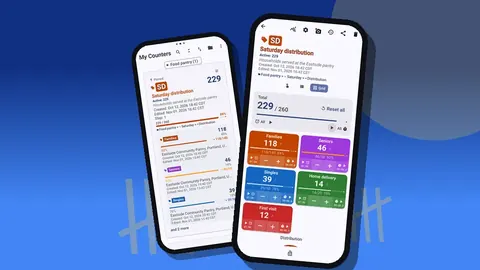
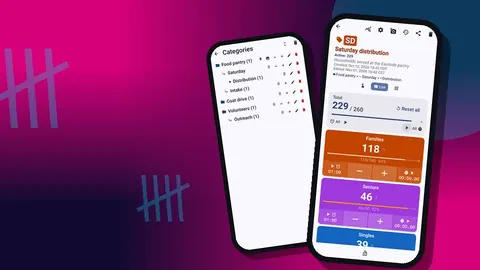
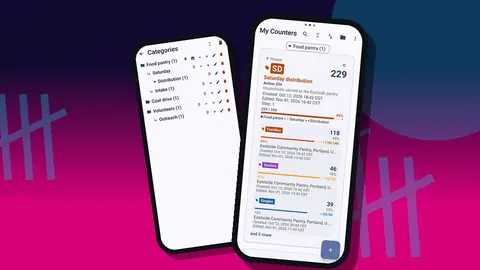
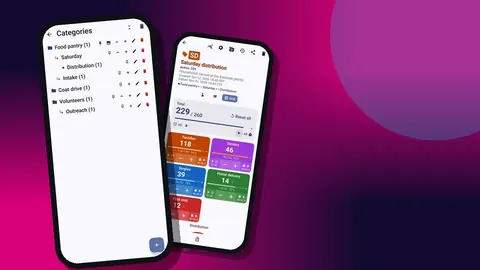
Place them in a Food pantry category and pin it so it is always at the top of the list. The counter list can switch between list and grid view, has a search box, and supports a date-range filter, which helps when you have one counter per distribution date.
Daily intake routine
Intake works best with one person and one phone at the scale.
- Weigh the delivery or the box.
- Open Donations in (lb) and tap the source tag.
- Use steps to speed things up: a tag with step 10 adds 10 lb per tap, and a second tag for the same source at step 1 handles the remainder.
- Add a note to the event for anything unusual: "frozen, moved straight to freezer 2", or a large one-off donor.
The list view is comfortable for intake, because you see every source with its total and target. Each tap is logged in the history with time, before and after values, and the tag, so if a 40 lb delivery was entered as 400, the history shows exactly where to correct it with −step.
Distribution day
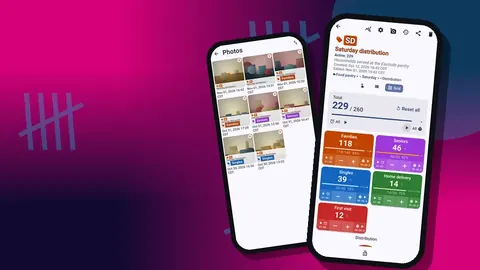
On distribution day, place a phone at the check-in or exit point. Open the day's distribution counter in grid view; each household type is a large colored tile. Volunteers tap once per household, and tap First visit additionally for new households if your network asks for that figure.
For individuals served, some pantries add tags for adults and children and tap per person. Keep the rule simple and printed on the table, because consistency matters more than detail.
If the phone is in a pocket between households, volume-button counting can be turned on in settings. It works in the background and on the lock screen, the keys can be remapped, and each key gets its own sound and vibration. The feature starts switched off, and on some phones the system volume bar still appears.
At closing, lock the counter so nobody adds stray counts while packing up.
How do you set par levels in a counter app?
A par level is the amount of a category you want on hand before the next distribution. Counter App can express this with targets. Two approaches work:
- Count up to par. The stock tag counts items as they are shelved, with the par as the target. The progress bar shows how close each category is to full.
- Count down from par. Set the tag to count down, starting from the par level. Each item given out takes one off, and the tag shows what remains before you need to restock.
You can add a sound or vibration alert when the target is reached, and the counter can auto-reset or auto-lock at that point. Auto-lock is handy for a count-down par: once a category runs out, the counter stops accepting further taps until someone deliberately unlocks it.
QR codes at sorting stations
During a large intake or a food drive sort, print a QR label for each station or shelf and store the code on the matching tag. Volunteers scan to jump to the right category instead of scrolling. If the camera struggles in a dim storeroom, the code can be typed manually.
Keep the codes short and readable, like "PROT" or "BABY", so typing them is quick. The app stores and recognises the code; it does not look anything up in a product database.
How do several pantry sites combine their counts?
A food bank with a main warehouse and satellite pantries can give each site its own phone and identical counters. There is no live sync, so combine numbers in one of two ways:
- Each site exports CSV or Excel at month end, and the coordinator adds them in a spreadsheet.
- Each site sends a backup ZIP, and the coordinator imports them onto one phone. The import preview shows what is in the file, with replace, copy or skip handling for duplicates.
After an import, the counter list's six sort orders and search make it easy to line counters up by name or date. Use the same tag names at every site so that columns match.
Exporting for network reporting
At month end, export each counter to CSV, Excel (XLSX) or an HTML report with embedded photos, picking only the sections the network form needs.
- Summary gives totals per tag — pounds per source, households per type — which map directly onto most network forms.
- Events gives a dated row per count, so you can cut the data to an exact reporting period.
- Notes helps when explaining spikes, like a holiday food drive.
Keep the monthly files together. When a funder asks how a figure was produced, you can show the file and, if needed, the event rows behind it.
Seasonal categories
Pantries often run seasonal programs alongside the regular schedule: holiday hampers, back-to-school packs, a winter coat drive, summer meals for children. Give each one its own branch in the category tree, with its own counters, rather than adding temporary tags to your regular counters.
This keeps year-round totals clean. When the season ends, unpin the category; when it comes back next year, pin it again and create fresh counters for the new dates. Categories can be reordered and colored, so a seasonal program can be visually distinct.
Back it up
Pantry counts are stored on the phone, with no account and no Counter App cloud, which suits privacy but makes the phone a single point of failure. Make a backup ZIP once a month, after exporting. You choose which counters and categories to include and whether to compress photos to save space. Store the ZIP where your organization keeps its records.
A deleted counter can be brought back from the trash, and categories have a trash of their own. That covers the most common accident: a volunteer tidying up the list a little too enthusiastically.
A monthly stocktake in under an hour
Running tallies drift over time: a damaged case is binned without a tap, a donation is shelved before it is weighed. A short monthly stocktake corrects that drift. Create a counter named for the stocktake date, with one tag per shelf section, and have two volunteers walk the storeroom together, one counting and one tapping. Grid view works well on a shelf-by-shelf walk because each section is a tile.
Compare the stocktake totals with your running Stock on hand counter. Where they differ, trust the physical count, adjust the running counter with the −step or + buttons, and add a note explaining the correction. Over a few months, the notes reveal where the drift comes from, which is usually more useful than the correction itself.
Keep each stocktake counter rather than reusing it. A row of dated stocktakes in the Food pantry category gives you a simple, honest record of what was on the shelves through the year, and the dashboard on each one shows the mix at a glance.
A useful side effect of dated stocktakes is that new volunteers learn the storeroom layout quickly, because the tags mirror the shelves they are walking past.
Related reading
- Counting items at a donation drive
- Logging volunteer hours by shift
- Tracking outreach services in the field
Good food bank numbers come from counting when food moves, not reconstructing it afterwards. A shared phone, color-coded categories and a monthly export cover most of what a small operation needs. Counter App — Tally & Clicker by GiveMeMood is an Android 12+ app that is free to download with no ads; try it free for 3 days, then choose a yearly or monthly plan or a one-time lifetime purchase. Get the app at counterapp.online.
Frequently asked questions
Can volunteers count without internet in the warehouse?
Yes. Intake and distribution counts work in a warehouse with no signal; internet serves only optional notifications, update checks and map tiles.
Can a food pantry set a minimum stock level per category?
You can set a target on any tag and count up or down toward it, with an optional sound or vibration alert when it is reached.
In what formats can a food bank export its monthly counts?
A pantry counter exports to CSV, Excel (XLSX) or an HTML report with photos, with Summary, Events, Notes and Locations as selectable sections.
Can several sites see the same numbers live?
No. There is no live sync between phones. Each site exports its own counts, or sends a backup ZIP that another phone imports.
Is Counter App a full warehouse management system?
No. It is a counting tool. It records counts, notes, photos and locations and exports them, but it does not manage expiry dates, lots or orders.
Should a food pantry count intake in cases or pounds?
Count in the unit the network report asks for. If the form wants pounds received, count pounds at the scale rather than converting cases at month end.
How often should a small food bank do a physical stocktake?
A short monthly stocktake with one tag per shelf section corrects drift in the running stock counter; keep each dated stocktake counter as a record.