Counter App

Dental Office Supply and Tray Counts on Android
Key takeaways
A dental office can count supplies on Android with Counter App — Tally & Clicker by creating one counter per operatory and one for central supply, with a tag per consumable and a separate counter for ready instrument trays. A quick morning check in Grid view and a weekly List view count feed an Excel export for ordering.
- A dental office supply counter works best with two routines, a fast morning check for items that could run out before lunch and a full weekly count.
- Counter App — Tally & Clicker can give each dental operatory its own counter, with one tag per consumable such as cotton rolls, bibs, HVE tips and prophy angles.
- Ready instrument trays can be tracked in a separate Counter App counter with one tag per tray type and a target matching the day's schedule.
- Counter App has no expiry-date field, so dental supply expiry information goes into tag notes, which the All Notes screen collects in one sortable list.
- Counter App is a counting aid and does not replace infection-control logs, sterilization records, regulatory documentation or a practice's ordering system.
A dental office runs on small things. Prophy paste, bibs, cotton rolls, saliva ejectors, impression material, sterilization pouches, and the instrument trays that have to be ready before the first patient sits down. When one of them runs out mid-morning, a chairside assistant leaves the operatory to hunt for it, and the schedule slides.
This article shows how a practice might keep those counts on an Android phone with Counter App by GiveMeMood, using two routines: a fast morning check and a slower weekly count.
Scope note: the app is a counting aid. It does not replace infection-control logs, sterilization records, regulatory documentation or your practice's ordering system. Do not store patient details in it.
How Should a Dental Office Map Where Supplies Live?
Every practice is shaped a little differently, so start by drawing yours. Mark each operatory, the sterilization area, the central supply cabinet and anywhere else stock lives, such as a lab corner or a hygiene cart.
Then decide what counts as one counting unit. In most offices it is each operatory plus the central cabinet. Large practices sometimes add the sterilization area as a separate unit because it holds pouches, indicator strips and trays at different stages.
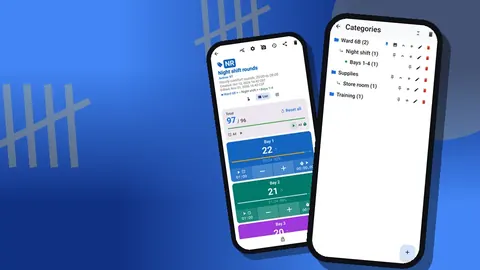
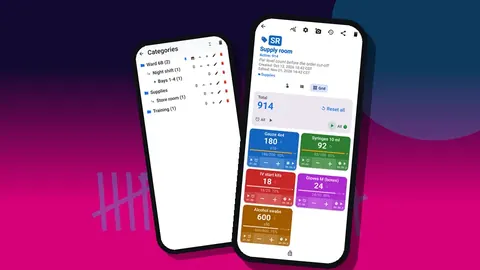
In the app, categories mirror the drawing. Three levels are available, which might look like Practice → Operatories → Op 1 or Practice → Central supply → Cabinet A. Each counter is then assigned to its category, and the counter list can be searched, filtered by date range or sorted six ways when the list grows.
Building Tags That Match Real Drawers
Inside each operatory counter, add one tag per item that actually lives in that room's drawers. Name tags the way staff speak: "Cotton rolls", "Bibs", "HVE tips", "Prophy angles". If two operatories stock different brands, the tag names can stay the same; what matters is that the counting person recognizes the drawer.
Give tags a consistent color scheme across the office. For example, single-use disposables in one color, impression materials in another, sterilization supplies in a third. A hygienist covering a colleague's room then reads the screen without needing to learn it.
Each tag also has a step. Cotton rolls come in bags or boxes, so counting by the box with a step of 1 makes sense; bibs might be counted in tens if staff estimate stacks. Any step from 1 to 100 is allowed, set per tag.
How Do You Count Ready Instrument Trays?
Instrument trays behave differently from consumables. They are not used up; they cycle through use, cleaning, sterilization and back to ready. What the morning team needs to know is simply how many ready trays of each type are available.
One approach is a dedicated counter called "Ready trays" with a tag for each tray type: exam, prophy, restorative, extraction. Set each tag's target to the number of trays the day's schedule needs. Count down as trays are opened, or count up as they come out of sterilization, whichever matches your workflow. Targets can count up or down toward a goal, with an optional sound or vibration alert when it is reached, plus optional auto-reset and auto-lock.
Auto-reset is useful here: once the day's goal is met, the counter can start fresh for the next day, so nobody has to remember to zero it.
QR Labels on Drawers and Bins
Drawer labels with a printed QR code give each tag a physical twin. Every tag can store a barcode or QR code, either scanned with the phone camera or typed manually. Typing matters more than people expect; drawer fronts get scuffed, and a short printed code under the QR keeps the label usable.
A tidy convention is the operatory number followed by a two-letter item code, for example "OP2-CR" for cotton rolls in operatory 2. It is short enough to type and unambiguous enough to scan.
The Morning Check
The morning check is not a full count. Its only purpose is to catch anything that will run out before lunch.
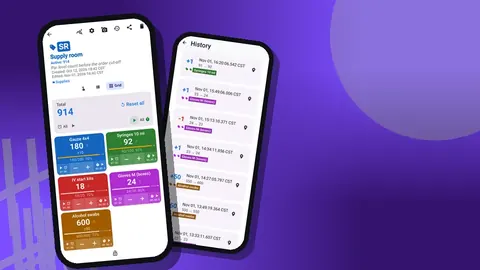
- Open each operatory counter in Grid view. Tiles show each tag with its value and target percentage, so a low item stands out by color and number.
- Look at the low tiles first, then glance at the drawers to confirm.
- Top up from central supply and adjust the value with the plus button.
- Check the "Ready trays" counter against the schedule.
Done well, this takes a few minutes per room. If someone has gloves on, volume-button counting can help; it is off by default, can be enabled in settings, and works in the background and on the lock screen via a foreground service. Some phones may still display the system volume bar.
The Weekly Count
Once a week, usually on the quietest afternoon, count everything properly. List view suits this: every tag appears as a row with minus and plus buttons, its value and its progress toward target, and the counter's total sits against its overall target at the top.
Count central supply last. That way anything moved from the central cabinet into operatories during the count is already reflected in the room totals, and the central numbers show what is truly left to draw from.
When the count is done, lock each counter. Locking prevents accidental taps until the next routine, and a single tag or a whole counter can be reset later when needed.
Notes for Expiry and Low Stock
There is no expiry-date field, so use notes. Add a short note to the tag such as "Two boxes expire end of next month — use first". Notes can also be attached to individual events in the history, which is a good place to explain unusual changes: "Removed one damaged box", "Borrowed five for Op 4".
The All Notes screen collects notes from across the app, with tag labels and times, and can be sorted. Reading it once a week is a quick way to spot items that keep being flagged.
Photos help with less familiar items. A tag can hold up to six photos, so a picture of the correct packaging or the correct reorder label saves confusion when brands change. The built-in photo editor lets you add text and brush marks in six colors, for example circling the size printed on the box.
Seeing Patterns Over a Few Weeks
After a month, the history starts to tell a story. Every count is logged with its time, step and before-and-after values, so you can see whether an operatory goes through supplies steadily or in bursts. Bursts often line up with specific clinic days, such as a weekly surgical session.
The dashboard summarizes the same data visually: total against target, increments versus decrements, a seven-day activity bar chart and a pie chart by tag. Comparing two operatories side by side often shows that one is overstocked while the other runs short, and simply moving the par fixes it.
Exporting for the Order
The Share Counter screen offers an HTML page or a data export. Exports can be CSV, Excel (XLSX) or an HTML report with embedded photos, with checkboxes for Summary, Events, Notes and Locations.
For ordering, a Summary plus Notes export in Excel is usually all the office manager needs. The HTML report is handy when a new team member needs to see what the correct products look like, since it carries the tag photos.
Handling Discontinued Items
When a product is discontinued, set its tag's target to zero and add a note naming the replacement. Create a new tag for the replacement so the counts stay separate and the change shows clearly in the next export. Once the old stock is gone, the tag can be removed.
If an entire operatory is closed for refurbishment, lock its counter instead of deleting it. If you do delete a counter, it goes to the trash and can be restored.
What Are Common Pitfalls in Dental Supply Counts?
A few mistakes show up in almost every practice that starts counting, and they are easy to avoid once you know them.
- Counting the hygiene cart twice. Carts move between rooms. Give the cart its own counter rather than adding its contents to whichever operatory it is parked in.
- Treating samples as stock. Sample toothpaste and floss from sales visits are not part of the order. Either leave them out or give them a separate tag with no target.
- Pars set by the busiest day ever. A target based on one exceptional surgical day leaves drawers overfull for the rest of the month. Base pars on a normal busy day and let notes flag the exceptions.
- Too many tags at once. If the morning check takes longer than the coffee, people stop doing it. Begin with the items that cause interruptions and add the rest gradually.
- Silent corrections. When a count is wrong, fix it with a minus or plus and a note, not by quietly editing. The history is only useful when it shows real changes.
A short laminated sheet next to central supply, listing the two routines and who does them on which day, keeps the habit alive when staff rotate or a temp covers a shift. Review that sheet whenever the schedule changes.
Where to Go Next
Start with one operatory and central supply. Run the two routines for two weeks, adjust targets, then roll the setup out to other rooms. A backup ZIP is the easiest way to copy a finished structure to a second phone; on import, a preview shows what the file holds and how any duplicate counters will be handled.
Counter App is free to download with no ads; try it free for 3 days, then choose a yearly or monthly plan or a one-time lifetime purchase. Get the app at counterapp.online.
Frequently asked questions
Can each dental operatory have its own supply count?
Yes. Create one counter per operatory and add a tag for each consumable or tray type, each with its own value, step and target.
Can ready trays and consumables be counted in the same dental supply app?
Yes. Trays and consumables can be separate tags or separate counters, and both can count up or down toward a target.
Can dental supply expiry dates be recorded?
There is no dedicated expiry field, but you can write expiry information in a tag's notes, and all notes appear together on the All Notes screen.
How does the weekly dental supply count reach whoever orders?
Export to Excel, CSV or an HTML report with the tag photos; for ordering, Summary plus Notes in Excel is usually all the office manager needs.
Does a dental supply counter need an internet connection in the office?
No. Counter App counts offline in every operatory, and it connects only for optional notifications, update checks and map tiles.
How should a hygiene cart that moves between rooms be counted?
Give the cart its own counter instead of adding its contents to whichever operatory it is parked in, so it is never counted twice.
Can a tray counter clear itself for the next clinic day?
Yes. With auto-reset on the target, the counter starts fresh once the day's goal is met, so nobody has to remember to zero it.