Counter App

Medical Equipment Inventory for Small Clinics
Key takeaways
A medical equipment inventory app such as Counter App — Tally & Clicker lets a clinic count reusable devices on Android, with one counter per room, one tag per device type and the expected quantity as each tag's target. Photos and notes document condition, and exports to Excel or an HTML report serve insurers and audits.
- A small clinic's medical equipment inventory usually tracks device types with quantities per room, plus individual asset numbers only for expensive or regulated devices.
- Counter App — Tally & Clicker structures a clinic equipment inventory as categories for site and floor, counters for rooms and tags for device types.
- A dedicated "Out of service" counter keeps room counts honest, because devices sent for repair or quarantined are counted there instead of in their rooms.
- Equipment condition in Counter App is documented with neutral, dated notes and up to six photos per tag, such as the serial plate, the whole unit and any damage.
- Counter App is a counting and documentation aid for equipment and holds no calibration, servicing or regulatory records.
Ask a small clinic how many pulse oximeters it owns and the honest answer is often "about six, I think". Equipment moves between rooms, gets taken out for repair, comes back with a different label, and occasionally stays in someone's car after a home visit. Consumables get counted every week because they run out. Equipment rarely does, so nobody notices until an insurer, an auditor or a new manager asks.
This guide sets up a practical equipment inventory on an Android phone with Counter App by GiveMeMood: what to count, how to structure it, how to document condition with photos and notes, and how to produce a clean export once a year or whenever someone asks.
Scope note: this is a counting and documentation aid. It is not a maintenance management system and holds no calibration, servicing or regulatory records. Follow your organization's equipment policy and keep formal records where it requires them.
What Should a Clinic Equipment Inventory Cover?
Before setting anything up, agree on scope. Three questions settle most of it:
- Which items count as equipment? A common line is anything reusable that is not furniture: blood pressure monitors, thermometers, otoscopes, scales, examination lamps, wheelchairs, suction units, glucometers, nebulizers.
- Do you track individual units or types? A small clinic usually tracks types with quantities ("BP monitors: 5"), plus individual serial numbers only for expensive or regulated devices.
- What questions should the inventory answer? Typical ones: how many of each type do we have, where are they, which are out of service, and what condition are they in.
Write the answers down and keep them with the export. A year from now, someone will want to know why the defibrillator trainer was or was not counted.
Structure: Counters per Area, Tags per Type
The structure that works for most clinics maps the building:
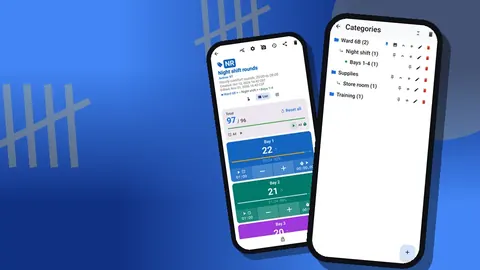
- Categories hold the site and floor or wing. Up to three levels are available: Main clinic → Ground floor → Treatment rooms, for example. Each category can take its own color, and categories can be pinned or moved up and down the list.
- Counters represent rooms or storage areas: "Exam 1", "Exam 2", "Treatment room", "Equipment store".
- Tags represent device types within that room: "BP monitor", "Thermometer", "Otoscope", "Scale".
For devices tracked individually, give the device its own tag named after its asset number, such as "Suction unit #A-114". That keeps it findable while the rest of the room stays as simple counts.
A separate counter called "Out of service" is worth adding from day one. Anything sent for repair or quarantined gets counted there instead of in its room, which keeps room counts honest.
Asset Labels and Tag Settings
A barcode or QR code can be saved on every tag. If the clinic already uses asset stickers, store that code on the tag. If not, printed QR labels are cheap and quick to make. Codes can be scanned with the phone camera or typed in, so a short readable code printed under each QR is a good habit.
Set each tag's target to the expected quantity in that room. During an audit the progress bar then shows at a glance whether the room has what it should. The step stays at 1 for most equipment, since devices are counted one by one.
Tags can also hold a location. Options are GPS, a point picked on a map, or typed text such as country, city and place. For indoor rooms typed text is usually more useful than GPS: "Main clinic, ground floor, Exam 2".
Each tag also carries a link field. Some clinics paste the link to the device's manual or the supplier's service page there.
Documenting Condition
Counts answer "how many". Condition answers "how many we can actually use". The app gives you two ways to record it.
Notes. Add short, factual notes to the tag or to an individual count event: "Cuff cracked, replacement ordered", "Battery cover missing", "Cleaned and checked, OK". Keep the tone neutral and dated, because these notes may be read by someone who was not there.
Photos. Each tag holds up to six photos. A photo of the device's serial plate, one of the whole unit and one of any visible damage cover most needs. The photo editor lets you rotate the image, draw with a brush, add text in four fonts with bold, italic, underline or strikethrough, and use six colors. Circling a crack and writing the date beside it makes the photo self-explanatory months later.
Never photograph patients or anything that identifies them. Take condition photos in an empty room or in the equipment store.
Photo Galleries for the Whole Clinic
The all-photos gallery shows every photo across counters in one grid, with tag labels and dates. It is the fastest way to scan for devices that have no photo yet, and it doubles as a visual catalog for new staff learning which monitor is which.
The All Notes screen does the same for notes, with tag labels and times, and can be sorted. Before an audit, reading it reminds you which items were flagged last time.
How Do You Run an Equipment Audit Walk?
A full audit is a walk through every counter in order.
- Open the first room in List view. Each tag appears as a row with minus and plus buttons, its value and its progress toward target; the counter's total and target sit at the top.
- Reset the room's tags, or the whole counter, if you prefer to count from zero rather than confirm existing values. Resetting one tag or a whole counter are both available.
- Count each device type. Use plus as you find each unit.
- If something is missing, leave the shortfall visible and add a note on where it might be.
- If a device is damaged, move it to "Out of service": minus in the room, plus in the out-of-service counter, with a note on both events.
- Lock the counter when the room is done so nothing changes by accident.
Doing the audit with two people helps: one counts, one holds the phone. In a quiet room, volume-button counting is another option; it is off by default, keys can be remapped, and some devices still show the system volume bar.
Reviewing the Audit
When the walk is finished, the dashboard gives a quick summary for each counter: total against target, increments versus decrements, a seven-day activity chart and a pie chart by tag. A room far below target is the first place to look for misplaced equipment.
The history screen provides the detail. Every count is logged with its time, the step and the before-and-after value, with icons where a photo, location or note is attached. If someone questions a number, the log shows exactly when it was entered.
Retired and Out-of-Service Equipment
Devices that leave for good need a clear path. For a single unit, decrement it from its room and the out-of-service counter, and write a note on the event recording why it left and where it went. Do not delete the tag at once; its history is part of the record.
If a whole room is decommissioned, export its data first, then delete its counter. Deleted counters go to the trash, where they can be restored; categories have their own trash too. It is a safety net, not a long-term archive, so the export is what you keep.
Exporting for Insurance or Compliance Files
Exports come in three formats: CSV, Excel (XLSX) and an HTML report with embedded photos. The export lets you include or leave out the Summary, Events, Notes and Locations sections.
- For an insurer's asset list, Summary plus Locations in Excel is usually what they want.
- For an internal audit file, the HTML report with photos is easier to read and shows condition directly.
- For a later comparison, keep the Events section in CSV; it holds every individual count.
Name files with the clinic, the date and "equipment audit" so they sort sensibly in a shared folder.
Multiple Sites
Clinics with more than one site can either keep all sites on one phone, each as its own top-level category, or give each site its own phone. There is no live sync between phones, so data moves by backup ZIP. You choose which counters and categories to include and whether to compress photos. On import, a preview shows what will arrive and lets you replace, copy or skip duplicates.
Copy is helpful for cloning a room template to a new site before its first audit.
How Do You Keep the Inventory Accurate Between Audits?
An annual audit is only as good as what happens in the eleven months between. A few light habits keep the counts close to reality without another full walk.
- Move it, count it. When a device moves from one room to another, decrement it in the old room and increment it in the new one, with a short note on the event. It takes seconds and prevents most audit surprises.
- Repairs go through out-of-service. Anything collected by a technician is moved to the "Out of service" counter the moment it leaves, and back when it returns. The note can carry the job reference.
- Quarterly spot checks. Pick two rooms each quarter and count them properly. Rotating through rooms means every area is checked at least twice a year in addition to the main audit.
- New equipment on arrival. Create or update the tag, add photos of the unit and its serial plate, and set the room's target before the device goes into use.
- One owner. Name one person responsible for the inventory, even if several people count. Ownership is what keeps the structure tidy.
Before the next audit, make a backup ZIP so the previous year's state is preserved exactly as it was.
Related Guides
If equipment is under control, consumables are the natural next step. Our guides on organizing a clinic supply room and on shift-by-shift nursing supply counts build on the same structure.
Counter App is free to download with no ads; try it free for 3 days, then choose a yearly or monthly plan or a one-time lifetime purchase. Get the app at counterapp.online.
Frequently asked questions
Can photos of each medical device type be attached to the inventory?
Yes. Each tag can hold up to six photos, and the photo editor can add text, brush marks, colors and rotation.
Can the inventory record which room a medical device is kept in?
Yes. A tag can store a GPS position, a point picked on a map, or a typed country, city or place, and exports can include a Locations section.
Can existing medical asset labels with barcodes be used?
Yes. Store the asset sticker's code on the tag, scanned with the camera or typed in by hand, or print new QR labels if the clinic has none.
Is an equipment counting app a maintenance or calibration management system?
No. Counter App counts and documents equipment, while service schedules, calibration records and regulatory files stay in the systems the organization requires.
What happens if a room's equipment counter is deleted by mistake?
The deleted counter moves to the trash and can be restored, but the trash is a safety net rather than an archive, so export before deleting.
How should a device that goes for repair be counted?
Tap minus in its room and plus in the "Out of service" counter, with a note on both events that can carry the job reference.
Which export suits an insurer's medical equipment asset list?
Summary plus Locations in Excel usually suits an insurer, while the HTML report with photos is easier to read for an internal audit file.