Counter App

Counting Task Frequency for Healthcare Shift Audits
Key takeaways
A count app for patient care audits tallies how often tasks happen, not vital sign values. With Counter App — Tally & Clicker, a ward team creates one counter per audit, one tag per bay or event type and a target for the expected frequency, taps as events occur, reviews the timestamped history and exports Events for trend comparison.
- Counter App — Tally & Clicker counts how often healthcare tasks happen, such as hourly rounds, hand hygiene opportunities or call-bell responses, but does not record vital sign values.
- Counter App is not a medical device, gives no clinical guidance and must never hold patient-identifiable details such as names, record numbers or bed-and-name combinations.
- A ward audit counter in Counter App can hold one tag per bay or event type, with a target equal to the expected frequency, such as twelve hourly rounds per bay on a twelve-hour shift.
- Real-time taps in Counter App leave a timestamped trail, so a shift-end history review can reveal batched rounds, long gaps or an unclear event definition.
- A short calibration session where two observers count the same period separately makes ward audit counts comparable between observers.
Quality and audit work in healthcare often comes down to a plain question: how many times did this happen? How many hourly rounds were completed, how many hand hygiene opportunities were observed on a ward in an hour, how many call-bell responses there were on a night shift. Those are frequencies, and frequencies are what a tally counter does well.
This guide shows how a ward or quality team might count task frequency during a shift with Counter App by GiveMeMood, then review and export the counts for a quality meeting.
What This Article Covers — and What It Doesn't
This article is about counting events. It is not about recording vital sign values, interpreting readings or making care decisions. The app is a counting tool, not a medical device. It does not store clinical measurements, gives no clinical guidance, and must never hold patient-identifiable details such as names, record numbers or bed-and-name combinations.
Use it for audit and staffing discussions. Keep clinical documentation in the systems your organization requires, and run any audit according to your local audit protocol and approvals.
Why Count Events in Real Time Rather Than Later?
Retrospective tallies, where someone reconstructs a count from memory or from charts at the end of a shift, are slow and tend to miss events. A tap at the moment something happens is faster and leaves a time-stamped trail that can be checked later.
The trade-off is discipline. Real-time counting works only if the phone is at hand and tapping becomes routine. For short, focused audits, such as one observer for one hour, that is easy. For whole-shift counts by busy staff, expect gaps, and design the audit so a few missed taps do not change its conclusion.
Setting Up an Audit Counter
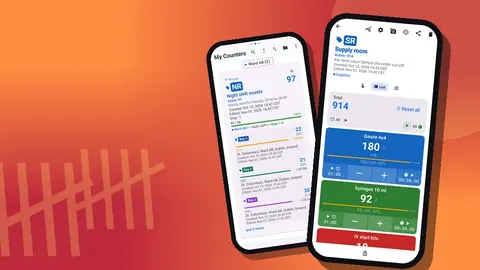
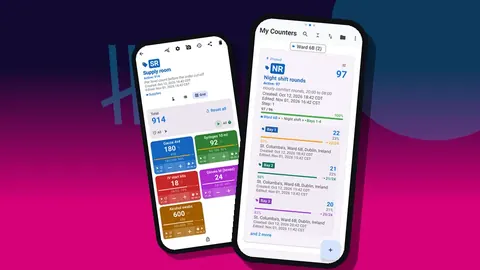
Create one counter per audit. A counter called "Hand hygiene — Ward 6B" might hold tags for each observed moment type. A counter called "Night rounds" might have one tag per bay: Bay 1, Bay 2, Bay 3, Bay 4, Side rooms. Each tag counts one kind of event in one place.
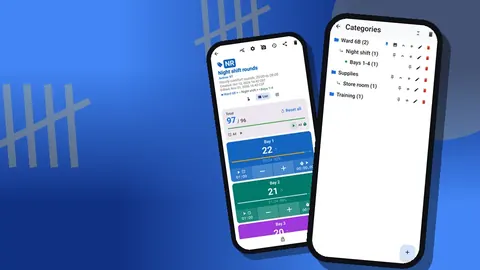
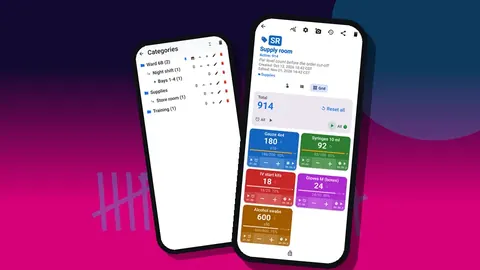
Organize counters in categories. With three nesting levels, Ward 6B → Audits → Night shift keeps related audits together. Pin the category that is active this month, so its counters sit at the top of the list.
Give each counter a code such as "HH6B", a short description stating what counts as one event, and a link to the audit protocol in the counter's link field. The definition matters more than the tool; two observers who count differently produce numbers nobody can compare.
Targets for Expected Frequency
Many audits have an expected frequency. If rounds are expected hourly in each bay across a twelve-hour shift, each bay's tag might have a target of twelve. The progress bar then shows completion against expectation as the shift goes on.
Targets can count up or down to a goal. A sound or vibration alert on reaching it is optional, as are auto-reset and auto-lock. For audits, auto-lock is useful at the end of an observation period because it stops extra taps from being added by accident.
Step is usually 1 for audits, since each event is counted once. Any value from 1 to 100 is available if your method counts in groups.
Counting During the Shift
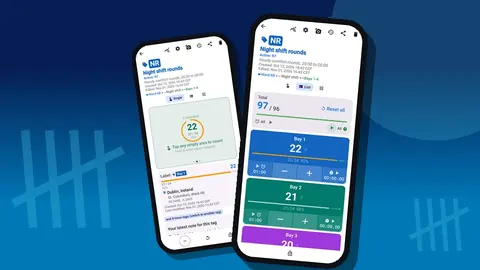
The counting screen has three tag views. Single view shows one tag as a large circular counter with its target progress, a tag card with location and the latest note, and a bar with minus, reset and lock. It suits an observer watching one type of event. List view shows all tags as rows, which suits counting across several bays. Grid view shows colored tiles.
Tags can be displayed expanded, collapsed, or collapsed except the most recent one, which keeps a long list tidy while the current tag stays visible.
For counting without looking at the screen, volume-button counting can be enabled in settings. It works in the background and on the lock screen through a foreground service, with remappable keys and per-key sound and vibration. It is off by default, and some devices still show the system volume bar. Minus, plus and Stop buttons are also available from the notification on the lock screen.
Mistakes happen; press minus to correct them. The correction appears in history, which is better than a silent fix.
Timed Observation Windows
Some audits observe for a fixed period: ten minutes at a hand hygiene station, or a one-hour window per bay. Every tag on a busy ward also carries a separate timer and stopwatch. Timer presets are 30s, 1m, 2m, 3m, 5m and 10m, with manual input for other durations. Countdown beeps, seven alarm sounds and eight alarm vibrations are available, and you can reset one timer or all of them.
A stopwatch is useful when the audit measures how long something took rather than how often it happened, such as how long a response took after a call. Start it at the trigger and stop it at the response, then note the result on the event.
Shift-End Review
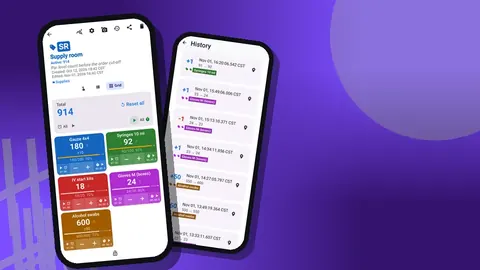
At the end of the shift or observation period, open the history. Every count is logged with its exact time, the step and the before-and-after value, plus tag labels and icons when a note, photo or location is attached.
Read it for patterns, not just totals:
- long gaps between taps may mean missed events or a genuinely quiet period;
- clusters at the start of each hour may show that rounds are being done in batches;
- frequent corrections suggest the event definition is unclear.
Write a short note on the counter summarizing the shift: staffing, unusual events, anything that affects interpretation. History has no search, so these summary notes help when reviewing later.
Context Through Notes
Numbers without context mislead. Notes can be attached to counters, tags and individual events. Keep them factual and free of patient details: "Two staff on break 02:00–02:30", "Bay 3 closed for cleaning".
Every note appears on the All Notes screen with its tag label and time, and you can sort that list. Reading it before looking at totals makes the quality conversation better informed.
Export and Trend Comparison
The dashboard gives the first view: total against target, increments versus decrements, a seven-day activity bar chart and a pie chart by tag. A week of night-round audits shows at a glance which nights fell short and which bays carried the shortfall.
You can export to CSV, Excel (XLSX) or an HTML report that embeds the photos. Choose sections: Summary for totals against targets, Events for every individual count with its time, Notes for context, and Locations if tags store one. For trend comparison across weeks, the Events section in CSV is the most flexible because each count is a row with a timestamp.
Keep one file per audit period, named by audit and dates, in the location your team uses for quality data.
Practical Audit Ideas
Frequency counting suits many audit questions:
- hourly or intentional rounding completion per bay;
- hand hygiene opportunities observed by moment type;
- call-bell activations per hour on a night shift;
- interruptions during medication rounds, counted by the observer without patient details;
- falls-prevention checks completed per shift;
- equipment cleaning completed between uses.
For each, write down what counts as one event before you start, and who counts it.
How Do You Make Audit Counts Comparable Between Observers?
When more than one person counts for the same audit, consistency becomes the main risk. Two observers watching the same corridor can easily produce different totals if they interpret events differently.
A short calibration session helps before the audit starts. Both observers watch the same period side by side, count separately on their own counters, then compare totals and discuss every difference. Rewrite the event definition in the counter's description wherever the discussion reveals ambiguity.
Agree on practical details too: where the observer stands, how long each observation window lasts, what happens if the observer is called away, and how corrections are recorded. Write those decisions into the counter notes so they travel with the data.
Each observer can use their own phone. Because there is no live sync, collect the data at the end of the cycle either by exporting from each phone or by importing one phone's backup ZIP into the other, using the preview to choose replace, copy or skip.
Inactive Audits
When an audit cycle ends, export it and then move its counters to a category such as Audits → Completed. That keeps the active list short without losing the data. Locking a finished counter protects it from accidental taps.
If an audit is no longer needed at all, deleting its counter sends it to the trash, from which it can be restored.
Should a Ward Audit Use Paper Tally Sheets or a Counter?
Paper still has advantages: it needs no charging, anyone can use it, and some infection-control settings prefer it. A phone counter adds exact timestamps, quick totals, a dashboard and clean exports. Audit counts are stored on the phone, with no account and no Counter App cloud.
Some teams run both for the first cycle, then choose.
Getting Started
Pick one short audit, define the event, set up one counter with clear tags and targets, and run it for one week. Review the history and notes, then refine the definition before scaling up.
The app is free to download with no ads; try it free for 3 days, then choose a yearly or monthly plan or a one-time lifetime purchase. Get the app at counterapp.online.
Frequently asked questions
Does a ward audit counting app record vital sign values?
No. Counter App counts how many times something happened. It is not a medical device, does not interpret readings and should not hold patient-identifiable information.
Is each audit tap time-stamped?
Yes. The history keeps the time of every tap along with its step and before and after values, and audit notes can be attached to single events.
Is there a timer for timed ward observation periods?
Yes. Every tag offers a timer and a stopwatch, with presets of 30s, 1m, 2m, 3m, 5m and 10m, countdown beeps and a choice of alarm sounds and vibrations.
Can a shift's audit counts be exported for a quality meeting?
Yes, as CSV, Excel (XLSX) or an HTML report, choosing sections such as Summary, Events and Notes.
Can a ward auditor count events without looking at the screen?
Volume-button counting, once enabled, works in the background and on the lock screen, and the lock-screen notification adds minus, plus and Stop controls for quick corrections.
What should an audit counter's description contain?
A short statement of what counts as one event, because two observers who define events differently produce numbers nobody can compare.
Can a stopwatch measure call-bell response time in an audit?
Yes. Start a tag's stopwatch at the trigger, stop it at the response, and note the result on the event.