Counter App

Tracking Medication Stockroom Supplies on Android
Key takeaways
A medication count tracking app such as Counter App — Tally & Clicker helps a clinic stockroom keep general stock levels close to what is on the shelves. Bays become categories, shelves become counters and products become tags with reorder targets, while a fixed counting round and the timestamped history reveal why counts drift.
- Counter App — Tally & Clicker can track general medication stock counts on Android by mirroring the stockroom as categories for bays, counters for shelves and tags for products and pack sizes.
- A medication stockroom tag's target can be the full-shelf quantity or, when counting down, the reorder point, with auto-lock to stop taps past it.
- The Counter App history helps explain stock drift, because a large unexplained drop, a jump matching a pack quantity and repeated small corrections point to different causes.
- Counting stock only once it is on the shelf, with a separate Receiving counter for deliveries, prevents most double counts in a medication stockroom.
- Counter App is not a controlled drug register, a dispensing record or a pharmacy management system, gives no clinical guidance and should never hold patient details.
Stockrooms that hold medicines and related supplies share one stubborn problem: the number on the record and the number on the shelf drift apart. Not dramatically, usually. A pack is moved to the wrong bay, a delivery is put away before it is booked in, an expired box is removed and nobody writes it down. Each gap is small. Together they mean the reorder happens too late or too early.
This article describes a stockroom counting routine on Android using Counter App by GiveMeMood. It is aimed at clinic stockrooms, outpatient pharmacy back rooms and similar spaces where someone has to keep general stock levels sensible.
Important scope note: this is a counting aid for general stock levels. It is not a controlled drug register, not a dispensing record and not a pharmacy management system. It gives no clinical or dosing guidance. Controlled drugs and any legally required records must follow your organization's procedures and approved systems. Never store patient details in the app.
How Should a Stockroom Be Structured in the App?
A stockroom already has a structure: bays, shelves and bins. The app should copy it, not invent a new one.
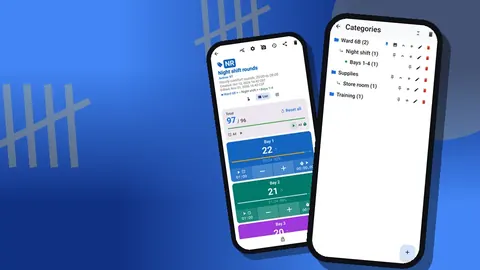
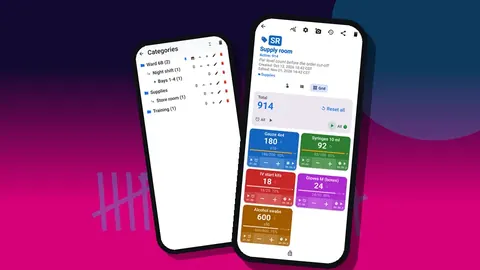
Use categories for the room and its bays. With up to three nesting levels you can model Stockroom → Bay A → Upper shelves, or simply Site → Stockroom → Bay. Give each bay a category color and pin the one you count first.
Use counters for each shelf or bin group that you count in one go. Name them after the physical label, and use the counter's code field for a short ID like "A2". Descriptions can carry a one-line reminder such as "Fridge items not on this counter".
Use tags for individual products or pack sizes. Naming is where care matters most. Write the full product name and pack size the way it appears on the box, not a nickname. If two strengths of the same product sit side by side, they need separate tags with clearly different names and different colors.
Search in the counter list helps once the list grows; it finds counters by name. Six sort orders and a date-range filter are also available, and pinned counters stay on top.
Reorder Points as Targets
Every tag has its own target. In a stockroom, the target is usually the reorder point or the full-shelf quantity, depending on which question you want the screen to answer.
- Target as full-shelf level: count up during the round; progress shows how full each shelf is.
- Target as reorder point when counting down: start from current stock and count down as packs are removed. Reaching the goal can trigger an optional sound or vibration alert, so the reorder moment is hard to miss.
Counters can also auto-lock or auto-reset on reaching the goal. Auto-lock is the safer choice in a stockroom; it stops anyone from tapping past the reorder point without noticing.
Set the step to the unit you actually count. If packs come in outer cartons of ten and you count cartons, a step of 1 per carton keeps it simple. Steps from 1 to 100 are possible, set separately per tag.
The Counting Round
A regular counting round keeps drift small. How often depends on turnover; a busy stockroom may count fast movers daily and everything else weekly.
- Start at the first bay and open its counter in List view. Every tag appears with its value, target progress and minus and plus buttons.
- Count each product and set the value. When a product's count differs from what the app shows, add a note to that event explaining the difference if you know it.
- Move bay by bay in a fixed order. A fixed route makes missing a shelf obvious.
- Lock each counter when finished.
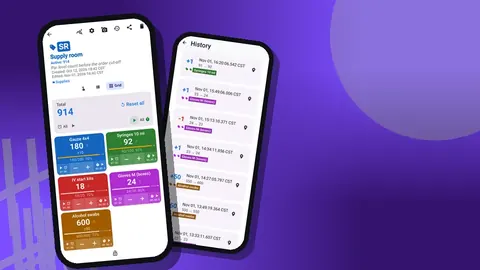
Grid view is an alternative for bays with many small products. It shows each tag as a colored tile with its value and target percentage, and some people find it faster for a visual sweep before the detailed count.
Count when the stockroom is quiet. Interruptions are the main cause of counting errors, and a counter left half-done should be noted as such.
Labels, Photos and Look-Alike Packs
Packs that look alike are a real stockroom hazard. The app can help reduce confusion during counting, though it is no substitute for proper storage practice.
- Photos: each tag holds up to six photos. A clear photo of the front of the pack and the strength panel helps the counter confirm they are looking at the right item.
- Photo editor: circle the distinguishing detail, add a text label, use one of six colors, and rotate the image upright. Text supports four fonts and bold, italic, underline or strikethrough.
- Codes: each tag can store a barcode or QR code, scanned with the camera or typed. Shelf labels with a short code are useful because they work even when the package changes.
Keep photos to the product itself. Labels with patient names must never be photographed.
Why Counts Drift, and How History Helps
Drift has a few usual causes: unrecorded removals, items put away in the wrong place, deliveries counted twice, and simple counting slips. The history screen helps tell them apart.
Every count is logged with its exact time, the step, and the value before and after, plus icons when a note, photo or location is attached. Patterns to look for:
- a single large drop with no note usually means a removal that was not explained at the time;
- a jump that matches a pack quantity often means a delivery counted on arrival and again during the round;
- small repeated corrections on the same item suggest it is stored in two places.
Fixing the cause, such as moving the item to one home, is better than correcting the number every week. There is no search inside history, so scroll by time or use exports for larger reviews.
Items Temporarily Out of Rotation
Recalls, quarantines and damaged stock need to leave the count without disappearing from the record. A practical approach:
- Create a counter called "Quarantine" with tags matching the affected products.
- When stock is removed, decrement it from the shelf counter and increment it in quarantine, with a note on both events naming the reason and reference.
- When the item is returned or destroyed according to your procedure, decrement it from quarantine with a note.
The All Notes screen lists every note with its tag label and time, and can be sorted. It becomes a quick way to review what went into quarantine and why.
Reviewing and Exporting
The manager's review usually needs two views: current levels against targets, and the changes behind them.
Exports produce CSV, Excel (XLSX) or an HTML report with embedded photos. Choose sections: Summary for levels against targets, Events for each individual change, Notes for the explanations, and Locations if tags store one. A Summary plus Notes export in Excel works for a weekly review; add Events when investigating a discrepancy.
The dashboard is a quicker first look: total versus target, increments versus decrements, a seven-day activity chart and a pie chart by tag.
Coordinating More Than One Person
When several people count, agree on who counts which counters and when. There is no live sync between phones, so two people counting the same bay on two devices will produce two different records.
Options that work:
- One shared phone kept in the stockroom, used by whoever is counting.
- Separate phones, separate counters: each person owns specific bays. A backup ZIP from one phone can then be imported into the other. The import shows a preview with counts, and duplicates can be replaced, copied or skipped.
Backups can include only selected counters or categories, with optional photo compression to keep the file small.
How Do You Count Deliveries Without Double Counting?
Deliveries are the most common source of inflated counts. A box arrives, someone adds it on the dock, someone else adds it again during the round, and the shelf appears to hold more than it does.
A simple rule removes most of the risk: stock is counted only when it is on the shelf. Deliveries waiting to be put away are not part of any shelf counter. Some stockrooms add a "Receiving" counter for that purpose, with tags for the products expected, and move each item from receiving to its shelf with a minus and a plus once it is put away.
Writing a short note with the delivery reference on the plus event links the count to the paperwork without copying the paperwork into the app. If a delivery is short or damaged, a note on the receiving tag records it for the manager.
Check expiry dates as you put stock away and place newer packs behind older ones. If you track expiry in notes, update them at this point rather than during the counting round, when attention is on quantities.
What Can This Counting Workflow Not Replace?
To repeat the boundaries clearly: this is not a controlled drug register, not a dispensing or administration record, not a replacement for pharmacy systems, and not a source of clinical information. It holds no patient data. It is a structured, time-stamped tally that helps keep general stock counts close to what is on the shelves.
Your First Week
- Pick one bay with frequent discrepancies.
- Build its counter and tags with full product names, photos and targets.
- Count it daily for a week, noting every difference you can explain.
- At the end of the week, read the history and the notes, fix the causes you found and export the result for your manager.
Counter App is free to download with no ads; try it free for 3 days, then choose a yearly or monthly plan or a one-time lifetime purchase. Get the app at counterapp.online.
Frequently asked questions
Can a stock counting app be used as a controlled drug register?
No. Counter App is a general counting tool, and controlled drugs and any legally required records must follow the organization's procedures and approved systems.
Can each stockroom product have its own reorder point?
Yes. Each tag has its own target, and counting up or down toward a goal can trigger an optional sound or vibration alert.
Is every change to a stockroom count recorded?
Yes. Each count is saved in history with its exact time, step and before and after values, and a note can be attached to any single event.
Can two stockroom staff count on two phones and merge the results?
There is no live sync. Counts move between phones with a backup ZIP, and a preview before import shows the counters and handles duplicates.
Which formats can a stockroom medication count be exported to?
Counts export to CSV, Excel (XLSX) or an HTML report with the pack photos; a weekly review usually needs Summary plus Notes, with Events added for a discrepancy.
How can look-alike medicine packs be told apart during a count?
Give each strength its own tag with a distinct name and color, and add photos of the pack front and strength panel, circling the distinguishing detail in the photo editor.
How should recalled or quarantined stock be counted?
Decrement it from the shelf counter and increment it in a "Quarantine" counter, with a note on both events naming the reason and reference.