Counter App

Rep Counting for Personal Trainers on Android
Key takeaways
A personal trainer can count a client's reps with Counter App — Tally & Clicker by enabling volume-button counting, mapping one key to plus and one to minus with distinct vibrations, and pressing once per rep while coaching. Each exercise tag holds a rep target and rest timer, and notes capture loads and form cues.
- A personal trainer rep counting app should take almost no attention during a set while still producing a clean record of reps, sets, rest, load notes and session time.
- Counter App — Tally & Clicker lets a trainer count a client's reps with the phone's volume keys, each key with its own vibration, while watching the client instead of the screen.
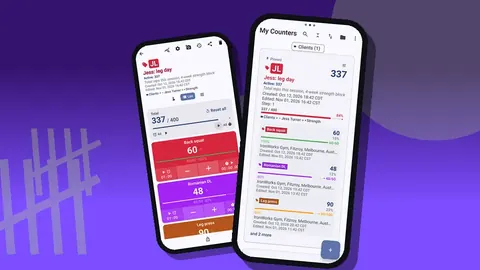
- Counter App organises clients as one category each, with a counter per session template and a tag per exercise carrying its own step, target and rest timer.
- A trainer can send a client a block summary from Counter App as a shared HTML page, an HTML report with photos, or a CSV or Excel export.
- Client data in Counter App is stored on the trainer's phone with no account and no Counter App cloud, so weekly backup ZIPs are the trainer's responsibility.
A personal trainer's attention is the product. Every second spent staring at a clipboard or a phone screen is a second not spent watching knees, hips and bar path. Yet clients expect their sessions to be tracked, and progress needs numbers. The trick is a counting setup that takes almost no attention during the set and still produces a clean record afterwards.
This guide shows how personal trainers can do that with Counter App by GiveMeMood on Android, from client structure to in-session counting to the summary a client receives.
What do personal trainers actually need to count?
Before setup, be honest about what is worth recording. For most one-to-one sessions it comes down to:
- Reps per set, or total reps per exercise against a plan.
- Sets completed, especially when a client stops early.
- Rest and work intervals, for conditioning and for keeping a session on time.
- Load and form notes, written briefly.
- Session duration, to check the hour is used well.
Things like heart rate or body composition belong in other tools. A counter app is strong at counts, timings and notes, and that covers most of what a trainer writes on a clipboard.
Setting up clients in Counter App
Use the app's structure to mirror your client list:
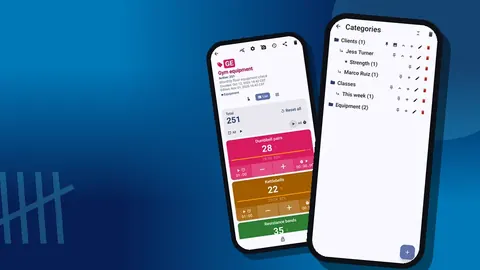
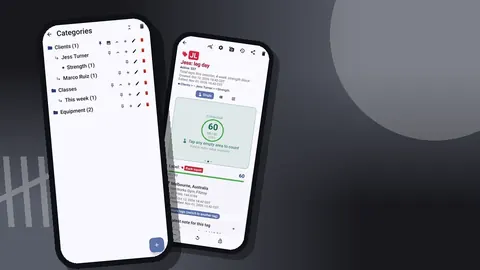
- A category per client, such as "Client: Priya". If you train in several gyms, add a level above, like "Northside gym", because categories nest up to three levels.
- Inside each client, one counter per session template: "Priya – Strength A", "Priya – Conditioning".
- In each counter, one tag per exercise, with its own color, step, target, timer and stopwatch.
Pin the clients you see this week so they sit at the top. Use the counter's initials or code field for a short identifier and its description for the client's current goal, e.g. "Hinge pattern, pain-free deadlift from the floor".
A quick way to onboard a new client is to make a backup ZIP of a template counter set and import it with copy, which duplicates the counters, then rename them. You avoid rebuilding the same twelve tags each time.
In the session
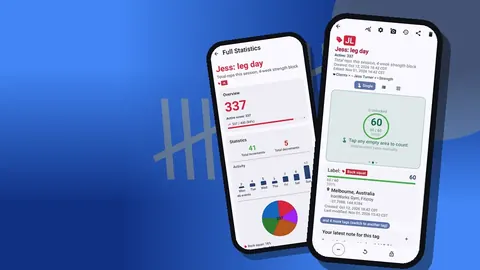
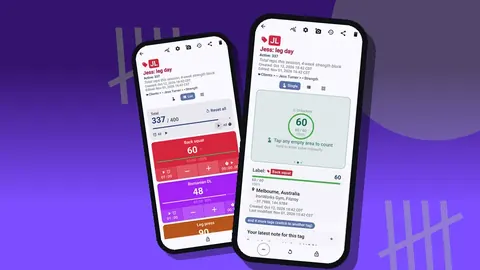
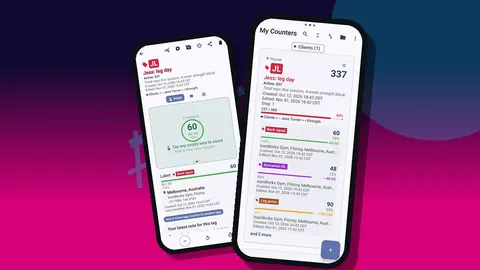
Open the client's counter in Single view. One exercise fills the screen with a large circular counter, its target progress, the tag card with location and the latest note, and a bar with minus, reset and lock. You can read it from across the rack.
The core technique is to count without looking:
- Enable volume-button counting in settings. It is off by default.
- Map one key to plus and one to minus, and give each a distinct vibration so you can feel which you pressed.
- Keep the phone in your hand or pocket and press once per rep while watching the client.
The keys work in the background and on the lock screen via a foreground service. On some devices the system volume bar still appears; it does not stop the count.
For clients who do fixed sets of ten, set the tag's step to 10 and press once per set. Any step from 1 to 100 is allowed, so odd schemes like sets of 8 or 12 are covered.
Set a target for each exercise. With a vibration on reaching it, you know the planned volume is done without counting sets in your head. Auto-lock on target stops extra taps if the phone is handed to the client.
Rest and intervals
Each tag has its own timer with presets of 30 seconds and 1, 2, 3, 5 and 10 minutes, and a manual input for anything else. That suits supersets: one tag might rest 90 seconds, another none. Countdown beeps warn before the end, with seven alarm sounds and eight vibrations to choose from.
For conditioning, the stopwatch on a tag gives elapsed time for a carry, a row or an AMRAP. Reset one timer or all of them between blocks.
After the session
Spend two minutes right after the client leaves:
- Open All Notes, which lists every note with tag labels and times, and check that loads and cues were captured.
- Add a session note on the counter: energy, sleep the client mentioned, anything painful.
- Look at the history to confirm sets and rests were logged as you remember. Each event shows step, exact time and the value before and after.
Notes are where a trainer's expertise shows. "Knees caved on rep 4, cue 'spread the floor' fixed it" is far more useful next week than "squats 5x5".
How can session data inform a client's programming?
Every few weeks, review each client:
- Open the counter's dashboard. It shows total against target, increments and decrements, a seven-day activity chart and a pie by exercise.
- Check consistency: did the client attend the sessions planned?
- Check balance: is one exercise taking a growing share of the work?
- Export Events and Notes to a spreadsheet and line up loads per exercise per week.
Use what you see to adjust targets for the next block. The app does not suggest progressions; the programming stays your job.
Group sessions and small-group training
For small groups, switch to Grid view and use one tag per person or per station. Each tile shows a value, target percentage, minus and plus buttons, a timer and a stopwatch, which is enough to run four people through a circuit.
Two setups work well:
- Tag per person in one counter per class. Tap a person's tile when they finish a round.
- Tag per station with a step of one round. Good when people rotate.
Lock the counter between rounds if the phone rests on a box where people put bottles down.
Keeping it professional
Clients like evidence that their sessions are tracked. A short, clean summary after each block builds trust:
- Use Share as HTML page on the Share Counter screen for a readable one-page summary.
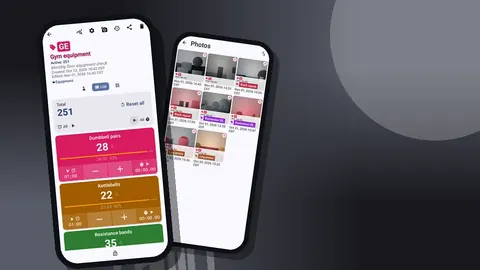
- Export an HTML report with embedded photos if you photographed setup positions or equipment settings.
- For clients who like data, send CSV or Excel with Summary and Events.
Ask clients before you photograph them, and before you share anything that includes their name. Client data is stored on your phone, with no account and no Counter App cloud, which helps with privacy, but you remain responsible for how you handle client information under the rules that apply to you.
Keep names consistent. A client called "Priya" in one export and "P. Shah" in another makes your own records harder to read.
Mobile and outdoor sessions
Plenty of training happens away from the gym floor: park sessions, home visits, a client's apartment block with a single bench. Those settings change a few habits.
- Offline is the norm. Counting, timers and notes all work without signal, so a session in a park with patchy coverage is no different from one indoors.
- Location on the tag. If you train the same client in two places, store a typed place on the relevant tags, for example "Riverside park, north lawn". Exports with the Locations section then show where sessions happened.
- Photos of the setup. A quick photo of how a suspension trainer was anchored, or which bench height worked, saves time next visit. Each tag holds up to six.
- Bright light. Switch to a high-contrast theme and a larger size preset so the numbers stay readable in sunshine.
Pack the phone as part of the kit and check the battery before leaving; a dead phone ends the record for that session.
How should a trainer back up client data?
Because there is no Counter App cloud, backups are on you:
- Make a backup ZIP weekly. You can choose which counters and categories to include and compress photos to save space.
- Keep the ZIP off the phone.
- When you move to a new phone, import the ZIP. The preview shows counts and lets you replace, copy or skip duplicates.
There is no live sync between phones. If you share a studio phone with another trainer, give each trainer their own top-level category to avoid collisions, and agree who makes the backup.
A hypothetical trainer's day
Imagine a trainer with six clients on a Tuesday. In this example, the morning starts with pinning the three clients due before lunch. During the first session, the volume keys count reps while the trainer coaches a hip hinge; the tag's timer handles 2-minute rests, and a note records "RDL 40x8, neutral spine held". Between clients, two minutes on All Notes confirms everything was captured.
At midday a small group circuit runs in Grid view with one tile per participant. In the afternoon, a client finishing a six-week block gets a shared HTML page with totals and notes. In the evening, the trainer makes a backup ZIP. None of these steps takes more than a couple of minutes, which is the point.
Practical details
- All counting works offline, so a basement gym with poor signal is fine.
- Search, a date-range filter and six sort orders help with a long client list.
- Themes, dark mode, font scale from 0.7 to 1.5 and 37 languages let you set up the screen the way you read best.
- A deleted counter for a client waits in the trash and can be restored.
- It is free to download with no ads; try it free for 3 days, then choose a yearly or monthly plan or a one-time lifetime purchase.
Get the app at counterapp.online.
Frequently asked questions
Can a trainer count a client's reps without looking at the phone?
Yes. Enable volume-button counting and each key press adds or subtracts a step, even with the screen off. Keys can be remapped with their own sound and vibration.
How does a personal trainer keep clients separate in the app?
Use one category per client, with counters per session template inside it. Categories nest up to three levels and can be pinned and reordered.
Can a trainer send a client a session summary?
Yes. Share a counter as an HTML page, or export CSV, Excel or an HTML report with embedded photos, picking whichever sections the client should see.
Is personal training client data stored online?
Counter App keeps client data on the trainer's phone, with no account and no Counter App cloud. If Android device backup is on, the system may copy app data to the phone's backup account, so a trainer should know that setting.
Can a trainer move a full client setup to a new phone?
Yes. Create a backup ZIP and import it on the new phone, where a preview shows the contents and asks how to treat counters that already exist.
How can a new client be onboarded without rebuilding every exercise tag?
Make a backup ZIP of a template counter set, import it with the copy option to duplicate the counters, then rename them for the new client.
Does a rep counting app work for outdoor park sessions?
Yes. Counting, timers and notes all work offline, and a typed place on the tags records where a session happened.