Counter App

Training with a Counter App: A 12-Week Scenario
Key takeaways
A counter app can transform training by making every session countable. In this hypothetical 12-week block with Counter App — Tally & Clicker, a lifter sets rep targets per exercise, uses per-exercise rest timers, writes loads in notes, counts with volume keys and exports Events and Notes to a spreadsheet to review progress.
- Counter App — Tally & Clicker can run a 12-week training block with one counter per session template and one tag per exercise, each with a target equal to the planned reps.
- A vibration on reaching an exercise target in Counter App turns planned training volume into a clear finish line for each session.
- Separate rest timers per exercise tag in Counter App, such as three minutes for squats and one minute for curls, help stop rest periods drifting past the plan.
- Counter App has no weight field, so a lifter records the load in notes written in one consistent format, such as load x reps.
- Counter App records what a lifter actually did but does not plan progression or suggest weights; a programme or a coach is still needed.
"Sam" is a hypothetical lifter, and this 12-week block is an illustration rather than a testimonial. No results are promised. The app features are real and described as they work.
Sam is the kind of trainee many gyms know well: several years in, decent technique, and stuck. Not because the programme is wrong, but because the programme is not what actually happens. Rest periods stretch while a message gets answered. A planned five sets becomes four when nobody is watching. Last week's weight is a guess. Sam does not want a social fitness platform with streaks and badges. Sam wants a plain, honest count.
So, for one twelve-week block, Sam tries running every session through Counter App by GiveMeMood on an Android phone. Here is how that block might unfold, two weeks at a time, with what helped and what did not.
Weeks 1–2: keeping it simple
The first evening goes into setup, and Sam keeps it small on purpose:
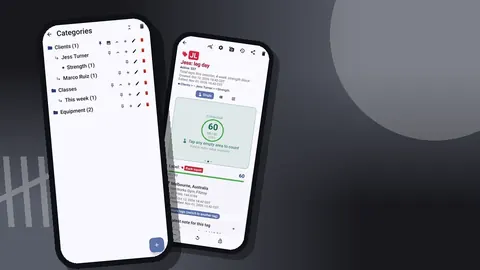
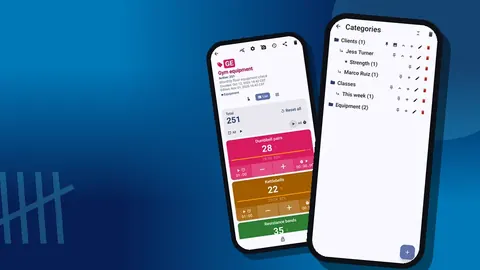
- A category called "Block 1", with two sub-categories, "Upper" and "Lower".
- Four counters, one per session template: "Upper A", "Upper B", "Lower A", "Lower B".
- Inside each counter, one tag per exercise. Presses get one color, pulls another, squats and hinges a third.
On each tag Sam sets a target equal to the planned reps for the session. Five sets of five on squats means a target of 25. Then, in the target settings, Sam turns on a vibration for reaching it.
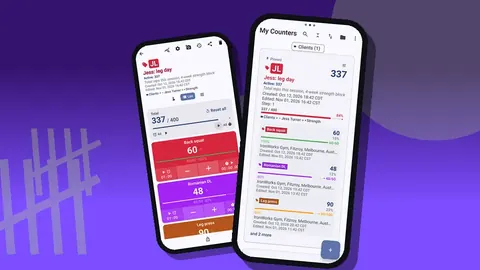
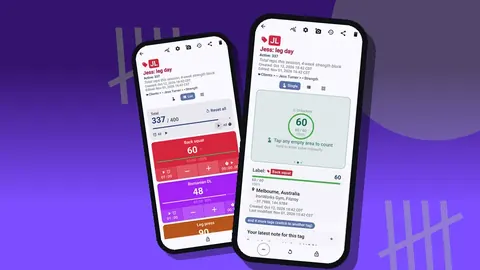
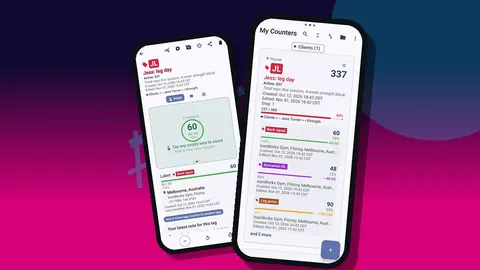
In the gym, Single view shows one exercise as a large circular counter with its progress towards the target, plus a bar with minus, reset and lock buttons. Sam taps once per rep after each set. For straight sets of ten on accessories, a step of 10 turns each set into one tap; any step from 1 to 100 works.
What Sam notices: the vibration at the target changes the decision at the end of a session. Instead of "I think that was enough", it is "the phone buzzed, the planned work is done". Sometimes Sam does one extra set anyway, but it is a choice now.
Weeks 3–4: fixing rest periods
The bigger leak turns out to be rest. Sam suspects rest between squat sets is drifting well past the plan, especially later in the session.
Each tag has its own timer. The duration sheet has presets for 30 seconds and 1, 2, 3, 5 and 10 minutes, plus manual entry. Sam sets three minutes for squats and deadlifts, two for presses, and one for curls and raises. Countdown beeps warn before the end; there are seven alarm sounds and eight vibration patterns. Sam picks a strong vibration and puts the phone face down on the bench.
A stopwatch on a separate "Session" tag measures the whole workout from warm-up to last set.
What Sam notices: when the phone vibrates, the next set starts. The urge to check messages drops because the phone is busy being a timer. Sessions start to finish at a predictable time, which makes training before work less stressful.
Weeks 5–6: notes for load
A counter does not have a weight column. Sam accepts that and moves load into notes: "80x5", "82.5x5 grindy", "85x3 stopped, lower back". Notes can be added to a count event or to the tag, and they show up with timestamps in history and on the All Notes screen, which can be sorted.
The first week of notes is inconsistent. Some say "80 kg 5 reps", some "5@80", some only "heavy". By week six Sam settles on one format, load then x then reps, and sticks to it.
What Sam notices: reading last week's notes for an exercise, right before the first warm-up set, takes ten seconds and removes the guess. The notes become the actual diary; the counts become the proof that the sets happened.
Weeks 7–8: hands-free
Tapping the screen with chalky hands is annoying, and gloves make it worse. Sam enables volume-button counting in settings. The keys can add or subtract a step, also in the background and on the lock screen, through a foreground service. Sam maps volume up to plus and volume down to minus, with a short vibration on each press. On Sam's phone, the system volume bar still flashes now and then, which the app notes can happen on some devices.
With the phone in a pocket, Sam presses the key once per rep during a set of curls or once per set for heavy work. A lock-screen notification with minus, plus and stop buttons is another option between sets.
What Sam notices: the screen stays cleaner, the phone stays in the pocket, and there are fewer mis-taps. The number of decrements on the dashboard drops.
Weeks 9–10: looking at the data
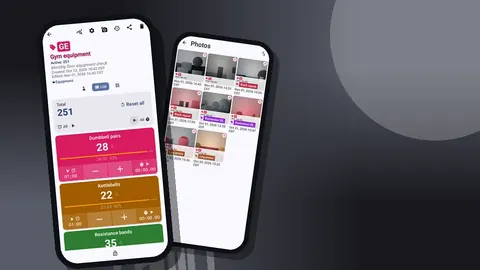
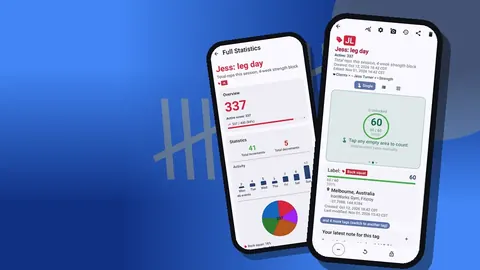
Halfway through, Sam opens the dashboard for each counter. It shows total against target, increments against decrements, a seven-day activity bar chart, a pie chart by tag, and the photos and notes attached.
Three things stand out in this hypothetical block:
- One "Upper B" session has a gap in the weekly bars. Sam skipped it during a busy week and had forgotten.
- On "Lower A", the pie shows accessory work taking a growing share of the session while deadlift volume stays flat.
- Decrements are close to zero since the switch to volume keys.
None of this needs analysis software. It needs the session to have been counted at all.
A typical session, start to finish
By week ten a session looks like this:
- Open "Lower A" and check the notes from last week's squats.
- Warm up without counting.
- First working set: press the volume key once per rep. The tag shows 5 of 25.
- Start the squat timer; the phone goes face down.
- Vibration, next set. Repeat until the target buzz.
- Add one note with the load and anything unusual.
- Move to the next tag and repeat with its own timer.
- At the end, stop the session stopwatch and lock the counter.
Afterwards the history for the counter reads like a log of the session: each step with an exact timestamp, the value before and after, the tag label, and an icon where a note was added. Sam can see, for instance, that the gap between the third and fourth sets of squats was longer than planned, and that the note says why.
Weeks 11–12: export and reflect
At the end of the block Sam exports all four counters. The export options include CSV, Excel (XLSX) and an HTML report with embedded photos, and Sam chooses which sections to include: Summary, Events, Notes, Locations. For training, Events and Notes are what matter.
In a spreadsheet, Sam filters by exercise and week, and lines up the loads written in notes. A simple chart of top-set load per week shows progress on presses and squats, and flat deadlifts. That makes the next block's focus obvious.
Sam also makes a backup ZIP of the whole category. The training data is stored on the phone, with no account and no Counter App cloud, so the ZIP is the safety copy.
Which habit mattered most?
Looking back, the single most useful habit is not any one feature. It is opening the right counter before the first set, every time. Once the counter is open, counting, timing and noting follow naturally. On the days Sam forgets to open it until halfway through, the session data is patchy and the notes are thin.
A practical trick: pin the "Block 1" category so it appears first on the counter list, and sort counters so the next session is at the top. The list supports six sort orders and pinned counters, so the right session is one tap away.
What worked
- Targets with a vibration turned planned volume into a clear finish line.
- Per-exercise timers fixed rest drift without any willpower.
- Notes in one format replaced a separate paper diary.
- Volume keys removed most of the screen fiddling.
- Exports made a twelve-week review possible in an evening.
What didn't work?
- No load field. Notes work, but they are text. Analysing loads means cleaning text in a spreadsheet.
- No programme logic. The app does not plan progression or suggest weights. Sam still needs a programme.
- No search in history. Finding one particular session means scrolling by date. Clear counter names help.
- Setup takes discipline. New exercises need new tags, and a messy tag list makes exports messy too.
These are not flaws so much as the edges of a counting tool. Anyone expecting a coach in an app will be disappointed.
Should you try it?
If your problem is that you do not know what you actually did in the gym, a counter is a good fit. It is fast, works offline, and stores the log on your phone without an account. If your problem is that you do not know what to do in the gym, start with a programme or a coach, then use the counter to make sure you follow it.
Try it for one block. Set up four counters, put targets on everything, use the timers, write loads in one format, and export at the end. Twelve weeks is long enough to see whether the habit sticks for you.
Counter App — Tally & Clicker runs on Android 12 or later and is free to download with no ads; try it free for 3 days, then choose a yearly or monthly plan or a one-time lifetime purchase.
Get the app at counterapp.online.
Frequently asked questions
Is Sam, the lifter in this training story, a real person?
No. Sam is a hypothetical lifter used to illustrate a workflow. The app features described are real; the training outcomes are an example, not a promise.
Can a counter app store the weight on the bar?
Counter App has no dedicated weight field. Write the load in a note on the set or the tag; notes are timestamped and can be exported.
Can reps be counted with the phone in a gym shorts pocket?
Yes, if volume-button counting is enabled. The keys add or subtract a step in the background and on the lock screen, and the feature ships switched off.
Can the phone signal when the planned training volume is finished?
Yes. Set a target on the tag and enable a sound or vibration for reaching it. Auto-lock and auto-reset are optional.
Can a whole 12-week training block be analysed in a spreadsheet?
Yes. Export to CSV or Excel with the Events and Notes sections, or create an HTML report for a quick read.
Does Counter App plan progression or suggest weights?
No. Counter App counts reps, sets and time and stores notes, but choosing loads and progression comes from a programme or a coach.
How can the next training session be one tap away?
Pin the block's category so it appears first in the counter list and sort the counters so the next session sits at the top.