Counter App

How Gym Owners Can Track Equipment on a Phone
Key takeaways
A gym owner can track equipment with Counter App — Tally & Clicker by giving each machine a tag with an asset-code QR sticker, condition photos and fault notes, and by counting accessories monthly against owned quantities. Quarterly reviews of fault notes and an HTML export with photos support replacement decisions and insurance renewals.
- A gym equipment register should hold each item's identity, location, quantity, condition photos, fault and service history, and supplier or warranty notes.
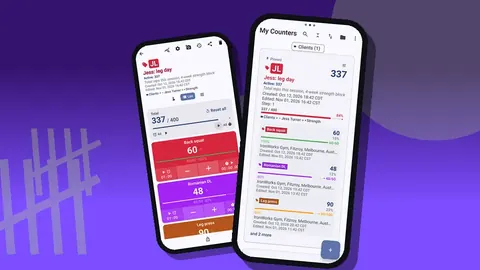
- Counter App — Tally & Clicker models a gym as categories for floors and zones, counters for equipment groups and tags for individual machines or accessory types.
- A QR sticker with an asset code on each gym machine, stored in the matching tag, lets staff jump straight to the right machine when a member reports a fault.
- Monthly accessory counts in Counter App compare each item type with its owned quantity as a target, so a tile below 100 % shows missing or broken kit.
- Counter App exports a gym equipment register as an HTML report with embedded photos for insurers or buyers, or as CSV and Excel for an asset list.
Ask a gym owner how many kettlebells they own and you will often get a pause. Ask which treadmill had its belt replaced last spring and the pause gets longer. Equipment is the biggest capital item in a gym, yet many small operators keep track of it in someone's head, a stray spreadsheet and a box of invoices.
This article shows how to build a practical equipment register and fault log on an Android phone with Counter App by GiveMeMood. It is written for independent gyms, studios and community fitness spaces that want something lighter than enterprise maintenance software.
What should a gym equipment register hold?
Before any app, decide what you need to know about each item:
- Identity: name, make or model as written on the frame, and your own asset code.
- Location: which floor, room or zone.
- Quantity: one for a machine, many for dumbbells or mats.
- Condition: a recent photo and the date it was taken.
- History: faults, repairs, cleaning checks and services, each with a date.
- Notes: supplier, warranty end, service contact.
If a field does not help you make a decision or answer an insurer, leave it out. A lean register that is kept up beats a perfect one abandoned in month two.
Structure in Counter App
Map the gym into the app's structure:
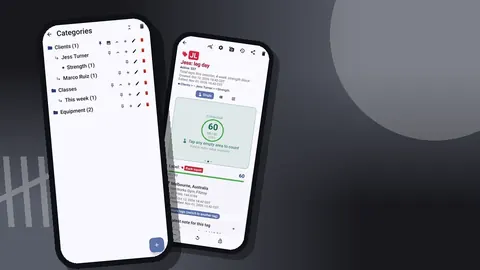
- Categories model the building, up to three levels deep: Gym → Ground floor → Cardio zone.
- Counters are equipment groups within a zone: "Treadmills", "Racks and benches", "Accessories".
- Tags inside a counter are individual items or item types: "Treadmill T1", "Treadmill T2", "Squat rack R1", "Kettlebell 12 kg".
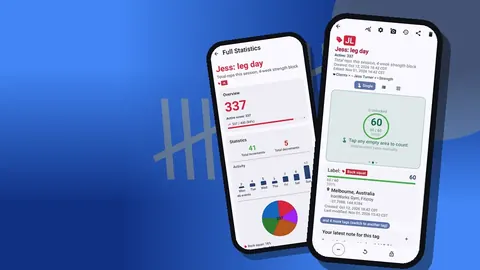
Each tag has a colored label, its own value, step and target, a barcode or QR field, a location field, notes, photos, a timer and a stopwatch. Use the counter code field for short zone codes like CZ or FW so the cards are easy to tell apart.
QR stickers on machines
Give every machine a small sticker with an asset code, for example "GF-CZ-T1". Store the same code in the tag's barcode/QR field. When a member reports a fault on "the second treadmill", staff scan the sticker or type the printed code and land on the exact tag, not a guess.
Tips for stickers:
- Place them where they will not wear off under hands, such as the side of the console or the base of a frame.
- Print the code in text below the symbol.
- Keep a master list so a damaged sticker can be re-printed quickly.
For extra context, the tag's location field accepts GPS, a point on a map, or a typed place. Inside one building, a typed place like "Ground floor, by the window" is usually clearer than coordinates.
Logging condition and faults
Condition evidence is mostly photos. Each tag holds up to six. A good set per machine:
- Whole machine from the front.
- Serial or model plate.
- Any existing wear: torn upholstery, scratched frame.
- The most recent fault, if any.
The photo editor lets you draw with a brush, add text, choose from six colors and four fonts, set bold, italic, underline or strikethrough, and rotate. Circle the fray on a cable and write "fray 2 cm, 2026-11-04" next to it. That annotated photo is worth more than a paragraph of description.
To log a fault, add a note to the tag describing it and the action taken: "Belt slipping at speed 12. Out of order sign on. Technician called." If you also want a count of faults, use the tag's value: tap plus once per fault so the number shows how often that machine has needed attention.
The photo record
The all-photos gallery shows every photo in the app with its tag label and date. It is the quickest way to answer "when did that seat first crack?" without opening each machine. Reviewing it quarterly also reveals machines with no recent photo, which you can then update.
Counting small equipment
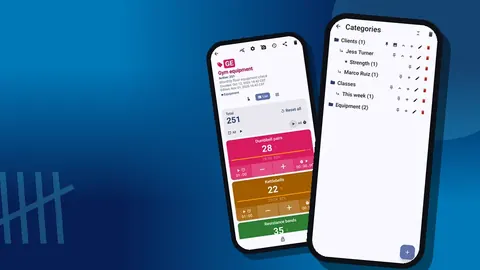
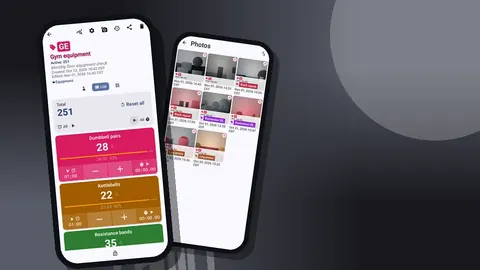
Accessories are where losses happen. Set up one counter per accessory area with tags such as "Dumbbell pairs", "Kettlebells", "Resistance bands", "Yoga mats", "Towels". Set each tag's target to the quantity you should own.
Once a month:
- Reset the counter.
- Walk the area and count each type, tapping the tiles in Grid view.
- Compare each tile's percentage with 100 %.
- Write a note on any shortfall with your best guess at the cause.
A tile showing 85 % for resistance bands means some are missing or broken. A step larger than 1 helps for big stacks, for instance step 5 when mats are stored in bundles of five. You can set the step anywhere between 1 and 100.
Timers for cleaning and checks
Every tag has a timer with presets of 30 seconds and 1, 2, 3, 5 and 10 minutes, plus manual input. Two practical uses for an owner:
- Disinfectant contact time. Many products need to stay wet on a surface for a set time to work. Follow the label, and let staff start the tag's timer after spraying a bench or mat so it is not wiped early.
- Daily walk-through. Set a stopwatch on a "Daily check" tag to see how long the morning safety walk actually takes, which helps when planning opening shifts.
Countdown beeps warn before the end, and you can pick from seven alarm sounds and eight vibrations.
Member-reported faults
Make it easy for staff to record a member's report the moment they hear it:
- Find the machine's tag by scanning or by the counter list search.
- Tap plus on the tag to log the report.
- Add a note with what the member said and what the staff member did.
The history screen records every event with exact time, step, value before and after and the tag label, plus icons when there is a note or location. It cannot be searched, so keep tag names specific and scroll by date. For a weekly review, read the history of the busiest zones.
How do fault notes help plan equipment replacements?
Replacement decisions are easier with evidence. At the end of each quarter, open the All Notes screen, which lists every note with its tag label and time and can be sorted. Read the fault notes together and look for:
- Machines with repeated faults of the same kind.
- Machines out of order for long stretches.
- Accessories that keep going missing.
Export the counters with the Events and Notes sections to a spreadsheet and count faults per machine per quarter. That gives you a ranked list to discuss with your supplier, and a defensible reason for which item to replace first.
Handover and insurance
Insurers, landlords, buyers and new managers all ask the same thing: what equipment do you have and what state is it in? An export answers that.
- HTML report with embedded photos: readable by anyone, good for an insurer or a sale.
- CSV or Excel: for your accountant's asset list or a depreciation schedule.
The Share Counter screen offers Share as HTML page and Export data. For each export you choose the sections: Summary, Events, Notes and Locations. An equipment register usually needs Summary, Notes and Locations; add Events if you want the full fault trail.
Check with your insurer what evidence they want. This guide cannot tell you what a policy requires.
How do you set up an equipment register in one afternoon?
A realistic first session:
- Draw the floor plan into categories.
- Create one counter per equipment group.
- Walk the floor once and add a tag per machine with one photo each.
- Add accessory counters with targets.
- Print and stick the QR labels the following week.
Do not wait to photograph everything perfectly. One photo per machine on day one is already a baseline you did not have before.
Protecting the register
The register is stored on the phone, with no account and no Counter App cloud. That keeps it simple but puts backups on you:
- Make a backup ZIP monthly. You can choose which counters and categories to include and optionally compress photos.
- Store the ZIP somewhere other than the phone.
- Restoring on a new phone shows a preview and lets you replace, copy or skip duplicates.
- Lock key counters against accidental taps, and remember deleted counters sit in trash and can be restored.
There is no live sync between phones, so pick one phone as the master register.
A hypothetical owner
Picture an owner of a single-site gym with thirty machines and a busy accessory floor. In this illustration, she registers each machine with one photo, sticks QR labels the next week and starts counting accessories monthly. By the third quarter, the notes show that one cable machine has the same pulley fault noted again and again, while the resistance band count keeps falling short. She replaces the cable machine first, moves bands to a locked cabinet after closing time, and attaches the HTML report to her insurance renewal. The details are invented, but each step uses only what the app records.
Practical details
- Counting on the gym floor works offline; internet serves only optional notifications, update checks and map tiles.
- Six theme skins, light and dark modes and adjustable font size suit different staff.
- The in-app user guide covers each feature.
- It is free to download with no ads; try it free for 3 days, then choose a yearly or monthly plan or a one-time lifetime purchase.
Get the app at counterapp.online.
Frequently asked questions
Is a counter app a full gym maintenance management system?
No. Counter App is a counting app with tags, notes, photos and timers. Many small gyms find that enough for a register and fault log, while larger operations may need dedicated software.
Can photos of damaged gym equipment be attached to a machine?
Yes. Each tag holds up to six photos, and the built-in editor adds brush marks and text in six colors to point at the fault.
Can QR stickers on gym machines link to their records?
Yes. A tag can store a barcode or QR value, scanned with the camera or typed, so each machine sticker points to its tag.
What equipment record can a gym owner give an insurer or a buyer?
An HTML report with embedded photos, or a CSV or Excel file, including the Summary, Notes and Locations sections and Events when the full fault trail is needed.
Where is the gym equipment register stored?
The register is stored on the phone, with no account and no Counter App cloud. A backup ZIP keeps a copy elsewhere or moves the register to a new phone.
Can a disinfectant contact time be timed for each bench?
Yes. Staff can start a tag's timer after spraying, following the product label's contact time, so a surface is not wiped too early.
How can repeated faults on one gym machine be counted?
Tap plus on the machine's tag once per fault report and add a note, so the tag value shows how often the machine needed attention.