Counter App

Class Attendance Counting for Fitness Studios
Key takeaways
A fitness studio can count class attendance with Counter App — Tally & Clicker by creating one counter per week and one tag per class, with capacity set as each tag's target. Staff tap once per person at the door, and monthly exports give average attendance and fill rate per class slot for schedule decisions.
- A fitness studio class attendance counter records who actually walked in, which complements a booking system that records who intended to come.
- Counter App — Tally & Clicker can track studio attendance with one counter per week and one tag per class, each tag carrying the room capacity as its target.
- Auto-lock on a capacity target in Counter App stops a stray tap from pushing a full class past its cap, with an optional sound or vibration alert.
- Timestamps in the Counter App history show when members actually arrive, for example revealing that an early class effectively starts several minutes late.
- Monthly exports of weekly attendance counters to CSV or Excel let a studio owner compute a fill rate per class slot and spot classes to review.
Bookings tell you who intended to come. A headcount tells you who came. For a studio deciding whether the 6 a.m. spin class earns its instructor fee, or whether Saturday yoga needs a second room, the second number is the one that matters.
This guide explains how to count class attendance with Counter App by GiveMeMood on an Android phone at the front desk or in the instructor's pocket, and how to turn a few weeks of taps into schedule decisions. It sits alongside your booking software rather than replacing it.
What should class attendance counts tell you?
Write down the questions before the setup, because the structure follows from them. Typical ones:
- Which classes are consistently near capacity, and which are consistently thin?
- Do certain instructors draw bigger groups in the same slot?
- How many people turn up without a booking?
- Is the drop-off after the January rush real, and when does it start?
If the only question is "how many people per class", one tag per class is enough. If you also care about walk-ins or no-shows, you need extra tags, and you should decide that now rather than change mid-month.
Setting up the counts
Counter App has three building blocks: categories, counters and tags.
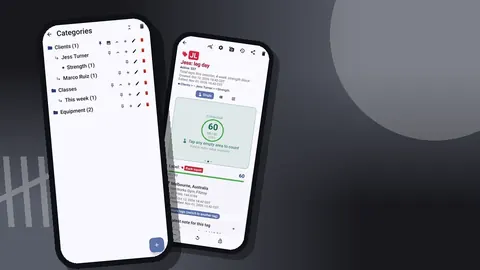
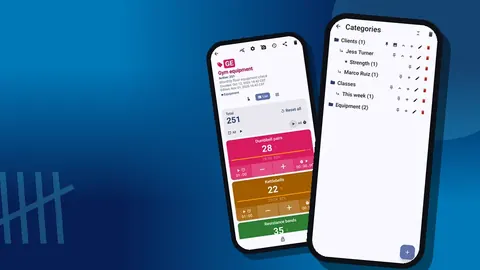
- Categories can nest three levels deep. A studio might use Studio → Room → Programme, for example "Main studio → Room 1 → Cycle".
- Counters hold the counts. A practical choice is one counter per week, named "Week 2026-11-02", so each counter is a neat reporting unit.
- Tags inside the counter are the classes: "Mon 06:00 Cycle", "Mon 18:30 HIIT", "Tue 09:30 Pilates" and so on.
Give each programme a color and use it on every tag of that type. Cycle is always one color, yoga another. After a week, anyone glancing at the screen can tell the programmes apart.
An alternative is one counter per class with tags such as "Booked", "Walk-in" and "No-show". That gives richer data per class but many more counters. Pick the model that matches your questions and keep it.
How do you set class capacity as a target?
Every tag can have a target, and a counter can count up or down towards a goal. Set the target to the room's capacity for that class: 20 bikes, 14 reformers, 30 mats.
In the counter's target settings you can enable a sound or vibration when the target is reached, and choose auto-lock so further taps are blocked. Auto-lock is handy at the door: once the room is full, a stray tap cannot push the count to 21. Auto-reset exists too, but for attendance you usually want the final number kept, so leave it off.
Counting down works if staff prefer to see "places left". Set the start at capacity and count down to zero. Whichever direction you choose, use it for every class so reports are comparable.
Counting at the door
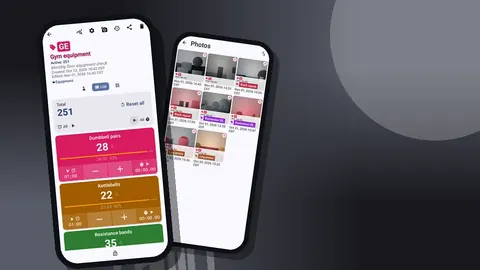
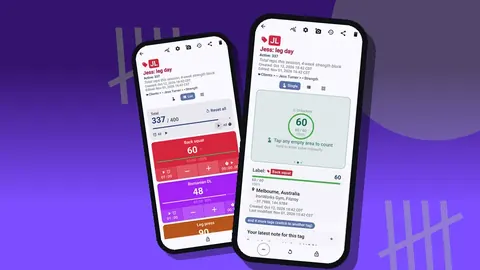
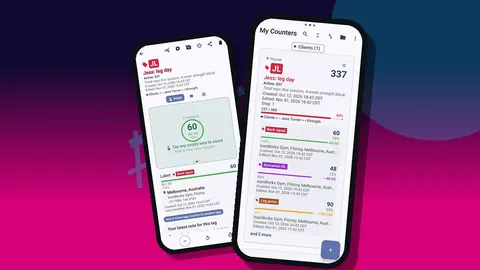
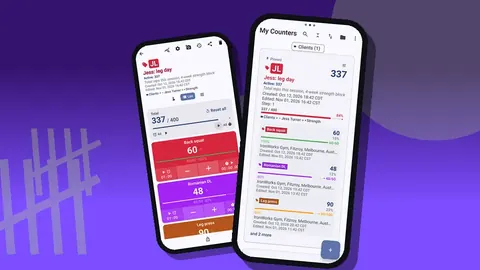
Open the week's counter in List view. Each class appears as a row with its value, minus and plus buttons and a progress bar towards capacity. The total at the top shows the week's attendance against the sum of capacities, which is a rough utilisation figure.
At class start:
- Find the class row.
- Tap plus once per person through the door.
- Tap minus if you double-counted. The correction is logged as its own event.
- Add a note if something unusual happened: "Instructor cover: Sam", "Heating off, 10 left early".
If you count while greeting people, the volume keys help. With volume-button counting enabled, a key press adds a step even with the screen locked, via a foreground service. You can remap keys and set per-key sound and vibration. It is off by default, and some phones still show the system volume bar.
Busy changeovers
When one class ends as another begins, switch to Grid view. Each class becomes a colored tile with its value, target percentage and its own minus and plus buttons. Big tiles are harder to miss when people are queueing in both directions.
Tag display can be collapsed except for the most recent, which keeps the class you just counted in focus while the rest of the week stays tidy.
Reading the data
The history screen logs every tap with its exact timestamp, step, value before and after and the tag label. For attendance that shows when people actually arrive. If most taps for a 07:00 class land between 07:03 and 07:08, the class effectively starts late, and you may want a firmer door policy or a later slot.
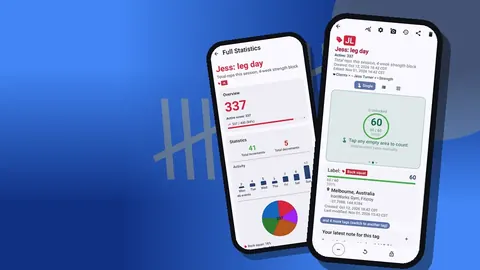
The dashboard gives an overview of each counter: total against target, increments against decrements, a seven-day activity chart and a pie chart by tag. For a weekly counter, the bar chart shows the busiest days and the pie shows which classes carry the week.
Monthly review
Once a month, filter the counter list by date range so only that month's weekly counters show. Search finds a specific week, and the six sort orders help you line counters up the way you think about them.
A short review routine:
- Open each weekly counter's dashboard and note the top and bottom three classes.
- Export the month's counters to a spreadsheet.
- Compute average attendance per class slot across the weeks.
- Compare with capacity to get a fill rate per slot.
- Mark any slot below the threshold you set for a review.
The threshold is a business decision. Some studios review a class when it runs below half full for a month; others tolerate thin early classes because they retain loyal members. The data informs the call, it does not make it.
When does attendance data justify a schedule change?
Patterns that tend to justify a change:
- Persistently full classes with notes about people turned away. Add a second session or a larger room.
- Two thin classes in neighbouring slots. Merge them and give the instructor a different slot.
- A strong class on one day and a weak copy on another. Check whether the instructor or the time is the difference before cutting it.
- Walk-ins rising. Booking may be too fiddly, or your regulars stopped bothering because the class is never full.
Change one thing at a time and keep counting. A month of data after the change tells you whether it worked.
Instructors as counters
If instructor performance is the question, add a sub-category per instructor and give each a counter per month, with one tag per class they teach. Alternatively keep classes as the primary structure and write the instructor in a note on the first count of each class.
Be careful with conclusions. A smaller class may reflect the slot, the programme or the weather. Use attendance as one input alongside member feedback, and share the figures with instructors rather than surprising them.
Special classes and events
Workshops, open days and charity rides are worth their own counter. Use tags for the categories you care about, such as "Members", "Guests", "Trial passes". Attach up to six photos to a tag, for example of the sign-in sheet or the setup, and add notes for weather or competing local events.
Afterwards, export an HTML report with embedded photos. It makes a tidy record of the event for the owner or partners.
A hypothetical studio
Imagine a two-room studio running twenty-four classes a week. The front desk creates one counter per week and one tag per class, with capacity targets and auto-lock on. After eight weeks they export everything to a spreadsheet.
In this example, the spreadsheet shows that the Tuesday 06:00 cycle class averages well under half its bikes while the Thursday 06:00 cycle is close to full with the same instructor. The notes on Tuesday mention road works near the studio. Rather than cut the class, the owner keeps it for another month to see whether attendance recovers once the road reopens. The figures here are invented, but the method of pairing numbers with notes is the useful part.
Looking at a full year
Over a year, keep one category per year so old counters do not clutter the current list. The date-range filter isolates any quarter. Seasonal patterns usually show up clearly: early-year surges, summer dips, a pickup in autumn. Knowing when the dip starts lets you plan instructor holidays and promotions around it.
How should a studio keep attendance records?
Attendance data is stored on the phone, with no account and no Counter App cloud. Two habits protect the records:
- Export monthly to CSV or Excel, with Summary and Events sections, and file the spreadsheet with the studio's other records.
- Make a backup ZIP regularly. You choose which counters and categories to include. Restoring shows a preview and lets you replace, copy or skip duplicates.
The Share Counter screen also offers Share as HTML page, which is a quick way to send one week's summary to a manager.
If you count on more than one phone, remember there is no live sync. Assign each phone a clear scope, such as one per room, and merge exports in the spreadsheet.
Practical details
- Counting at the door works offline; the app only goes online for optional notifications, update checks and map tiles.
- Deleted counters move to trash and can be restored.
- The app supports 37 languages, which helps if front-desk staff prefer their own.
- Lock a counter when the phone lies on the desk to avoid accidental taps.
- It is free to download with no ads; try it free for 3 days, then choose a yearly or monthly plan or a one-time lifetime purchase.
Get the app at counterapp.online.
Frequently asked questions
Is a class attendance counter a booking or membership system?
No. Counter App is a headcount tool that counts people who actually walk in, which complements whatever booking system the studio already uses.
Can each fitness class have its own capacity limit?
Yes. Each tag can have a target. When the count reaches it, an optional sound or vibration can alert you, and the tag can auto-lock.
Can two front-desk staff count on separate phones?
There is no live sync between phones, so each phone keeps its own data. Combine exports later, or move counters with a backup ZIP.
How does a studio manager report class attendance to the owner?
Export CSV or Excel for a spreadsheet, or an HTML report, and tick only the sections the owner needs, such as Summary and Events.
Can studio attendance be filtered to one month?
Yes. The counter list has a date-range filter, search, and six sort orders. The dashboard and exports then give the detail for each counter.
Can walk-ins and no-shows be counted separately from booked members?
Yes. Use one counter per class with tags such as Booked, Walk-in and No-show, at the cost of many more counters than the weekly model.
Should a class counter count up or count down to capacity?
Either works. Counting down from capacity shows places left, but the same direction should be used for every class so reports stay comparable.