Counter App

Workout Tracking with a Counter App on Android
Key takeaways
To track workouts with a counter app on Android, create one Counter App — Tally & Clicker counter per session template and one tag per exercise with its planned reps as a target. Reset the counter before each session, tap or press volume keys per rep, time rest per tag, and export Events and Notes for weekly review.
- Counter App — Tally & Clicker can serve as a plain workout tracker on Android, with one counter per session template such as Push, Pull or Legs and one tag per exercise.
- One counter per workout template, reset before each session, turns its history into a timeline of every session of that type.
- Each exercise tag in a Counter App workout log carries its own step, target, rest timer and stopwatch, so 4x8 becomes a target of 32 with an alert on reaching it.
- Counter App has no exercise library or built-in programmes; the lifter or coach defines what to count.
- Common mistakes in a counter-based workout log are one counter per day, mixed units in one tag, renamed tags mid-block and missing targets.
Workout apps tend to grow until they become the workout. Feeds, badges, programmes you did not ask for, accounts to sign into. Some people want exactly that. Others want a log that records what they did, quickly, and gets out of the way. A counter app can be that log if you set it up with a little thought.
This guide builds a workout tracker on Android using Counter App by GiveMeMood. It covers principles, structure, a session from start to end, review, and the mistakes that make a counter-based log hard to use.
What makes a workout log useful?
Three rules keep a workout log useful:
- Count what you planned. If the plan says 4x8, the log should make it obvious whether 32 reps happened.
- Record exceptions, not everything. A note when something changes beats a note on every set.
- Keep names stable. "Bench press" today and "Flat BP" next month will split your data in two.
A counter app enforces none of these; you do. The upside is total freedom in what you count: reps, rounds, metres, minutes, steps, pull-ups during the day, anything.
The structure
Counter App has three layers:
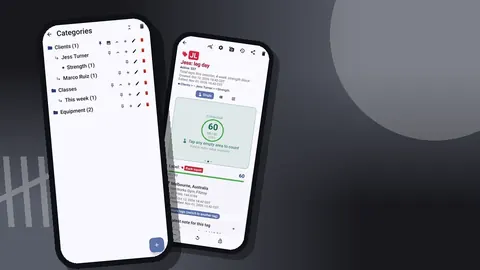
- Categories, nested up to three levels. For training: Training → Strength → Upper or Training → Running.
- Counters, one per session template, like "Push", "Pull", "Legs", "Intervals". Each has a name, color, initials, description and notes.
- Tags inside each counter, one per exercise.
Create a counter per template rather than per date. You reuse "Push" every time you do a push session, and its history becomes a timeline of all push workouts. Before each session, reset the counter so every tag starts at zero; the history keeps the earlier events.
Exercises as tags
For each exercise tag, set:
- Label and color. Color by movement pattern or by muscle group, and be consistent.
- Step. The default is 1 per rep. Use larger values for things logged in blocks, such as 10 for sets of ten, or 100 for rowing metres. Steps run from 1 to 100, per counter or per tag.
- Target. The planned total for the session. 4x8 means 32.
- Notes. Technique cues you want to see before the first set.
The tag also has a barcode/QR field and a location field, which most solo lifters can ignore. They become useful if you label stations or train in more than one place.
Logging a workout
Open the session's counter. There are three views:
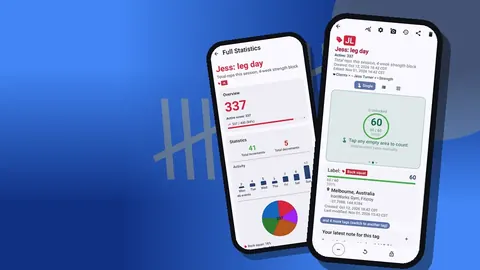
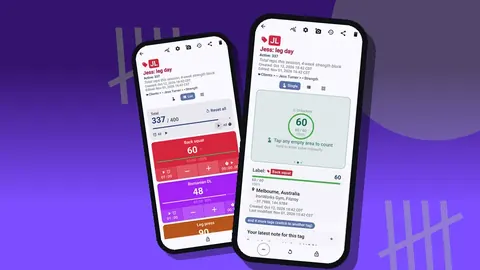
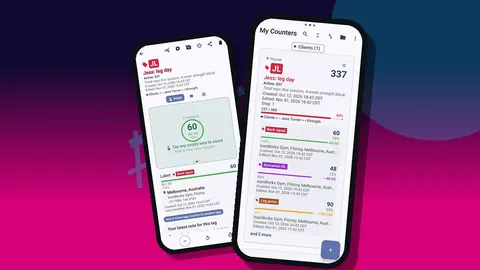
- Single: one exercise as a large circular counter with target progress, the tag card and a minus, reset and lock bar. Best for focus.
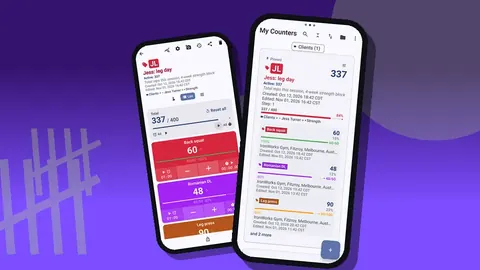
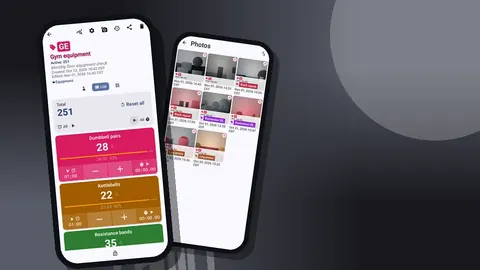
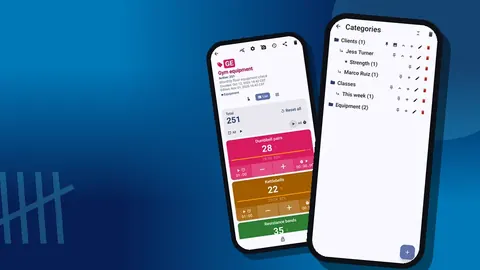
- List: all exercises as rows with minus and plus buttons, values and target progress, plus total against target and "All" controls for timers and stopwatches.
- Grid: colored tiles per exercise with value, target percentage, buttons, timer and stopwatch. Best for circuits.
A typical straight-sets flow in Single view:
- Warm up uncounted.
- Do a working set.
- Tap plus per rep, or once per set if the step equals the reps.
- Start the exercise's rest timer.
- Repeat until the target alert.
- Add a note with the load if it differs from last time.
- Move on to the next exercise.
Mistakes are fixed with minus, and the correction is logged as its own event. Lock the counter when you put the phone on the floor between exercises.
For hands-free counting, enable the volume keys in settings. They add or subtract a step even with the screen locked, via a foreground service, and can be remapped with per-key sound and vibration. Between sets, the lock-screen notification gives minus, plus and stop controls too.
Timing rest and intervals
Each tag in the gym gets a dedicated timer and stopwatch as well. The timer offers presets of 30 seconds and 1, 2, 3, 5 and 10 minutes, or a manual duration. Countdown beeps warn you, and you can choose from seven alarm sounds and eight vibrations.
Practical uses:
- Fixed rest per exercise, longer for heavy compounds.
- Interval work: 30 seconds on with a 30-second timer, and a tag counting rounds.
- Timed holds or carries with the stopwatch.
From List view you can control all timers and stopwatches at once, which helps with circuits.
Reviewing training
The history screen is the raw log. Each line shows the step, the exact timestamp, the value before and after, the tag label, and icons for notes or locations. Use it to answer questions such as when a session started and ended, or how long the gaps between sets really were.
History cannot be searched, so scroll by date. Keeping one counter per template, rather than dozens, keeps scrolling short.
Weekly overview
The dashboard summarises a counter: total against target, increments against decrements, a seven-day activity bar chart, a pie by tag, photos and notes. Once a week, check:
- Did the bars appear on the days you planned to train?
- Is one exercise dominating the pie when it should be an accessory?
- Are decrements high? That suggests mis-taps, and the volume keys may help.
How do you handle deloads and new training blocks?
When a block ends, do not delete the counters. Either:
- Move them into a category for the finished block, such as "Block 3 – done", and create fresh counters for the next one; or
- Keep the same counters and simply change the targets for the new plan.
For a deload week, lower targets on each tag. The target alert still tells you when to stop, which is useful because deload weeks are when people tend to do too much.
When a new block starts, add a short note to the first session's events describing the plan, such as the rep ranges and loads you intend to use. Weeks later, the history shows that note next to the counts, so you can judge whether the block went as planned without relying on memory.
Exporting
Export to CSV, Excel (XLSX) or an HTML report with embedded photos. You choose sections: Summary, Events, Notes, Locations.
For workout analysis:
- Events give every count with a timestamp. Pivot by tag and date to see volume per exercise per week.
- Notes carry your loads. Put them next to the events in the spreadsheet.
- Summary gives current totals, useful for a quick block report.
Name export files by block and date so they line up in a folder.
Making it comfortable
Small settings make a big difference in a gym:
- Size presets and font scale from 0.7 to 1.5 make numbers readable at arm's length.
- Dark mode and six theme skins, including a high-contrast one, help under harsh lighting.
- Count sounds and vibration styles, with 13 sounds and 8 vibrations, let you feel a tap without looking.
- Tag display can be expanded, collapsed or collapsed except the most recent, to keep long sessions tidy.
A sample template
Here is an example "Push" counter you could copy:
| Tag | Step | Target | Timer |
|---|---|---|---|
| Bench press | 1 | 25 (5x5) | 3 min |
| Overhead press | 1 | 24 (3x8) | 2 min |
| Incline DB press | 1 | 30 (3x10) | 2 min |
| Lateral raise | 1 | 45 (3x15) | 1 min |
| Triceps pushdown | 1 | 36 (3x12) | 1 min |
Set a vibration on reaching each target. Write loads in notes in one format, for instance "60x5".
These numbers are an example template, not a recommendation for your training. Use the programme your coach gives you or one you trust.
Which setup mistakes make a workout log hard to use?
- One counter per day. You end up with hundreds of counters and no continuity. Use templates.
- Mixing units in one tag. Counting rowing metres and minutes on the same tag makes exports meaningless.
- Changing tag names mid-block. Exports split into two exercises.
- No targets. Without them, the progress bars and alerts do nothing.
- Notes on every set. Write when something changes; otherwise the useful notes drown.
Counting outside the weight room
The same structure handles training that is not about barbells. A few examples:
- Running intervals. A counter "Track Tuesday" with a tag "400 m repeats", step 1, target 8, and a 90-second rest timer. Tap after each repeat.
- Daily pull-ups. A counter "Grease the groove" with one tag and a daily target. The seven-day chart on the dashboard shows whether you kept it up.
- Mobility. A tag per drill with the stopwatch for holds, and a note when a position improves.
- Skipping or rowing. Use a step of 50 or 100 and log in blocks rather than single units.
Keep these in their own category so they do not clutter the strength list, and pin whichever you use most this month.
Backups
Your training log is stored on the phone, with no account and no Counter App cloud. Make a backup ZIP regularly, choosing which counters and categories to include and whether to compress photos. To restore on a new phone, import the ZIP; the preview shows what is in it and lets you replace, copy or skip duplicates. There is no live sync, so keep one phone as your training phone.
Practical details
- Workouts are logged offline; the app reaches the internet only for optional notifications, update checks and map tiles.
- The counter list has search, a date-range filter, six sort orders and pinned counters.
- Deleted counters can be restored from trash.
- It is free to download with no ads; try it free for 3 days, then choose a yearly or monthly plan or a one-time lifetime purchase.
Get the app at counterapp.online.
Frequently asked questions
Why use a counter app instead of a dedicated workout app?
A counter app is fast and flexible: you define exactly what to count. It suits people who want a plain log without programmes, feeds or accounts.
Does a counter-based workout tracker include exercise libraries or programmes?
No. You create your own counters and tags, which keeps the tracker simple but means the programme comes from you or your coach.
Can a workout be logged in a gym with no internet connection?
Yes. Counting, timers and notes all work offline in Counter App, and a connection matters only for optional notifications, update checks and map tiles.
Can a lifter count reps while wearing lifting gloves?
Turn on volume-button counting, so the physical keys add or subtract a step, also with the screen off. The option is disabled until switched on in settings.
How should a lifter review a finished training block?
Use the dashboard for a quick overview, then export CSV, Excel or an HTML report, usually with the Events and Notes sections for volume and loads.
Should a workout log use one counter per day or per session template?
Per template. A counter such as "Push" reused and reset each session keeps continuity, while one counter per day produces hundreds of counters.
How can a deload week be logged with the same counters?
Lower the target on each tag for the deload week, and the target alert still signals when the reduced work is done.