Counter App

Gym Inventory Management with an Android App
Key takeaways
Gym inventory management on Android with Counter App — Tally & Clicker means one counter per storage zone, one tag per item with its par level as the target, and a fixed weekly count in Grid view. Comparing each count with par, and retail counts with sales, shows what to reorder and where stock is leaking.
- Gym inventory falls into consumables, front-desk retail stock and small floor equipment, and each group needs its own counting rhythm.
- Counter App — Tally & Clicker can run gym inventory with categories for stock groups, one counter per counting zone and one tag per item with its par level as the target.
- A simple gym reorder rule is order quantity equals par level minus current count, rounded up to a full case; Counter App shows the counts but does not calculate orders.
- Front-desk retail stock in a gym is reconciled as last count plus deliveries minus sales, and a lower physical count indicates shrinkage.
- Towel stock in Counter App can be tracked with tags for clean, issued, at laundry and retired, with every batch move timestamped in history.
Most gyms do not lose money on big machines. They lose it in small leaks: cleaning spray that runs out on a Saturday, protein bars that sit past their date, towels that vanish one at a time, resistance bands that snap and are never replaced. Fixing that is less about software and more about a regular count. A phone app just makes the count fast enough that someone actually does it.
This article shows how a gym can run inventory on Android with Counter App by GiveMeMood, from structure to the weekly routine to the monthly export.
What kinds of stock does a gym need to count?
Gym inventory falls into three groups, and they behave differently:
- Consumables used by staff and members: disinfectant, paper towel, hand soap, chalk, toilet rolls, bin liners. They run down steadily and must never run out.
- Retail stock sold at the front desk: drinks, bars, supplements, branded shirts, padlocks. These need reconciliation against sales.
- Small equipment on the floor: dumbbell pairs, kettlebells, bands, mats, foam rollers, towels. These do not get consumed, but they go missing, break or wander between rooms.
Each group deserves its own count rhythm. Consumables weekly, retail weekly or at each delivery, small equipment monthly with a quick spot check after busy days.
Structure in Counter App
Use the three building blocks like this:
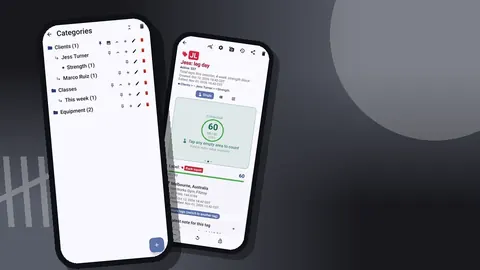
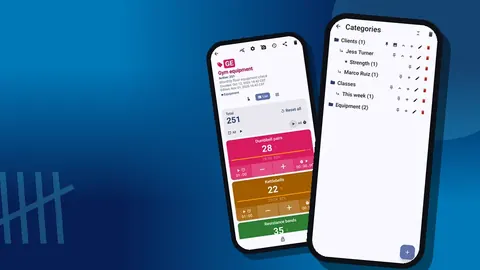
- Categories, up to three levels: Inventory → Consumables / Retail / Equipment, with a third level for location if you have more than one storeroom, e.g. Equipment → Ground floor.
- Counters are counting zones: "Cleaning cupboard", "Front desk fridge", "Free weights area".
- Tags are individual items inside the zone: "Disinfectant 5 L", "Paper towel rolls", "Kettlebell 16 kg".
Pin the category you count most often so it opens first. Give each zone counter a short code, like CC for the cleaning cupboard, which then shows on the counter card.
Item tags in detail
For each item tag:
- Label: the name you order by, including size. "Spray 750 ml" and "Spray 5 L" are different items.
- Step: 1 for single units, or the case size when you count closed cases. The step can be any value from 1 up to 100.
- Target: the par level, the quantity you want on the shelf after a delivery.
- Barcode/QR: the product barcode or a code on the shelf label.
- Notes: supplier name, pack size, anything the person ordering needs.
You can attach up to six photos per tag. A photo of the correct product helps new staff tell the right cleaning concentrate from the wrong one.
The weekly count
Pick one fixed time, for example Monday before the morning rush. The count is only useful if it is regular.
- Reset the zone counter so every tag starts at zero. You can reset a whole counter or one tag.
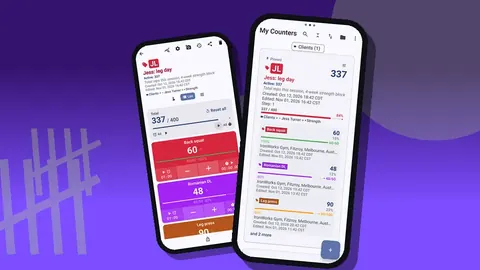
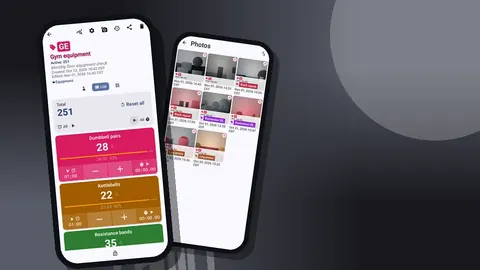
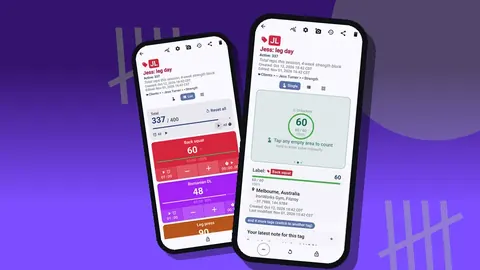
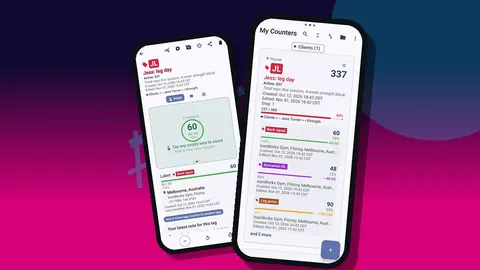
- Open the counter in Grid view. Each item is a colored tile with a value, a target percentage and minus and plus buttons.
- Walk the shelf left to right and tap each item up to the number on the shelf.
- Use a bigger step for cases, then switch back to 1 for loose units.
- Lock the counter when done so a bumped phone cannot change the numbers.
Grid view suits a storeroom because you tap tiles without reading rows. List view is better at a desk when you want to see the progress bars next to each name.
Checking the barcode
Two similar items on one shelf are a classic error source: the 16 kg and 20 kg kettlebell, the vanilla and chocolate protein. The tag's barcode field helps. Scan the product with the camera, or type the code on the manual entry screen if the label is creased or behind plastic. If the code matches the tag you are counting, you are on the right item.
This article does not promise compatibility with any specific barcode format; test your products on your phone before relying on it.
How do you turn a stock count into an order?
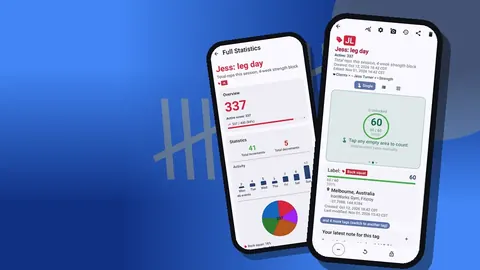
After the count, every tag shows a value against its par level. The dashboard sums the zone: total against target, increments and decrements, a seven-day activity chart and a pie by item.
A simple ordering rule works for most consumables: order = par level − current count, rounded up to a full case. For example, with a par of 12 rolls and 5 on the shelf, you need 7, so order one case of 12 if that is the pack size, or adjust the par so it lines up with packs.
The app does not do this sum for you. Either do it by eye from the progress bars or export the counts and let a spreadsheet column do the subtraction.
Retail reconciliation
For front-desk stock, counting alone is half the job. The other half is comparing counts with sales:
expected stock = last count + deliveries − sales
If the physical count is lower than expected, you have shrinkage: theft, damage, staff consumption or unrecorded sales. Note deliveries on the tag when they arrive so the trail is complete. A delivery note such as "+24 water, invoice 4471" makes the monthly reconciliation straightforward.
Expired or damaged retail stock should be counted on its own tag, such as "Write-off bars", so it is visible rather than silently subtracted.
How should a gym set its par levels?
Par levels are guesses at first. Refine them:
- Start with what a normal week uses plus a buffer for a delivery delay.
- After four weekly counts, look at the history. If an item always ends well above par, lower it. If it hits zero before delivery, raise it.
- Seasonal swings matter. Drink sales and towel use rise in summer; set a summer par and a winter par and change the target when the season turns.
Keep these decisions in tag notes, for example "Par raised to 18 in May, ran out twice". The next manager will thank you.
Towels and laundry
Towels are both consumable and equipment. A workable approach is one counter, "Towels", with tags "Clean on shelf", "Issued", "At laundry" and "Retired". Each time a batch goes to the laundry, tap the number on "At laundry"; when it comes back, subtract it there and add it to "Clean on shelf".
The history log keeps every move with an exact timestamp and before and after values, so if a batch never came back you can see when it left. Add a note with the laundry ticket number.
Towels are a good place to use a target that counts down. Set the tag's target to the number of clean towels on the shelf at opening and press minus for each one handed out; the counter shows how many remain, and the history shows when the shelf emptied fastest. That timing tells you when a mid-day laundry run is worth scheduling.
Multiple staff
There is no live sync between phones. Each device has its own data. For a gym with several staff:
- Give each counting phone a defined scope, such as one zone or one storeroom.
- Agree on names. If one person writes "Spray 750ml" and another "Disinfectant small", exports will not line up.
- Combine the exports in one spreadsheet each week.
If you replace a phone or want to hand a setup to another staff member, make a backup ZIP. Importing shows a preview and lets you replace, copy or skip duplicates. Copy creates duplicates of counters, which is useful for cloning a zone setup.
Start small
Do not try to count everything in week one. A good first month:
- Week 1: cleaning cupboard only.
- Week 2: add the front desk fridge.
- Week 3: add retail shelves.
- Week 4: add small floor equipment.
By the end of the month the routine is habit, and each zone has a month of history to set better par levels.
Housekeeping
- Export monthly to CSV or Excel. Choose Summary for current values and Events for the full trail, plus Notes for delivery and write-off comments.
- Use trash carefully. Deleted counters can be restored, so an accidental delete is not a disaster.
- Archive old zones in a separate category rather than deleting them, if you may need the history later.
- Use dark mode in a dim storeroom. Size presets and font scale help staff who prefer large text.
A hypothetical gym
Consider a mid-sized gym with one cleaning cupboard, a drinks fridge, a small shop shelf and a free weights floor. The duty manager counts each Monday at 06:30. In this example, after a month the notes show that hand soap runs out every Friday, so its par level goes up. The retail reconciliation shows two missing padlocks in one week, which leads to moving padlocks behind the counter. Towel history shows a laundry batch that left on a Wednesday and came back two days late, which prompts a call to the laundry service.
None of this needs a big inventory system. It needs a count that happens every week and a record that survives a staff change.
Practical details
- All counting works offline.
- The counter list supports search, a date-range filter and six sort orders.
- Volume buttons can count when your other hand is holding a box.
- It is free to download with no ads; try it free for 3 days, then choose a yearly or monthly plan or a one-time lifetime purchase.
Get the app at counterapp.online.
Frequently asked questions
Can product barcodes be scanned during a gym stock count?
Each tag can store a barcode or QR value, scanned with the camera or typed by hand, which helps confirm the right item is being counted.
Does a gym inventory counter calculate reorder quantities?
No. Counter App counts and compares against targets. Reorder quantities come from your own rule, applied to the counts in a spreadsheet or by eye.
Can several gym staff members count stock at the same time?
Every counting phone holds a separate set of data, with no live sync between devices. Split the count by zone per phone and combine the exports afterwards.
Does stock counting work in a basement storeroom with no signal?
Yes. Every counting feature runs offline, and the app needs a connection only for optional notifications, update checks and map tiles.
Which formats can a gym stock count be exported to?
Gym counts export to CSV or Excel (XLSX) for spreadsheets, or to an HTML report with embedded product photos, with Summary, Events, Notes and Locations as optional sections.
How should expired protein bars be recorded in a gym count?
Count them on a separate tag such as "Write-off bars", so expired or damaged retail stock stays visible instead of being silently subtracted.
How often should gym par levels be reviewed?
After about four weekly counts, lower the par for items that always end well above it and raise it for items that hit zero before delivery, with seasonal pars where use swings.