Counter App

Field Data Collection with a Counter App on Android
Key takeaways
Field data collection with a counter app on Android works best for protocols whose output is how many of each category. In Counter App — Tally & Clicker, categories hold project, site and visit, counters are sampling units and tags are species or classes. Every tap is timestamped, and data exports as CSV, Excel or an HTML report.
- A field data collection counter on Android suits count-based methods such as point counts, quadrat counts, trap checks, behaviour frequencies and footfall tallies.
- Counter App — Tally & Clicker maps a field protocol onto categories for project, site and visit, counters for sampling units and tags for the things counted.
- Every count in Counter App is logged with its exact time, step and before and after values, which removes the retyping and adds per-observation timestamps that paper sheets lack.
- Counter App counting works offline, and volume-key counting, off by default, can count with the screen locked through a foreground service.
- Protocols that need many measurements or free-text fields per observation are better served by a form tool or paper, with a counter alongside for tallies.
Paper tally sheets have served field researchers for generations, and they still have virtues: no batteries, no screens, nothing to update. They also have well-known failings. Sheets get wet, gate marks are miscounted, time is rarely recorded per observation, and every number has to be typed in again back at base.
A counter app on an Android phone cannot replace every kind of field sheet, but for count-based protocols it can remove the retyping and add timestamps for free. This guide walks through doing that with Counter App by GiveMeMood, from protocol to exported file.
Which field methods suit a counter app?
Counting apps fit methods where the main output is "how many of each category":
- point counts and transect counts of animals;
- quadrat counts of plants or invertebrates;
- trap checks with tallies by species or sex;
- behavioural frequency counts during timed sessions;
- traffic, footfall and visitor counts;
- tallies of finds, samples or specimens by type.
They fit less well where each observation needs many attributes, such as measurements, free-text descriptions or multiple-choice fields. For those, a form tool or a paper sheet is better, and a counter can still sit alongside it for the tallies.
Step 1: Translate your protocol into structure
Write your protocol out as a hierarchy, then map each level onto the app's building blocks.
- Categories nest up to three levels. Use them for project, site and visit, or for region, site and season.
- Counters are sampling units: a station, a transect, a quadrat, a trap, a session.
- Tags are what you count within each unit: species, classes, behaviours.
Create one counter by hand, check it carefully, and only then build the rest. Each counter can carry a code, a description and notes; use the description for protocol reminders ("count all individuals within 50 m") so they travel with the data.
Keep tag lists identical
Give every counter in a survey the same tags, in the same order, with the same colors. It makes counting faster because positions on screen become familiar, and it makes exports line up into a tidy table.
Locations
Tags can store GPS coordinates, a point picked on a map or typed text such as a station code. Map tiles need internet, so if you will be out of signal, choose GPS or typed codes.
Targets and fixed sample sizes
Some protocols count to a fixed number: scan a hundred individuals for a behaviour, examine fifty leaves, check twenty traps. Counter and tag targets support counting up or down to a goal, with an optional sound or vibration alert on reaching it. Auto-reset can clear the value ready for the next sample, and auto-lock can freeze it so the sample cannot accidentally grow past its planned size.
Use auto-lock rather than auto-reset when the value itself is the data you need to keep.
Step 2: Set up the phone for field conditions
A few settings make a large difference outdoors:
- Volume-key counting. Off by default. When enabled, the physical volume keys count, also in the background and with the screen locked, through a foreground service. Keys can be remapped and given per-key sound and vibration. Some devices still show the system volume bar briefly.
- Feedback. Choose from 13 count sounds and 8 vibration styles. Silent vibration is kind to wildlife and to colleagues.
- Readability. Three size presets, a font scale from 0.7 to 1.5, ten fonts and six theme skins, including higher-contrast options, plus light, dark or system mode.
- Lock-screen notification. Minus, plus and stop buttons are available without unlocking the phone.
Charge the phone fully, carry a power bank, and test volume-key counting in the office before relying on it in the field.
Step 3: Count
Open the counter and pick a view for its tags:
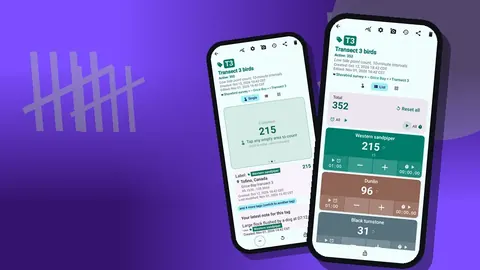
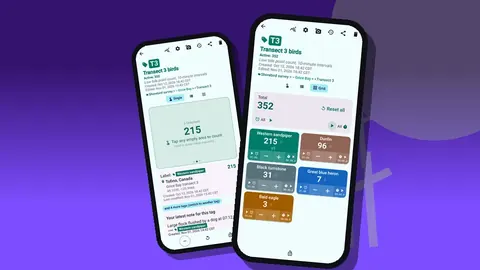
- Single shows one tag as a large circular counter with its target progress and tag card.
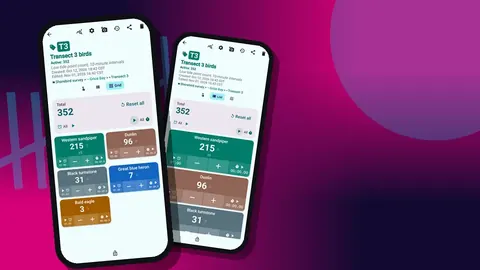
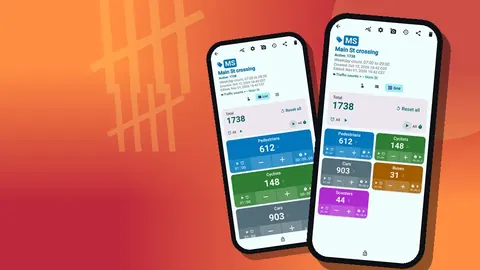
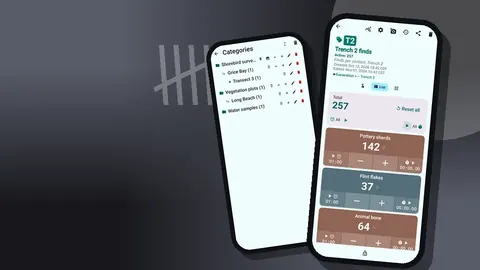
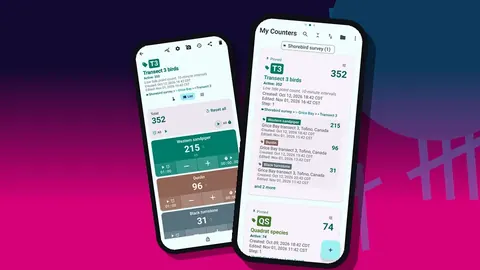
- List shows all tags as rows with minus and plus buttons and their values, plus the counter's total against its target.
- Grid shows colored tiles with values, target percentages and buttons.
Tag display can be expanded, collapsed, or collapsed except for the most recent one, which helps on small screens with many tags.
Each tap adds the step, which can be any value from 1 to 100. Most protocols use 1. If you overcount, tap minus; the correction is recorded, not hidden. Lock the counter when a unit is finished, so pocket taps cannot change it.
Timed counts
Every tag carries a separate timer and a stopwatch. Timer presets are 30 seconds and 1, 2, 3, 5 and 10 minutes, and other durations can be entered manually. Countdown beeps, seven alarm sounds and eight alarm vibrations signal the end. In List and Grid views you can also start, stop or reset timers for all tags at once, which suits protocols that split a count into intervals.
The stopwatch is useful where the protocol records effort, such as search time per quadrat, rather than a fixed duration.
Step 4: Review in the field
Before moving to the next site, open history. It lists every count with its exact time, the step, the value before and after, the tag label, and icons for notes, photos and locations. Look for bursts of taps that do not match what you saw, or minus events you do not remember.
History has no search, so review little and often. The dashboard gives a quicker summary: total and target, increments against decrements, a seven-day activity chart and a pie chart by tag.
Notes and photos
Notes can be attached to individual count events, which is the natural place to record "flushed by dog walker" or "uncertain ID". Tags can hold up to six photos each, and the photo editor lets you add arrows, text and rotation. The All Notes screen and the all-photos gallery collect everything for an evening review.
Step 5: Get the data out
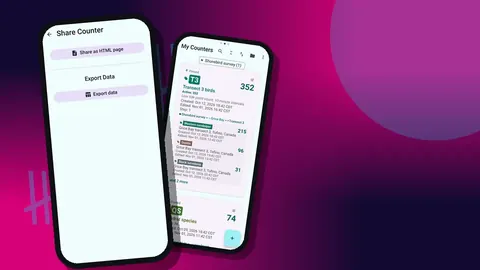
Exports come as CSV, Excel (XLSX) or an HTML report with photos embedded. In the export options, tick the sections you want:
- Summary for totals per tag;
- Events for the timestamped log;
- Notes for context;
- Locations for stored places.
Counts are stored on the phone, with no account and no Counter App cloud, so the export and backup routine is your responsibility. A backup ZIP includes photos, can be limited to chosen counters or categories, and can compress photos to save space. Make one at the end of each field day.
How do you train a field team to count consistently?
When several people count on separate phones, standardise before the season starts:
- Build the template on one phone and share it as a backup ZIP.
- Each observer imports it; the import preview shows contents and lets them replace, copy or skip duplicates.
- Agree on naming, note prefixes and date format.
- Run a pilot count together and compare totals.
- Point everyone to the in-app user guide for the details of each feature.
There is no live sync between phones, so give each observer their own counters or categories and merge exports afterwards.
When is a paper tally sheet still the better tool?
Keep a paper sheet for the first few days of any new protocol, as a backup and as a check on how well the app structure fits. Paper also wins when a phone battery dies, when the protocol needs sketches, or when a site rule forbids phones. Many teams settle on a hybrid: counts on the phone, sketches and long descriptions on paper.
A pre-trip checklist
Run through this list the evening before any field day:
- Phone charged, power bank charged, cable packed.
- Today's category created and pinned; every counter named by the agreed pattern.
- Tag lists identical across counters; steps and targets checked.
- Volume-key counting tested with the screen locked, if you plan to use it.
- Feedback set to vibration where noise matters.
- Yesterday's data exported and a backup ZIP copied off the phone.
- Paper sheet and pencil in a waterproof bag, just in case.
It takes five minutes and prevents most of the problems that otherwise surface at the first site, when there is no time to fix them.
Weather and handling
Rain on a touchscreen produces phantom taps on some phones. Locking finished counters and relying on volume keys in wet weather limits the damage, and a clear waterproof pouch keeps the phone usable. In cold conditions batteries drain faster, so keep the phone in an inside pocket between counts.
A hypothetical first week
Imagine a small team monitoring butterfly abundance along a fixed walk. On day one they build counters for each section of the walk with eight species tags, enable silent vibration, and carry paper as a backup. On day two they discover the screen is unreadable in sun and raise the font scale. By day four they stop using the paper sheet for counting and keep it only for weather and sketches. At the end of the week they export Summary and Notes as CSV and merge the files in a spreadsheet. The details are invented to illustrate a typical learning curve.
Practical details
- Needs Android 12 or newer; it is free to download with no ads; try it free for 3 days, then choose a yearly or monthly plan or a one-time lifetime purchase.
- Unlimited counters; free-form and multi-window layouts are supported.
- The trash holds deleted counters, so a survey counter removed by mistake comes back.
Get the app at counterapp.online.
Frequently asked questions
Does a field counter app work without mobile signal?
Yes. All counting features in Counter App work offline, and the internet is needed only for optional notifications, update checks and map tiles.
Can a field observer count while wearing waterproof gloves?
Grid view gives large tiles that are easier to hit, and volume-key counting uses the physical buttons, also with the screen locked. Volume-key counting starts switched off and is enabled in settings.
Are field observations timestamped?
Yes. History records every count with its exact time, step, before and after values, and tag.
Can the field history log be searched?
No. History has no search; search exists only in the counter list. Export the Events section if you need to filter a long log.
Is a counter app a full form-based data collection tool?
No. Counter App is a counter with tags, notes, photos and locations. Protocols with many free-text or multiple-choice fields need a form tool or paper alongside it.
Can a counter stop a sample from growing past its planned size?
Yes. Set a target on the counter or tag and turn on auto-lock, which freezes the value when the target is reached, with an optional sound or vibration alert.
Can a point count be split into timed intervals?
Yes. Each tag has a timer with presets from 30 seconds to 10 minutes, and in List and Grid views timers for all tags can be started, stopped or reset together.