Counter App

Counting Archaeological Finds by Context and Level
Key takeaways
An archaeological artifact counter app such as Counter App — Tally & Clicker lets a finds team tally bulk finds by trench, context and material class on an Android phone. Each tap is timestamped, tags store grid references, bag codes and photos, and the counts export to CSV or Excel for the project database.
- Counter App — Tally & Clicker can mirror an excavation as categories for site, area and trench, one counter per context and one tag per finds class.
- An archaeological finds tally in Counter App logs every tap with a timestamp, so a supervisor can check totals against bag labels at the end of the day.
- Finds tags in Counter App can hold a grid reference or GPS point, a bag barcode or QR code, and up to six photos of diagnostic pieces.
- Excavation counts export from Counter App as CSV, Excel (XLSX) or an HTML report with embedded photos, with Summary, Events, Notes and Locations as optional sections.
- A phone tally of bulk finds supplements context sheets, registers and the project database; it does not replace formal excavation recording.
Bulk finds are usually counted by class before they are bagged and weighed: so many sherds of a given ware, so many flakes of debitage, so much animal bone. Those numbers feed spot-dating, distribution plots and eventually the finds report. Yet on plenty of sites they still begin life as pencil marks on a wet bag label.
This guide shows one way to keep those tallies on an Android phone with Counter App by GiveMeMood, organised so that the numbers drop back into the excavation record without translation.
Scope note: every project has its own recording manual. A counting app is for tallies at the trowel's edge or the finds tray. It does not replace context sheets, registers, the small finds catalogue or the project database.
Why use phone tallies on an excavation?
Paper tallies fail in predictable ways. Gate marks get smudged, a second bag of the same context is counted on a different sheet, and nobody can say afterwards whether the "34" on a label was written before or after the sieve sample was added. A phone tally solves only part of this, but it solves the part that hurts most: every tap is timestamped, the running total is always visible, and an export can be produced in seconds rather than retyped in the evening.
There are honest limits too. A phone is one more device to keep charged and clean, and screens are harder to read in strong sun than a pencil sheet. Treat the app as a faster tally sheet, not as a recording system, and you will avoid most disappointments.
Mirror the excavation hierarchy
Excavation records are nested: site, area, trench, then context or unit, sometimes subdivided into levels or spits. The app gives you three structural pieces that map onto this cleanly:
- Categories, nested up to three levels, for Site → Area → Trench.
- Counters, one per context, unit or unit-and-level combination.
- Tags inside each counter, one per finds class.
Categories can carry their own colors, can be pinned so the current trench sits at the top, and can be reordered as work moves across the site. When a trench closes, its category stays in place for reference, and anything deleted by mistake can be recovered from the category trash.
Naming contexts
Give each counter the context number exactly as it is written on the sheet, for example "Tr2 Ctx 2041" or "EU14 L3". The counter's code field suits the short identifier, the description field suits a one-line context summary ("dark silty fill of pit 2040"), and the notes field can hold anything the finds team should know, such as "sieve sample 112 taken from this deposit".
Consistency matters more than any particular format. If the database expects "2041" rather than "Ctx 2041", name counters that way from the first day, because renaming dozens of counters halfway through a season invites mistakes.
Tags as finds classes
Typical classes are pottery (perhaps split by broad fabric or ware), worked flint, burnt flint, animal bone, shell, ceramic building material, metal, glass and slag. Use the classification from your project's finds manual so that exported columns match the catalogue headings.
Each tag has its own color, value, step and optional target. Pick one color per class and use it on every counter: pottery always the same shade, bone another, metal a third. After a week, anyone on the team can glance at a phone and read it without squinting at labels.
The step can be any whole number from 1 to 100. Most hand-sorted classes use a step of 1. If your method counts tiny fragments from flotation or sieving in groups of ten, set that tag's step to 10 and note the convention in the counter's description so nobody reads the total as individual pieces.
Counting at the finds tray
A practical sequence at the tray:
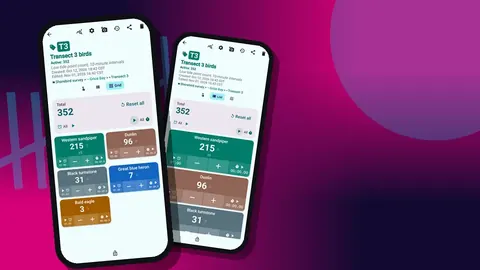
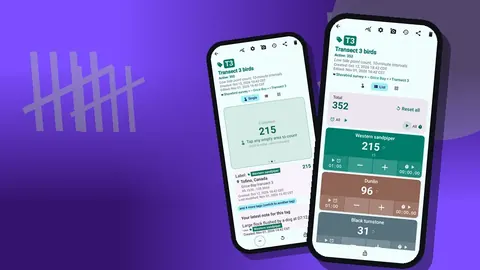
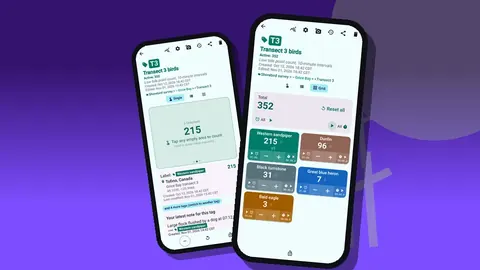
- Open the context's counter and switch the tags to List or Grid view.
- Sort finds into classes, then tap the matching tag once per item.
- If you overcount, tap minus. The correction is logged rather than silently erased.
- Lock the counter when the tray is finished so a gloved hand brushing the screen cannot change it.
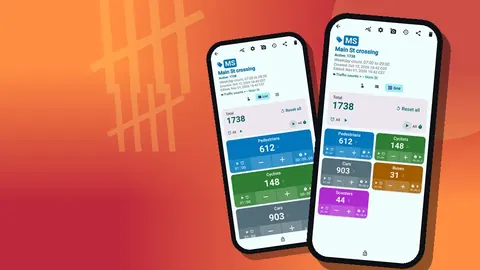
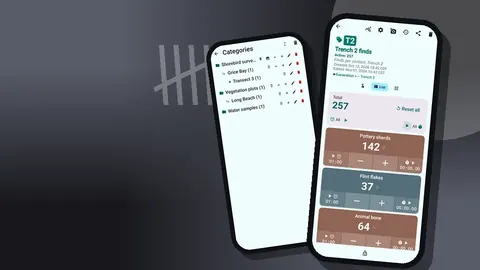
Grid view gives each class a large colored tile, which is easier to hit when your fingers are muddy or you are wearing nitrile gloves. List view shows more classes at once and suits contexts with a long list of material types.
Counting without looking at the screen
For a long run of one class, such as a bucket of flint flakes, the volume buttons can be set to count. This is off by default and is enabled in settings; keys can be remapped and given their own sound or vibration. Once on, it also works with the screen locked via a foreground service, so the phone can stay in a chest pocket. A lock-screen notification offers minus, plus and stop buttons as well. Some devices still flash the system volume bar when a key is pressed, which is cosmetic.
Recording where finds came from
Each tag can store a location in one of three ways: GPS coordinates, a point picked on a map, or typed text. On most sites the typed option is the useful one, because a grid square such as "E14 NW quad" or a total-station point number means far more to the finds team than raw coordinates. GPS is handy for surface collection or field walking, where each tag might represent one collection unit.
Map tiles need an internet connection, while typed locations and GPS do not. If your trench has no signal, plan on typed references.
Bag labels and barcodes
If your finds bags or trays already carry barcodes or QR codes, a tag can store one. You can scan it with the camera or type it in by hand. Typing is the reliable route when a label has been through two weeks of rain. Storing the bag code on the tag gives you a cross-reference between the tally and the physical bag that is hard to lose.
Photographing diagnostic pieces
Up to six photos fit on one tag, enough to show the samples clearly. That is not a photographic record for publication, but it is useful for a quick shot of a diagnostic rim, an unusual flint or a piece of metal that needs a specialist's opinion.
The built-in photo editor offers a brush, text with four fonts and styling, six colors and rotation. Writing the context number and a direction arrow directly onto the image means the photo still makes sense when it turns up in an export months later. The all-photos gallery shows every image with its tag label and date, which is a quick way to find "that odd bead from last Tuesday".
Notes on individual count events let you flag a specific item ("possible intrusive sherd, check with supervisor") without inventing a new class for it. The All Notes screen collects these across counters with sorting, so the finds supervisor can review them in one pass.
The end-of-day check
Before bags leave the trench, compare the app totals with what is written on bag labels. The history screen lists every count with its exact time, its step, the value before and after, the tag label and icons for notes, photos or locations. If a total looks wrong, you can scroll back and see whether someone tapped twenty times in two seconds or added a block of counts long after the tray was cleared.
History has no search box, so for a busy context it helps to check daily rather than trying to audit a whole season at once.
Seeing the trench at a glance
The dashboard summarises a counter: total and target, increments against decrements, a seven-day activity bar chart and a pie chart by tag. For a context still being excavated, the pie chart gives an early sense of whether a deposit is pottery-rich or bone-rich, which can prompt questions about sampling strategy while the deposit is still in the ground.
Targets are optional. Some projects set one for a sieve sample size, for instance counting up to a fixed number of sieve buckets with a vibration alert on reaching it. Auto-lock on target can then freeze the counter so no accidental extra bucket is added.
How do finds counts get into the project database?
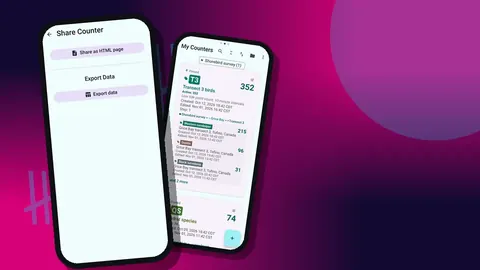
The export screen produces CSV, Excel (XLSX) or an HTML report with photos embedded. In the export options you choose which sections to include: Summary, Events, Notes and Locations.
- Summary is usually enough for the bulk finds table: one total per class per context.
- Events gives every tap with a timestamp, useful if your project audits timing or wants to reconstruct sorting sessions.
- Notes and Locations help the finds supervisor reconcile flagged items and grid references.
The HTML report is handy for a daily site diary or a quick email to a specialist, since images are inside the file. For the database itself, CSV or Excel imported into your normal workflow is the safer choice. Counts are stored on the phone, with no account and no Counter App cloud, so export or back up regularly.
How do several finds processors share one record?
There is no live sync between phones. On sites with several finds processors, decide up front who owns which contexts. At the end of the day, each person can export their counters, or create a backup ZIP that includes photos and can be limited to selected counters or categories, with optional photo compression.
When a backup is imported, a preview shows what it contains and asks how duplicates should be handled: replace, copy or skip. "Copy" creates duplicate counters, so for routine merging, "skip" or "replace" is usually what you want. Keep one phone or one laptop folder as the master, and keep the ZIP files as an archive of what came in from whom.
A hypothetical trench
Imagine a two-week evaluation trench with eight contexts. The supervisor creates a category path Riverside evaluation → Area A → Trench 2, then one counter per context as each is opened. Every counter carries the same five tags: pottery sherds, flint flakes, animal bone, metal and small finds, with the same colors throughout.
At the tray, a volunteer taps through each bag, adds a note when something looks intrusive, and photographs two diagnostic rims with the context number written on the image. Each evening the supervisor checks history against bag labels, exports the Summary as CSV for the finds spreadsheet and makes a backup ZIP to a laptop. On the last day, the HTML report with photos goes to the pottery specialist with the bags. These numbers and names are illustrative, not drawn from a real project.
Practical details
- Android 12 or later; free to download with no ads; try it free for 3 days, then choose a yearly or monthly plan or a one-time lifetime purchase.
- Unlimited counters, and tags with their own step, target, timer and stopwatch.
- Theme skins, dark mode, size presets and font scaling help with readability in bright sun.
- A counter deleted by mistake in the field waits in the trash until you restore it.
- An in-app user guide covers each feature.
Get the app at counterapp.online.
Frequently asked questions
Does a finds tally app replace context sheets or a site database?
No. Counter App is a tally tool for bulk finds counts by class, and formal recording still follows the project's manual, registers and database.
Can a finds tag record which grid square the material came from?
Yes. Each tag can hold GPS coordinates, a point picked on a map, or a typed place such as a grid square, and exports can include a Locations section.
Can diagnostic finds be photographed inside the tally?
Yes. Each tag holds up to six photos, and the built-in editor can add text, brush marks and rotation, for example to write a context number on the image.
Does the finds counter work at remote excavation sites without signal?
All counting features work offline. Map tiles need internet, so a typed grid reference is the practical fallback in the trench.
How do several finds processors combine their counts?
Phones do not sync with each other live. Each processor exports CSV or Excel, or sends a backup ZIP that can be imported with a preview and duplicate handling.
Can a tray of sieved fragments be counted in groups of ten?
Yes. A tag's step can be any whole number from 1 to 100, so a step of 10 suits group counting, as long as the convention is noted in the counter description.
Where are excavation counts stored, and does the team need accounts?
Counts are stored on the phone itself. Counter App needs no account and has no Counter App cloud, so regular exports or backup ZIPs are the safeguard against a lost device.