Counter App

Wildlife Survey Counting on Android
Key takeaways
A wildlife survey counting app such as Counter App — Tally & Clicker lets an observer record transect, point count or timed area counts on an Android phone, with one tag per species. Tags can carry a step for counting flocks in blocks, timers fix point count length, and counts export as CSV for the survey coordinator.
- A wildlife survey counting app should mirror the survey method's fixed unit, whether that is a transect, a point count station, a timed area or a trap.
- Counter App — Tally & Clicker sets up a wildlife survey as categories for survey, site and visit, one counter per transect or station and one tag per species.
- Counter App can count almost silently, with muted sounds, vibration-only feedback and volume-key counting that works with the screen locked.
- Per-tag timers in Counter App support split point counts, such as a 3-minute timer followed by a 7-minute timer, with countdown beeps or vibration alarms.
- Counter App counts what the observer identifies; species identification and avoiding double counts remain the observer's job.
Wildlife surveys depend on careful, repeatable counting. Whether you walk a butterfly transect, stand at a point count station at dawn or scan a mudflat for waders, the method only works if counts are consistent between visits and between observers. Paper notebooks have done the job for a long time; an Android phone can do it with timestamps, locations and exports built in.
This guide covers wildlife survey counting with Counter App by GiveMeMood: choosing a method, setting up species tags, counting quietly, and sending clean data to a coordinator.
Which wildlife survey method should the setup follow?
The app does not choose a method for you. Decide which one your scheme or study uses, then build the setup around it.
- Line transects. Walk a fixed route at a steady pace and count individuals within a band or recorded by distance band.
- Point counts. Stand at fixed stations for a fixed time and count everything seen or heard.
- Timed area counts. Count all individuals in an area during a set period, common for waterbirds.
- Trap or station checks. Count captures or signs at fixed points, such as moth traps or camera stations.
Each method fixes something: route, time, area or station. Your counters should mirror that fixed unit.
Setting up Counter App
The structure has three layers:
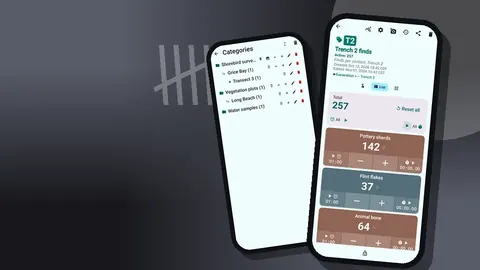
- Categories, up to three levels deep: Survey → Site → Visit.
- Counters, one per transect, section or station.
- Tags, one per species or group you count.
Name counters with stable codes, such as "T3" or "PC07", and use the counter description for method reminders, like "count within 25 m band only" or "10 minute count, all birds seen or heard". Pin the active visit's category so it sits at the top of the list.
Species tags
Create one tag per species on your target list. Every tag has its own value, step, color, target, timer, stopwatch, location, barcode and notes.
A few tips:
- Same tags on every counter. It speeds up counting and makes exports line up.
- Order by likelihood. Put the most frequent species where your thumb rests.
- Colors with meaning. Group waders in one hue family and gulls in another, for instance.
- An "other" tag for unlisted species, with a note naming the species. This keeps the main list short without losing records.
- Distance bands can be separate tags, such as "dunlin 0-25 m" and "dunlin 25-100 m", if your protocol uses bands and the species list is short.
For counting large flocks in blocks, set a tag step of 10, 20 or 50 (any value up to 100) and note the convention in the counter description.
Timing point counts
Each tag has a timer with presets of 30 seconds and 1, 2, 3, 5 and 10 minutes, and any other duration can be typed. Countdown beeps signal the closing seconds, and there are seven alarm sounds and eight alarm vibrations for the end. For a split point count, such as the first three minutes and then the remaining seven, start a 3-minute timer, note the boundary, then run a 7-minute timer.
The stopwatch suits transects where effort, not duration, is fixed: start it at the beginning of a section and stop it at the end to record time spent.
How can you count wildlife without disturbing it?
Noise and movement disturb animals and change what you count. The app can be almost silent:
- Mute count sounds and choose one of eight vibration styles.
- Enable volume-key counting in settings; it is off by default. Remap the keys and give each its own vibration. Counting works in the background and with the screen locked, through a foreground service.
- Use the lock-screen notification's minus, plus and stop buttons without waking the full screen.
- Pick a dark theme for dawn and dusk work, so the screen glow is less obvious.
Some phones still flash the system volume bar when the keys are pressed. Two keys give two quick inputs, which suits counting one species plus corrections, or two species, without looking down.
Counting in the field
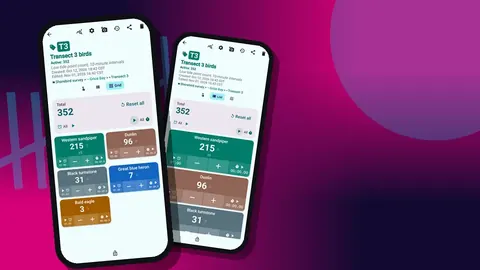
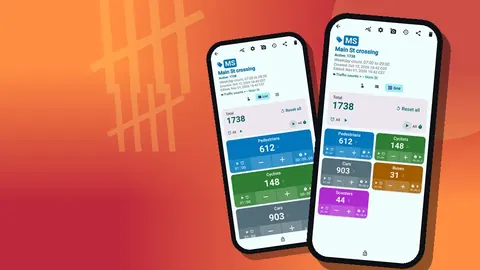
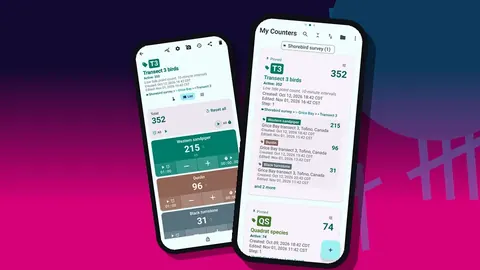
Open the counter for the transect or station and choose a tag view. Grid view shows colored tiles with values and buttons, ideal for a short list. List view fits longer lists, and tags can be collapsed, or collapsed except the most recent, to save space.
Tap plus for each individual or block. Use minus for corrections; they are logged with time, so the record stays honest. When you finish, lock the counter so a stray tap on the walk back cannot change it.
Counting a single abundant species
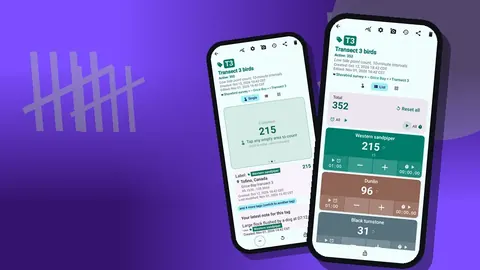
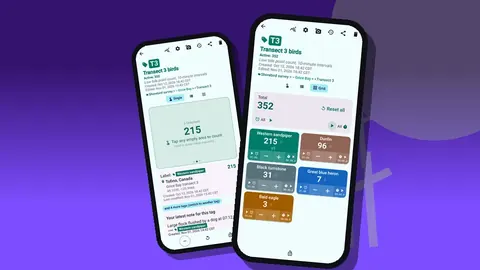
For a big flock or a dense colony, Single view gives one tag the whole screen: a large circular counter with target progress, the tag card with location and latest note, and minus, reset and lock buttons. Combined with volume-key counting, it lets you count a flock in blocks without looking away from the telescope.
Recording locations
Each tag can store GPS, a point picked on a map, or typed text. For fixed stations, typed codes that match your site map are clearest. For opportunistic records of scarce species, a GPS fix on the "other" tag with a note is useful for the coordinator. Map tiles need internet; GPS and typed text do not.
Photos for difficult records
A tag holds up to six photos. A distant record shot of an unusual bird or a close-up of a moth can support a record for verification. The photo editor offers brush, text in four fonts with styling, six colors and rotation, so you can circle the bird and write the station code on the image. The all-photos gallery shows every photo with its tag label and date.
After each count
Before moving on, take thirty seconds to check:
- Open history and look at the last count's events: time, step, before and after values, tag label and icons for notes, photos or location.
- Add a note for anything unusual: disturbance, weather change, dog off lead.
- Lock the counter.
History has no search, so this short check at each station is easier than a long audit later.
How do you avoid double counting animals?
Double counting is the classic wildlife survey error. The app helps only if you use it deliberately:
- Note movements. When a flock flies from your section into the next, add a note on the event so the next section's count can be adjusted.
- Count once, at a fixed moment. For roosting waterbirds, many observers count at peak tide only.
- Use a screenline. On transects, count individuals as they pass a line perpendicular to your route.
- Agree boundaries. Where teams cover adjacent areas, agree in advance who counts birds on the boundary.
At the end of the day
The dashboard summarises each counter: total and target, increments against decrements, a seven-day activity chart and a pie chart by species tag. A high number of decrements is a hint that something went wrong and deserves a look in history.
Then read the All Notes screen, which lists every note with its tag label and time, and make a backup ZIP with photos, limited to the day's category if you like, with optional photo compression. The survey data is stored on the phone, with no account and no Counter App cloud, so a daily backup copied to another device protects against loss.
Sending data to the coordinator
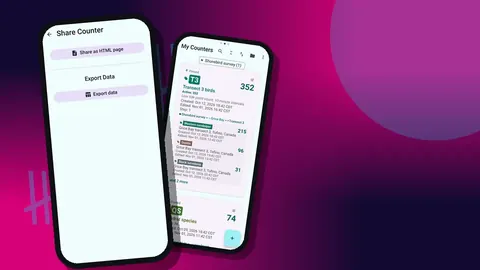
Exports come as CSV, Excel or an HTML report with photos embedded. In the export options, tick the sections the scheme needs:
- Summary for totals per species per counter;
- Events for timed records;
- Notes for context and unlisted species;
- Locations for stations and GPS records.
Many coordinators want a spreadsheet; the HTML report is a friendlier summary for landowners or a newsletter.
Volunteers and teams
Volunteer surveys need consistency more than anything else. Set the template up once on a single phone, then pass it to the rest of the survey team as a backup ZIP. Each volunteer imports it, and the preview shows what is inside and offers replace, copy or skip for duplicates. There is no live sync between phones, so assign each volunteer their own sites, and collect exports or backups after each visit.
The app's 37 interface languages help mixed-language teams, and the in-app user guide answers most setup questions.
Repeat visits through a season
Repeat surveys only compare well if every visit is set up the same way. Create a fresh category for each visit and rebuild counters with the same names, tags, colors and steps, or import a clean template backup as a copy. Keep the previous visit's category in place so you can glance at last month's totals for a station before you start, which helps you notice when something really has changed rather than when you have simply counted differently.
A hypothetical survey
Picture a volunteer counting shorebirds along a coastal transect at low tide. The counter "Transect 3 birds" carries five tags: western sandpiper, dunlin, black turnstone, great blue heron and bald eagle. Sandpipers come in large flocks, so their tag uses a step of 10. Volume up counts sandpiper blocks, volume down corrects, and the remaining species are tapped on screen. A note records a flock flushing into Transect 4. At home the volunteer checks history, exports Summary and Locations to CSV, and sends it to the coordinator. The scenario and numbers are made up to illustrate the workflow.
Get the app at counterapp.online.
Frequently asked questions
Can birds be counted quietly enough not to disturb them?
Yes. Choose vibration-only feedback from eight vibration styles, mute count sounds, and count with the volume keys if you enable that in settings.
Can a bird point count be timed in the app?
Yes. Each tag has a timer with presets of 30 seconds and 1, 2, 3, 5 and 10 minutes, or a typed duration, with countdown beeps or a vibration alarm.
Can each wildlife survey station be saved with its location?
Yes. A tag can hold GPS, a point picked on a map, or typed text such as a station code. Exports can include a Locations section.
Does the survey counter identify species?
No. Counter App counts what the observer identifies, and species identification stays with the observer.
Can survey volunteers share one species template?
Yes. Share the template as a backup ZIP, and each volunteer imports it after a preview that handles duplicates. There is no live sync.
How can a large flock of waders be counted quickly?
Set the species tag's step to 10, 20 or 50 and tap once per block, ideally in Single view with volume-key counting so the eyes stay on the telescope.
How should unlisted species be recorded during a survey?
Add an "other" tag and attach a note naming the species to the count event, which keeps the main list short without losing records.